Computer Slow Startup Windows 11
Diagnose slow Windows 11 startup by the stage where it pauses. A delay before sign-in usually points to firmware, drive detection, or hardware; a delay at the spinning dots often points to drivers or services; a delay after the desktop appears usually points to startup items, Explorer, or a background process. Matching the symptom to the stage is the fastest way to avoid chasing the wrong fix.
Four distinct boot slowdown stages
Four slowdown stages to separate first
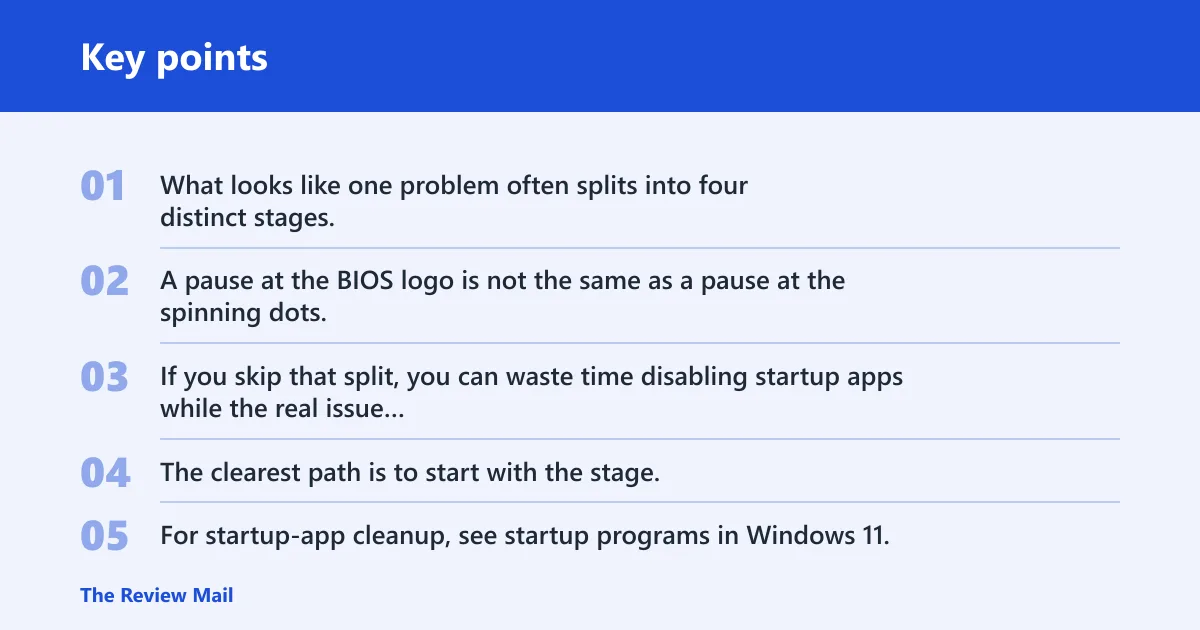
What looks like one problem often splits into four distinct stages. A pause at the BIOS logo is not the same as a pause at the spinning dots, and both are different from a desktop that appears but stays sluggish. If you skip that split, you can waste time disabling startup apps while the real issue is a storage delay or a driver stall.
The clearest path is to start with the stage, then use the first Windows tool that can confirm or rule out that branch. For startup-app cleanup, see startup programs in Windows 11. For storage suspicion, see check SSD/HDD health. For event traces, see use Event Viewer.
| Symptom timing | Likely cause | First Windows tool | Signal that confirms the cause | Next action |
|---|---|---|---|---|
| BIOS logo stays on screen for a long time before Windows starts | Firmware wait, boot order delay, peripheral detection, or drive detection | BIOS/UEFI setup, then Event Viewer after Windows loads | Slow POST, long device detection, or disk/Ntfs/storahci entries in System logs | Check boot order, disconnect unnecessary USB devices, confirm the system drive is detected quickly, then review drive health |
| Spinning dots take a long time before the login screen | Driver loading, service startup, storage queueing, or update rollback | Event Viewer and boot logging | System log entries for disk, Ntfs, storahci, or service failures around boot time; boot log shows drivers that stop loading cleanly | Use Safe Mode or a clean boot, then update or roll back the suspect driver or service |
| Login screen appears, then sign-in feels slow | Startup apps, sign-in tasks, services, or user-profile load delay | Task Manager | High-impact entries in the Startup tab or a long delay that begins immediately after sign-in | Disable unnecessary startup items, then test again with only the needed items enabled |
| Desktop appears, then the PC stays sluggish for a minute or more | Startup programs, Explorer extensions, services, or a disk that stays busy | Task Manager and Event Viewer | Disk activity stays near 100%, or Event Viewer shows service, disk, Ntfs, or storahci warnings after login | Reduce startup load, then check service behavior and storage health |
Is the delay happening before sign-in?
If the pause happens before you reach the login screen, focus on firmware, storage, and driver loading before startup apps. Sign-in items have not loaded yet, so Task Manager’s Startup tab is usually not the first answer for this stage. The best first checks are boot order, peripheral detection, Event Viewer, and drive health.
Check BIOS logo and spinning dots
A long pause at the BIOS logo usually happens before Windows has much control, so it is less likely to be a normal startup app problem. If the spinner appears but the login screen takes a long time, look harder at driver loading and the system drive. A mechanical drive can create long boot delays, especially if the firmware spends extra time waiting for a device to respond.
For BIOS-logo delays, the clean diagnostic path is firmware first, then hardware, then Windows logs. Check whether the boot order is correct, whether removable devices are slowing detection, whether the system drive is detected promptly, and whether the drive shows signs of failure or long response times. If the machine uses an HDD instead of an SSD, that can magnify the pause during early boot.
Use Event Viewer for disk, Ntfs, and storahci errors
Open Event Viewer, then go to Windows Logs > System. Look for disk, Ntfs, and storahci events around boot time. Repeated storage or controller errors make a drive problem more likely than a harmless startup delay, especially if the machine also pauses before the login screen or after a restart. Microsoft’s Event Viewer documentation supports using System logs to track these issues.
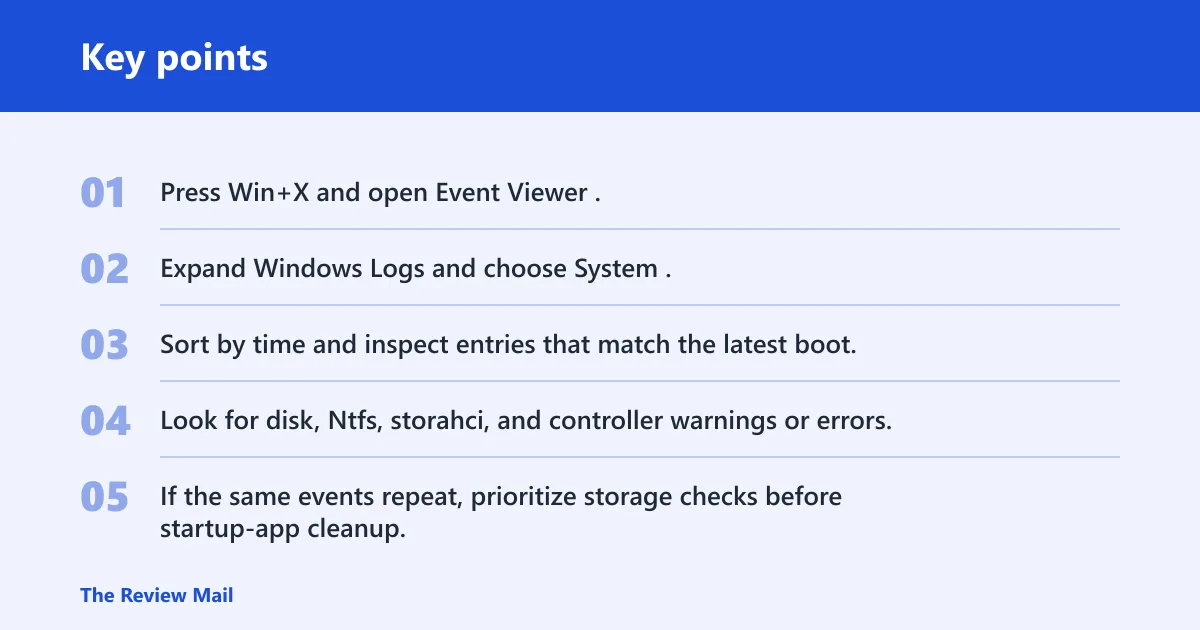
- Press Win+X and open Event Viewer.
- Expand Windows Logs and choose System.
- Sort by time and inspect entries that match the latest boot.
- Look for disk, Ntfs, storahci, and controller warnings or errors.
- If the same events repeat, prioritize storage checks before startup-app cleanup.
Create a boot log with msconfig
Boot logging helps when you suspect a driver stall. Open msconfig, enable boot logging, and let Windows create ntbtlog.txt. Microsoft Learn documentation for boot logging explains that this file records driver load activity during startup, which makes it useful when Windows stalls before the desktop and Event Viewer does not show enough detail.
If the boot log shows core storage and chipset drivers loading but later drivers do not appear, that pattern points away from login items and toward a driver path. In that case, updating or rolling back the suspect driver makes more sense than disabling unrelated startup items at random.
Why does it slow after desktop load?
A delay after the desktop appears usually points to items that launch at sign-in: startup apps, services, scheduled tasks, or shell extensions. This is the stage where Task Manager matters most. If Task Manager shows disk saturation or a long list of enabled startup entries, that evidence is more useful than guessing.
Audit startup apps in Task Manager
Task Manager’s Startup tab shows Windows 11 startup programs, meaning items that launch automatically at sign-in. You can disable unnecessary entries there, but do not stop at that tab alone. Review services and scheduled tasks too, because many launch delays hide outside the obvious startup list. Microsoft Support documents the Startup tab as the place to manage these programs.
For a slow desktop load, the first question is whether the slowdown begins because of sign-in items or because the machine is still busy finishing boot work. If the desktop is visible but the system stays sluggish, startup programs are still important, but background services and storage pressure may be doing more damage than the visible app list.
- Open Task Manager.
- Go to Startup and sort by impact or status.
- Disable items you do not need at sign-in.
- Check Services and Task Scheduler for launch-heavy entries.
- Reboot and compare the timing after one change at a time.
Look for disk saturation in Task Manager
The Performance tab can tell you whether the system drive is the bottleneck. A disk sitting near 100% during boot supports a storage or storage-queue problem, especially on older HDD-based systems. The same symptom can also appear when background services trigger too much disk activity at once.
If the login screen appears quickly but the desktop takes a long time to become usable, check whether disk activity stays high after sign-in. That pattern often shifts the investigation toward services, update work, or a stressed drive rather than toward the login screen itself. If you need a starting point for cleanup, see free up disk space.
What the system drive is telling you
The system drive matters because boot time depends on read speed, health, and free space. An HDD can make Windows 11 feel slow from the first logo to the desktop, while an SSD usually shortens that path. Low free space and storage errors can also push the drive into slower behavior even when the hardware is otherwise fine.
HDD versus SSD boot behavior
If Windows is installed on a mechanical drive, long startup times are much more plausible. A slow hard drive or non-SSD OS drive can delay every stage from firmware handoff to desktop readiness because Windows has to wait longer for system files, drivers, and services to load.
That does not mean every HDD is the cause. A slow boot on an SSD can still come from services, drivers, or update loops. The point is to match the symptom stage with the storage evidence instead of treating all slow startup cases the same. For deeper storage checks, see check SSD/HDD health.
Free space and storage health
Check available space on the system drive and clean temporary files if storage is tight. Low space can slow update staging, service work, and cache handling during startup. If Windows Update has left behind a large cache, that can add overhead before the desktop becomes usable.
Keep the cleanup narrow. If free space is fine and Event Viewer shows disk errors, the issue is not just clutter. That is when storage health checks and drive replacement rise above file cleanup.
When the drive is the bottleneck
The drive is the likely bottleneck when boot delays appear before sign-in, Task Manager shows heavy disk activity, and Event Viewer logs storage-related warnings. A boot log that loads cleanly but still takes a long time also fits this pattern if the machine uses an HDD or a struggling SSD.
Fast Startup and update checks
Fast Startup can help, but it can also create odd boot behavior on some systems. Turn it off during slow-boot troubleshooting, not because it is always bad, but because it can hide where the delay starts. Also check whether Windows 11 is on a current build, since outdated builds can keep a known boot issue alive.
Turn off Fast startup
Fast Startup is a Windows power feature that should be treated as a test, not a permanent assumption. Microsoft Support documents the Fast Startup setting in Windows power options. If startup behavior changes after disabling it, the feature may have been part of the delay or of the odd boot pattern.
- Open Power Options.
- Choose the power button settings.
- Turn off Fast Startup.
- Restart and check whether the boot path is cleaner.
Check the Windows Update build
Keeping Windows current matters because outdated builds can carry boot bugs forward. Microsoft Support documents Windows Update as the supported path for getting fixes and quality updates. If updates keep failing or reapplying, the boot delay may be tied to that loop instead of to startup apps.
If the machine has not had a successful quality update in a while, fix that before chasing minor tweaks. A stalled update chain can cause repeated boot work that looks like a random slowdown. If updates seem involved, also review the update history and whether a recent driver or cumulative update lines up with the slowdown.
Update graphics drivers
Graphics drivers can affect startup more than people expect, especially when the delay appears around the transition to the login screen or desktop. If storage checks do not explain the stall, updating or rolling back the graphics driver is a sensible branch to test. Driver issues can also show up after a Windows Update install.
Cleanup and security checks
Cleanup and security work are useful when the cause is still unclear, but they should not replace the evidence path above. Temporary files, malware scans, and a quick review of background load can remove noise. If the delay remains after that, the more likely causes are storage, drivers, services, or updates.
Delete temporary files
Temporary files can add clutter to the boot drive and slow cleanup tasks that run during or after sign-in. Delete them if the system drive is short on space or if updates have left behind a large cache. This is a low-risk first-pass step, but it should not be the only one.
When low free space is part of the picture, clearing temporary files can help the next boot happen with less background churn. If space is not tight, move to services, logs, and update status instead of repeating cleanup work that is unlikely to change boot timing.
Run a malware or virus scan
Run a malware or virus scan when startup slowdown is unexplained or new. Security software can reveal background activity that Task Manager alone does not make obvious. If the scan is clean and the boot delay still points to disk activity, move back to Event Viewer, Task Manager, and boot logging.
Use the scan as a rule-out step, not as a replacement for stage-based diagnosis. A clean scan does not clear a disk fault, and a dirty scan does not explain every boot delay. If you need a companion page, see run malware scan.
Services vs drive
Use this branch when the system slows before or just after the desktop and you need to separate a service problem from a storage problem. The cleanest path is Task Manager, then Event Viewer, then Safe Mode or a clean boot, then boot logging. That order keeps you from disabling services blindly when the drive is the real bottleneck.
Check Task Manager disk percentage first
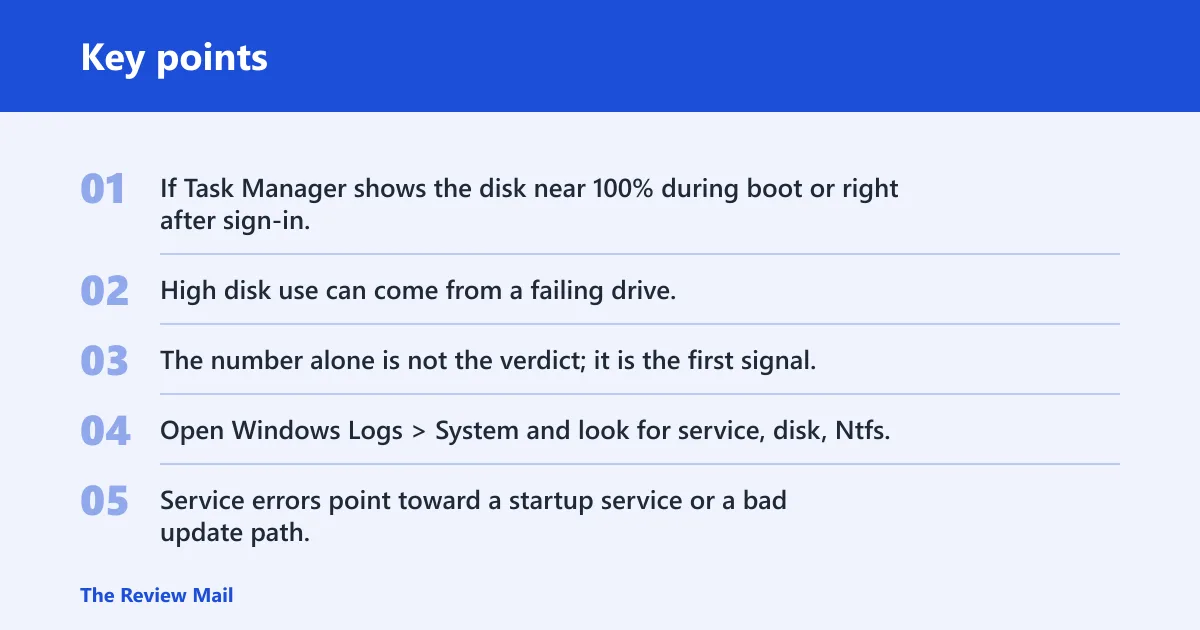
If Task Manager shows the disk near 100% during boot or right after sign-in, treat storage pressure as a leading suspect. High disk use can come from a failing drive, but it can also come from a service storm that floods the disk with read and write activity. The number alone is not the verdict; it is the first signal.
Use Event Viewer to separate service errors from storage errors
Open Windows Logs > System and look for service, disk, Ntfs, and storahci entries that match the boot time. Service errors point toward a startup service or a bad update path. Disk and controller errors point toward the drive or its connection. Microsoft’s Event Viewer guidance is the right tool for this branch because it ties the timing of the failure to a system log event.
Test Safe Mode or a clean boot
If the machine is faster in Safe Mode or during a clean boot, the delay is more likely tied to drivers or services than to the drive itself. If the machine is still slow even with a stripped-down startup path, storage rises higher on the list. This is the cleanest way to separate software load from hardware delay without changing multiple variables at once.
Read the boot log for driver patterns
Boot logging can show whether startup stalls after a specific driver or device family loads. Microsoft Learn documentation for ntbtlog.txt explains that the boot log records driver load activity, which makes it useful for spotting a pattern that Event Viewer alone does not explain. If the log stops or slows around storage, chipset, or graphics-related drivers, the next step is driver troubleshooting rather than general cleanup.
For service-heavy systems, a boot log that looks normal but a desktop that remains sluggish suggests the service or startup layer more than the firmware layer. For drive-heavy systems, repeated storage warnings plus a slow early boot point to hardware or connection issues first.
Frequently asked questions
Why is my computer so slow on startup Windows 11?
The usual answer depends on timing. Before sign-in points to storage, firmware, or driver loading. After desktop load points to startup apps, services, or scheduled tasks. Check Task Manager first when the desktop is already visible, then use Event Viewer and boot logging if the delay starts earlier than the desktop.
What causes slow startup on PC?
Common causes include too many startup programs, a slow HDD system drive, outdated graphics drivers, a stale Windows build, Fast Startup behavior, and background services that launch at sign-in. The cause becomes clearer once you match it to the exact stage where boot slows down.
Should I disable startup programs in Windows 11?
Yes, but only the unnecessary ones. Disable obvious nonessential entries in Task Manager’s Startup tab, then check Services and Task Scheduler as well. If the boot delay happens before sign-in, startup programs are less likely to be the main cause than storage or drivers.
Is a hard drive the reason Windows 11 boots slowly?
It can be. A mechanical drive is a common boot bottleneck, especially when Windows is installed on it and free space is low. But a slow boot can also come from drivers, services, disk errors, or update loops, so check the stage and the logs before replacing hardware.
How do I tell whether slow startup is caused by services or the drive?
Use Task Manager and Event Viewer together. If disk activity is near 100%, Event Viewer shows disk or Ntfs errors, and the delay starts before sign-in, the drive is a stronger suspect. If the desktop loads first and the slow part happens after login, services or scheduled tasks move higher.
Sources
- Microsoft Support: Task Manager startup apps in Windows 11
- Microsoft Support: Fast Startup and Windows power settings
- Microsoft Support: Event Viewer and Windows Logs > System
- Microsoft Support: Windows Update troubleshooting and update delivery
- Microsoft Learn: Boot logging and ntbtlog.txt
- Microsoft Learn: Services troubleshooting and clean boot guidance