Windows Bsod System Service Exception
Fix the most likely cause first: if the blue screen prints a .sys file, start there; if it does not, check recent updates, system files, RAM, and disk health next. A SYSTEM_SERVICE_EXCEPTION crash usually means a driver or system file failed, and if you ignore the pattern, you can end up in a boot loop.
What the stop code and driver name tell you
SYSTEM_SERVICE_EXCEPTION is the blue screen you see on Windows 10 and Windows 11 when a system service hits a bad driver, a corrupted file, or another kernel-level fault. The usual bug check code is 0x0000003B, which is the number to match in dump analysis and not a separate problem by itself. A named driver on the screen is often the fastest clue. (Microsoft Learn)
Think of 0x0000003B as the label and the .sys name as the direction arrow. The WinDbg debugger from the Windows SDK can show more than one association for a bug check code, so the text on the blue screen and the dump file matter together. If the same driver appears across multiple crashes, treat that as a repeat pattern, not a coincidence.
Likely causes, from most likely to less likely
Faulty, incompatible, or recently changed drivers are often a common cause of this stop code. Corrupted Windows files and a damaged component store come next. Storage faults, graphics faults, memory errors, and software conflicts can also trigger the same crash, especially if the system fails during startup or right after a new install (per Microsoft support).
Driver conflict or bad update
If the crash started after a driver change, that is the first path to test. A recent audio package, display driver, storage filter, or capture utility can break the service-to-driver handoff that the stop code points to.
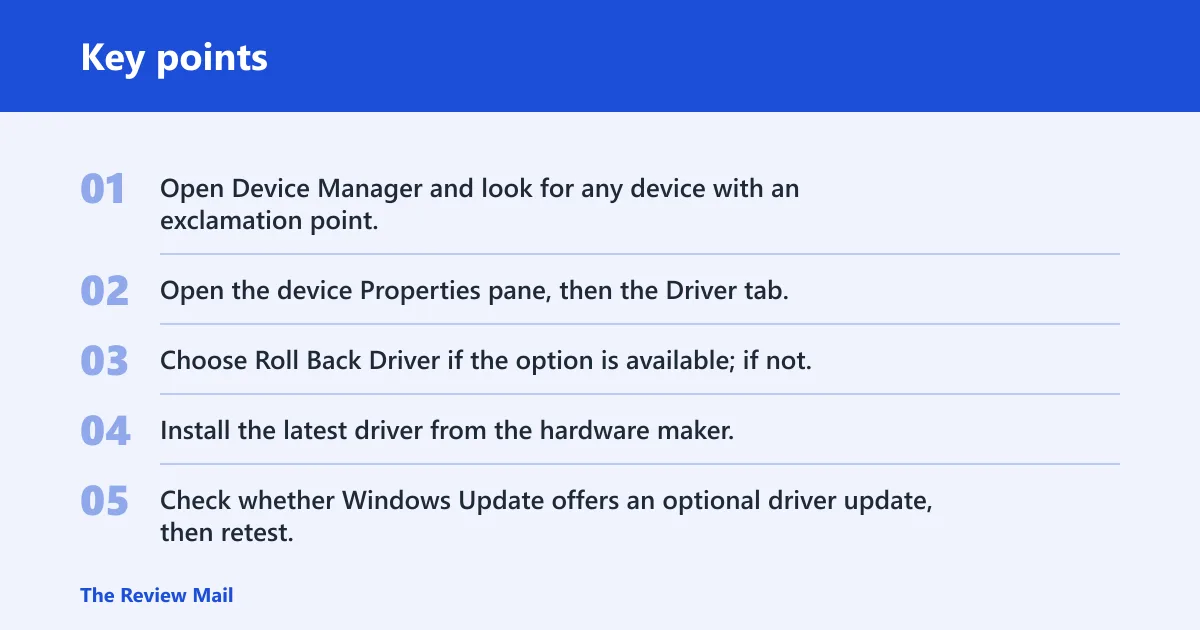
- Open Device Manager and look for any device with an exclamation point.
- Open the device Properties pane, then the Driver tab.
- Choose Roll Back Driver if the option is available; if not, use Uninstall device and restart.
- Install the latest driver from the hardware maker, not a generic package if a vendor package exists.
- Check whether Windows Update offers an optional driver update, then retest.
Corrupted system files or component store
If the machine crashes with no obvious driver change, repair Windows files before you keep swapping drivers. DISM repairs the component store, and SFC replaces damaged or missing protected files. (Microsoft Support)
- Open an elevated Command Prompt.
- Run
DISM /online /cleanup-image /restorehealthto repair the Windows image and component store. - When that finishes, run
SFC /scannow. - Restart the PC and test normal use before changing anything else.
- If SFC reports repairs, run it once more after the restart.
DISM /Online /Cleanup-Image /RestoreHealth
sfc /scannow
Storage, GPU, memory, or software conflict
Some crashes come from the hardware path rather than the visible app or driver. If the blue screen appears during disk activity, video playback, game launch, or after a new app install, widen the check to disk, graphics, and memory before you reinstall every driver on the PC.
- Run Windows Memory Diagnostic from the Start menu, or schedule mdsched.exe and restart.
- Check disk health with
chkdsk /scan from an elevated Command Prompt if storage symptoms appear. If Windows asks for an offline repair, it may schedule a longer check on restart with switches such as /f or /r. - Uninstall any new software that was added right before the crashes began.
- Install the latest Windows updates from Settings > Windows Update, then restart.
- If the crash started after a large change, try a clean boot with only Microsoft services enabled.
What to check on the blue screen
Read the stop code, note any .sys file, and write down whether the crash happens at startup, during installation, or after normal login. That three-part note often decides the next fix faster than any generic repair list. A crash during Windows installation points more toward storage, driver injection, or setup media trouble than an app conflict in normal use (per Microsoft support).
- Confirm the text SYSTEM_SERVICE_EXCEPTION and the numeric code
0x0000003B. - Write down any named file, such as ntfs.sys or dxgkrnl.sys.
- Note whether it happens during boot, install, sign-in, sleep, or a specific app action.
- If the screen flashes too fast, photograph it or pull the minidump later.
Windows crash logs and dumps
Event Viewer, Reliability Monitor, and minidumps show whether the crash is repeating in the same place or bouncing across unrelated components. Use them before you reinstall drivers at random. A clean crash record can save hours, and repeated driver names in several dumps are more useful than a single blue-screen screenshot.
Event Viewer System log
Open Event Viewer and inspect the System log for critical and error entries around the crash time. Microsoft support specifically recommends this step, and it helps you connect the blue screen to disk errors, driver warnings, or service failures that happened just before the reboot.
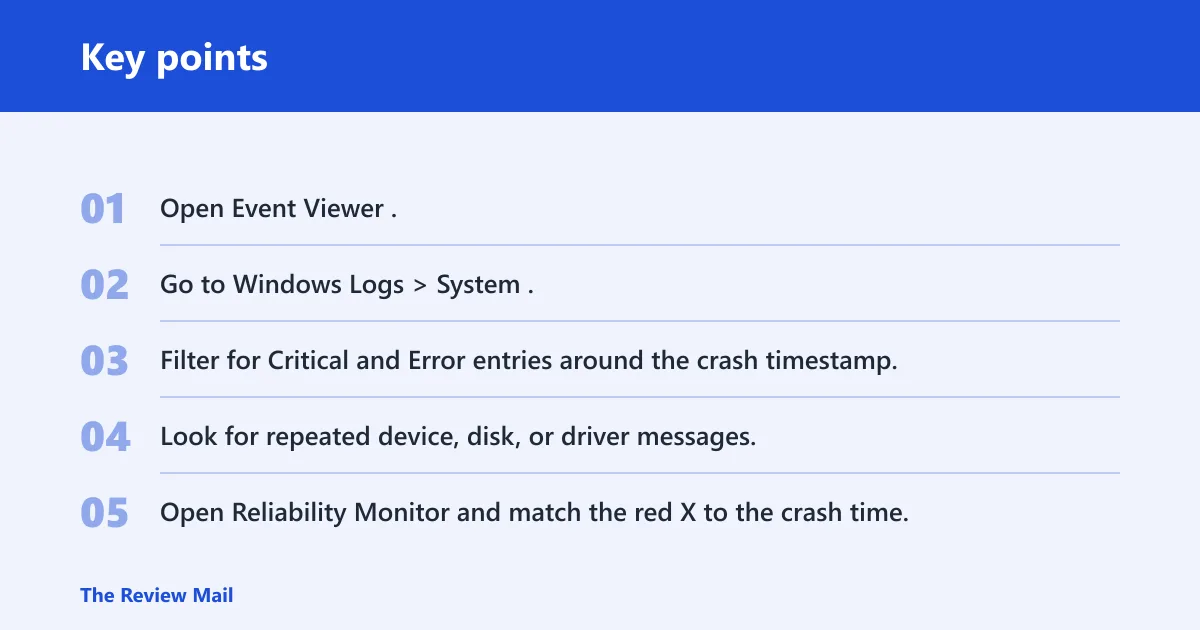
- Open Event Viewer.
- Go to Windows Logs > System.
- Filter for Critical and Error entries around the crash timestamp.
- Look for repeated device, disk, or driver messages.
Reliability Monitor and minidumps
Reliability Monitor gives you a red X timeline that can line up a crash with a Windows update, app install, or driver change. Minidump files are stored in C:\Windows\Minidump, and tools such as BlueScreenView or WinDbg can read the faulting module. If the same driver appears in several dumps, that driver or its subsystem deserves priority.
- Open Reliability Monitor and match the red X to the crash time.
- Open
C:\Windows\Minidumpand sort by date. - Load the .dmp files into BlueScreenView or WinDbg.
- Look for the same driver name appearing in more than one dump.
Why a named.sys file matters
Many BSOD pages stay vague here, but the file name is the shortest path to the right subsystem. A named .sys file can narrow the first test.
| .sys name | Likely subsystem | First test | Escalation step |
|---|---|---|---|
| ntfs.sys | Storage or file system stack | Run CHKDSK, check disk cables or SSD health, and review storage drivers | Test the drive in another port or system; replace the drive if errors repeat |
| ks.sys | Audio/video streaming stack | Remove or update audio, webcam, capture, and virtual device drivers | Disable the related device in Device Manager and retest without third-party filter software |
| win32k.sys | Graphics or desktop window subsystem | Update or roll back the display driver; remove overlay or input utilities | Test with Microsoft Basic Display Adapter in Safe Mode or a clean boot |
| dxgkrnl.sys | Display or GPU-related kernel path | Update or roll back the GPU driver and check thermals or power delivery | Stress the system with a memory and graphics check; replace the GPU or PSU if errors persist |
Why does SYSTEM_SERVICE_EXCEPTION show Ntfs.sys or ks.sys?
ntfs.sys is commonly associated with the storage or file-system stack, while ks.sys is commonly associated with the audio or video streaming stack. That matters because the fix should start in the matching subsystem, not with a blanket reinstall of every driver on the machine.
- If you see ntfs.sys, run
CHKDSKand inspect storage drivers first. - If you see ks.sys, remove or update audio, webcam, and capture drivers first.
- Restart and retest after the subsystem-specific fix before touching unrelated drivers.
Suppose the blue screen names dxgkrnl.sys after a graphics driver update. That points you toward the display stack, not the Ethernet adapter or printer queue. Roll the GPU driver back first, then check whether the crash still appears when the desktop is idle.
How do I fix SYSTEM_SERVICE_EXCEPTION on Windows 11?
Windows 11 uses the same core path: confirm the stop code, repair Windows files, inspect logs, and then work the driver that the blue screen or dump names. If the issue started after a Windows 11 update or a new device package, roll that change back before you move to hardware checks.
- Run Settings > Windows Update > Check for updates and install pending updates.
- Open Device Manager, locate any flagged device, and roll back or uninstall its driver.
- Run
DISM /online /cleanup-image /restorehealth, thenSFC /scannow. - Check Event Viewer and Reliability Monitor for the same crash time.
- If the crash repeats, boot to Safe Mode and retest there.
Should you use Safe Mode or driver verifier?
Safe Mode helps when normal boot loads the bad driver or software before you can investigate. Driver Verifier is the sharper tool, but it is for a controlled test after you have a suspect driver and a stable recovery path. If the system starts crashing even in Safe Mode, the pattern leans harder toward storage, memory, or another lower-level fault.
- Use Safe Mode when the desktop will not stay up long enough to gather logs.
- Use Driver Verifier only after minidumps point to one driver or a small set of drivers.
- If Verifier causes a boot loop, open an elevated Command Prompt in Safe Mode and run verifier /reset to disable it.
- If the system becomes too unstable to recover, return to Safe Mode and remove the suspect driver.
- If Safe Mode still crashes, move to memory and storage checks instead of chasing app settings.
Settings > Recovery > Advanced startup > Restart now > Troubleshoot > Advanced options > Startup Settings
Device Manager > (device) > Properties > Driver tab > Roll Back Driver / Uninstall device
Windows Memory Diagnostic (mdsched.exe) or memtest86
sfc /scannow
DISM /Online /Cleanup-Image /RestoreHealth
Still not working?
If the same driver keeps appearing across multiple minidumps, stop rotating through random repairs and treat that module as the lead suspect. If the crash survives Safe Mode, SFC, DISM, and a clean driver rollback, the next step is a deeper storage, memory, or GPU isolation test. A fresh Windows install can help only after the hardware path looks clean.
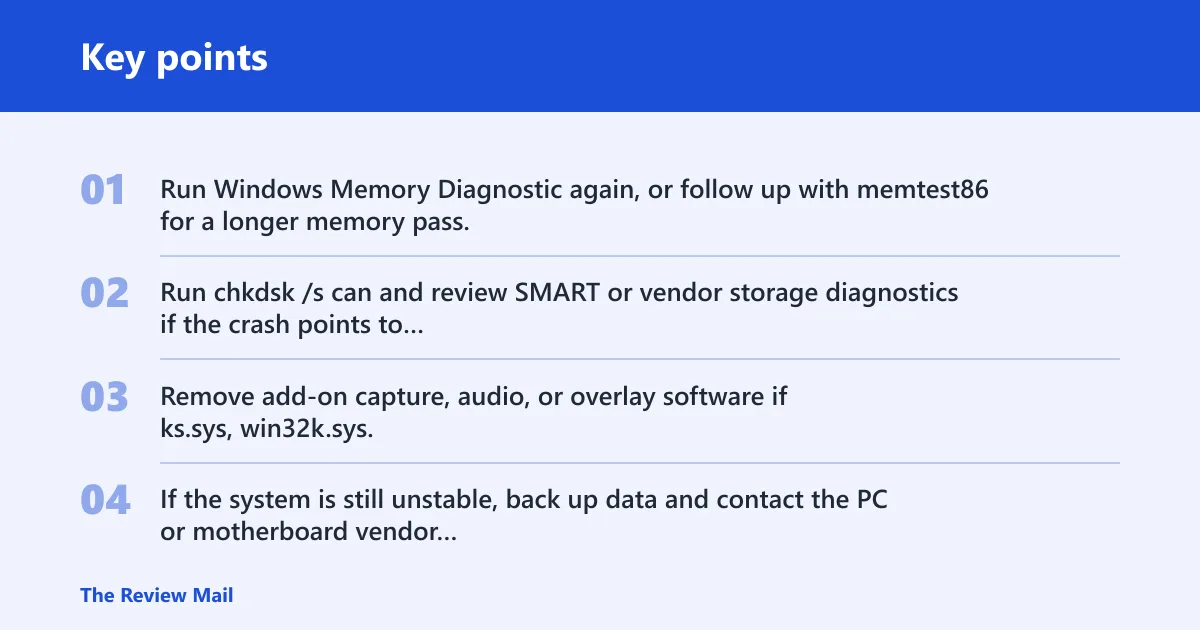
- Run Windows Memory Diagnostic again, or follow up with memtest86 for a longer memory pass.
- Run
chkdsk /scan and review SMART or vendor storage diagnostics if the crash points to ntfs.sys or boot-time failure. If Windows schedules an offline repair, plan for a longer restart check. - Remove add-on capture, audio, or overlay software if ks.sys, win32k.sys, or dxgkrnl.sys keeps repeating.
- If the system is still unstable, back up data and contact the PC or motherboard vendor for diagnostics.
Frequently asked questions
What causes a SYSTEM_SERVICE_EXCEPTION BSOD in Windows 10 or 11?
The most common causes are faulty or incompatible drivers, corrupted system files, and software that interferes with the kernel path. A named .sys file narrows the problem quickly. If no driver is named, look for recent updates, disk errors, or memory problems next.
What does stop code 0x3B mean with SYSTEM_SERVICE_EXCEPTION?
0x0000003B is the numeric bug check code tied to this stop message. It is the code to match in dumps and lookup tools, but it does not point to one single part on its own. Use the named driver, Event Viewer, and minidumps to identify the subsystem.
Can DISM and SFC fix SYSTEM_SERVICE_EXCEPTION?
Yes, if the crash is being driven by corrupted Windows files or a damaged component store. Run DISM /Online /Cleanup-Image /RestoreHealth first, then sfc /scannow. If the same driver still appears afterward, move to driver rollback or subsystem checks.
How can I find the driver causing SYSTEM_SERVICE_EXCEPTION?
Check the blue screen for a .sys name, then open C:\Windows\Minidump in BlueScreenView or WinDbg. If the same driver appears in several dumps, focus on that device, its filter software, and its most recent update. Event Viewer and Reliability Monitor help match the crash time.
Is SYSTEM_SERVICE_EXCEPTION usually a driver problem?
Most often, yes. Drivers are the first place to look, but the same stop code can also come from damaged system files, bad updates, or hardware faults. That is why the right order is logs first, then the named driver, then DISM, SFC, and hardware tests.
Should I use Safe Mode or driver Verifier for this BSOD?
Use Safe Mode first if the PC crashes too quickly in normal boot. Use Driver Verifier only after you have a strong suspect driver from minidumps or repeated blue-screen names. Verifier is meant to expose a faulty driver, not to replace the basic repair steps.