Windows 11 Takes Forever to Shut Down: Fixes
If Windows 11 takes forever to shut down, the fix depends on where it stalls: sign-out and app closing point to startup apps or a hung process, update finalization points to Windows Update, and a black screen before power-off points to driver, power, or disk delays. Ignoring the stage wastes time and can turn a normal restart into repeated freezes. To identify the shutdown stage, watch where the delay begins and match that point to the right fix.
Why Windows 11 shutdown stalls
A normal Windows 11 shutdown typically moves through four stages: user sign-out, app and service close, update finalization if an update is pending, and power-off. A delay at one stage tells you where to look. A restart delay can differ from a shutdown delay, because restart often adds driver reinitialization and update work.
What a normal shutdown sequence looks like
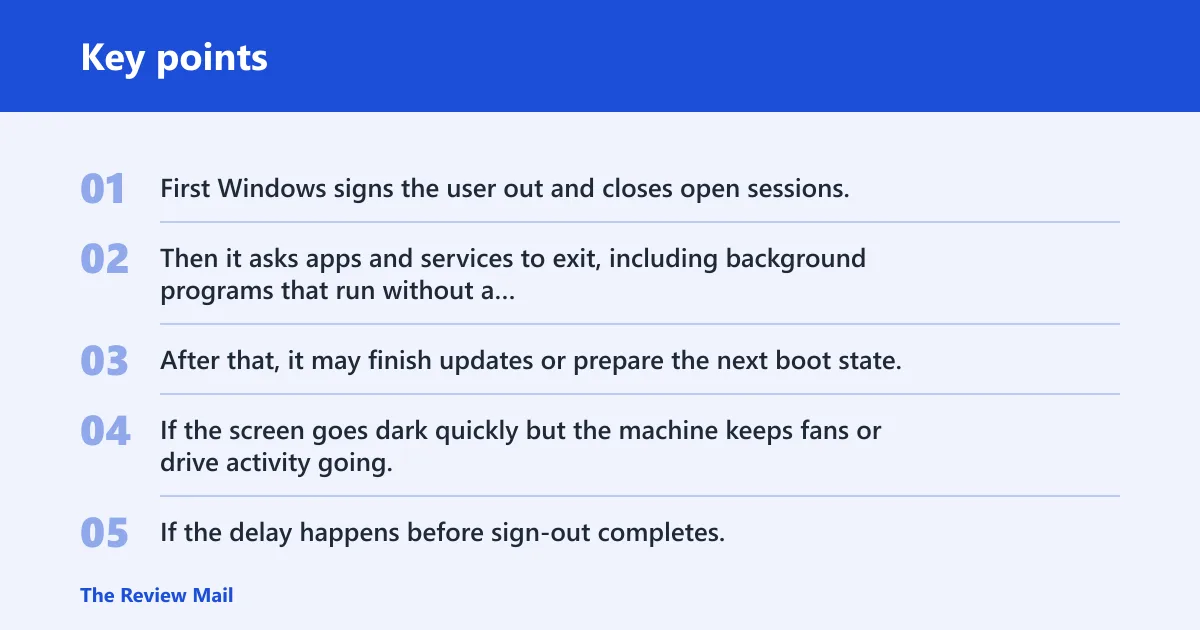
First Windows signs the user out and closes open sessions. Then it asks apps and services to exit, including background programs that run without a visible window. After that, it may finish updates or prepare the next boot state. Only then does it power off.
If the screen goes dark quickly but the machine keeps fans or drive activity going, that often points to the app/service close stage or update finalization. If the delay happens before sign-out completes, the blocker is usually a process that refuses to exit cleanly.
Why restart can be slower than shutdown
Restart does more work than a plain shutdown. It has to close Windows, reset services, and boot back up again. If Windows 11 takes forever to restart but shutdown is normal, the delay often sits in startup drivers, update completion, or hardware reinitialization rather than in sign-out itself.
That difference matters. A slow restart does not always mean the same cause as a slow power-off, and Fast Startup affects shutdown more than restart. Microsoft explains that Fast Startup uses hybrid shutdown behavior, which can change how long shutdown appears to take. (Microsoft Learn)
How to tell whether the delay is normal or a fault
Short waits can be normal, especially after updates or when storage is busy. A problem is more likely when the same stage stalls repeatedly, when the wait is much longer than usual, or when shutdown finishes only after forced power-off. If the pause always lands at the same stage, stop guessing and trace that stage.
Say your laptop signs out fast, then sits on a black screen for several minutes before turning off. That pattern points away from logoff and toward disk, driver, or power management delays. By contrast, if the desktop freezes while closing one app, the issue is probably that app or one of its services.
Shutdown delay decision table
Use this table to match the symptom to the likely cause, then stop troubleshooting when the next safe move is to collect logs. The last column tells you the exact next action so you can move from symptom to fix faster.
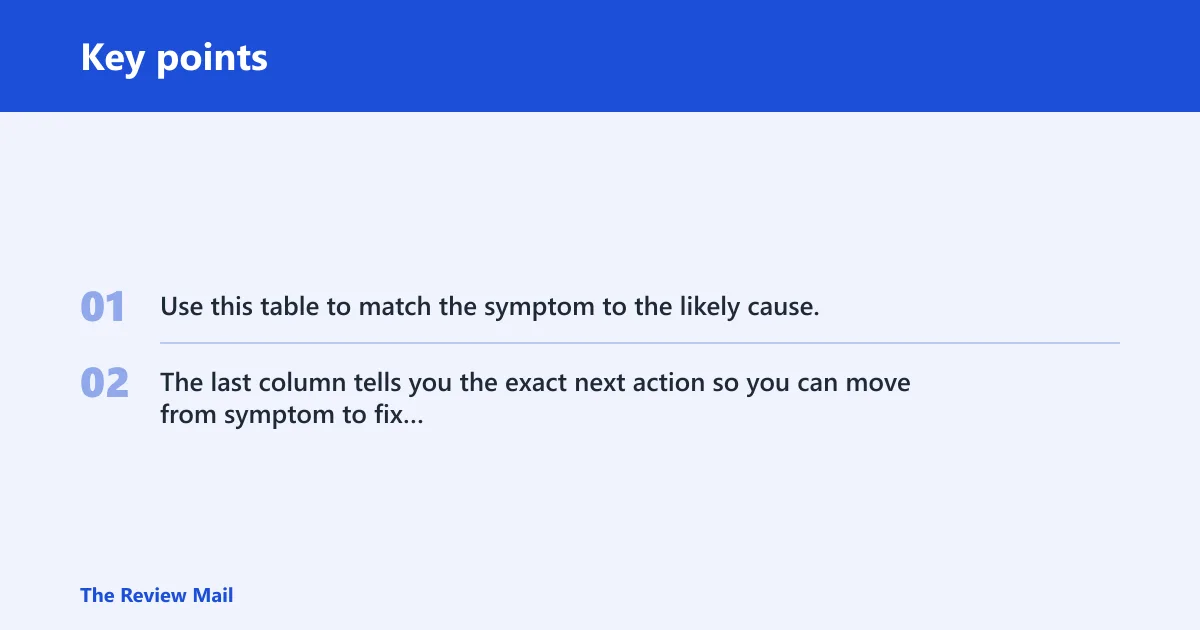
| Stage | Symptom | Likely cause | Confirmation step | Safest fix | Recommendation | When to stop troubleshooting |
|---|---|---|---|---|---|---|
| Sign-out freeze | Windows hangs while signing out or never reaches the dark screen | Hung app, logoff blocker, mapped network resource, or a service that will not close | Try a clean sign-out with no extra apps open; check whether the same account always stalls | Close the blocking app, disconnect network drives, then check Task Manager for stubborn background processes | Open Task Manager and end the process that stays active at logoff, then retry shutdown; if no app stands out, move to logs | If sign-out still stalls after removing obvious blockers, collect Event Viewer logs |
| Spinning dots | Spinning dots continue while Windows says it is shutting down | Background app, update finalization inside an app, or a service stop delay | Look for recently opened apps, cloud sync tools, backup tools, or browsers with many tabs | End the app, disable its background launch, or remove its auto-start entry | Check Task Manager startup and background views, then disable only the app that repeats at the same stall point | If the same app is not obvious, stop and gather logs before changing more settings |
| Black-screen pause | Screen goes dark, but the machine takes a long time to fully power off | Driver delay, disk activity, encryption work, or power-state cleanup | See whether the delay also happens on restart and whether it occurs before the power light goes out | Test with Fast Startup off, then review drivers and storage behavior | Check the Fast Startup location first, then retest shutdown before changing policy or registry values | If the black-screen pause remains after that test, save the logs and stop guessing |
| Update restart loop | Restart or shutdown seems stuck after an update prompt or restart request | Pending updates or restart-after-update behavior | Check Windows Update history for recent installs or restart prompts | Let the update finish, then reboot again before changing Fast Startup or policy settings | Use Windows Update history first, and confirm the update fully finalizes before you troubleshoot anything else | If the delay repeats after updates are fully current, collect Event Viewer logs |
| App/service hang | The machine looks idle, but shutdown never completes after a specific program or service closes | A service stop timeout, background helper process, or app that will not exit cleanly | Compare Task Manager background activity with the exact time the shutdown stalls | Update, disable, or remove the repeating app and its service entry | Look for a matching service or startup item, then stop only that process before retesting | If the same hang returns with the app removed, move to Event Viewer and Reliability Monitor |
Is Fast Startup slowing shutdown?
Fast Startup can stretch shutdown because it uses hybrid shutdown behavior. Instead of a full cold close, Windows keeps part of the system state so the next boot is faster. That can make shutdown timing look odd, especially when the delay is in the final power-off stage rather than at sign-out. Microsoft documents Fast Startup as a hybrid shutdown feature, so it belongs on the troubleshooting shortlist when the pause happens after the desktop is already gone. (Microsoft Learn)
How hybrid shutdown changes timing
With Fast Startup enabled, Windows closes the session but preserves kernel state for the next boot. That can leave storage and driver cleanup work at shutdown time. If the machine seems stuck after the screen goes dark, Fast Startup belongs on the shortlist.
Where to find the Fast Startup setting
Open Control Panel > Hardware and Sound > Power Options > Choose what the power buttons do > Change settings that are currently unavailable. The Fast Startup checkbox appears under the shutdown settings section. If you cannot change it, the device may be managed by policy.
When to disable Fast Startup
Turn it off if shutdown delay appears after sign-out, if restarts behave differently from shutdowns, or if you are troubleshooting a machine that also handles encryption, mounted network drives, or stubborn hardware drivers. Those cases can expose timing problems that hybrid shutdown hides.
Disable it as a test, not as a permanent assumption. If the delay disappears, you have identified the stage. If nothing changes, re-enable it and keep moving to updates, services, or logs.
When to leave it
Leave Fast Startup on if shutdowns are only slightly slow and the delay is predictable after updates or device changes. If the machine is managed by policy, or if the system depends on a vendor driver that behaves better with hybrid shutdown, changing this setting may not be the best first move.
Are updates causing the delay?
Pending updates and restart-after-update behavior are commonly reported reasons Windows 11 can take a long time to shut down or restart. Update work can happen during sign-out, during the black-screen stage, or during the next boot, so the delay may look like a power problem when it is really maintenance work. Microsoft also notes that some update actions are finalized at shutdown or restart, which is why the pause can appear only after a pending update has been staged. (Windows Update history)
Pending updates and finalization waits
Windows may hold shutdown while it finishes staged update files, replaces protected components, or prepares a restart. That is more common after Patch Tuesday installs, feature updates, or driver updates. If the delay starts only after an update prompt, this is a strong clue.
Restart-after-update behavior
Restart after an update can be slower than a plain shutdown because Windows must complete the install and then boot fresh. If the machine restarts slowly once, then returns to normal later, the delay may have been temporary update finalization rather than a fault.
Suppose Windows Update shows a pending restart and the PC stays on a black screen for a long time after you click Restart. In that case, do not chase registry settings first. Confirm the update history, let the install complete, and only then retest shutdown timing.
What to check in Windows Update history
- Open Windows Update and check whether updates are pending or waiting for a restart.
- Review update history for installs that line up with the first slow shutdown.
- If the delay started after a driver update, note that driver name and version before changing anything else.
- Retest shutdown after updates finish, then compare the timing.
Which app or service is blocking shutdown?
Background apps and services are a common cause of shutdown stalls. A hung process can hold the logoff stage, delay service stop, or block the final power-off sequence. Task Manager helps you identify what is still active before you start changing system-wide settings.
Use Task Manager to spot background load
Open Task Manager and look at running apps, background processes, and startup entries. Heavy CPU, disk, or memory use from one process can keep shutdown open longer than normal. The goal is not to close everything blindly. It is to find the process that keeps repeating at the same slow stage. In Task Manager, use the Startup apps page for startup entries and the Processes or Details view for active background work.
Find stuck apps and services
Pay close attention to browsers, sync tools, backup clients, virtual machine tools, and security software. These often keep services alive after the window closes. If one process returns every time shutdown stalls, disable its background launch or update it before changing anything deeper.
Check for logoff blockers and mounted resources
Network drives, remote sessions, encryption tools, and mounted storage can keep sign-out open while Windows waits for a response. A blocked logoff is different from a slow power-off. If the user session never ends cleanly, the issue is usually a resource that has not released.
How to find the blocker in Event Viewer
Event Viewer is the next step when the stage is unclear or when the same stall returns after you have ruled out obvious apps and updates. Use it to compare shutdown timestamps, look for error or warning entries, and see whether the delay maps to a service, driver, or update event.
Which logs to open first?
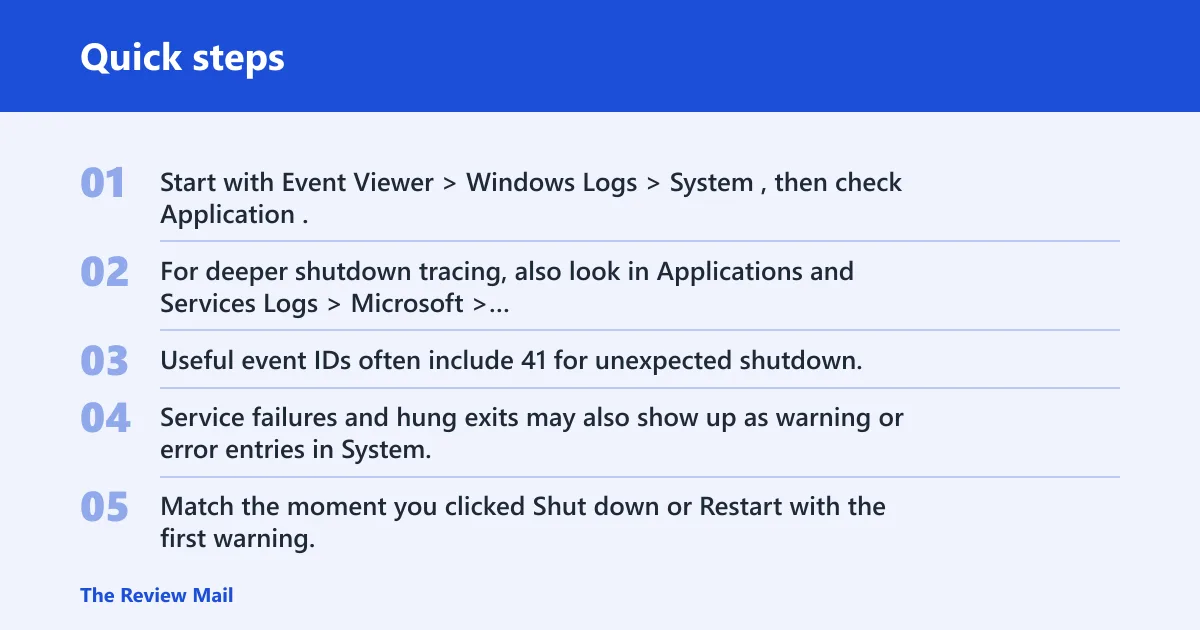
Start with Event Viewer > Windows Logs > System, then check Application. For deeper shutdown tracing, also look in Applications and Services Logs > Microsoft > Windows > Diagnostics-Performance > Operational when available. Useful event IDs often include 41 for unexpected shutdown, 1074 for a planned shutdown or restart initiated by a process or user, 6006 for the event log service stopping cleanly, and 6008 for an unexpected previous shutdown. Service failures and hung exits may also show up as warning or error entries in System.
How to compare timestamps
Match the moment you clicked Shut down or Restart with the first warning, the last successful service stop, and the final power event. If there is a long gap between those timestamps, the gap points to the stage that stalled. That is more useful than guessing from the screen alone.
Use Reliability Monitor as a second check
If Event Viewer is noisy, open Control Panel > Security and Maintenance > Maintenance > View reliability history. Reliability Monitor gives a timeline of app crashes, Windows failures, and hardware issues, which makes it easier to spot whether a new driver, update, or app crash lined up with the first slow shutdown. It is a secondary check, not a replacement for Event Viewer.
When Event Viewer is the next step
If Fast Startup does not change the symptom, updates are current, and no obvious app is blocking logoff, stop changing settings and collect logs. This is especially important on encrypted systems, workstations with mounted network drives, and machines managed by policy. Those cases often need evidence, not more trial and error.
Use a shutdown timer command
This section is separate from fixing slow shutdown. It is only for scheduling an automatic shutdown after a delay, not for diagnosing a slow boot or power-off problem. The command uses seconds, not minutes: shutdown -s -t TimeInSeconds. One example uses 5 minutes, which equals 300 seconds. The method works on Windows 11, and the same approach is described for Windows 10 too.
Shutdown -s -t TimeInSeconds syntax
The -s switch tells Windows to shut down, and -t adds a seconds-based delay. That delay is useful when you want to schedule an automatic shutdown after a chosen delay. Windows also shows a signed-out warning before the timer expires.
Run dialog, command prompt, and PowerShell
The Run prompt is one way to launch the command. Command Prompt is a second way to start timed shutdown. PowerShell is listed as a third way for the same command. All three entry points use the same syntax.
- Press Win + R to open Run, or open Command Prompt, or open PowerShell.
- Type shutdown -s -t TimeInSeconds.
- Replace the time with the number of seconds you want to wait.
- Press Enter.
Minutes to seconds example
If you want a 5-minute delay, use 300 seconds. That conversion matters because the timer accepts seconds only. If you mistype the value, Windows will wait longer or shorter than expected.
Shutdown settings that can stretch wait times
Registry and Group Policy settings can extend shutdown wait times when Windows waits too long for apps or services to stop. Two settings matter most: the wait-to-kill timeout and automatic termination behavior. These settings are common on managed systems, and they can explain why one computer shuts down faster than another on the same network. Microsoft documents these timeout behaviors in policy and registry guidance for shutdown handling. (Microsoft Learn)
Registry wait-to-kill timeout
Wait-to-kill controls how long Windows waits before ending a hung process during shutdown. A higher value can make shutdown seem slow even when the machine is behaving as configured. If this setting was changed manually or by a tool, it can lengthen the pause you see at logoff or app close.
Group Policy shutdown behavior
Group Policy can tell Windows whether to end tasks automatically or wait longer for them to stop. On a managed PC, local changes may not stick. If the delay appears only on a work device, policy-managed shutdown timing may be the real reason.
A common first-timer mistake is changing Fast Startup while the real issue is a policy that keeps waiting on a service. That kind of mismatch wastes time. Check whether the device is managed before changing values that the organization may overwrite.
When managed settings matter
If the same machine is used by multiple people, or if it joins a work domain, assume policy may be involved until proven otherwise. In that case, compare the shutdown timing before and after logon with a different account, then move to Event Viewer if the delay remains.
Frequently asked questions
Why does windows take so long to shut down?
Windows usually slows down at one of four points: sign-out, app and service close, update finalization, or power-off. The fix depends on which stage stalls. If the same stage repeats, that is the best clue. Broad changes rarely help until you match the symptom to the stage.
Why is windows 11 taking forever to restart?
Restart can take longer than shutdown because it adds boot work, driver reloads, and sometimes update completion. If shutdown is fine but restart is slow, focus on updates, startup drivers, and hardware initialization rather than Fast Startup alone. The restart path often exposes different delays.
What causes windows 11 to take forever to shut down?
Common causes include pending updates, a hung app, a slow service stop, Fast Startup behavior, mounted network drives, encryption work, and driver cleanup. The best clue is where the stall appears. A black screen points somewhere different from a sign-out freeze or a spinning-dot pause.
How do I find out what is delaying shutdown on Windows 11?
Start by noting the exact stage where the machine pauses. Then check Task Manager for heavy or stubborn background processes, review Windows Update history, and open Event Viewer for shutdown-time errors and warnings. If the same delay repeats after those checks, save the logs and stop guessing.
Should I disable fast startup if shutdown is slow?
Disable Fast Startup when the delay happens after sign-out, when shutdown behaves differently from restart, or when hybrid shutdown seems tied to the pause. If it makes no difference, turn it back on and keep looking at updates, apps, services, or policy settings. It is a test, not a cure-all.
Can updates or apps make Windows 11 hang at shutdown?
Yes. Updates can hold shutdown while Windows finalizes files or prepares a restart, and apps can block logoff if they refuse to close cleanly. Cloud sync tools, backup tools, browsers, and service-heavy software are common suspects. If one of them appears every time, start there.