Random Freezing Windows 11
Random freezing in Windows 11 usually comes from GPU, RAM, storage, or power-state trouble. Match the freeze timing, because hangs under load, at idle, or on wake point to different causes. Guessing wrong sends you down the wrong fix and can hide an overheating GPU, failing SSD, bad RAM, or power issue. This guide maps each freeze pattern to the most likely subsystem, then gives the next check to run.
Freeze triage table
| Symptom pattern | Most likely subsystem | First 2 tests | Stop / next-step criteria |
|---|---|---|---|
| Total lockup: mouse, keyboard, and audio all stop | GPU, RAM, storage, or power state | Check Event Viewer for display or disk errors; run Windows Memory Diagnostic after a reboot | If it freezes in Safe Mode too, move to storage, RAM, and firmware checks |
| Mouse-only freeze: pointer stalls but sound keeps playing | Display stack or GPU driver | Open Task Manager with Ctrl+Shift+Esc; reinstall the GPU driver with the latest WHQL or vendor package | If Safe Mode is stable, treat the display stack as suspect and try a clean driver reset |
| App-only freeze: one window hangs, desktop still responds | Corrupted app, shell extension, or memory pressure | Check Task Manager for the stuck process; test clean boot with startup apps off | If only one app fails, repair or reinstall that app before deeper system repairs |
| Post-wake freeze: happens after sleep, lid open, or resume | Fast Startup, Modern Standby, or driver resume issue | Disable Fast Startup in Control Panel > Power Options; test with Modern Standby behavior in mind | If the freeze stops after a cold boot, the wake path is the branch to keep testing |
| Gaming freeze: only under load | GPU driver, power, or unstable RAM | Check display driver versions; run a memory test and watch Event Viewer for graphics errors | If it fails only in games, do not start with CHKDSK alone |
| Idle freeze: sits for minutes, then locks | Power state, storage, or background driver issue | Try a clean boot; check SSD health and firmware | If idle freezes appear after wake, move straight to the power-state section |
If this happens, skip that fix
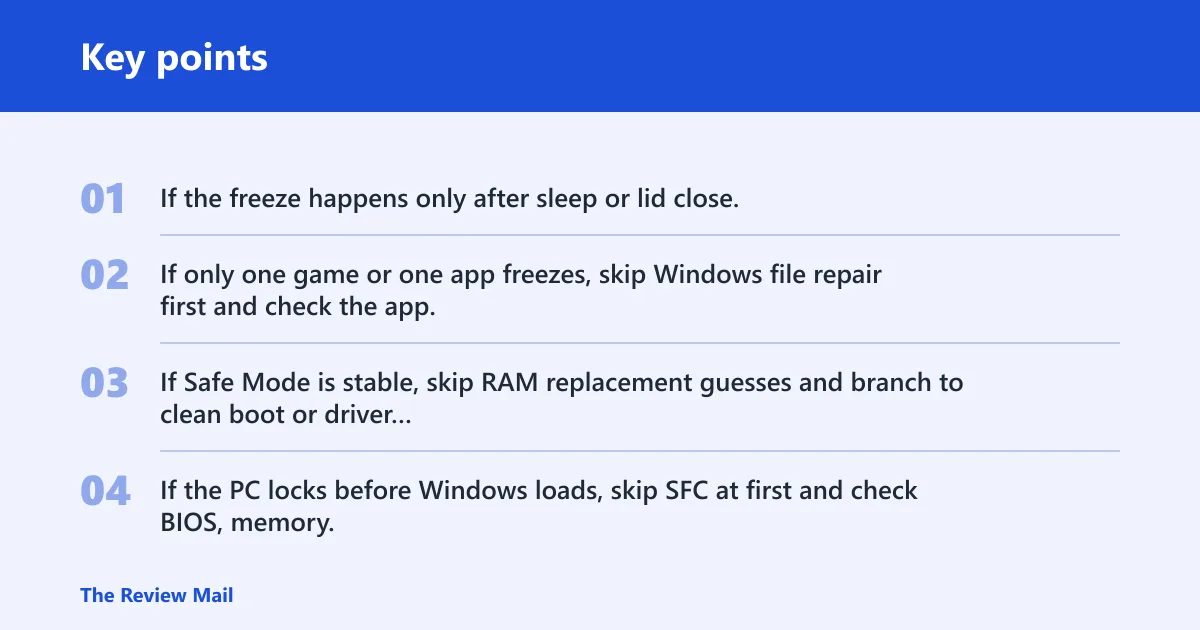
- If the freeze happens only after sleep or lid close, skip full malware cleanup first and test Fast Startup and Modern Standby.
- If only one game or one app freezes, skip Windows file repair first and check the app, GPU driver, and overlays.
- If Safe Mode is stable, skip RAM replacement guesses and branch to clean boot or driver rollback.
- If the PC locks before Windows loads, skip SFC at first and check BIOS, memory, and storage health.
Why does Windows 11 freeze randomly?
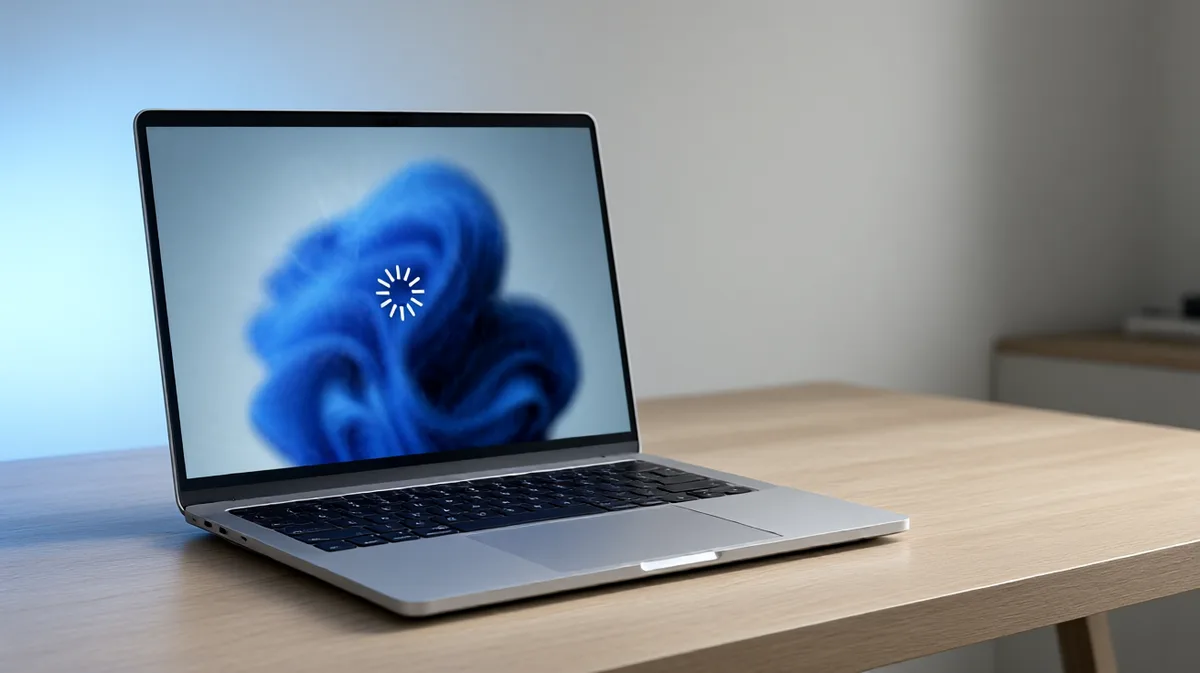
Random freezing is a symptom, not a diagnosis. The main split is clear: a full-system lockup points more often to GPU, RAM, storage, or power-state trouble, while a slow PC still responds and often shows high resource use in Task Manager. That difference decides the next branch.
Freeze versus slow performance
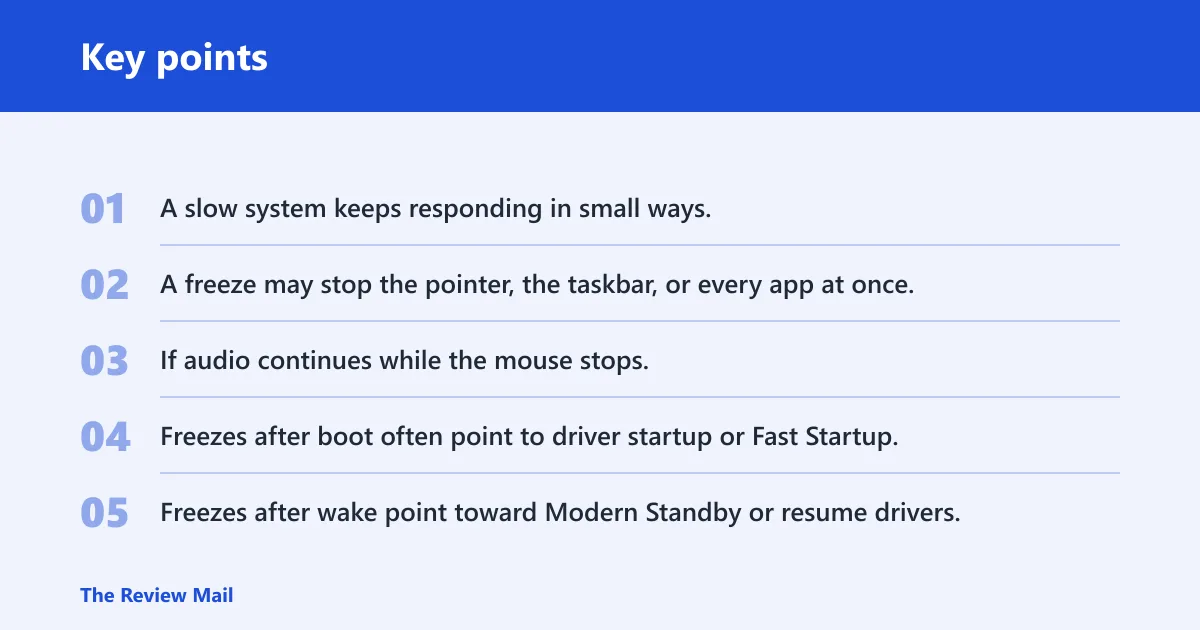
A slow system keeps responding in small ways. A freeze may stop the pointer, the taskbar, or every app at once. If audio continues while the mouse stops, the display stack is a stronger suspect than Windows files. If everything stops at once, look wider.
Timing also matters. Freezes after boot often point to driver startup or Fast Startup. Freezes after wake point toward Modern Standby or resume drivers. Freezes under load point toward the GPU, memory, or power delivery. Idle freezes often point toward background services, storage stalls, or a wake-related bug that appears later.
Many reports from Windows 11 users on 24H2 and 25H2 describe a similar broad pattern: the system seems fine, then it hangs during a specific state change. That is why the freeze pattern is more useful than a generic “update everything” approach.
Why is my mouse freezing but the PC still runs?
When the mouse stops moving but audio keeps playing and apps may still switch in Alt+Tab, the display path is often the place to start. That usually means the GPU driver, the graphics stack, or a display setting is dropping out briefly rather than the whole operating system failing.
Check the display stack first
Open Task Manager with Ctrl+Shift+Esc during a partial freeze. If Task Manager opens and the desktop keeps responding behind the frozen app, the system is not fully locked. That points away from RAM as the first guess and toward the graphics driver or a single app.
Settings can matter too. One competitor recommends setting the display to the recommended resolution to rule out a bad mode. If the freeze started after a driver update, reinstall the GPU driver rather than only relying on Windows Update.
For the display path, a clean reinstall is often better than installing over the old one. That can mean the latest WHQL package from the vendor. If that fails, a deeper reset path is Safe Mode plus DDU removal, then a fresh vendor driver.
When to suspect HAGS
A 2025 freezing guide links many freezes to the GPU stack and HAGS. If freezes cluster during gaming, video playback, or desktop compositing, HAGS becomes a reasonable toggle to test after the driver reinstall. Change one setting at a time so you can see what changed the result.
Suppose your PC only freezes when a game opens in exclusive fullscreen and the pointer still moves for a second before hanging. That pattern fits the display stack much better than a file-system problem, so the first pass should be GPU driver and graphics settings, not CHKDSK.
Could storage or RAM be causing it?
Yes. Storage stalls and faulty memory can both look like random freezing in Windows 11. SSD problems often show up as stalls, delayed app launches, or hangs when the system tries to read or write files. RAM problems often show up as unpredictable locks under load, install failures, or repeated app crashes.
Start with SSD health and firmware
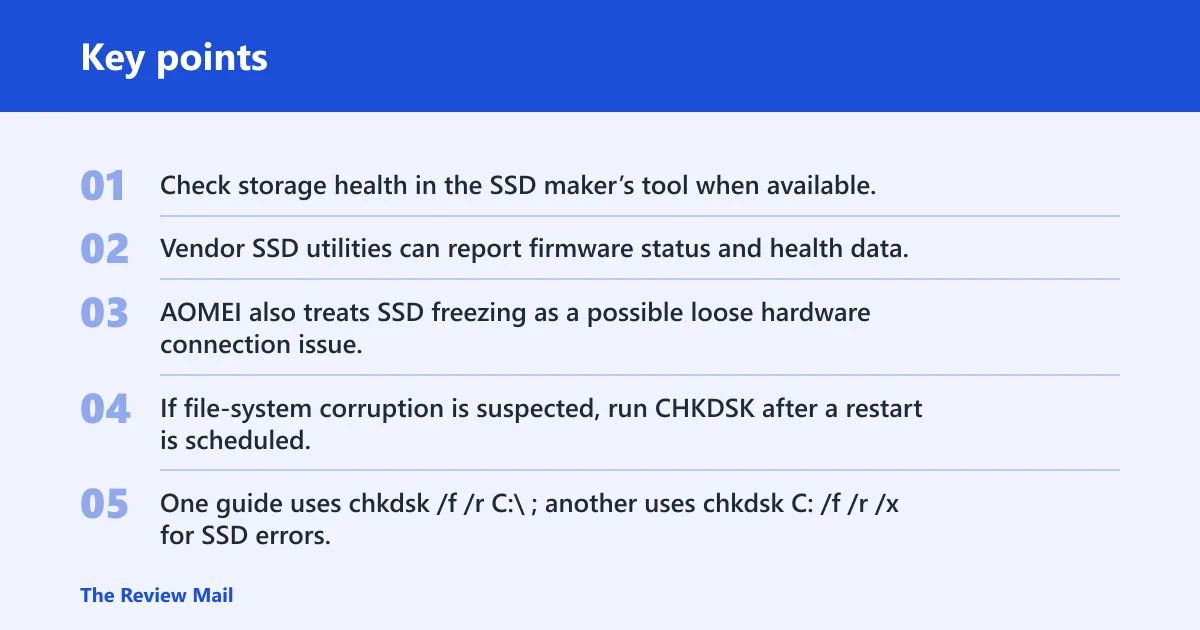
Check storage health in the SSD maker’s tool when available. Vendor SSD utilities can report firmware status and health data. AOMEI also treats SSD freezing as a possible loose hardware connection issue, so make sure the drive is seated correctly and the cable is solid on desktop systems.
If file-system corruption is suspected, run CHKDSK after a restart is scheduled. One guide uses chkdsk /f /r C:\; another uses chkdsk C: /f /r /x for SSD errors. The meaning is the same: scan, fix file-system problems, and check disk sectors during a reboot.
Run SFC and DISM as a pair when Windows components may be damaged. From an elevated Command Prompt, run dism /Online /Cleanup-Image /RestoreHealth and sfc /scannow. DISM repairs the component store; SFC repairs protected system files that depend on it.
Test RAM the right way
Use mdsched.exe to launch Windows Memory Diagnostic, then restart and let the test run. This is the right branch when freezes happen during installs, large file copies, game loads, or random use with no clear disk pattern. It is also the better branch when Task Manager shows memory pressure near the limit.
If the system freezes when many tabs are open, the paging file can matter. A common rule of thumb is a custom paging size around 1.5 times RAM, and some guides allow up to 3 times RAM. Another recommends 1.5–2 times installed RAM. Check Advanced system settings before treating every stall as bad hardware.
Why does it freeze after boot or wake?
Boot and wake freezes often point to power-state handling, not a bad app. Fast Startup can leave drivers half-initialized, so it is a good diagnostic toggle when freezing happens after a restart or cold boot. Modern Standby, also called S0, can contribute to intermittent freezes after sleep or lid open on some Windows 11 laptops and desktops.
Turn off Fast Startup as a test
Open Control Panel > Power Options and disable Fast Startup. Then test a full cold boot. If the freeze disappears only when Fast Startup is off, the issue likely sits in the boot path or a driver that does not resume cleanly.
Do not treat this as a permanent fix until you know why it helped. It is a diagnostic step. If the system still freezes on a true cold boot, the branch moves back toward drivers, memory, or storage.
Watch for Modern Standby and Memory Integrity
On Windows 11, Modern Standby can keep more of the system in a low-power state and then wake it quickly. That is convenient, but it can trigger intermittent freeze behavior if a device driver handles resume badly. If freezes happen right after waking, test with that wake path in mind before chasing unrelated settings.
Memory Integrity in Windows Security can expose incompatible drivers. Toggle it off only as a test, then update the drivers that fail under it. If the freezing stops when Memory Integrity is off, the next step is driver compatibility work, not leaving the setting disabled forever.
Should you use Safe Mode or clean boot?
Yes, but for different reasons. Safe Mode answers a narrow question: does Windows still freeze with the core drivers only? Clean boot answers a different one: do third-party services or startup apps cause the freeze when Microsoft services remain in place?
Use Safe Mode to split hardware from extras
If the PC freezes in Safe Mode, the problem is less likely to be a third-party startup app. That pushes the next step toward GPU drivers, storage, RAM, power state, or firmware. If Safe Mode is stable, the freeze path likely depends on a non-Microsoft service, driver, or startup item.
Use clean boot when Safe Mode is stable
Open msconfig, choose the Services tab, check Hide all Microsoft services, then disable the rest. Do the same for startup apps in Task Manager. If the freeze disappears, re-enable items in small groups until the culprit shows up. (Microsoft Support)
A common first-timer mistake is to disable everything at once and never record what changed. Re-enable in groups so you can identify the bad driver or service. That matters when the system only freezes at idle, where one background tool may be the trigger.
How do I fix random freezing on Windows 11?
Start with the pattern, not the guess. Update Windows first, then test the branch that matches the symptom: GPU for mouse-only or gaming freezes, storage for stalls and file access problems, RAM for unstable or load-related lockups, and power-state settings for boot or wake freezes. Change one setting at a time.
Update the right drivers and firmware
Open Device Manager to confirm the display adapter, storage controller, and other key devices are using the expected drivers. If the freeze points to graphics, reinstall the latest WHQL or vendor GPU driver. If it points to storage, check the SSD vendor’s firmware tool and update storage firmware before assuming Windows files are bad.
Also update chipset and BIOS/UEFI when earlier checks do not explain the freeze. These matter most when the issue spans boot, wake, and device detection. AOMEI also advises updating Windows and installing optional driver and cumulative updates, which can close known compatibility gaps.
Use the built-in tools in the right order
- Check Settings for Windows Update and install pending updates.
- Open Task Manager during a partial freeze and note whether the desktop still responds.
- Review Event Viewer for display, disk, or driver errors around the freeze time.
- Run
CHKDSKif disk corruption or I/O stalls appear likely. - Run DISM and SFC if Windows components seem damaged.
- Test memory with Windows Memory Diagnostic if the system still locks without a clear disk or GPU pattern.
Frequently asked questions
Could SSD or storage issues cause random freezes in Windows 11?
Yes. SSD health problems, loose connections, firmware issues, or file-system errors can stall Windows long enough to look like a freeze. Check the vendor tool first, then run CHKDSK if corruption is suspected. If storage stalls show up in Event Viewer, treat the drive as a primary branch.
Can RAM problems cause Windows 11 to freeze randomly?
Yes. Faulty or unstable memory can cause full-system lockups, app crashes, or freezes under load. Run Windows Memory Diagnostic with mdsched.exe and let it restart the PC for the test. If the system fails during memory-heavy tasks, RAM moves up the list quickly.
Should I use clean boot or Safe Mode to find the cause?
Use Safe Mode first if you want to see whether the freeze still happens with core drivers only. Use clean boot if Safe Mode is stable and you want to isolate third-party services or startup apps. Together, they separate Windows core problems from add-on software issues.
Do I need to update BIOS, chipset, or GPU drivers for freezing?
If the earlier checks do not explain the freeze, yes, those updates are worth testing in a controlled order. Start with the driver that matches the symptom pattern, such as GPU for mouse or gaming freezes. Add chipset or BIOS/UEFI next when the issue involves boot, wake, or device detection.
Can Fast Startup or Modern Standby trigger random freezes?
Yes. Fast Startup can leave drivers half-initialized, and Modern Standby can expose resume problems after sleep or lid open. If freezes happen after boot or wake, disable Fast Startup in Control Panel > Power Options and test the wake path before moving on to deeper repairs.