High Ram Usage When Idle
High RAM use at idle is usually fine if Windows stays under about 50% of installed memory and the top users are browser tabs, Defender, Search, or the standby cache. Suspect a leak when usage keeps climbing or sits near 80%+. A bad read can send you after harmless caching, miss a real leak, or make you buy RAM you do not need. This guide shows how to sort idle RAM into normal, expected, and problem patterns in minutes.
What idle RAM use means
Idle RAM use is the memory Windows keeps busy while no app window is active. That often includes cache and standby data, which Windows keeps ready so common files and app data open faster later. Windows can drop that cached memory when another app needs it.
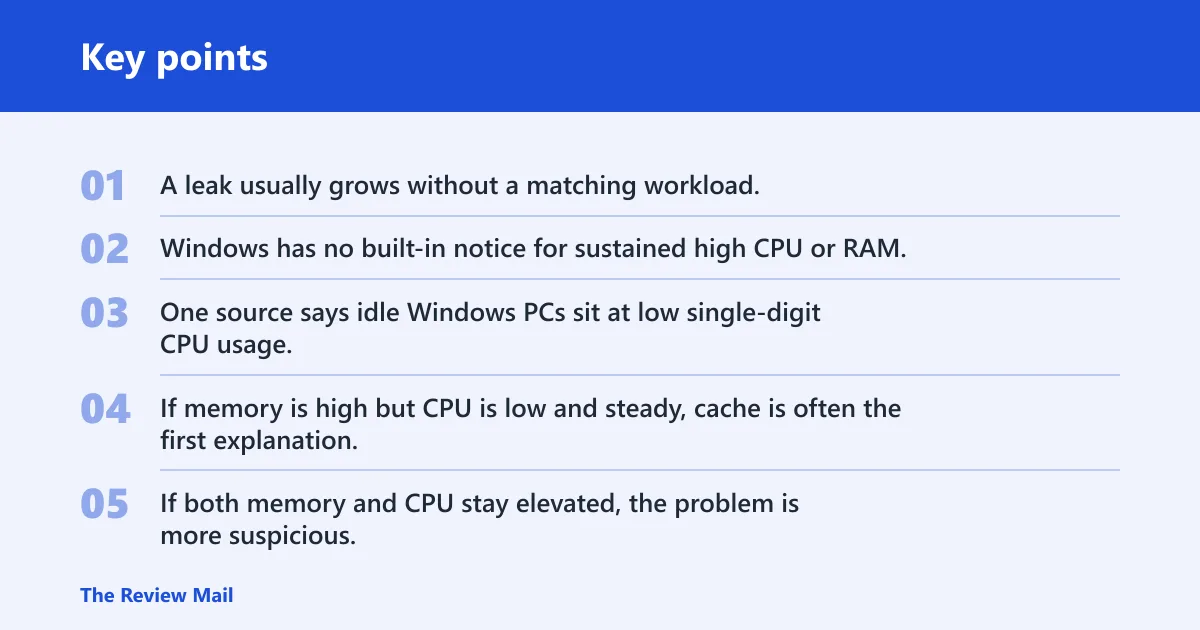
A leak behaves differently. Cache tends to rise and fall with demand. A leak usually grows without a matching workload, then stays high even after you close the app that caused it. Windows has no built-in notice for sustained high CPU or RAM, so you have to check the pattern yourself.
Idle Windows PCs sit at low single-digit CPU usage. If memory is high but CPU is low and steady, cache is often the first explanation. If both memory and CPU stay elevated, the problem is more suspicious.
How standby memory differs from a leak
Standby memory is reclaimed when needed. A leak keeps reserving memory that the system cannot use well, even after pressure rises. That difference matters more than a single percentage reading.
Suppose a 16 GB desktop sits at about 45% idle after boot, then drops to about 28% after launching a memory-heavy app and closes back near its earlier level. That pattern fits normal cache behavior. If the same machine climbs from 45% to 70% over an hour while nothing changes, that points toward a service, launcher, extension, or leak.
How much RAM is normal at idle?
Idle RAM depends on installed memory, background apps, and Windows version. The Windows 11 minimum memory requirement is stated as 4 GB RAM, but another source says 8 GB or more is needed to run Windows 11 smoothly. 40-60% RAM usage when nothing is running can be perfectly normal.
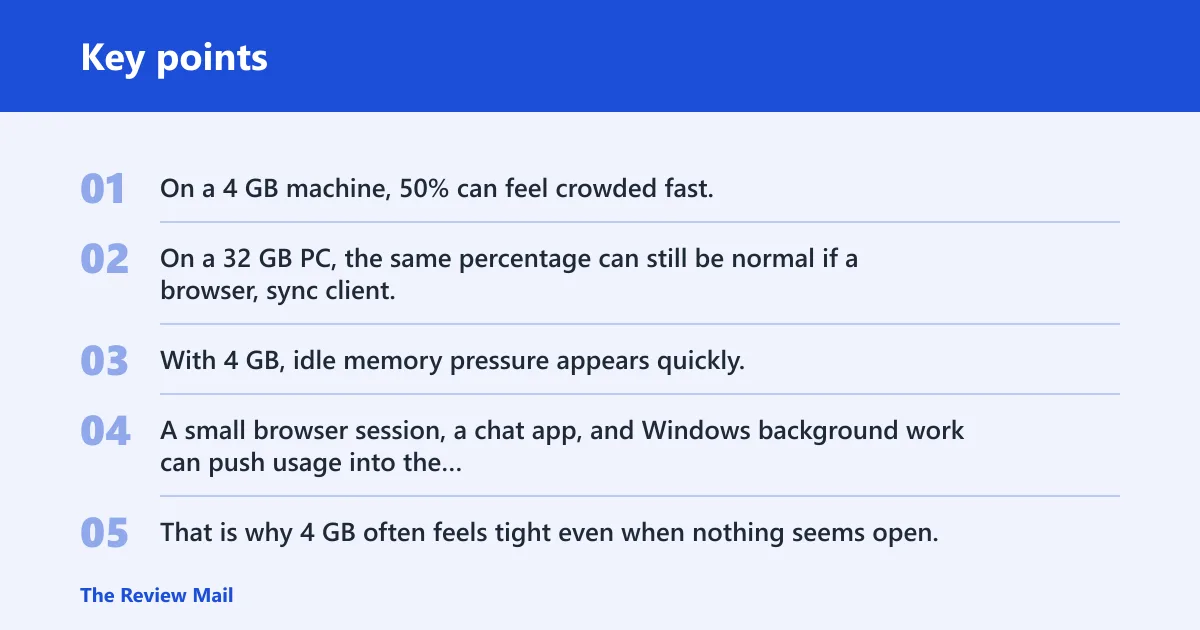
That does not mean 40-60% fits every PC. On a 4 GB machine, 50% can feel crowded fast. On a 32 GB PC, the same percentage can still be normal if a browser, sync client, game launcher, or vendor utility is sitting resident.
4 GB systems
With 4 GB, idle memory pressure appears quickly. A small browser session, a chat app, and Windows background work can push usage into the middle range fast. That is why 4 GB often feels tight even when nothing seems open.
8 GB systems
Eight gigabytes is the point where Windows 11 usually feels smoother, and some background caching becomes less distracting. On these systems, idle use in the moderate range is often expected if the machine has browser tabs, startup apps, or security tools loaded.
16 GB and 32 GB+ systems
On 16 GB and larger systems, a higher idle percentage can still be ordinary because Windows uses spare RAM for cache and standby data. What matters more is whether a process explains the usage and whether memory releases under load. If it does not, investigate.
| Installed RAM | Typical idle range to expect | Warning signs of a problem | First check |
|---|---|---|---|
| 4 GB | About 30-60% can happen quickly, especially after sign-in | Near-constant saturation, heavy paging, slow app switching | Task Manager for the top memory user |
| 8 GB | About 25-50% is often plausible with normal background work | Usage keeps climbing with no new apps open | Sort Processes by Memory |
| 16 GB | About 20-45% is common with cache, browser, and services | One app, service host, or launcher dominates memory | Check startup apps and service hosts |
| 32 GB+ | About 15-40% is often normal if the system is caching aggressively | Idle use stays near 80% or keeps rising | Resource Monitor and a clean boot check |
Check Task Manager first
Open Task Manager with Ctrl+Shift+Esc. On the Processes tab, you can see live CPU and Memory per app, which makes it the fastest way to find the biggest consumer. Sort by Memory so the largest user moves to the top.
Look first for browser tabs, launchers, and service hosts. A single browser with many tabs or heavy extensions can hold a lot of RAM. Vendor utilities often sit behind generic names, so a process that looks harmless may still be tied to a printer, audio suite, RGB tool, or storage manager.
- Press Ctrl+Shift+Esc to open Task Manager.
- Go to the Processes tab.
- Sort by Memory.
- Note the top three entries.
- Close one obvious app and check whether memory drops.
Resource Monitor, launched with resmon, adds deeper process detail over time. Use it when Task Manager only shows brief spikes or when a process appears and disappears too quickly to catch. That helps separate a real leak from a short-lived scan, sync, or update task.
Could SysMain be the cause?
SysMain is the service name used for Superfetch in Windows 11. It preloads commonly used data into memory so apps open faster. That can help responsiveness, but it can also contribute to high memory, CPU, and disk usage.
If RAM is high and the machine feels busy right after sign-in, SysMain may be part of the picture. If memory pressure is mild and app launch feels normal, leave it alone. Test it before you blame it.
Pause it briefly only as a diagnostic step when the pattern looks suspicious and other obvious consumers are absent. If memory settles and disk activity drops, you have a clue. If nothing changes, move on.
Which background items to review?
Startup apps can run as soon as you sign in, so they are common reasons idle RAM stays elevated. Check them in Task Manager or System Configuration. Disable only the items you recognize and do not need at sign-in.
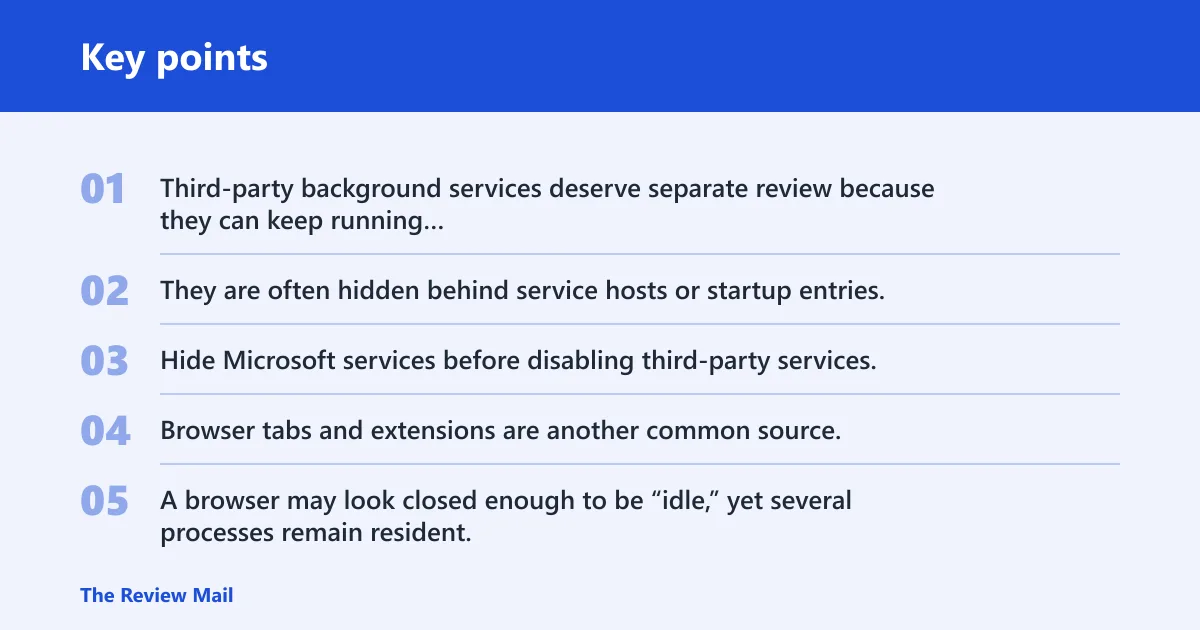
Third-party background services deserve separate review because they can keep running after the app window is closed. They are often hidden behind service hosts or startup entries. Hide Microsoft services before disabling third-party services, so you do not break core Windows components by mistake.
Browser tabs and extensions are another common source. A browser may look closed enough to be “idle,” yet several processes remain resident. Extensions for password managers, ad blocking, shopping, syncing, and video tools can hold memory even after the last visible tab is gone.
Then Task Manager shows a launcher, cloud sync tool, and browser helper using most of the memory. Close the visible app, and the resident service still sits there.
Another common pattern is a vendor utility that stays loaded for keyboard lighting, fan control, storage monitoring, or printer management. If the process name is unfamiliar, search the executable path in Task Manager before turning it off.
Could malware be hiding the issue?
When RAM stays high with no clear app cause, treat malware or a crypto miner as a real possibility. These threats can hide from casual inspection and may keep CPU or memory elevated while you think the system is idle. That is especially suspicious if the pattern returns after every reboot.
Run a Microsoft Defender Offline scan when the usage pattern does not match your installed apps or startup items. It checks before many threats fully load. If the scan is clean but the problem remains, do a clean boot to narrow the cause to Microsoft services versus third-party software.
Clean boot testing makes sense when Task Manager points to a service host, but you cannot tell which package owns it. Start with the minimum set of services, then add items back until the memory spike returns. That narrows the source fast.
What is normal ram usage when idle?
Normal idle RAM usage is the amount your system needs for Windows, background services, cache, and any apps that start with the PC. It is normal for this to vary by installed memory, so a 4 GB machine and a 32 GB machine should not be judged by the same percentage.
Start with the top memory user in Task Manager, then remove the easiest causes first: extra browser tabs, unnecessary extensions, and startup apps. If the process is a service host, look at the linked program before disabling anything. Use Resource Monitor if the spike is brief.
How much idle ram usage is normal?
There is no single number that fits every PC. On a smaller system, a higher percentage may be expected because Windows has less room to cache. On a larger system, 40-60% can still be fine if the machine is carrying browser processes, Defender activity, or standby data.
Is 30% ram usage idle normal?
Yes, 30% idle can be normal on many Windows PCs, especially with 8 GB or more. It is usually less about the percentage itself and more about whether the top users make sense. If the largest entries are cache, browser processes, or Search, that reading is usually harmless.
How much ram should be used idle?
Idle RAM should be enough to keep Windows responsive, but not so much that it stays pinned near the top of installed memory. If usage sits around 80% or more without a clear reason, investigate. If it falls when memory pressure rises, caching is probably working as intended.
How much ram is used at idle?
That depends on installed RAM and what starts with the system. A lightly loaded 16 GB PC may sit in the mid-range because Windows is caching data, while a 4 GB laptop may look busy after sign-in with only a browser and a few background tools. The process list matters more than the raw number.
Lower it by trimming startup apps, closing unnecessary browser tabs, removing heavy extensions, and reviewing third-party services before disabling them. If the usage is unexplained, scan with Defender Offline. If memory still stays high after a clean boot, one driver tool or utility is likely left.
Frequently asked questions
What should my idle ram usage be?
It should be low enough that Windows remains responsive and high enough to leave cache and standby memory in place. On many systems, 40-60% can still be normal at rest, especially with 8 GB or more. What matters most is whether memory drops when another app needs it.
What should ram usage be at idle?
At idle, RAM usage should match your hardware and background software, not a fixed target. A 4 GB system can look crowded quickly. A 32 GB PC may hold a higher percentage because Windows keeps more ready-to-use cache in memory for speed.