Speed Up Win 11 Laptop: Fixes That Matter
Speed up a Windows 11 laptop by starting with the top three fixes first: disable high-impact startup apps, free about 15% of the drive, then check for malware or a bad update; if none helps, suspect hardware or storage. If you skip the cause, you waste time on settings that do nothing while boot times, typing lag, and battery drain keep getting worse. This guide gives you a fast decision tree for HP, Dell, Lenovo, and similar laptops, plus the point where a setting fix stops and a hardware fix starts.
What is slowing your laptop?
Start by separating three common problems: slow startup, slow performance after an update, and sluggish everyday use. Those symptoms point to different fixes, and that order matters. Use the decision tree below to match the symptom first, then apply the fix that fits. If the laptop is very old, the fastest win may be an SSD or more RAM rather than more tuning.
- If startup is slow: turn off high-impact startup apps, restart, and compare boot time.
- If it slows after updates: check Windows Update again, install pending items, restart, and then scan for malware.
- If everyday use is sluggish: free storage, reduce visual effects, and use Best performance when plugged in.
- If the laptop has an HDD, 4 GB RAM, or is 7-8 years old: stop tuning settings and plan an upgrade instead.
| Symptom | Likely cause | Best first fix | Time required | Stop point |
|---|---|---|---|---|
| Slow startup | Too many startup apps, heavy background sign-in load | Turn off high-impact startup apps in Task Manager | 5 to 10 minutes | Stop if boot time improves clearly after a restart |
| Slow after updates | Pending Windows Update items, driver updates, reboot not completed | Check Windows Update again, install driver updates, restart | 10 to 20 minutes plus restart | Stop if the lag started right after an update and the system settles after reboot |
| Sluggish everyday use | Low disk space, visual effects, malware, RAM pressure | Free space, scan with Defender, reduce visual effects | 10 to 30 minutes | Stop if the laptop is still slow with plenty of free space and no malware found |
| Upgrade vs repair | HDD, 4 GB RAM, or a 7-8-year-old laptop | Replace the drive with an SSD, add RAM if the model supports it, or replace the laptop | Hardware-dependent | Stop tuning settings if an HDD or 4 GB RAM is the hard limit |
Microsoft’s storage guidance and Windows support materials make one thing clear: low free space can slow installs, updates, and day-to-day use. Treat drive space as a first checkpoint. If the drive is close to full, fix storage first before changing power or visual settings, because cleanup often restores more responsiveness than cosmetic tweaks.
Say your laptop takes about 90 seconds to reach the desktop, then about another minute to settle. That points first to startup clutter and post-sign-in load, not graphics settings. Suppose the machine is quick at boot but starts lagging after updates; that usually points to pending update work, a driver issue, or background security software.
How do you speed up startup first?
Turn off high-impact startup apps in Task Manager, then check whether the boot actually improved after a restart. Microsoft documents Startup apps in Task Manager as the place to manage programs that load with Windows. This is the fastest first pass for many laptops because startup clutter affects every sign-in. If the startup list is clean and boot is still slow, the bottleneck is probably storage, not launch apps.
Open startup apps. Press Ctrl + Shift + Esc to open Task Manager, then select the Startup tab. Look at the startup impact column first, because that shows which apps are most likely to slow sign-in.
Disable nonessential items. Turn off apps you do not need immediately after login, such as chat tools, music apps, launchers, and updater trays. Leave security software, touchpad utilities, audio controls, and manufacturer hotkeys alone unless you know exactly what they do.
- High-impact items are the best first targets.
- One change at a time makes it easier to verify the result.
Restart and compare. Reboot the laptop and check whether the desktop appears faster and the fan calms down sooner. If sign-in still feels slow, the bottleneck may be disk speed or memory pressure rather than startup apps.
What startup programs are safe to disable on Windows 11?
Disable apps that are convenient, not necessary: messaging launchers, cloud sync helpers you do not need at sign-in, game launchers, printer updaters, and third-party updaters. Keep drivers, security tools, and laptop-function utilities in place unless they are clearly duplicate software. The goal is to cut startup load, not break the machine.
- Safe to disable first: game launchers, chat launchers, cloud sync helpers, printer updaters, browser helpers, and third-party updater trays.
- Do not disable: antivirus or security tools, touchpad utilities, audio controls, display tools, and system drivers.
- Stop points: stop after the first restart if sign-in improves clearly, or stop if you cannot identify the app’s purpose.
How do you verify the change worked?
Restart once after each batch of changes, then look for faster logon, a quicker desktop, and fewer seconds of hard-disk style churning after sign-in. If the improvement is small, stop trimming startup items and move to storage or update checks. A clean startup list cannot compensate for a nearly full drive or a failing HDD.
How do you speed up Windows 11 after an update?
After an update, check Windows Update making computer slow again, install any optional or driver updates, and restart before you change anything else. Microsoft’s Windows Update guidance emphasizes checking for remaining updates and finishing restarts so configuration can complete. A lot of post-update sluggishness comes from unfinished installation work, driver mismatch, or a security scan that is still settling.
Check Windows Update again. Open Settings, then Windows Update, and check for updates a second time. Install any remaining cumulative updates, then restart after installation so Windows can finish configuration.
Review driver updates. Look for optional updates and driver updates in Windows Update, especially graphics and chipset items. If a laptop maker offers a newer graphics driver or chipset package, compare that with the Windows-provided version before installing.
Restart and watch background load. If the machine still feels slow, open Task Manager and look for unusually active security software, indexers, or update helpers. Microsoft Defender is commonly the default antivirus on Windows 11 laptops; running two real-time antivirus tools can add background process slowdown.
Run a full scan. Use Microsoft Defender’s full system scan if the slowdown came with pop-ups, odd browser behavior, or unexplained disk activity. Malware often hides in the background and keeps CPU, disk, or network use high.
Low free space, outdated drivers, and insufficient RAM can all slow Windows 11. If the slowdown started right after patch day, fix the update chain first. If it started weeks later, suspect background load, storage pressure, or an aging drive instead.
Why is my Windows 11 laptop so slow after an update?
An update can leave pending driver work, background optimization, or a restart that has not fully completed. That is why the first move is to check for updates again and reboot. If the issue continues, a bad driver, antivirus load, or low free space is more likely than the update itself.
How do you make an old Windows 11 laptop faster?
On older laptops, switch the power mode, trim visual effects, clear storage, and use Efficiency Mode for heavy background apps before you assume the machine needs replacement. Microsoft’s power guidance supports choosing a higher performance mode when plugged in, while its storage tools help reduce clutter that slows the system. That order fits laptops because it targets the fastest gains first.
Set Best performance. Open Settings → System → Power & battery, then set power mode to Best performance when the laptop is plugged in. HP recommends this on plugged-in systems, and it is most useful when the laptop is actively working rather than idling.
Reduce visual load. Turn off transparency effects and animation effects in System and Accessibility settings. On older hardware, these effects can add small delays that pile up when the laptop is already short on CPU or memory headroom.
Clear temporary files. Go to Settings → System → Storage, then clear temporary files and turn on Storage Sense. Microsoft’s Storage Sense guidance supports automatic cleanup so clutter does not keep returning. Low free space can affect updates, app installs, and day-to-day responsiveness.
Use Efficiency Mode carefully. In Task Manager, open the Processes tab and apply Efficiency Mode to background apps that do not need full CPU priority. Leave system processes, drivers, and security tools alone. The same source says Efficiency Mode was introduced in Windows 11 22H2.
Hardware-Accelerated GPU Scheduling can help some supported laptops with latency reduction. Open Settings → System → Display → Graphics and enable it only if the GPU supports it. Microsoft documents HAGS as a supported graphics setting, but it is not useful on unsupported hardware.
Picture a 7-year-old laptop with 4 GB RAM, a 1 TB HDD, and enough free space after cleanup. Turning off animations may help the menus feel snappier. But if file open times remain slow and the drive stays noisy, the storage device is the real limit.
Windows 11 settings that matter most
Three settings groups give the fastest return on a slow laptop: power mode, visual effects, and storage cleanup. The same source says its five built-in settings take under ten minutes to configure, which matches the idea of a quick triage pass before deeper changes. Use them in that order and verify after each one.
Why does Best performance help on a laptop?
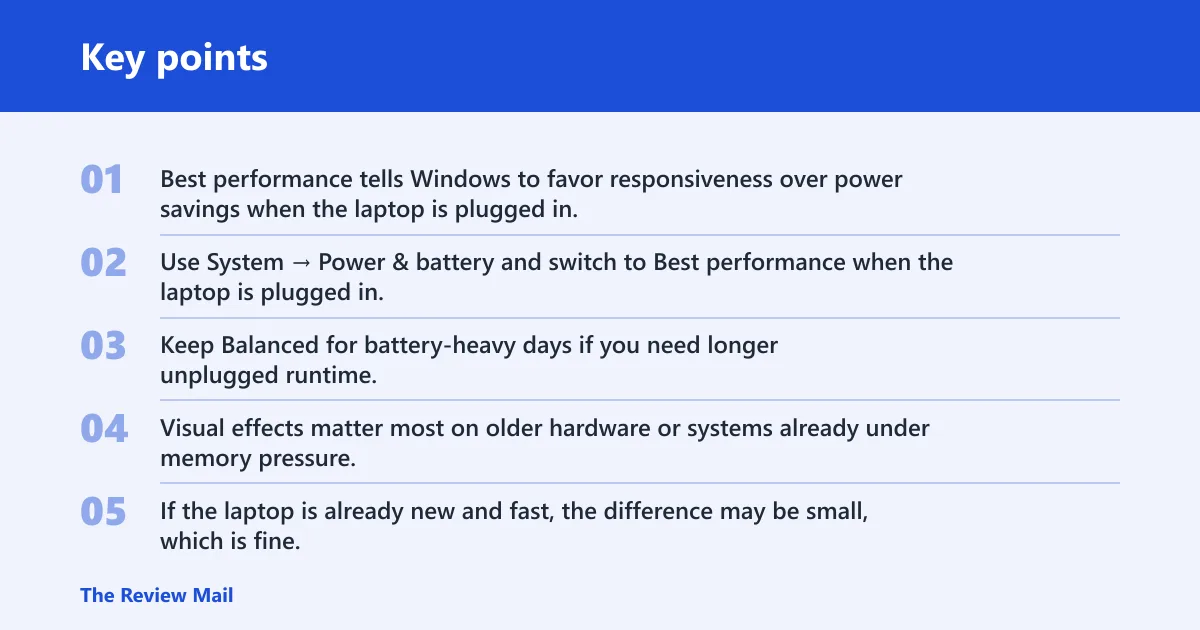
Best performance tells Windows to favor responsiveness over power savings when the laptop is plugged in. That can help with wake time, app opening, and general snap on older systems. It is not a cure for an overloaded drive or weak RAM, but it can remove throttling that makes a capable laptop feel slower than it should.
Use System → Power & battery and switch to Best performance when the laptop is plugged in. Keep Balanced for battery-heavy days if you need longer unplugged runtime. Best performance usually helps when the laptop is actively doing work; it is not a cure for an overloaded drive or weak RAM.
How much do visual effects matter?
Visual effects matter most on older hardware or systems already under memory pressure. Transparency and animation are small individually, but together they can make menus, window movement, and transitions feel heavier. If the laptop is already new and fast, the difference may be small, which is fine. Stop if the laptop already feels quick enough.
Turn off transparency effects and animation effects first. These changes cut cosmetic load and can make older laptops feel more responsive, especially during window movement and menu opening.
How does Storage Sense help a slow laptop?
Storage Sense helps by clearing temporary files and reducing clutter before the drive gets crowded enough to slow everything down. It is useful on laptops because storage pressure affects boot speed, installs, and app launches. Keeping the drive cleaner is especially important on systems with limited SSD capacity or older hard drives.
Open Settings → System → Storage, then clear temporary files and enable Storage Sense. Keep it on an automatic cadence so clutter does not return. Low free space can affect updates, app installs, and day-to-day responsiveness.
When should you upgrade hardware instead?
Upgrade hardware when the laptop is slow because of a mechanical drive, too little memory, or age that settings cannot fix. An SSD often changes the feel of boot time and app launches more than any software tweak. RAM helps when the laptop swaps constantly between apps. If the laptop is 7-8 years old and still has an HDD and 4 GB RAM, settings alone are usually not enough.
Will an SSD make your Windows 11 laptop faster?
Yes, especially if the laptop still uses an HDD. An SSD improves boot speed, app loading, and general responsiveness because storage latency drops sharply compared with a spinning drive. If the current drive is an HDD and the laptop otherwise works, SSD replacement is often the first hardware fix to consider.
How do you make Windows 11 faster on a laptop with low RAM?
With low RAM, reduce startup load, keep fewer apps open, and trim background tools before you reach for a reinstall. Efficiency Mode can help some background apps, but it cannot replace missing memory. If the laptop has 4 GB RAM or less, more RAM is often the more useful fix than more settings changes.
How do you speed up a Windows 11 HP, Dell, or Lenovo laptop?
Use the same order on HP, Dell, and Lenovo: startup apps first, then Windows Update and drivers, then storage cleanup, then power mode and visual effects. Brand-specific tools may change the menu names, but the main path stays the same. If the model is old, look first at SSD support and RAM limits from the manufacturer.
Frequently asked questions
How do I speed up my Windows 11 laptop?
Start with the quickest wins: disable high-impact startup apps, free disk space, check Windows Update again, and run Microsoft Defender. Then trim visual effects and set power mode to Best performance when plugged in. If the laptop still feels slow, the limit is likely hardware rather than a setting.
How can I speed up a slow Windows 11 laptop without reinstalling?
You can usually fix a slow Windows 11 laptop without reinstalling by cleaning startup apps, clearing temporary files, checking for updates, and scanning for malware. That is why many guides say the job can be done in an afternoon. If the drive is nearly full or the laptop has an HDD, expect smaller gains.
How do I speed up an old Windows 11 laptop?
Use Best performance when plugged in, reduce transparency and animation effects, turn on Storage Sense, and use Efficiency Mode for nonessential background apps. Those changes help the laptop feel less dragged down. If it still has an HDD or only 4 GB RAM, an SSD or RAM upgrade will usually matter more.
Which startup programs should I disable on Windows 11?
Disable apps that only help with convenience at sign-in, such as chat launchers, game launchers, updater trays, and cloud tools you do not need immediately. Keep security software, drivers, touchpad tools, and audio utilities unless you know they are safe to remove. Use the Startup tab’s impact column to rank the biggest wins first.
Will an SSD make my Windows 11 laptop faster?
Yes. If the laptop still uses an HDD, an SSD is one of the largest speed boosts available because it cuts storage latency and improves boot and app load times. If the laptop already has an SSD, look at RAM, background apps, and low disk space before buying more hardware.