Bluetooth Not Connecting to Wi-Fi Network on Windows
If Bluetooth appears, pairs, or drops on Windows 10 or 11 but will not stay connected, fix the Bluetooth stack first: run the Bluetooth troubleshooter, restart the Bluetooth Support Service, then remove and re-pair the device. Ignoring it can leave headsets, mice, and keyboards stuck in a reconnect loop. This guide shows how to tell Bluetooth-stack faults from Wi-Fi problems and which fix matches each symptom.
Is this a Bluetooth or Wi-Fi problem?
If a device shows up in Windows but will not connect, the issue is often Bluetooth pairing, the Windows Bluetooth service, or the adapter driver, rather than the Wi-Fi network. That matters because “bluetooth not connecting to wifi network windows” is often a misread symptom: the accessory is trying to pair over Bluetooth while the user is thinking about network settings.
Read the symptom before changing settings
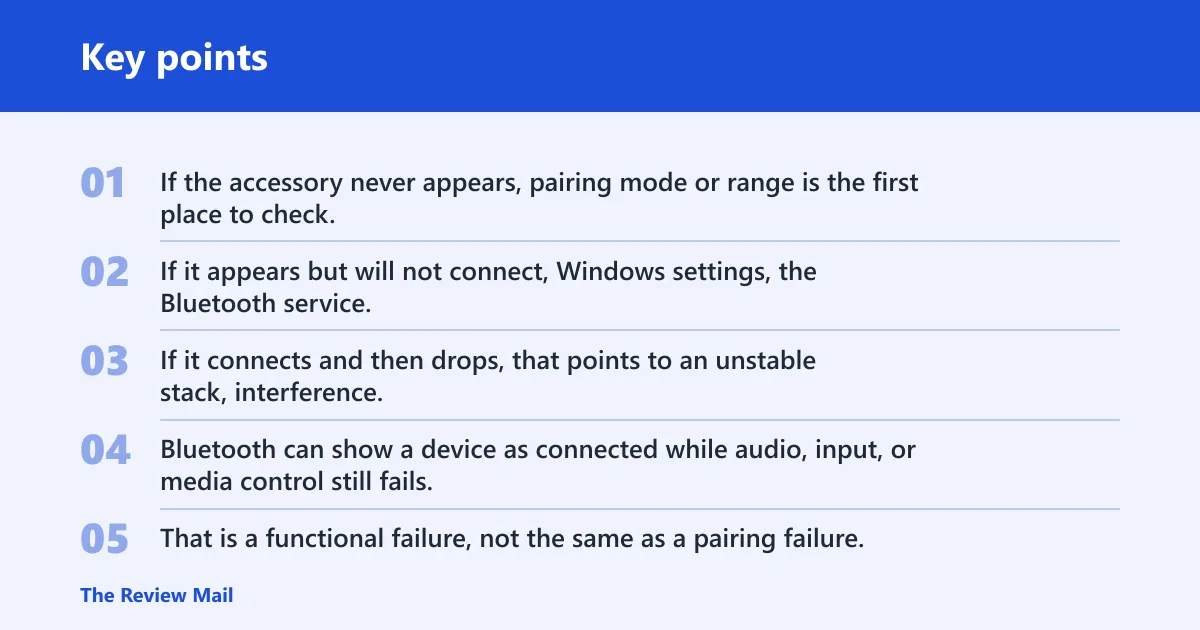
Start by asking what fails. If the accessory never appears, pairing mode or range is the first place to check. If it appears but will not connect, Windows settings, the Bluetooth service, or the driver is more likely. If it connects and then drops, that points to an unstable stack, interference, or a faulty accessory state.
Why a device can look connected but still fail
Bluetooth can show a device as connected while audio, input, or media control still fails. That is a functional failure, not the same as a pairing failure. A headset may connect but produce no sound, or a keyboard may appear paired yet ignore keystrokes. Those cases usually need a service restart, remove-and-repair cycle, or driver check.
When the problem is pairing, not networking
Microsoft says the device must be in pairing mode and within range, and it recommends removing the device and adding it again. That applies on both Windows 11 and Windows 10. If the accessory is not discoverable, or another nearby device already claimed it, Windows may never get a clean pairing attempt.
Picture a wireless mouse that appears in Bluetooth & devices but rejects every connect attempt. That is not a router problem. The fastest path is usually to remove the mouse, put it back into pairing mode, and try again before touching Wi-Fi settings at all.
📊 Microsoft’s Bluetooth guide applies to both Windows 11 and Windows 10. Source: Microsoft.
Bluetooth connection decision table
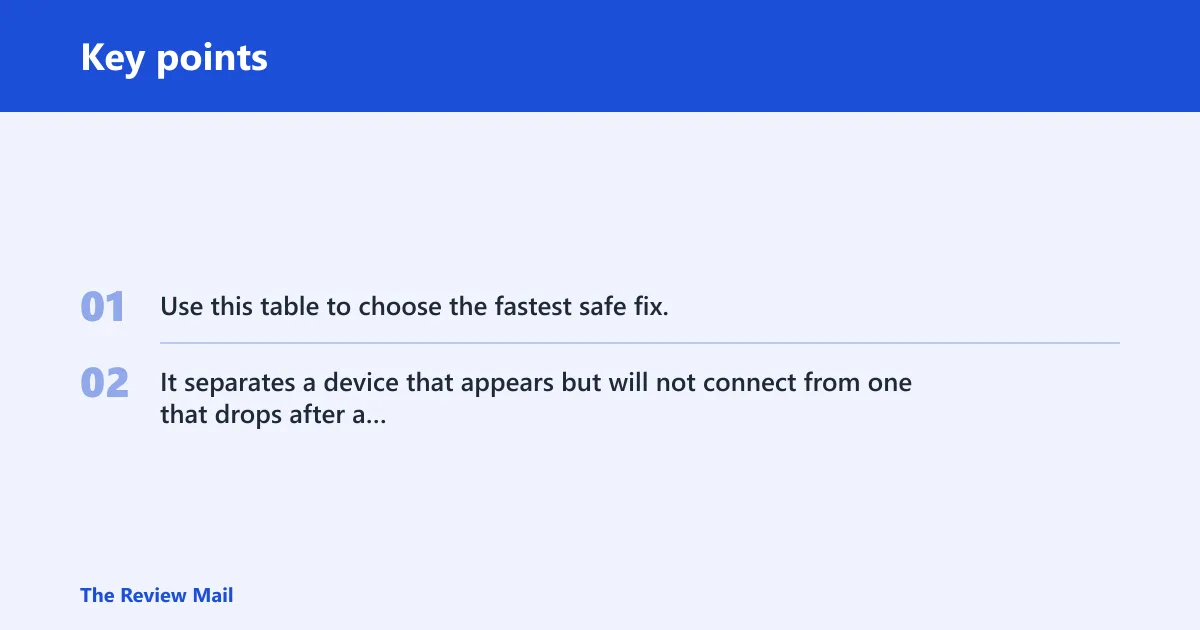
Use this table to choose the fastest safe fix. It separates a device that appears but will not connect from one that drops after a successful pairing, and it shows when to stop at a service restart versus when to move to drivers or Windows updates.
| Symptom | Probable cause | Fastest safe action | Escalation step |
|---|---|---|---|
| Device appears, but won’t connect | Pairing mode is off, stale pairing data, or a Windows Bluetooth setting problem | Remove the device in Bluetooth & devices, put it back in pairing mode, and add it again | Run the Bluetooth troubleshooter, then restart Bluetooth Support Service |
| Connects, then drops within seconds | Service fault, driver issue, or radio interference | Restart Bluetooth Support Service and toggle Bluetooth off and on | Check Device Manager for the Bluetooth adapter, then install Windows updates |
| Works after restart, then fails again later | Temporary service state or a driver that does not hold a stable session | Use the restart as a clue and repeat the service restart once | Check for driver errors, then update Windows and the adapter driver |
| Only one accessory type fails | Accessory-specific pairing quirk or a profile mismatch | Remove and re-pair that accessory only | Test the same accessory on another Windows PC or phone |
| Headset pairs, but audio does not route | Functional failure rather than pairing failure | Disconnect and reconnect the headset from Bluetooth & devices | Restart the Bluetooth service and check the Windows audio output device |
| Mouse or keyboard will not stay paired | Battery, range, or stale pair data | Move closer, replace batteries if needed, and re-pair | Check the adapter driver and try a different USB Bluetooth adapter if available |
| Device stopped connecting after a Windows change | Update-related setting change or driver update issue | Check Windows Update for available updates | Roll through Device Manager and reinstall the Bluetooth adapter driver |
| Nothing pairs, but Bluetooth is visible in Settings | Bluetooth service stalled or adapter problem | Run the troubleshooter from Get Help or Settings | Restart Bluetooth Support Service, then inspect Device Manager |
How do you fix Bluetooth not connecting in Windows 11?
On Windows 11, the fastest fixes are to toggle Bluetooth off and back on, remove the device, and add it again. If that does not clear the fault, run the Bluetooth troubleshooter in the Get Help app or from Settings. Microsoft’s guide applies to both Windows 11 and Windows 10.
Turn Bluetooth off and back
Open Settings > Bluetooth & devices and switch Bluetooth off, then on again. On some systems, that resets the radio cleanly enough to recover a failed pairing attempt. If the device was half-connected, this can clear the stale state without changing anything else.
Remove the device and add it again
Microsoft recommends removing the device and adding it again. In Bluetooth & devices, choose the device, select remove, then put the accessory back into pairing mode and pair it again. If the device is not discoverable, this step will fail, so confirm pairing mode first.
Run the Bluetooth troubleshooter
Microsoft says the Bluetooth troubleshooter is launched in the Get Help app on Windows 11. You can also find automatic diagnostics under System > Troubleshoot > Other troubleshooters. Use it when the device appears in Settings but refuses to connect, or when a restart has not fixed the pairing loop. (Microsoft Support)
Suppose a pair of earbuds shows up in Windows 11 but disconnects right after the connect sound. That is the point where a troubleshooter can help more than repeated clicking. It can flag settings, service faults, or adapter issues before you move to a driver reinstall.
What should you check in Windows services and drivers?
If a device will not connect after a remove-and-repair cycle, check the Bluetooth service and the adapter driver. Dell’s Bluetooth fix path includes restarting Bluetooth Support Service, and it notes that outdated drivers or incorrect settings can cause connection failures. Windows Update should be checked before a full reinstall.
Restart Bluetooth Support service in services.msc
Open services.msc, find Bluetooth Support Service, and restart it. This service can affect connection attempts. If Bluetooth was working and then stalled, this restart is often faster than rebuilding the driver stack. After the restart, try pairing again from Bluetooth & devices.
Check Device Manager for adapter faults
Open Device Manager and expand the Bluetooth section. If the adapter has a warning icon, the driver is a likely cause. Choose the Bluetooth adapter, then update the driver if Windows offers a newer version. A clean driver reinstall is a later step, not the first move, unless the device is clearly broken in Device Manager. (Microsoft Learn)
Install available Windows updates first
Microsoft advises checking Windows Update for available updates, and Dell recommends it as part of Bluetooth troubleshooting. Install any available updates before a full driver reinstall. Some updates include Bluetooth fixes or related drivers, which can resolve the issue without manual driver work.
A common first-timer mistake is to reinstall the Bluetooth driver before checking whether the service is simply stuck. If the device fails after a restart but starts working again as soon as Bluetooth Support Service is restarted, the service is the stronger lead.
Why does range or interference stop pairing?
Bluetooth needs a short, clean radio path. Microsoft says the device must be within range, and a common rule of thumb is about 10 metres in open space. Physical barriers and 2.4GHz congestion can reduce that quickly, so range problems can look like a Windows problem even when the software is fine.
Keep the device within about 10 metres
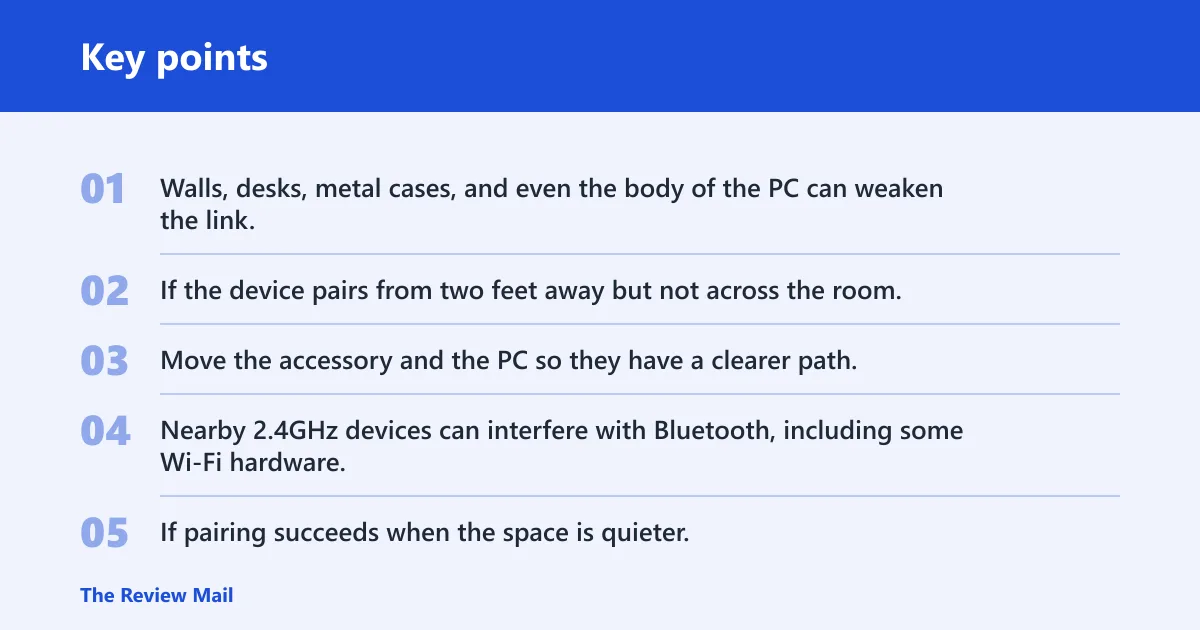
Stay close for the first pairing attempt. Walls, desks, metal cases, and even the body of the PC can weaken the link. If the device pairs from two feet away but not across the room, that points to radio conditions rather than a broken Windows setting.
Remove barriers and test interference
Move the accessory and the PC so they have a clearer path. Then test again. Nearby 2.4GHz devices can interfere with Bluetooth, including some Wi-Fi hardware, USB 3.0 devices, and dense wireless setups. If pairing succeeds when the space is quieter, the fix is placement and interference control, not a full reset.
What if Bluetooth works after restart but fails again?
If Bluetooth works after a restart and then fails again later, that pattern points to a service, driver, or adapter state that is not holding steady. Use the temporary recovery as a clue. If one accessory type fails repeatedly, suspect an accessory-specific problem first. If every device fails later, move up to adapter and update checks.
Use the restart result to narrow the fault
When a restart helps, the Bluetooth stack is often the right target. Restart Bluetooth Support Service again, then test a different device. If the second device connects cleanly, the original accessory is the stronger suspect. If both fail again after a short time, the Bluetooth adapter or driver deserves more attention.
Check whether only one accessory type fails
One accessory type failing does not mean every Bluetooth device is broken. A headset can fail while a mouse works, or a keyboard can fail while audio works. That pattern can point to a stale pair, a profile mismatch, or an accessory battery issue. Remove and re-pair the failing device before changing system-wide settings.
Escalate in the right order
A common order is: remove and re-pair, restart Bluetooth Support Service, check Device Manager, then install Windows updates. If the problem survives all four steps, a broader adapter reinstall or a deeper Windows repair becomes more reasonable. Do not jump straight to a full reset unless several Bluetooth devices fail in the same way.
Frequently asked questions
Why is my Bluetooth not connecting to my Wi-Fi network on Windows?
Bluetooth does not connect to a Wi-Fi network. If that phrase describes the symptom, the likely issue is a Bluetooth pairing or adapter problem, not Wi-Fi configuration. Check pairing mode, range, Bluetooth settings, the Bluetooth service, and the device driver before touching the network adapter.
Why does my Bluetooth device show up but won’t connect?
That usually means the device is discoverable, but the pairing session is failing. The usual causes are stale pairing data, the accessory not being in pairing mode, a stalled Bluetooth service, or an adapter driver issue. Remove the device, re-enter pairing mode, and try again within range.
Should I remove and re-pair the Bluetooth device?
Yes, that is one of the safest first steps, and Microsoft recommends it. Remove the device from Bluetooth & devices, then put it back in pairing mode and add it again. This often clears stale pair data that blocks connection attempts, especially after a Windows change or a failed reboot.
How do I restart Bluetooth Support service in Windows?
Open services.msc, find Bluetooth Support Service, and restart it. Dell lists this as part of its Bluetooth fix path. If the service restart helps briefly but the problem returns, check the adapter driver in Device Manager and install available Windows updates next.
How close does a Bluetooth device need to be to connect?
Microsoft says the device must be within range. A common rule of thumb is about 10 metres in open space, but walls, desks, cases, and nearby 2.4GHz devices can cut that down. For pairing, keep the device close to the PC and remove obvious barriers first.