Hal Initialization Failed Windows 11
Start with Startup Repair in WinRE. If Safe Mode fails, move to firmware, BCD, storage, and RAM checks before broader Windows repair. Wrong fixes waste time and can leave a bootable drive in worse shape.
Use this Windows 11 decision split first: if the PC won’t boot at all, go straight to WinRE, Startup Repair, and boot-file checks. If it boots to the login screen and then crashes, try Safe Mode, then driver rollback, SFC, DISM, and update rollback before deeper recovery. Related recovery topics: Startup Repair, Safe Mode, SFC and DISM, BCD repair, BIOS or UEFI reset, RAM testing, and clean install guidance.
Hal initialization failed windows triage table
| Symptom | Likely layer | Fastest WinRE action | What failure of that step means |
|---|---|---|---|
| Fails before sign-in, may restart repeatedly | Firmware or BCD | Run Startup Repair from Troubleshoot > Advanced options | Move to boot files, firmware settings, or hardware checks |
| Crashes before the spinning dots | BCD or storage | Open Command Prompt and run boot repair commands | Wrong BCD store, damaged boot files, or disk trouble |
| Boot started after an update, then BSODs again | Driver or storage | Try Safe Mode, then roll back or update storage and chipset drivers | Driver change is less likely; check disk and RAM |
| Started after a motherboard swap, clone, or VM move | Firmware or BCD | Check UEFI boot order, SATA mode, Secure Boot, and use bcdboot if needed | Boot path does not match the hardware layout |
| Random boot BSODs, sometimes after a cold start | RAM or storage | Run Windows Memory Diagnostic and check the system drive | Defective memory or a failing drive is still on the table |
Why does HAL initialization failed happen in Windows 11?
It usually starts before the desktop because Windows cannot finish early boot work with the hardware it finds. HAL refers to the Hardware Abstraction Layer, the kernel component that bridges processor, memory, storage devices, and motherboard communication during startup. The stop code shown is 0x0000005C.
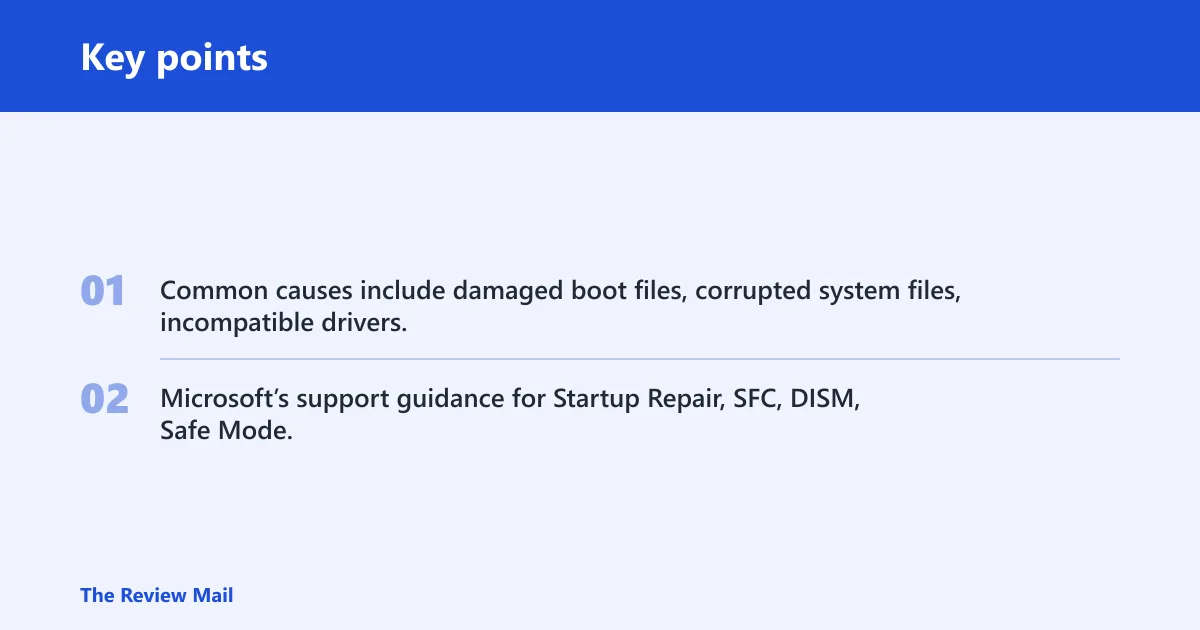
Common causes include damaged boot files, corrupted system files, incompatible drivers, incorrect BIOS or UEFI settings, and failing RAM or storage. Microsoft’s support guidance for Startup Repair, SFC, DISM, Safe Mode, Windows Memory Diagnostic, and update rollback lines up with that early-boot troubleshooting order.
Likely causes, ranked
- Firmware or boot mode changed after an update, drive clone, or motherboard swap.
- BCD or boot file damage, especially after interrupted updates or disk moves.
- Storage trouble, including a missing system drive, bad cabling, or a failing SSD or HDD.
- RAM faults that break startup before Windows can load normally.
- Outdated or incompatible storage or chipset drivers once the system reaches the boot path far enough to load them.
Say your PC was cloned to a new NVMe drive and now loops on the stop screen before sign-in. That points first to UEFI boot entries and BCD, not to SFC. The fix path changes when the machine never reaches the desktop.
How do you start with WinRE and Startup Repair?
WinRE is the main recovery path when Windows will not boot, and Startup Repair is the first repair step for boot failures. It is available under Troubleshoot > Advanced options. If it can fix a damaged boot path, you avoid deeper changes.
- Interrupt startup three times so Windows enters recovery, or boot from a Windows 11 installation USB and choose Repair your computer.
- Go to Troubleshoot > Advanced options > Startup Repair.
- Select the Windows installation, if prompted, and let the tool finish.
- If it loops or fails, return to Advanced options and open Command Prompt.
If Startup Repair cannot finish the job, that usually means the issue is below the automatic fix range: BCD damage, a wrong boot entry, or hardware that is not responding cleanly.
How do you repair BCD and boot files?
Repair BCD when Startup Repair fails, especially after a cloned drive, UEFI change, or disk replacement. Use Command Prompt in WinRE, because the wrong BCD store is a common reason bootrec appears to do nothing useful. On UEFI systems, BCDBoot is often the safer and faster fix when Windows and EFI partitions are identified correctly.
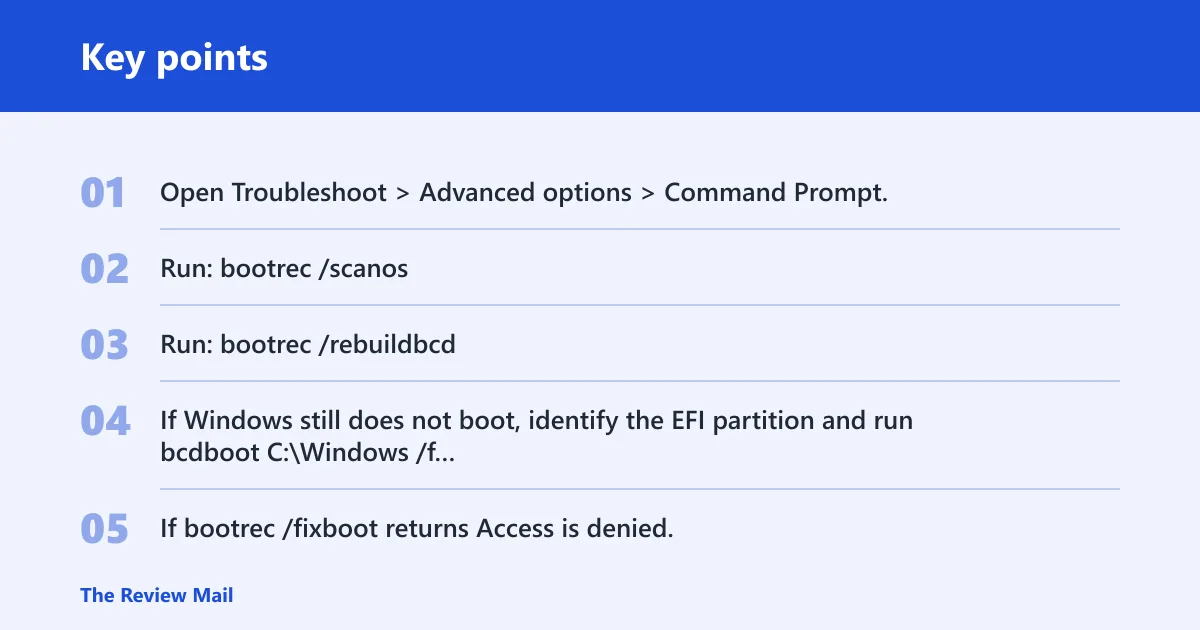
- Open Troubleshoot > Advanced options > Command Prompt.
- Run: bootrec /scanos
- Run: bootrec /rebuildbcd
- If Windows still does not boot, identify the EFI partition and run bcdboot C:\Windows /f UEFI with the correct Windows drive letter.
- If bootrec /fixboot returns Access is denied, stay focused on bcdboot and the EFI partition instead of repeating the same command.
On UEFI systems in WinRE, the Windows partition usually contains the Windows folder, while the EFI System Partition is the small FAT32 volume that holds boot files. If you are not sure which letters WinRE assigned, use DiskPart to identify the volumes before running BCDBoot. If startup repair keeps failing and the machine uses UEFI, BCDBoot is usually preferable to repeated bootrec attempts because it rewrites the EFI boot files more directly.
A common first-timer mistake is rebuilding the wrong store after a hardware swap. If WinRE sees one Windows folder but the firmware boots another disk, the repair may look successful and still leave the machine stuck.
Should you check BIOS or UEFI settings?
Yes. Incorrect BIOS or UEFI settings are a listed cause, and Windows 11 depends on the correct UEFI boot path more often than older systems did. Check boot order first, then SATA mode, Secure Boot, and Fast Boot. If hardware changed, reset firmware settings to defaults or optimized defaults.
- Enter BIOS or UEFI setup during power-on.
- Move the system drive to the top of boot order.
- Confirm SATA mode matches the original installation, especially after a drive move.
- Temporarily disable Fast Boot if it hides the correct device.
- Restore defaults or optimized defaults if the issue began after a hardware change, then save and reboot.
For Windows 11 VMs, check the generation setting too. A mismatch between the VM’s expected UEFI configuration and the installed guest layout can look like a boot failure rather than a guest configuration error.
Can Safe Mode help with driver problems?
Safe Mode can help only if Windows reaches advanced startup or the login screen far enough to enter it. If the machine never gets that far, do not assume Safe Mode is available. When it does load, driver faults move up the list, especially storage and chipset drivers.
- From WinRE, go to Troubleshoot > Advanced options > Startup Settings, then choose Safe Mode.
- If Windows starts, open Device Manager and review storage and chipset devices.
- Update the driver from the device properties, or use Roll Back Driver if the crash began after a new package.
- After a stable boot, run
sfc /scannowfrom an elevated Command Prompt. - Then run
DISM /Online /Cleanup-Image /RestoreHealthto repair the image and component store.
If the machine cannot stay up long enough for Safe Mode, skip the driver path and return to boot files, firmware, and hardware checks.
Could faulty RAM cause HAL_INITIALIZATION_FAILED?
Yes. Faulty memory can trigger boot BSODs, including early failures before sign-in. The fastest built-in check is Windows Memory Diagnostic. If the result points to memory trouble, a module swap or replacement is the next practical step, not another round of file repair.
- From WinRE or a working boot, search for Windows Memory Diagnostic.
- Choose Restart now and check for problems.
- After the test, review the result in Event Viewer if Windows starts again.
- If errors repeat, test sticks one at a time or replace the defective module.
Should you check storage next?
Yes, especially if the drive was cloned, moved, or started taking longer to boot before the crash. Check the system drive for errors and make sure power and data connections are firm. A failing SSD or HDD can leave BCD repairs looking inconsistent.
- From WinRE Command Prompt, run
chkdskC: /f /r if C: is the Windows volume in recovery. - Confirm the drive appears in firmware setup and in the boot list.
- If the drive is missing, reseat the cable or NVMe module.
- If errors return after repair, move to System Restore, reset, or reinstall only after the drive has been checked.
Suppose a desktop boots after a BIOS reset but fails again once the old overclock is restored. That points to unstable memory or firmware settings, not a bad Windows install.
What if Startup Repair cannot fix HAL_INITIALIZATION_FAILED?
If Startup Repair fails, a common next order is BCD repair, BIOS or UEFI review, RAM and storage checks, then System Restore or reset. If the problem began after a Windows update, Safe Mode plus driver rollback or uninstalling the latest update can help, but only if the system reaches that menu.
- Run bootrec checks and, on UEFI systems, bcdboot with the correct Windows partition.
- Reset firmware settings to defaults if the boot path changed after hardware work.
- Test memory and storage before you wipe anything.
- Use System Restore if a restore point exists and the machine can load recovery options.
- Move to Reset this PC or a clean install only after repair and hardware steps fail.
Keep firmware settings written down before swaps, and avoid changing boot mode, Secure Boot, or storage mode unless you also confirm the Windows boot entry still matches the disk.
Frequently asked questions
How do I fix HAL_INITIALIZATION_FAILED on Windows 11?
Start with Startup Repair from Troubleshoot > Advanced options. If that fails, repair the boot path with bootrec and, on UEFI systems, BCDBoot when needed. After that, check BIOS or UEFI boot order, test RAM with Windows Memory Diagnostic, and only then consider System Restore or reset.
Can Windows 11 boot into Safe Mode with this BSOD?
Sometimes, but only if the machine reaches advanced startup or the login screen far enough to offer it. If the PC loops before that, Safe Mode will not be reachable. Use WinRE instead, then move to boot files, firmware settings, and hardware checks first.
What should I do if Startup Repair cannot fix HAL_INITIALIZATION_FAILED?
Open Command Prompt in WinRE and repair the BCD, then use BCDBoot on UEFI systems if the boot entry still does not line up. If the issue returns, check SATA mode, Secure Boot, RAM, and the system drive before reinstalling.
Is hal.dll the same as HAL_INITIALIZATION_FAILED?
No. hal.dll is a Windows file associated with HAL, while HAL_INITIALIZATION_FAILED is the stop code and boot failure symptom. Treat them separately. A damaged file may be involved, but the fix path still starts with WinRE, boot files, firmware settings, and hardware checks.
When did windows 11 release?
Windows 11 was released on October 5, 2021. That date matters here mainly because Windows 11 systems are commonly installed in UEFI mode with Secure Boot, so firmware settings and BCD entries are often the first places to check when startup fails. (Wikipedia)