Code 42: What It Means and How to Fix It in Device Manager
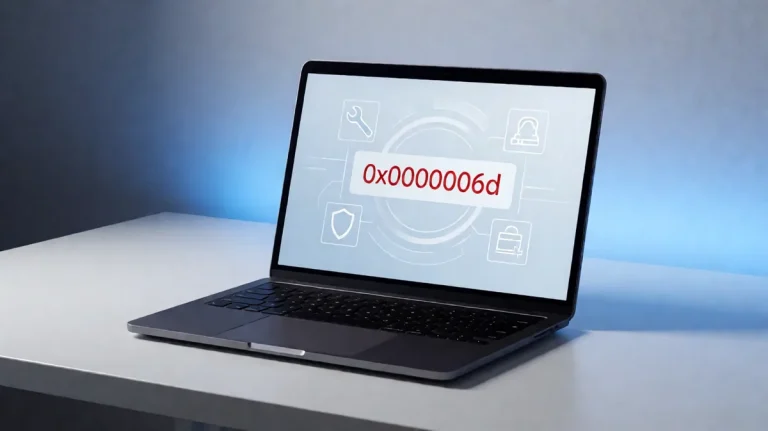
In Device Manager, Code 42 means Windows has detected a duplicate device instance. The device driver for the hardware may not load if an identical device is already running in the system.
Open Device Manager, right-click the affected device, and check Properties > General > Device status. Code 42 is CM_PROB_DUPLICATE_DEVICE.
What Code 42 means in device Manager
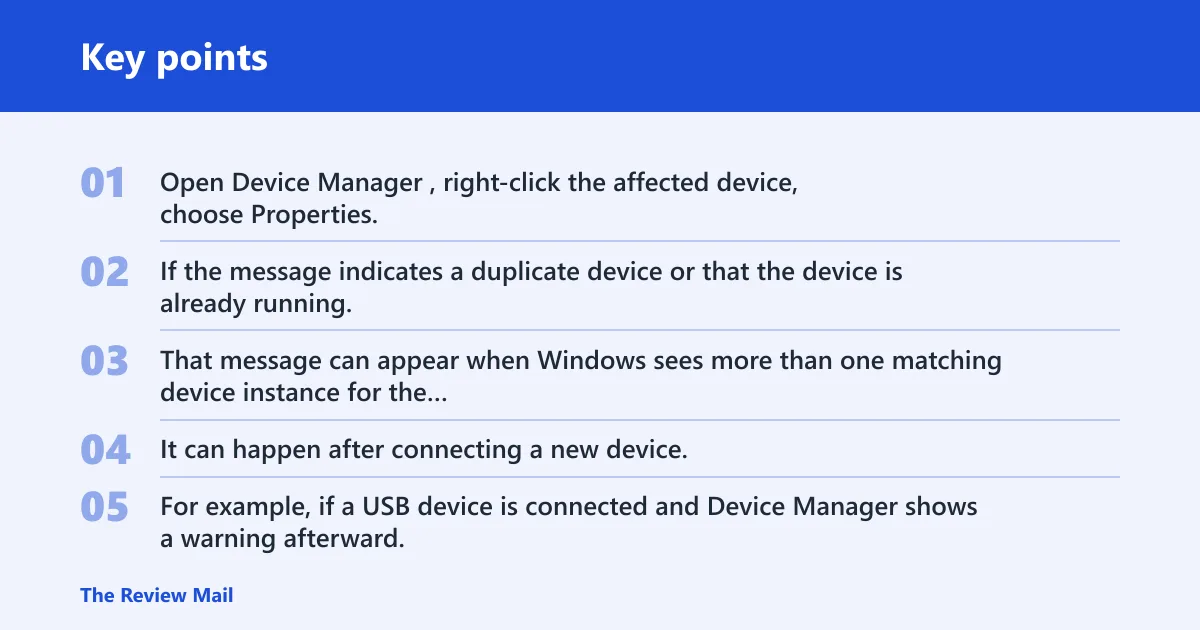
Open Device Manager, right-click the affected device, choose Properties, and read the Device status box on the General tab. If the message indicates a duplicate device or that the device is already running, treat it as a device-instance conflict first.
Why Windows says the device is already running
That message can appear when Windows sees more than one matching device instance for the same hardware. It can happen after connecting a new device, if two identically named sub-processes are created, or if the driver is not loading correctly for that device.
For example, if a USB device is connected and Device Manager shows a warning afterward, the next step is to check for a duplicate device instance and then refresh the hardware connection.
Likely causes, ranked
Start by looking for a duplicate device entry or a driver problem. Common causes include an identical device already running in the system, outdated or corrupted device drivers, incompatibility with the system, or corrupted files.
Duplicate device instance
The most direct cause is that Windows has found an identical device already running in the system. This can happen when the hardware is recognized more than once or when a previous instance remains attached.
Driver or file corruption
Outdated or corrupted device drivers can also trigger the error, and corrupted files may prevent the device from loading correctly.
Incompatible hardware
The error can also occur if the hardware device is incompatible with your system.
Why it happens after sleep or hibernate
If Code 42 appears after a sleep or hibernate cycle, check whether the device is being detected as a duplicate after the system wakes. The simplest test is to restart the PC, then see whether the hardware loads normally again.
- Restart your device and check if the connected hardware device is functioning correctly.
- Disconnect and then reconnect the hardware device.
- Test the device again after the PC returns to the desktop.
- If the problem continues, continue with the driver and system-file checks below.
How to fix a driver that needs reinstalling
If the device has a yellow warning icon in Device Manager or the driver is clearly corrupted, uninstall it and restart the PC. Then let Windows detect it again or reinstall the manufacturer’s driver.
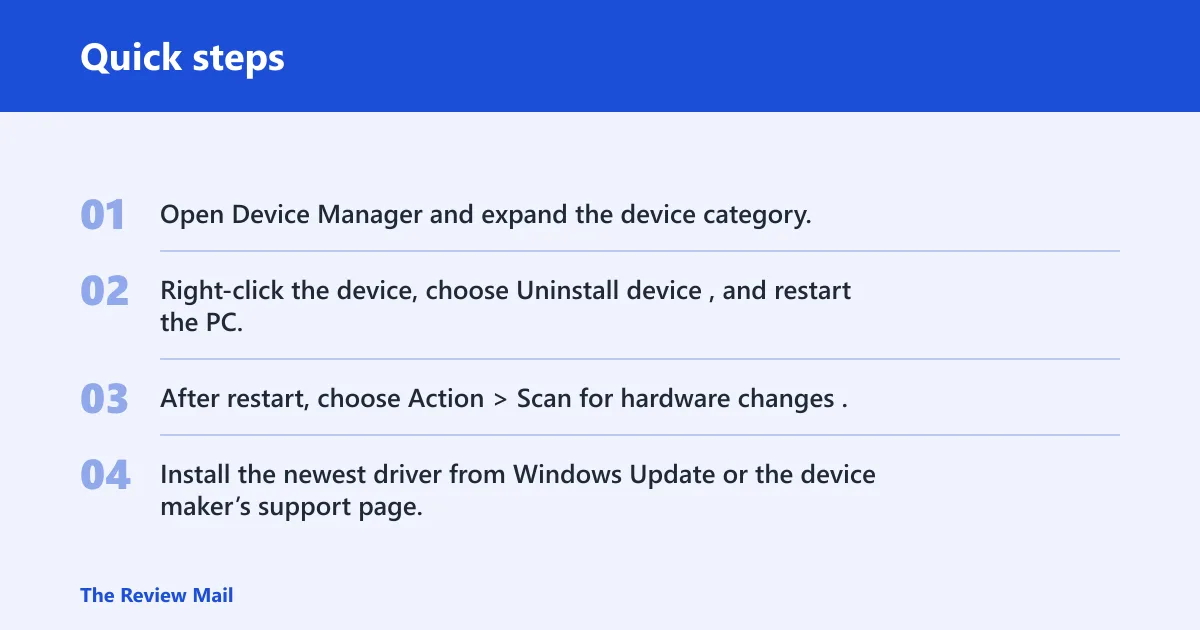
- Open Device Manager and expand the device category.
- Right-click the device, choose Uninstall device, and restart the PC.
- After restart, choose Action > Scan for hardware changes.
- Install the newest driver from Windows Update or the device maker’s support page.
When Windows Update is not enough
If Windows keeps installing the same problematic driver, use the OEM driver source for that exact model. If the drivers are corrupted or show a yellow exclamation mark or Device Manager shows a warning icon in Device Manager, uninstall them and restart your device.
When BIOS or chipset updates help
Update the device drivers of your Windows device first. If the issue continues and the manufacturer provides an updated support package for the exact model, install it from the OEM support page.
- Check the OEM support page for the latest driver package for your exact device.
- Install any available manufacturer driver updates.
- Restart the PC after installation.
- Recheck Device Manager to see whether the duplicate-device error is gone.
Code 42 decision table
| Symptom | Likely cause | Best first fix | Second fix | When to escalate |
|---|---|---|---|---|
| After restart | Driver load problem or duplicate device entry | Uninstall the device, restart, then scan for hardware changes | Install the latest OEM driver package | If the same device keeps returning with the same status |
| After connecting new hardware | Identical device already running in the system | Disconnect the hardware, restart, then reconnect it | Remove the device entry and reinstall the driver | If Windows keeps creating the same duplicate entry |
| After driver update failures | Outdated or corrupted driver package | Uninstall the driver | Install the OEM package and restart | If the manufacturer package still shows the same error |
| After system file problems | Corrupted files | Run system file repair tools | Restart and test the device again | If Windows still shows the duplicate-device status |
Frequently asked questions
What does code 42 mean in Device Manager?
It means Windows has detected a duplicate device condition in Device Manager. Check Device status on the General tab, then restart the PC or reconnect the hardware before trying anything else.
How do I fix code 42 on a Windows driver?
Uninstall the device in Device Manager, restart, and then use Action > Scan for hardware changes. If needed, install the current driver from Windows Update or the manufacturer’s support page.
Is code 42 the same as a hardware failure?
No. It usually indicates a duplicate device condition or a driver loading issue. If you’re actually seeing Code 43, that can point to a hardware failure or a device problem. If reinstalling the driver and reconnecting the hardware do not help, check the manufacturer’s support information for that device model.
Can code 42 be fixed by restarting Windows?
Yes, restarting is a good first step. If the device still does not load correctly after restart, disconnect and reconnect the hardware, then reinstall the driver if needed.
What is code 42?
Code 42 is a Device Manager error for a duplicate device condition. Open the device’s properties and check Device status to confirm the message.
What is code 42 software?
If you mean the Windows error code, it is not a separate app. It is a Device Manager status.
How to repair Windows files if the error continues
If the device driver still fails after reinstalling it, run built-in repair tools to check for corrupted files and image issues.
- Open Command Prompt as an administrator.
- Run sfc/scannow.
- Run
DISM /Online /Cleanup-Image /CheckHealth. - Run
DISM /Online /Cleanup-Image /ScanHealth. - Restart the PC and test the device again.
How to use the Hardware and Devices troubleshooter
You can also run the Hardware and Devices Troubleshooter. Use msdt.exe -id DeviceDiagnostic to open it, then follow the prompts and test the device again after the scan completes.
- Press Win + R.
- Type msdt.exe -id DeviceDiagnostic and press Enter.
- Run the troubleshooter.
- Restart the PC if Windows recommends it.