The Drivers for This Device Are Not Installed Windows 10 Fix
If Windows 10 says “the drivers for this device are not installed,” open Device Manager first, confirm the device class, then move in this order: Windows Update, the manufacturer’s support page, and a manual install only if you already have the correct package. That message means Windows has no driver match yet, so verify the device, the package, and the install path before trying another copy.
This guide is part of our Windows driver errors: full list and fixes series.
Decision table
| Symptom in Device Manager | Likely cause | Exact next action |
|---|---|---|
| Code 28 on the General tab | No driver package is installed yet | Open Device Manager, then use Update Driver and try Search automatically for updated driver software first. |
| Unknown device | Windows sees the hardware but cannot match it to a driver | Check Windows Update first, then go to the manufacturer’s support page and look under Support > Software and drivers. |
| Driver present, but the device still does not function | Wrong package, stale package, or a bad install path | Use Properties > Driver, then Roll Back Driver or uninstall the device and restart so Windows can reinstall it. |
| Older OEM-only hardware | No current Windows 10 package from the vendor | Use the OEM package, match the device class and architecture, and try Compatibility mode if the installer is older. |
Source priority
Begin with the source most likely to already have the right package, then move outward only if that fails. For many devices, Windows Update is a common first place to check. If it does not help, go to the manufacturer site or a vendor tool built for that hardware class.
| Try first | Best use case | Why it comes first |
|---|---|---|
| Windows Update | Mainstream devices and recent hardware | It can install drivers automatically and checks the current Windows configuration. |
| Manufacturer support page | Exact model packages, including OEM-only hardware | It is where model-specific drivers usually live. |
| Intel, AMD, or NVIDIA tool | Graphics, wireless, ethernet, chipset, or GPU packages from those vendors | These tools can identify the product or search the right family quickly. |
| Manual Device Manager install | When you already have the extracted package | It is the direct path for a known-good .inf package. |
Can Windows Update find it?
Yes, and you should check it first because Windows Update can install drivers automatically. Open Settings > Update & Security > Windows Update, then choose Check for updates. If nothing appears, move on to the manufacturer’s site instead of retrying the same package.
- Save your work and close apps, then open Settings > Update & Security > Windows Update.
- Select Check for updates and wait for the scan to finish.
- If a driver installs, restart the PC when prompted.
- If nothing changes, open Device Manager from the Start menu and continue with a manual path.
Say your HP laptop shows an unknown network adapter after a reset. A Windows Update pass may be enough if HP already published that driver through Microsoft. If not, the next step is the HP support page, not repeated reinstalls of the same package.
Use device Manager
Device Manager is the cleanest place to point Windows at the right driver path. Microsoft’s path is simple: open Device Manager, expand the category, and use Update Driver. From there, try Search automatically for updated driver software first, then switch to Browse my computer for driver software if you already have a package.
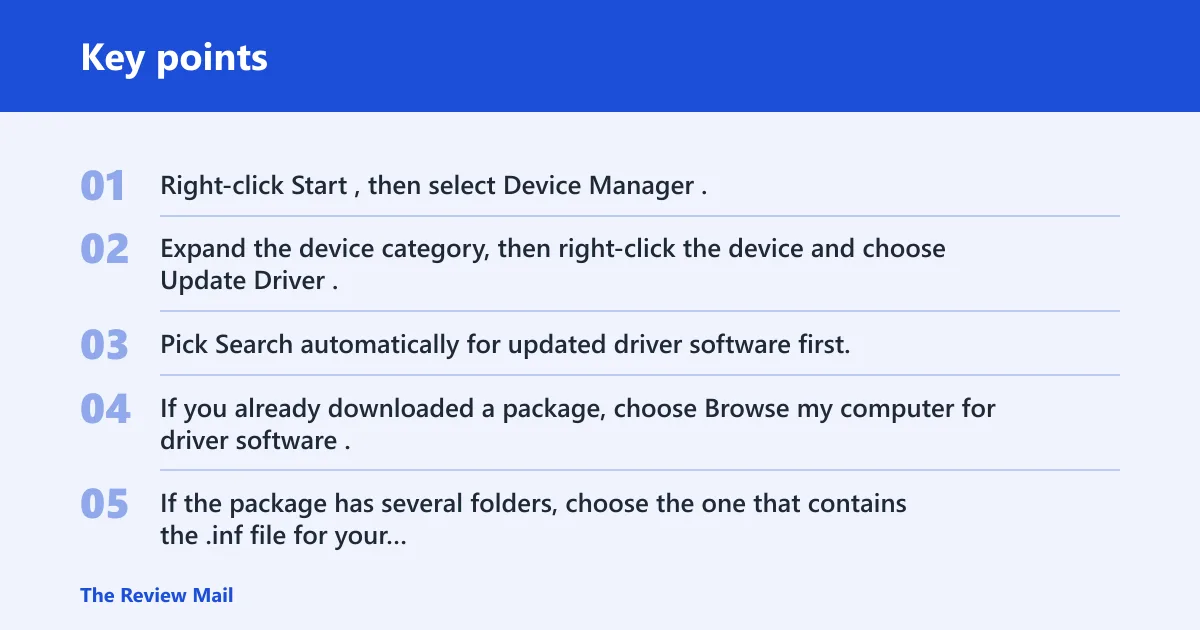
- Right-click Start, then select Device Manager.
- Expand the device category, then right-click the device and choose Update Driver.
- Pick Search automatically for updated driver software first.
- If you already downloaded a package, choose Browse my computer for driver software.
- If the package has several folders, choose the one that contains the .inf file for your device class.
When a package contains graphics, wireless, and storage folders, do not pick one at random. Choose the folder that matches the device type shown in Device Manager. A common first-timer mistake is pointing Windows at a folder that looks complete but has the wrong .inf for the device class.
Get the right OEM driver
Open the manufacturer’s Support section, then Software and drivers, and pick the exact model. That matters on older systems and business PCs, where the vendor page may be the only place that still carries the correct package. Check the model name carefully before you download anything.
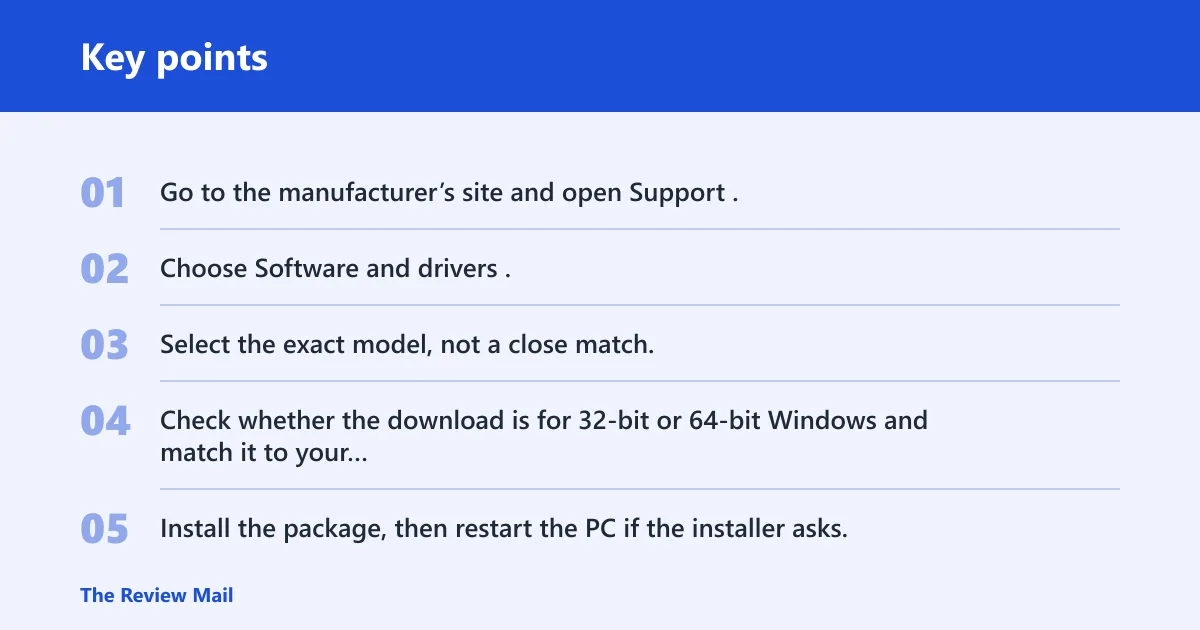
- Go to the manufacturer’s site and open Support.
- Choose Software and drivers.
- Select the exact model, not a close match.
- Check whether the download is for 32-bit or 64-bit Windows and match it to your installation.
- Install the package, then restart the PC if the installer asks.
For Intel systems, the download center includes drivers, BIOS, utilities, firmware, patches, and tools, plus an automatic product-identification tool. For AMD, the driver page offers auto-detect and install updates for Radeon and Ryzen chipsets, and its Windows 10/11 support targets 64-bit version 1809 and later. NVIDIA’s driver portal also supports manual search, with Windows 10 32-bit shown in the selector. (AMD) (Nvidia)
What if the driver is old?
Older drivers can still work on Windows 10, but only when you install the right package and, in some cases, use Compatibility mode. That helps older installers run on newer Windows builds. It is most useful for legacy OEM hardware that never received a native Windows 10 package.
- Download the last driver package the hardware vendor published for that exact model.
- Right-click the installer file, then open Properties and check for Compatibility.
- If compatibility settings are available, try them before launching the installer again.
- If the hardware is older OEM-only gear, use the vendor package instead of chasing a generic alternative.
What if the device still does not work?
If the driver appears installed but the device still fails, treat it as a bad package or bad reinstall path. At that point, the next step is usually a clean uninstall and reinstall cycle rather than installing the same file again. If the hardware is Intel, AMD, or NVIDIA, use the vendor’s own detection or search tool before trying a third-party package.
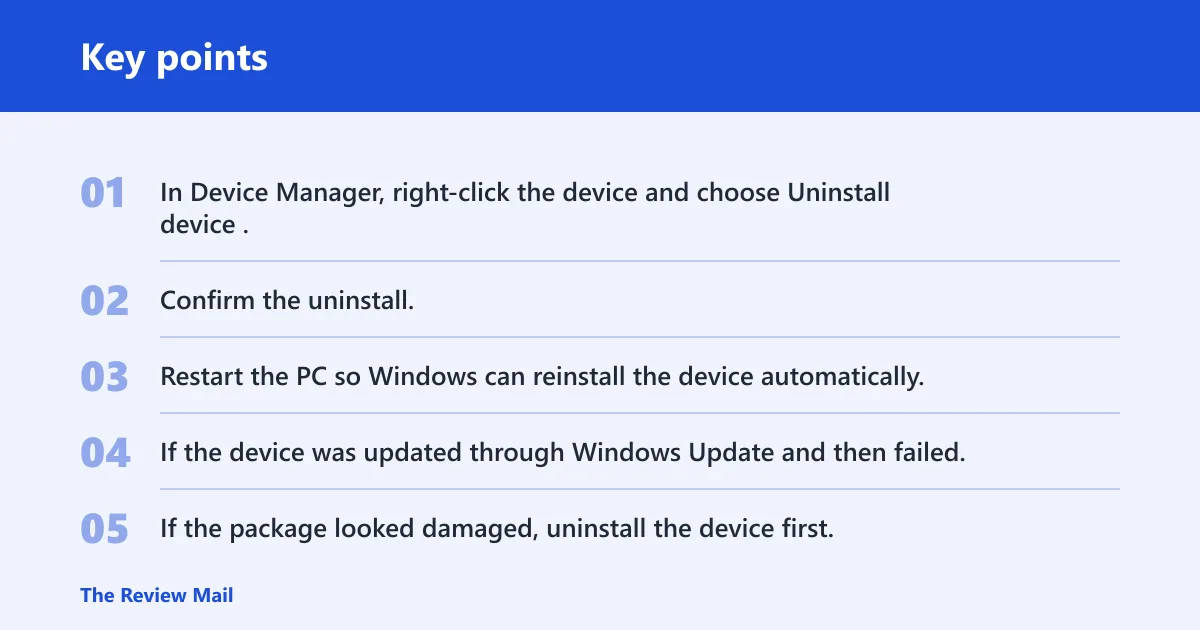
- In Device Manager, right-click the device and choose Uninstall device.
- Confirm the uninstall.
- Restart the PC so Windows can reinstall the device automatically.
- If the device was updated through Windows Update and then failed, use Properties > Driver > Roll Back Driver.
- If the package looked damaged, uninstall the device first, then restart and install a fresh copy.
Driver Easy can be a guided fallback when you need a broader scan. Its workflow starts by uninstalling the device and deleting the driver software, then it scans for problem drivers and uses Update All. Use it as a recovery path, not as the first move.
Picture a desktop motherboard with an older Intel wireless adapter that shows no usable package in Windows Update. The faster next move is Intel Download Center, then the product-identification tool, then the exact wireless driver family. That sequence beats trying random downloads from similar-looking models.
Frequently asked questions
How do I fix “The drivers for this device are not installed” in Windows 10?
Open Device Manager, update the device from the Driver tab, and start with Search automatically for updated driver software. If Windows finds nothing, check Settings > Update & Security > Windows Update > Check for updates, then use the manufacturer’s support page and the exact model package.
What should I do if the device shows drivers installed but still does not work?
Go to Device Manager > Properties > Driver and try Roll Back Driver if the problem began after an update. If that does not help, uninstall the device, restart, and let Windows reinstall it. For Intel, AMD, or NVIDIA hardware, use the vendor’s own tool next.
Should I use Windows Update or the manufacturer’s driver?
Start with Windows Update, since it can install drivers automatically. If it does not find the device package, go to the manufacturer’s Support section and open Software and drivers. Use the OEM file when the device is model-specific or older hardware needs a vendor package.
How do I install a driver manually in Device Manager?
Right-click the device in Device Manager, choose Update Driver, then select Browse my computer for driver software. Point Windows at the extracted folder that contains the correct .inf file for that device class. If the install fails, check that the package matches 32-bit or 64-bit Windows.
Can I use an older Windows driver on Windows 10?
Yes, sometimes. Use the vendor’s package for the exact model and try Compatibility mode if the installer is old. This is most useful for legacy OEM hardware that never received a native Windows 10 release, but the driver still has to match the device family.
How do I know which driver I need for my device?
Match the device class shown in Device Manager, then match the operating system architecture. If the hardware is Intel, AMD, or NVIDIA, use the vendor’s auto-detect or manual search first. For laptops and OEM desktops, the model number on the support page is usually the safest starting point.