Event 1001 Windows 11: Meaning, Causes, and Fixes
Event 1001 in Windows 11 usually records a crash, freeze, or restart. It does not name the root cause. Open the Event 1001 details and look for the failing app, driver, or bugcheck code. If you fix the wrong component, BSODs or hangs can keep coming back. This guide shows how to read Event Viewer, map 1001 to the real error, and choose the right fix.
What Event ID 1001 means
Event ID 1001 is a Windows Error Reporting event. It is a diagnostic record in Event Viewer, not the failure itself. Windows 11 uses the same core reporting path, so the same log may appear after a blue screen, a freeze, an app crash, or an unexpected restart. (Microsoft Learn)
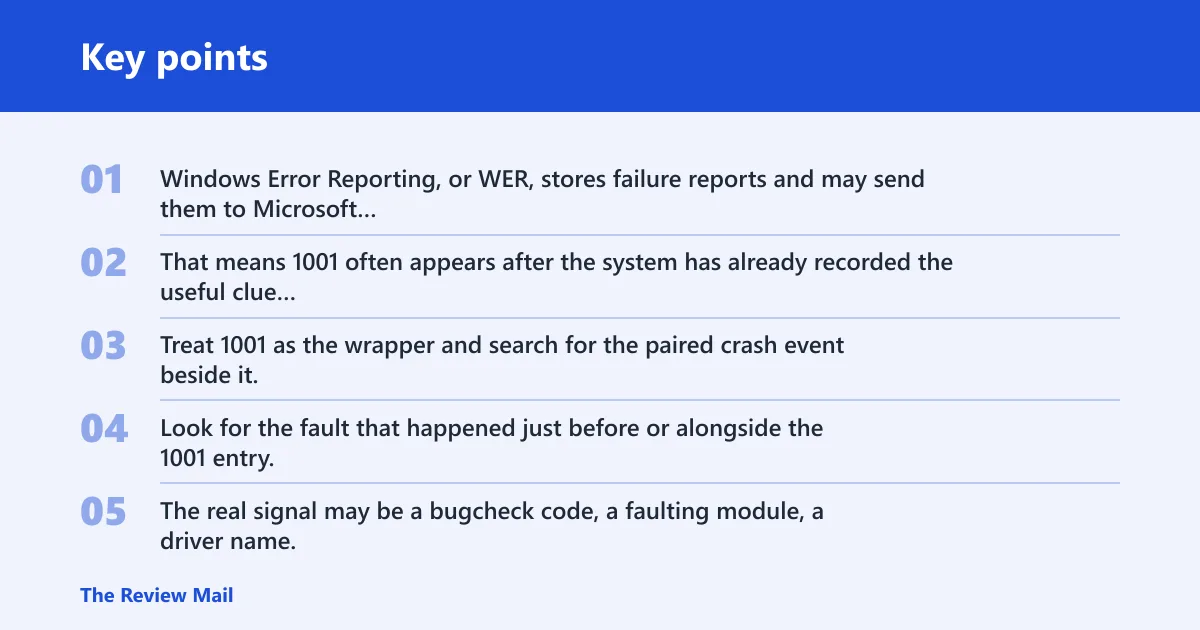
Windows Error Reporting, or WER, stores failure reports and may send them to Microsoft if reporting is enabled. That means 1001 often appears after the system has already recorded the useful clue elsewhere. Treat 1001 as the wrapper and search for the paired crash event beside it.
Look for the fault that happened just before or alongside the 1001 entry. The real signal may be a bugcheck code, a faulting module, a driver name, or a crash timestamp that repeats. If you stop at the 1001 line, you miss the part that changes the fix.
What kinds of failures can trigger it
Event 1001 can follow software crashes, corrupted drivers, system file corruption, virtual memory trouble, malware, heat-related instability, and hardware failure. That list is broad on purpose. The event is reporting the failure path, not naming one cause.
📊 The Microsoft Learn page says WEF applies to Windows 11. Source: Microsoft.
How do I find event ID 1001 in event Viewer?
Open Event Viewer, go to Windows Logs > Application, and search for 1001. Then open the event and read the General tab. That is where you usually see the crash summary, report name, and any paired details that point to the actual failure.
Read the details that matter
Do not rely on the event title alone. In the General tab, look for the faulting application name, the driver name, the bugcheck code, the exception code, or a report path that appears more than once. Those details tell you whether you are chasing a single app, a driver loop, or a system-wide fault.
Say your PC shows Event 1001 after a browser freeze and then a restart. If the General tab names the browser process and the same module every time, the likely problem is the app or an add-on, not Windows itself.
Why does Event ID 1001 happen after a blue screen?
A blue screen creates a system crash, and WER often records the follow-up report as Event 1001 after Windows gathers the bugcheck data. That is why the 1001 entry can appear after the screen has already gone away. The bugcheck code and dump-related clues matter more than the report entry itself.
What to inspect before 1001
Check the event that records the stop code, the restart entry, and any dump-related message near the same time. If you only see 1001, search a few minutes before it in Windows Logs > System and Application. The stop code, driver name, or faulting module usually gives the best lead.
Suppose the machine restarts after a blue screen with no app open. If the earlier log points to a graphics driver, that is a stronger lead than the later 1001 report. The fix should target the driver path first, not random cleanup.
Event 1001 triage matrix
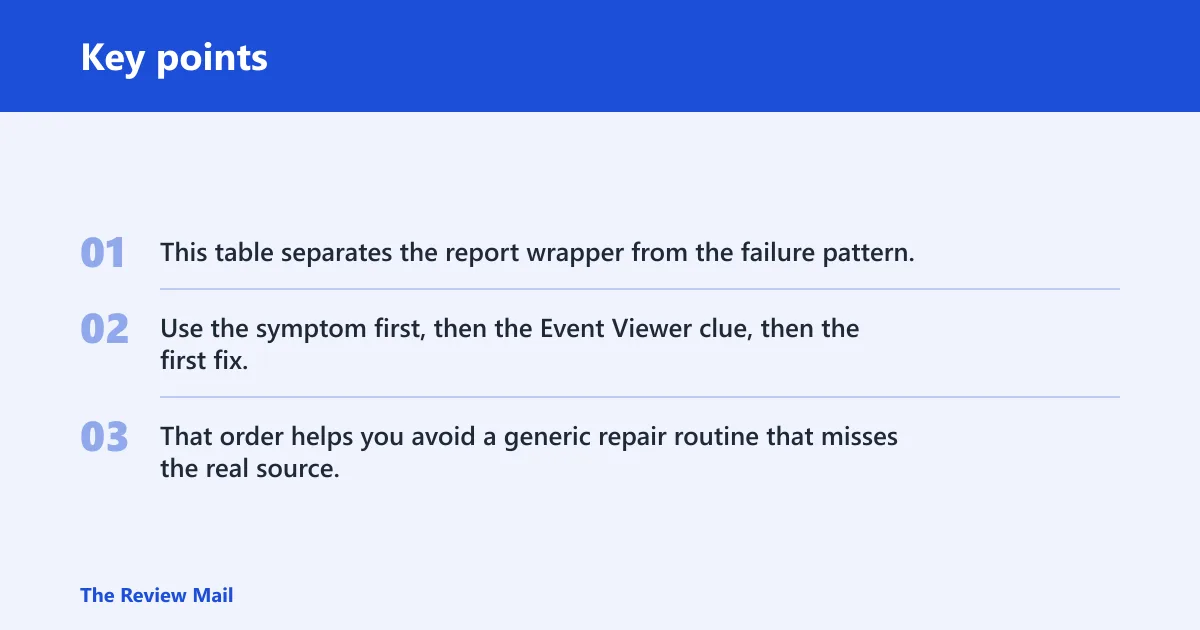
This table separates the report wrapper from the failure pattern. Use the symptom first, then the Event Viewer clue, then the first fix. That order helps you avoid a generic repair routine that misses the real source.
| Symptom pattern | What to check in Event Viewer | Likely root cause | First fix |
|---|---|---|---|
| BSOD-only | Bugcheck code, dump-related entry, driver name near the same time | Driver fault, corrupted system file, or hardware instability | Update or reinstall the suspect driver, then run SFC and DISM |
| Repeated restarts | Same 1001 entry repeating, plus restart or system crash events | Unstable driver, overheating, power issue, or failing hardware | Check recent driver changes, then review temperatures, power, and memory settings |
| App-only crashes | Faulting app name and module in the General tab | Incompatible software, bad add-on, or damaged app files | Repair or remove the app, then update it and scan for malware |
| ReportQueue looping | Multiple 1001 entries tied to the same report path | Saturated WER queue or stuck report processing | Check the ReportQueue folder, clear stuck reports if appropriate, then retest |
How do I fix event ID 1001 on Windows 11?
Start with the fixes that repair Windows itself, then move to drivers, software, and memory settings. That sequence matches how many Windows 11 cases behave, and it also fits the same core flow used on Windows 10 for many causes. Do not jump to hardware testing before the simpler checks.
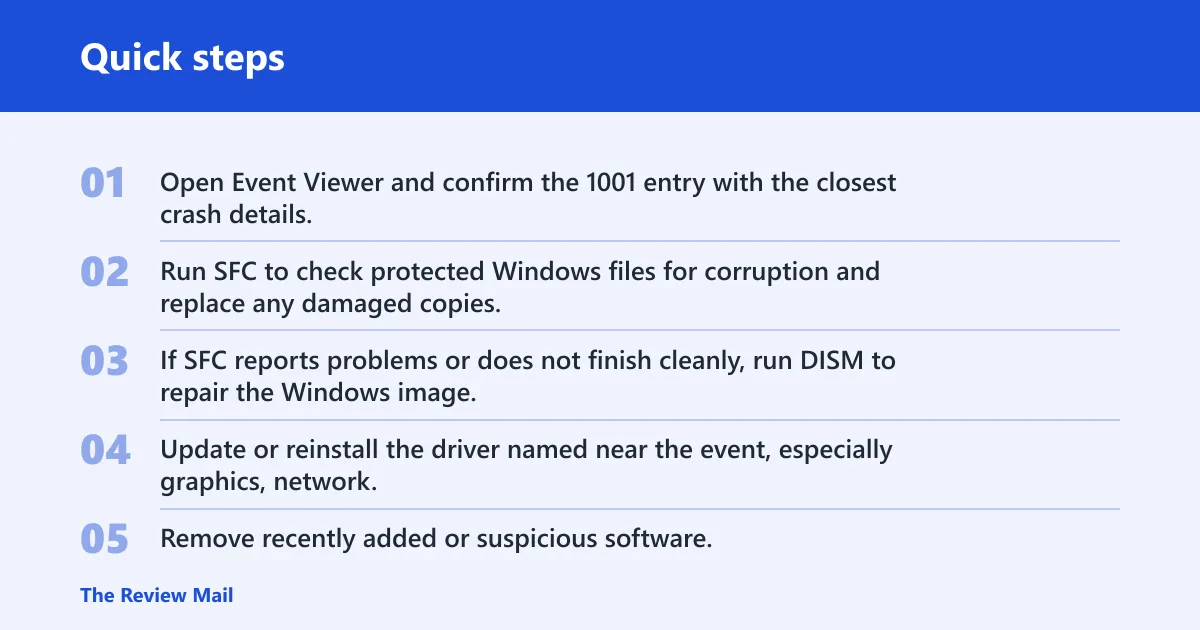
- Open Event Viewer and confirm the 1001 entry with the closest crash details.
- Run SFC to check protected Windows files for corruption and replace any damaged copies.
- If SFC reports problems or does not finish cleanly, run DISM to repair the Windows image, then run SFC again.
- Update or reinstall the driver named near the event, especially graphics, network, or audio.
- Remove recently added or suspicious software.
- Scan for malware with Microsoft Defender or your approved security tool.
- Check virtual memory settings and confirm the pagefile is not disabled or misconfigured.
Why SFC and DISM often go together
SFC checks system files. DISM repairs the Windows image that those files depend on. If the image is damaged, SFC can keep finding the same problem again. That is why the tools are often paired instead of used alone. (Microsoft Support)
When drivers are the likely cause
Drivers are a common source of Event 1001 when the crash pattern follows graphics load, network activity, sleep and wake, or audio playback. Stale or corrupted drivers can trigger freezes, BSODs, and repeated restarts. If the same driver appears in multiple events, start there.
Why virtual memory matters
Virtual memory gives Windows a pagefile-based extension for memory pressure. If the pagefile is turned off, too small, or misconfigured, instability can show up as app crashes, hangs, or bugchecks. That does not prove a memory problem by itself, but it belongs in the check list.
Remove conflicting software
Incompatible software can sit between a stable system and a crash loop. Security tools, overlays, low-level tuning utilities, and old device software are common suspects. If Event Viewer points to an application rather than a driver, the fastest proof is often uninstalling or repairing that app.
A common first-timer mistake is to run only one repair tool and stop when the system restarts cleanly once. If the same 1001 entry comes back with the same driver or module name, the issue was not random. The log pattern matters more than a single good boot.
When hardware is the likely cause
Hardware becomes more likely after you have checked drivers, system files, software conflicts, and virtual memory. RAM faults, drive errors, and power delivery problems can all sit behind Event 1001. They are harder to confirm than software issues, so it makes sense to rule out easier causes first.
Clues that point past software
Look for crashes that happen under load, random restarts with no clear app trigger, repeated bugchecks with different stop codes, or failures that survive a clean driver update. Heat, RAM errors, storage problems, and power instability often leave that kind of mixed trail.
If the system restarts during a game, again during a large file copy, and again while idling, that spread is more suspicious than a single app fault. A drive test, memory test, and power review become more relevant once the log pattern stops pointing to one driver or program.
What to test next
Check RAM seating and run a memory diagnostic, inspect storage health, and confirm the power supply or battery path is stable. If hardware evidence keeps stacking up, do not keep reinstalling software that was never the cause.
What the 1001 report queue can do
The ReportQueue folder lives at C:\ProgramData\Microsoft\Windows\WER\ReportQueue\. If that queue becomes saturated or stuck, Windows can keep trying to process the same failure reports and you may see repeated 1001 entries. That looks like a loop because the report system is repeating, not because the original crash keeps changing.
How to handle a loop safely
Check whether the same report files keep reappearing after reboot. If they do, confirm that the crash source is not still active before touching the queue. Clearing stuck reports without checking the underlying crash can hide the symptom for a moment and leave the cause in place.
Picture a laptop that logs Event 1001 every time it boots after a bad driver install. If the ReportQueue folder keeps refilling with the same report, the loop is a symptom of the unchanged crash path. Fix the driver first, then verify that the queue stops rebuilding.
Frequently asked questions
What does Event ID 1001 mean in Windows 11?
Event ID 1001 usually means Windows Error Reporting recorded a crash, freeze, or unexpected restart. It is a report entry, not the actual fault. To find the real problem, open the event details in Event Viewer and read the paired crash information in the General tab.
Can bad drivers cause Event ID 1001?
Yes. Corrupted or stale drivers are a common cause, especially graphics, network, and audio drivers. If the same driver appears near repeated 1001 entries, update it or reinstall it. That is often more useful than applying broad cleanup steps first.
Does Event ID 1001 mean hardware failure?
Not by itself. Hardware failure is one possible cause, but Event ID 1001 is only the report that Windows logged after the crash. You should first check software, driver, and system file causes, then move to RAM, storage, and power testing if the pattern still points that way.