Video_Tdr_Failure 0x116 Explained: Causes and Fixes
VIDEO_TDR_FAILURE, bug check 0x00000116, means Windows tried to reset the display driver and recovery failed. TDR stands for Timeout Detection and Recovery. The default timeout is about 2 seconds, so a crash can follow a very short GPU hang if the reset path cannot finish.
How TDR recovery actually works
How TDR works in practice
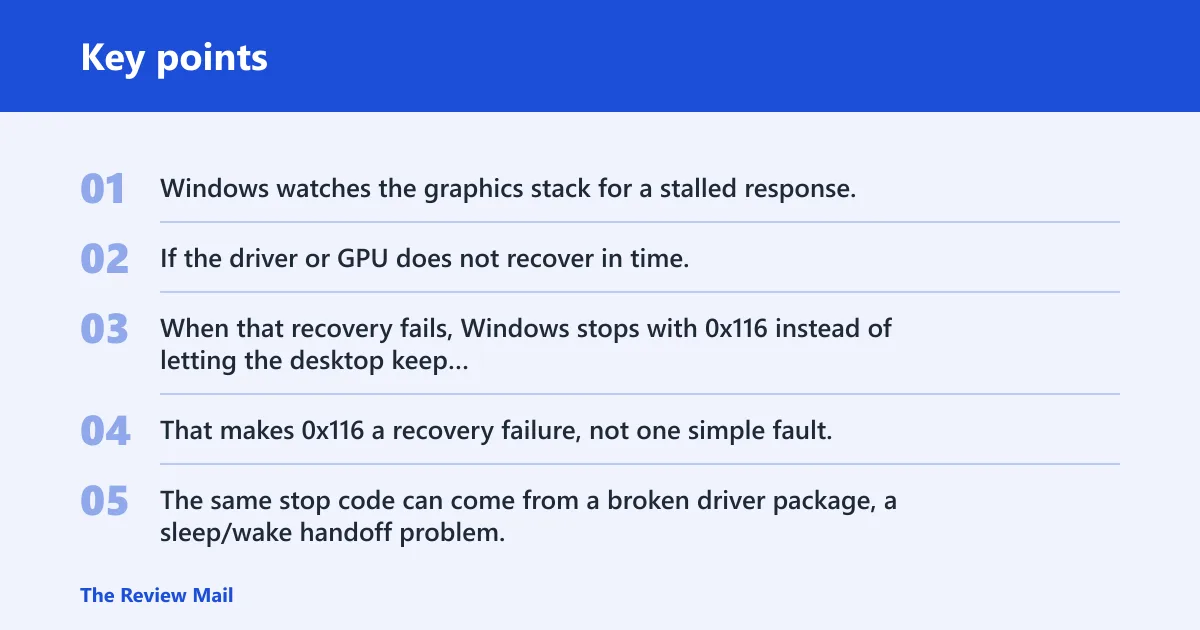
Windows watches the graphics stack for a stalled response. If the driver or GPU does not recover in time, the display miniport reset path runs through DxgkDdiResetFromTimeout. When that recovery fails, Windows stops with 0x116 instead of letting the desktop keep running on a dead graphics path.
That makes 0x116 a recovery failure, not one simple fault. The same stop code can come from a broken driver package, a sleep/wake handoff problem, a power dip, or a GPU that cannot complete the reset.
📊 The default TDR timeout is 2 seconds. Source: Microsoft.
0x116 symptom matrix
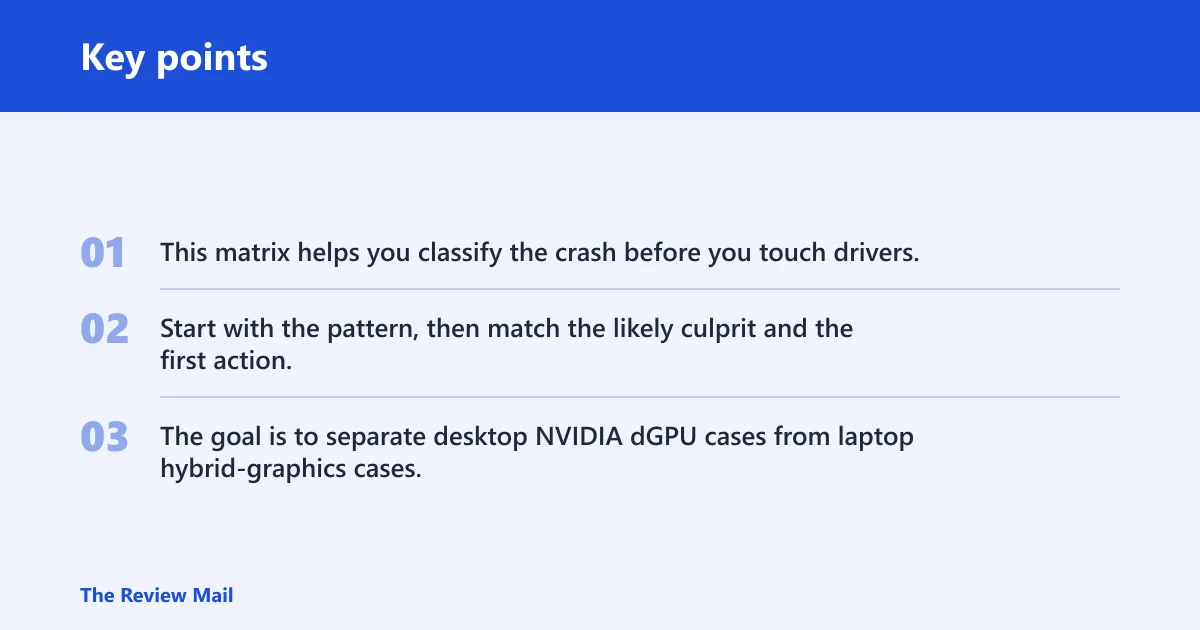
This matrix helps you classify the crash before you touch drivers. Start with the pattern, then match the likely culprit and the first action. The goal is to separate desktop NVIDIA dGPU cases from laptop hybrid-graphics cases, and to spot hardware clues early.
| Symptom pattern | Likely culprit | Confirmatory clue | First action |
|---|---|---|---|
| Desktop NVIDIA dGPU crash during games, browser video, or any 3D load | Driver corruption, bad update, or unstable GPU settings | Dump shows nvlddmkm.sys; crash follows a driver change or overclock | Reinstall the current NVIDIA or AMD desktop GPU driver package that matches the card, after removing the old package if the crash keeps returning |
| Laptop hybrid graphics crash during sleep, wake, docking, or display switching | Hybrid-graphics handoff or OEM graphics package issue | Dump may show igdkmd64.sys instead of NVIDIA code | Use the laptop maker’s graphics driver package, then update BIOS/UEFI and chipset drivers |
| Idle crash after sitting at the desktop or in a browser | Power-state bug, stale driver, or wake-related issue | Crash happens with low GPU load, not just in games | Check sleep, hibernation, and graphics power settings before a clean reinstall |
| Load-only crash under games, benchmarks, or video encode | Thermal, power, or unstable overclock/undervolt | Fans ramp hard, temps climb, or the crash appears under sustained load | Return clocks to stock and check cooling and power delivery |
| Repeated TDR bursts, then a BSOD | Looping reset failure or deeper hardware instability | More than five TDRs in one minute can trigger the bug check | Inspect the dump, then test power, thermals, and hardware seating |
| Crashes across reinstalls, different drivers, or even after rollback | Hardware failure | Same pattern returns after clean driver changes | Check VRAM, the PSU, the PCIe slot, motherboard, and cooling path |
Why does 0x116 happen on NVIDIA systems?
On NVIDIA systems, the faulting module often shows up as nvlddmkm.sys, the NVIDIA kernel-mode display driver. That points to the driver path, not automatically to a bad GPU. The same module can appear when the package is corrupted, the laptop is using the wrong graphics stack, or the hardware cannot recover cleanly.
Say your desktop crashes only when launching a game, and Event Viewer points to nvlddmkm.sys after a recent driver update. That pattern leans toward a driver-family problem first. Suppose the same machine crashes again after a clean reinstall and clocks are already at stock settings; hardware or power becomes a stronger suspect.
For laptop hybrid graphics, the faulting module may be igdkmd64.sys or another iGPU-related driver, even when the screen flashes under an NVIDIA label. That is why the faulting module must match the hardware context. A mixed driver set can make the wrong component look guilty.
Most likely causes, in order
- Driver corruption or a buggy update. This is the first place to look when the stop appears after a new install, a rollback, or a Windows update.
- Hybrid-graphics or sleep/wake handling. This is common on laptops with switchable graphics, docking, or panel power-state changes.
- BIOS/UEFI or chipset issues. These matter when the crash clusters around wake, resume, or platform changes.
- Overheating, insufficient power, or overclocking. These tend to show up under load, not at idle.
- Hardware failure. Consider VRAM, the PSU, the PCIe slot, or the motherboard if the crash survives clean software work.
How do you read the bug check parameters?
The parameters help you separate a one-off timeout from a repeated recovery loop. In TDR analysis, parameter 1 often points to a TDR_RECOVERY_CONTEXT structure, which can expose timeout details such as TimeoutReason. That makes it more useful than a plain error code alone.
What to look for in WinDbg
Use !analyze -v on the crash dump. Microsoft’s example analysis uses that command because it shows the bug check, the likely responsible module, and supporting status fields. If the analysis points to a timeout loop rather than one bad reset, the problem is often broader than a single driver file.
Minidumps are usually stored in C:\Windows\Minidump. If that folder is empty, check System Properties > Startup and Recovery to confirm that small memory dumps are enabled. Also check that the system is actually writing dumps after the next crash; no dump means no useful module trace.
How do I fix video_tdr_failure 0x116 in Windows 11?
Start with the correct driver source, then move to a clean reinstall only if the first pass fails. For desktop cards, use the GPU vendor’s current package. For laptops, use the laptop OEM graphics package first, because switchable-graphics systems often depend on the vendor’s validated bundle.
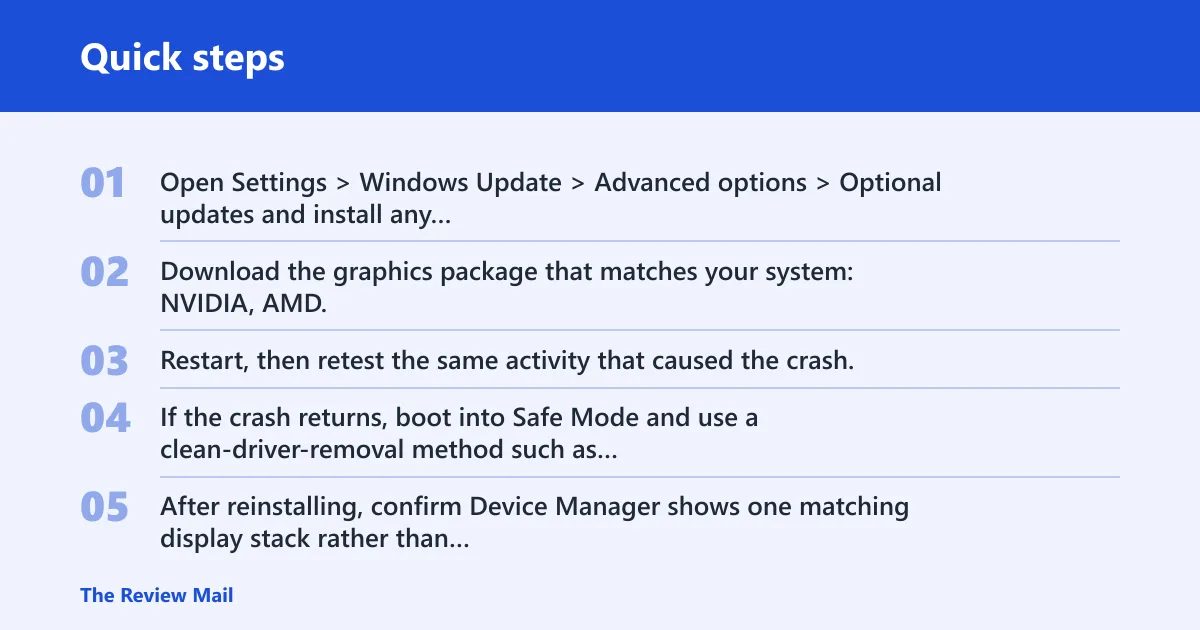
Fix the driver path first
- Open Settings > Windows Update > Advanced options > Optional updates and install any display-driver related updates that appear.
- Download the graphics package that matches your system: NVIDIA, AMD, or Intel for a desktop card, or the laptop maker’s graphics package for a hybrid system.
- Restart, then retest the same activity that caused the crash.
- If the crash returns, boot into Safe Mode and use a clean-driver-removal method such as DDU before reinstalling the correct package.
- After reinstalling, confirm Device Manager shows one matching display stack rather than a mixed or stale set of adapters.
DDU is useful when normal reinstalling leaves corruption behind. It is not the first move for every case, but it can help when a stubborn package keeps reappearing after reinstall or rollback. Use Safe Mode for the removal step so the active display driver is not still loaded.
Then check firmware and platform drivers
- Open Settings > Windows Update and install pending system updates.
- Check the laptop or motherboard support page for BIOS/UEFI updates, then apply the current release if the machine has sleep, wake, or hybrid-graphics issues.
- Install the latest chipset and platform drivers for your model.
- Reboot and repeat the same workload.
Could cooling or power be causing it?
Yes. Overheating or insufficient system power can trip TDR, especially when the crash appears under gaming or other sustained load. Overclocked components are also a listed hardware cause. If the problem happens at idle, heat is still possible, but power-state and driver issues move higher on the list.
Clues that point to hardware stress
- Return the GPU and CPU to stock settings, including any overclock or undervolt.
- Check fan operation, dust buildup, and blocked vents.
- On desktops, confirm the GPU power connectors are seated and the PSU can supply the card’s rated load.
- On laptops, test on AC power with the original adapter and check whether the crash follows battery, dock, or charger changes.
- If crashes continue across driver reinstalls, suspect VRAM, the PCIe slot, the motherboard, or another part of the graphics path.
Picture a desktop that only crashes in a 3D game, never at the Windows sign-in screen, and the crash starts after a GPU overclock. That is a different pattern from a laptop that BSODs during wake from sleep. Same stop code. Different first move.
A common first-timer mistake is to blame the GPU the moment nvlddmkm.sys appears. That file can be the messenger, not the root cause. If the same machine also shows fan throttling, a hot chassis, or PSU instability, treat those as real leads.
What to check in BIOS and Windows?
BIOS/UEFI and chipset updates are especially worth checking when the crash is tied to sleep, wake, docking, or hybrid graphics. If the dump points to the display stack but the pattern is tied to platform power transitions, update the platform first and then recheck the graphics driver.
Quick escalation ladder
- Install current Windows updates and the correct graphics package for the system type.
- Apply chipset and BIOS/UEFI updates from the system or motherboard maker.
- If dumps are missing, enable small memory dumps and reproduce the crash again.
- Run !analyze -v in WinDbg on the next dump and compare the module name with the hardware context.
- If the crash continues after clean driver work, move to hardware checks: PSU, thermals, VRAM, slot seating, and board-level faults.
Still not working?
If 0x116 returns after a clean reinstall, BIOS/UEFI and chipset updates, and a stock-clock test, the problem is less likely to be a simple driver bug. At that point, system-level support or hardware diagnosis is the next step. Keep a note of whether the crash happens at idle, under load, or during sleep/wake; that pattern speeds the next round of help.
Frequently asked questions
What does VIDEO_TDR_FAILURE 0x116 mean?
It means Windows could not recover the display driver after a timeout. The practical first step is to check whether the crash happens at idle, under load, or during sleep and wake, then reinstall the correct graphics package for that system type before moving to hardware checks.
Why does video_tdr_failure 0x116 happen on NVIDIA systems?
NVIDIA systems often show nvlddmkm.sys because that is the kernel-mode display driver in the crash path. That module can appear with driver corruption, bad updates, hybrid-graphics handoff problems, or power and thermal instability, so the file name alone does not prove the GPU is bad.
Is nvlddmkm.sys the cause of 0x116?
Not by itself. It is a common faulting module name in dump analysis, but it can point to a bad package, a stale driver set, or a hardware reset that failed. Match the file name to the device type, then use !analyze -v to confirm the context.
Can overheating or power issues trigger VIDEO_TDR_FAILURE?
Yes. Insufficient system cooling, insufficient system power, and overclocked components are all listed hardware causes. If crashes appear only under gaming or heavy GPU load, restore stock clocks first, then check fans, airflow, power connectors, and the PSU or laptop adapter.
Should I use DDU to reinstall my graphics driver?
Use it when a normal reinstall does not clear the crash or when a mixed driver set keeps coming back. Boot Safe Mode, remove the old package, then install the correct driver for the system. On laptops, that usually means the OEM graphics package rather than a generic desktop bundle.
When is VIDEO_TDR_FAILURE a hardware problem instead of a driver problem?
It shifts toward hardware when the crash repeats after clean reinstalls, happens across different driver versions, or keeps coming back under load. Repeated TDR bursts, cooling problems, PSU instability, bad VRAM, or a faulty PCIe slot are stronger clues than a single nvlddmkm.sys mention in a dump.