Update Driver Wifi Win 11
To update driver wifi win 11, match the Wi‑Fi chip model in Device Manager, then install the newest driver from your PC maker’s support page. Use the chip maker’s site only if the PC maker has none. Picking the wrong package can drop wireless access, break Bluetooth on combo cards, or leave Windows rolling back the driver. This guide shows how to identify the adapter, choose the safest download source, and update it online or from a USB drive.
Which Wi‑Fi driver should you install?
Start with the adapter name in Windows 11. That name often points to Intel, Realtek, MediaTek, or Qualcomm hardware, and the safest file is usually the one listed for your exact computer model and Windows version. If the device is an OEM laptop or desktop, the maker’s support page is the first stop.
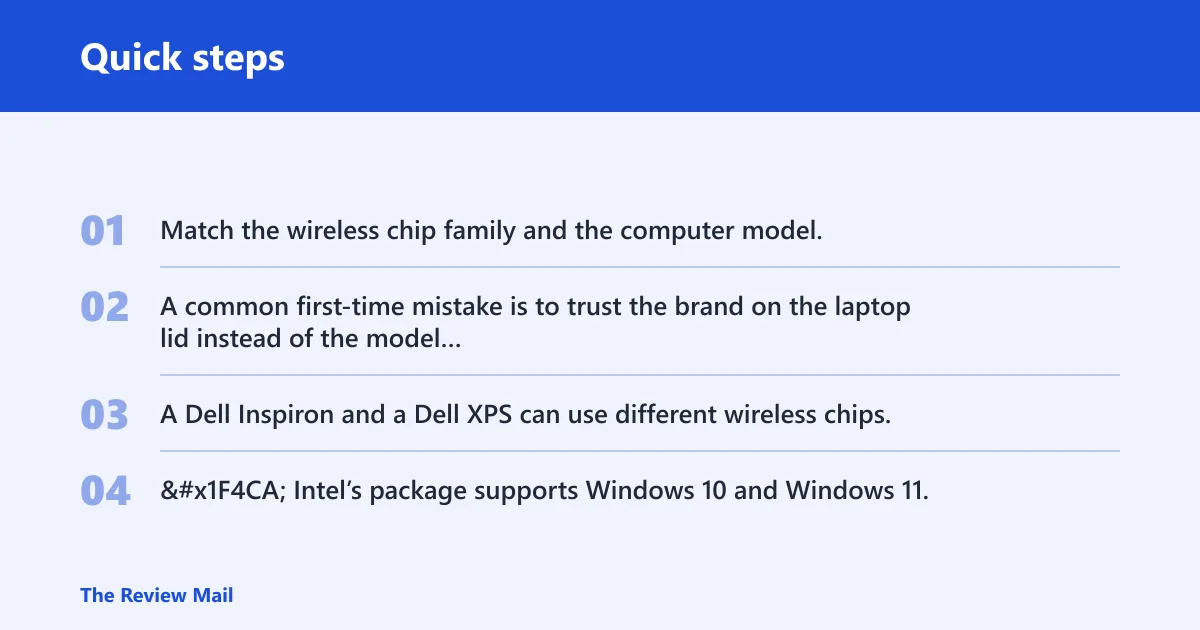
Do not search by “Wi‑Fi” alone. Match the wireless chip family and the computer model, because two machines with the same brand can ship with different adapters and different driver packages.
| Laptop/desktop brand | Where to find the adapter name | Safest download source | Offline workaround | Common mistake to avoid |
|---|---|---|---|---|
| Intel-based PC | Device Manager > Network adapters | PC maker support page first; Intel if no newer OEM file exists | Download on another PC, copy to USB, install offline | Choosing a random Intel package that does not match the adapter family |
| Realtek-based PC | Device Manager > Network adapters | PC maker support page for the exact model and Windows version | Use USB tethering or another computer to get the file | Pulling a generic Realtek driver from an unrelated model |
| OEM model from Dell, HP, Lenovo, ASUS, MSI, or Gigabyte | Wireless adapter name in Network adapters plus the laptop or desktop model label | Manufacturer support page for the exact model | Download on a second device, then transfer by USB drive | Installing a driver for a similar-looking model or a different Windows build |
A common first-time mistake is to trust the brand on the laptop lid instead of the model number. A Dell Inspiron and a Dell XPS can use different wireless chips, so the correct file is tied to the model, not the logo.
📊 Intel’s package supports Windows 10 and Windows 11. Source: Intel.
Can updating a Wi‑Fi driver fix Windows 11?
Yes, sometimes. A Wi‑Fi driver update can help with disconnects, no-internet status, adapter errors, and hardware that vanishes after sleep. It is a fix for the wireless adapter path, though, so it will not cure a bad router, a DNS problem, or a power-saving setting by itself.
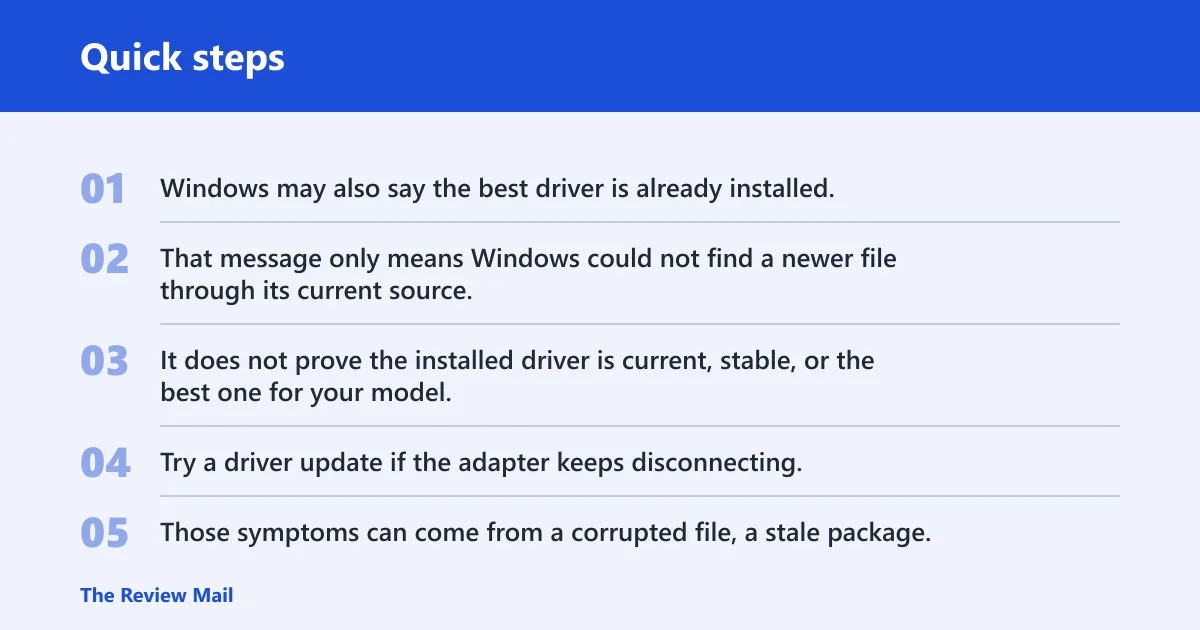
Windows may also say the best driver is already installed. That message only means Windows could not find a newer file through its current source. It does not prove the installed driver is current, stable, or the best one for your model.
When a driver update is worth trying
Try a driver update if the adapter keeps disconnecting, shows a warning in Device Manager, or loses access after Windows Update. Those symptoms can come from a corrupted file, a stale package, or a driver that no longer fits the rest of the system.
When the problem is probably elsewhere
If every device on the network is down, the router is the stronger suspect. If only one site fails, DNS is worth checking. If the Wi‑Fi drops only after sleep or lid close, power management settings may be shutting the adapter off.
Suppose a Windows 11 laptop shows full signal bars but cannot open any pages after waking from sleep. A driver refresh may help, but the same symptom can also come from an adapter power setting that lets Windows turn the card off to save energy.
Update the driver in Device Manager
Device Manager is often one of the quickest built-in paths. Open Device Manager, expand Network adapters, right-click the wireless adapter, choose Update driver, and let Windows search automatically for drivers. This keeps the process inside Windows before you reach for a download.
Use Search automatically for drivers
- Open Device Manager.
- Expand Network adapters to reveal the wireless adapter entry.
- Right-click the wireless adapter entry.
- Select Update driver.
- Choose Search automatically for drivers.
If Windows finds a newer file, install it and restart the PC. If it finds nothing newer, move to the manufacturer’s support page instead of stopping there.
Do not assume “no update found” means no update exists. Windows may check a limited set of sources, while the PC maker may host a newer package that is built for that exact model.
Get the correct driver from your PC maker
The PC manufacturer support page is usually the safest source for an OEM laptop or desktop. Use the exact model name, then match the Windows 11 version and the wireless chip family. That avoids the most common failure point: downloading the right brand, but the wrong build.
Use the exact model page
Open the support page for the machine itself, not a similar machine. Dell, HP, Lenovo, ASUS, MSI, and Gigabyte all publish model-specific downloads, and the file name often makes the supported platform clear once you are on the correct page.
Match the wireless chip family
Check the adapter name in Network adapters first. If it says Intel, Realtek, MediaTek, or Qualcomm, that narrows the package family. On many systems, the adapter name alone is enough to tell you whether the PC maker’s driver or the chip maker’s file is the right next step.
Say your desktop lists “Realtek Wi‑Fi 6 PCIe Adapter” in Device Manager and the motherboard vendor page has two wireless downloads. Pick the package listed for your exact board revision and Windows 11, not the one meant for a similar board with a different wireless module.
Intel and Microsoft driver sources
Intel’s latest Wi‑Fi package driver is version 24.80.0, marked Latest, and Intel says it supports Windows 10 and Windows 11. Intel also lists support for Wi‑Fi 7, Wi‑Fi 6E, Wi‑Fi 6, and 9000 series adapters, which makes it a strong fallback when the OEM page is stale or missing a newer file. (Intel)
When to use Intel’s package
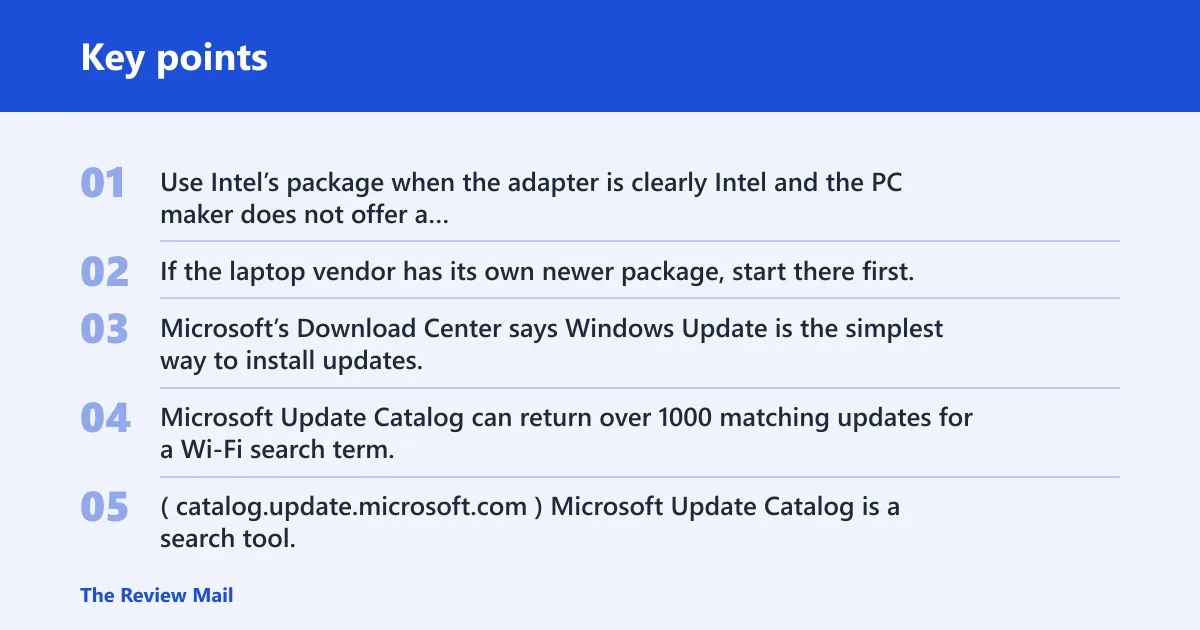
Use Intel’s package when the adapter is clearly Intel and the PC maker does not offer a newer model-specific release. If the laptop vendor has its own newer package, start there first, because OEM builds are often tuned for that model’s hardware and power behavior.
How microsoft Update Catalog differs
Microsoft’s Download Center says Windows Update is the simplest way to install updates, and its Download Center includes hardware drivers for network cards as well as printers and cameras. Microsoft Update Catalog can return over 1000 matching updates for a Wi‑Fi search term, so it is useful only when you know how to narrow the results by model, version, and Windows 11 target. (Microsoft)
Microsoft Update Catalog is a search tool, not a shortcut. It can show multiple driver versions for the same wireless family, and that breadth is exactly why the search terms must be tight. If you cannot match the model or package details, the OEM page is the safer choice.
Install Wi‑Fi drivers without internet
If the affected PC cannot get online, use another computer to download the driver, copy it to a USB drive, and install it on the offline PC. If you have no second computer, USB tethering from an Android phone or iPhone can often provide enough temporary internet access to fetch the file.
Offline driver install sequence
- Find the exact PC model on the offline machine.
- Use another computer or a phone with USB tethering to get the driver.
- Download the file from the PC maker or chip maker.
- Copy the installer to a USB drive.
- Move the USB drive to the offline PC and run the installer.
- Restart the PC after installation.
After the reboot, confirm the adapter is still enabled in Network adapters. Then restart the router if the PC connects but still cannot reach the internet. That keeps you from mistaking a network-side fault for a driver issue.
Frequently asked questions
How do I update my Wi‑Fi driver on Windows 11?
Open Device Manager, expand Network adapters, right-click the wireless adapter, and choose Update driver. Start with Search automatically for drivers. If Windows finds nothing newer, use the PC maker’s support page for the exact model, then install the matching Windows 11 package.
Should I update my Wi‑Fi driver?
Yes, if you have disconnects, no-internet errors, adapter warnings, or sleep-related dropouts. No, if the issue is clearly the router, DNS, or a disabled adapter setting. A driver update helps the wireless hardware path; it does not fix every network problem.
How do I update my Wi‑Fi drivers?
Use Device Manager first, then the manufacturer support page if Windows does not find a newer file. Match the download to the exact laptop or desktop model and the Windows version. If the PC is offline, download on another device and transfer the file by USB.
Why does Windows say the best driver is already installed?
That message means Windows could not find a newer file in its current sources. It does not prove the driver is current or the best match for your PC. Check the manufacturer support page or Intel’s site if the adapter is Intel and the OEM lacks a newer release.
How do I update my wireless driver if I’m offline?
Download the driver on another computer, copy it to a USB drive, and run it on the offline PC. If needed, use USB tethering from an Android phone or iPhone to get temporary internet access. After installation, restart the PC and verify the adapter is enabled.