Video Memory Management Internal BSOD Fix for Windows 11
For VIDEO_MEMORY_MANAGEMENT_INTERNAL on Windows 11, start with the graphics driver, then check memory, then remove recent hardware changes. The stop code means a problem was detected in the video memory management path, and the bug check screen may also provide a dump file with more information about the memory contents when the stop code occurred. This guide gives a step-by-step path for driver, memory, and new-hardware checks, with practical steps to isolate each one.
What VIDEO_MEMORY_MANAGEMENT_INTERNAL means on Windows 11
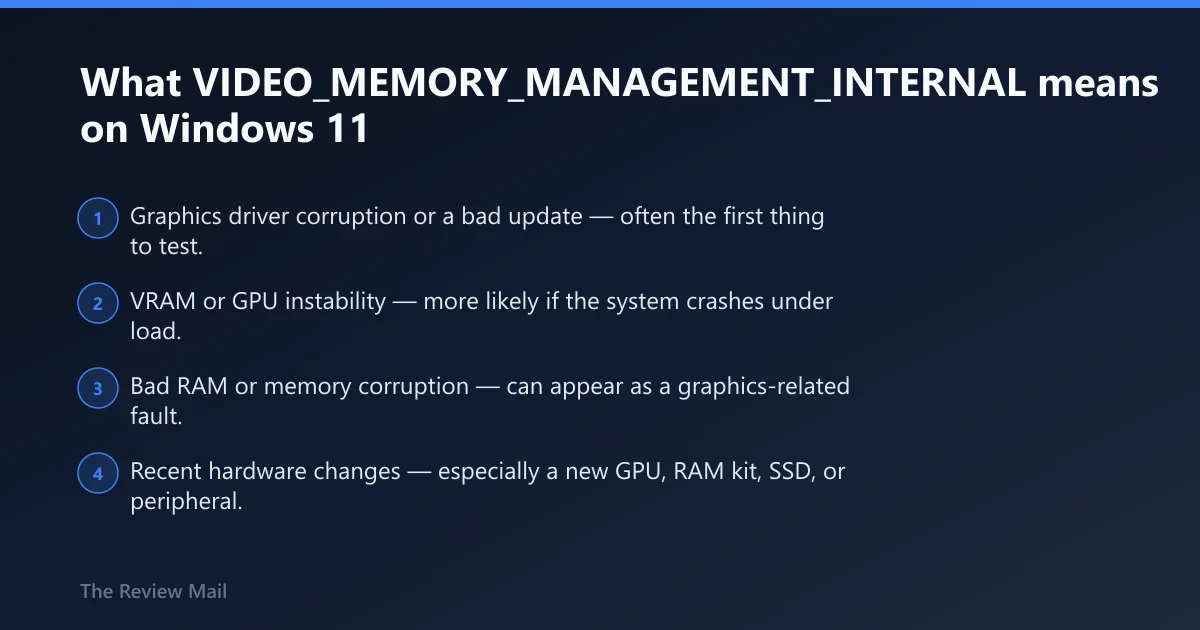
This stop code is commonly associated with the graphics-memory path rather than a random restart. A driver problem, unstable memory, or a recent hardware change can all be possibilities.
The fastest first move is to note whether the crash started after a driver update or a new GPU, RAM, or other hardware was added. That timing usually helps narrow the next test.
Likely causes, ranked from most to least common
- Graphics driver corruption or a bad update — often the first thing to test.
- VRAM or GPU instability — more likely if the system crashes under load.
- Bad RAM or memory corruption — can appear as a graphics-related fault.
- Recent hardware changes — especially a new GPU, RAM kit, SSD, or peripheral.
This article describes common bug check codes displayed on the bug check screen, and WinDbg can display information about a specified bug check code using the !analyze extension.
According to Řešení potíží s neočekávanými restartováními systému Windows a… — Windows 11 support page says stop-code errors can be caused by hardware, drivers, or software.
What causes VIDEO_MEMORY_MANAGEMENT_INTERNAL BSOD in Windows 11?
Common possibilities include a damaged graphics driver package, unstable VRAM, bad RAM, or a recent hardware change that altered timing or power behavior. A Windows update or software that hooks the display path can also be a possibility.
When the crash repeats after reboot, the trigger is usually still present. That is why it helps to start with the graphics driver, then move to memory and hardware changes.
Is the graphics driver the problem?
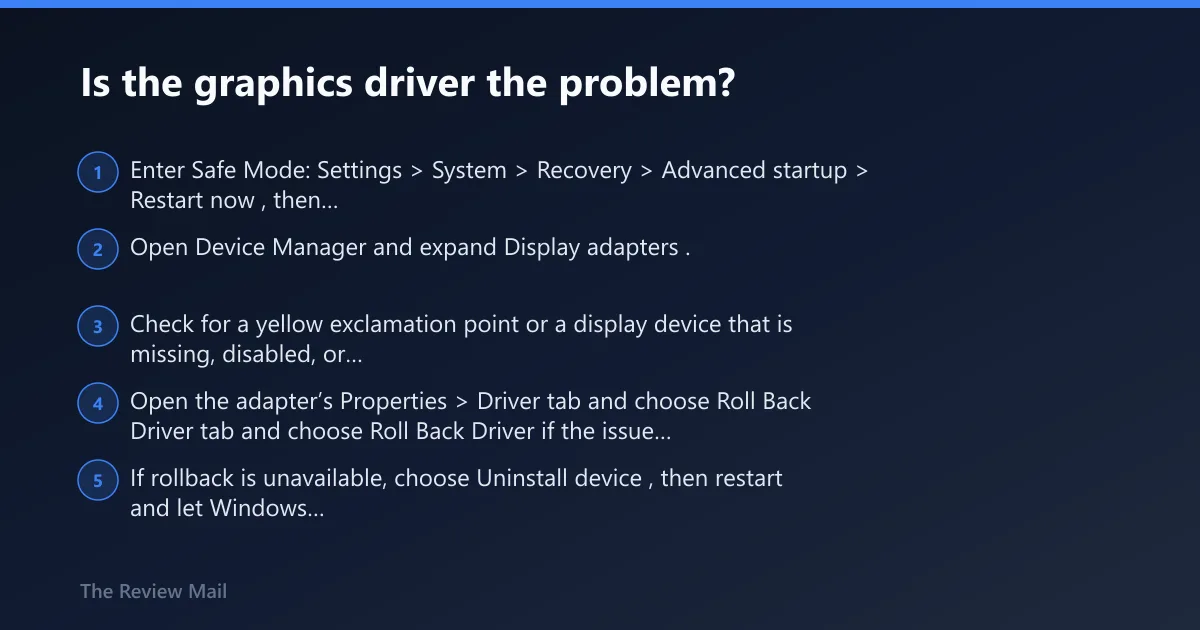
Very often, yes. If normal boot is unstable, Safe Mode can help isolate whether the graphics driver is involved because it loads a minimal set of drivers and startup items. Use Device Manager to look for warning icons, then update, roll back, or uninstall the graphics driver if needed.
- Enter Safe Mode: Settings > System > Recovery > Advanced startup > Restart now, then Troubleshoot > Advanced options > Startup Settings.
- Open Device Manager and expand Display adapters.
- Check for a yellow exclamation point or a display device that is missing, disabled, or marked with an error.
- Open the adapter’s Properties > Driver tab and choose Roll Back Driver if the issue began after an update.
- If rollback is unavailable, choose Uninstall device, then restart and let Windows reload the driver.
- Go to Settings > Windows Update and install the latest updates before testing again.
If the crash got worse right after a driver update, treat that update as suspect first. A clean uninstall or rollback usually tells you more than a repair install.
Windows 11 and Windows 10 menu paths differ here
On Windows 11, the path starts in Settings > System > Recovery. On Windows 10, use Settings > Update & Security > Recovery to reach advanced startup. The driver steps in Device Manager are the same on both platforms.
Safe Mode entry:
Settings > System > Recovery > Advanced startup > Restart now
Troubleshoot > Advanced options > Startup Settings

Driver rollback path:
In Device Manager, open Display adapters, then Properties and the Driver tab, and use Roll Back Driver if it is available.
Device Manager > Display adapters > Properties > Driver tab > Uninstall device

Driver and system-file cleanup checks can include sfc /scannow and DISM /Online /Cleanup-Image /RestoreHealth.
Can bad RAM cause VIDEO_MEMORY_MANAGEMENT_INTERNAL?
Yes. Bad RAM can corrupt the memory path the graphics stack depends on, and that can show up as a video-memory stop code instead of a plain memory error. If the machine is stable in Safe Mode but fails during normal use, memory is still worth checking.
- Run Windows Memory Diagnostic by opening mdsched.exe, then restart and let the test run.
- If the system has multiple sticks, test one stick at a time in the same slot.
- Remove any memory overclock or XMP/EXPO-style profile in firmware.
- Watch for flicker, checkerboard artifacting, or hard crashes under GPU load.
- If the crash follows one stick or one slot, the fault is more likely RAM or the board than the driver.
Separate RAM faults from GPU faults by changing one variable at a time. Replace only one stick, one slot, or one driver version per test.