Video Scheduler Internal Error BSOD Fix for Windows 11
VIDEO_SCHEDULER_INTERNAL_ERROR usually means a graphics pipeline fault; start by noting the stop code, then check the driver path before you chase hardware. If the crash keeps returning after that, treat it as an OS-state or hardware problem and stop random reinstalls.
This guide is part of our Windows BSOD stop codes: full list and fixes series.
What VIDEO_SCHEDULER_INTERNAL_ERROR means on Windows 11
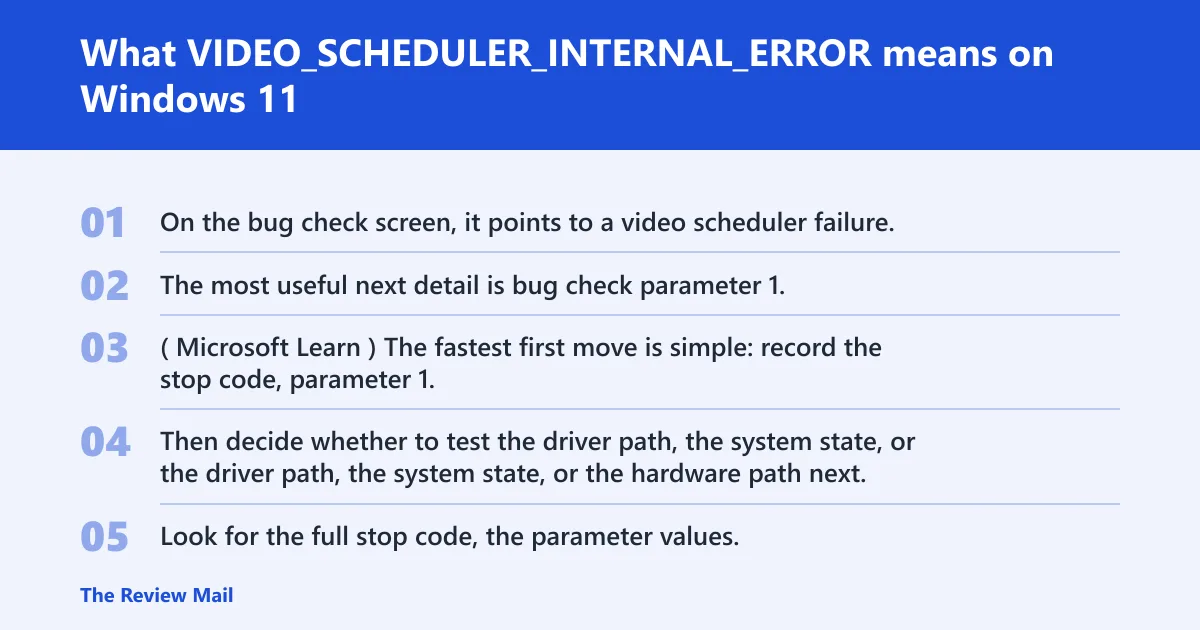
This stop code is 0x00000119. On the bug check screen, it points to a video scheduler failure. The most useful next detail is bug check parameter 1, which helps narrow the issue to a driver problem, an internal OS-state problem, or a memory or hardware issue. (Microsoft Learn)
The fastest first move is simple: record the stop code, parameter 1, and whether the machine boots normally or falls into a loop. Then decide whether to test the driver path, the system state, or the hardware path next.
What the first crash screen details can tell you before any fix
Look for the full stop code, the parameter values, and whether the crash happens at desktop, during gaming, while waking from sleep, or only under load. A crash that starts right after a driver change points in one direction. A crash that survives driver cleanup points in another.
What should I check first after the crash?
Check three things first: the parameter 1 value, the boot pattern, and whether the system is stable in Safe Mode. Safe Mode is mainly a control point, not the fix itself. It helps separate a Windows driver path from a deeper graphics or hardware problem.
- Write down bug check parameter 1 from the blue screen or from
C:\Windows\Minidump\*.dmp. - Note whether Windows 11 boots normally, crashes again in a loop, or only fails under load.
- Boot to Settings > Recovery > Advanced startup > Restart now > Troubleshoot > Advanced options > Startup Settings if you need a control boot.
- Enter Safe Mode and confirm whether the crash still happens there.
If Safe Mode is stable, the driver path moves higher on the list. If it still crashes, the issue is less likely to be a single installed driver.
Which cause is most likely?
The most common path is a graphics driver problem, especially after a driver update or a reinstall. After that comes OS-state corruption or memory pressure cases. Hardware instability comes later, but it becomes more likely when the crash survives clean driver changes.
| Parameter 1 value | Likely bucket | First test | Next escalation | Laptop hybrid graphics branch | Desktop discrete GPU branch |
|---|---|---|---|---|---|
| Driver-related values | Driver violation family | Check the installed graphics driver against the exact model listed on the OEM support page | Roll back or do a clean reinstall of the vendor driver package | Test on AC power first, then compare the OEM graphics utility’s behavior and any forced GPU mode | Retest the discrete adapter after reseating it and checking power plugs |
| OS-state-related values | Internal OS state error | Run sfc /scannow and DISM /Online /Cleanup-Image /RestoreHealth | Use WinDbg to inspect the dump before changing more hardware | Compare crash behavior on the OEM graphics utility’s forced GPU mode | Check whether the issue follows the card or stays with the slot/system |
| Memory- or hardware-related values | Memory corruption or hardware suspicion | Run Windows Memory Diagnostic or memtest86 | Test with stock clocks, then look at heat and power delivery | Compare crashes on AC power versus battery, then review forced GPU settings | Check PCIe seating, every PCIe power connector, and the slot |
The bug check screen and the dump file are the best starting points for triage, so treat parameter 1 as the main clue rather than a side note.
Fix the driver path first
If the crash started after a graphics change, the driver is the first thing to touch. Check Device Manager, compare the installed version with the OEM support page, and decide whether to update, roll back, or remove and reinstall the vendor package from the maker’s site. If you changed clocks or voltage offsets, return them to stock before the next test.
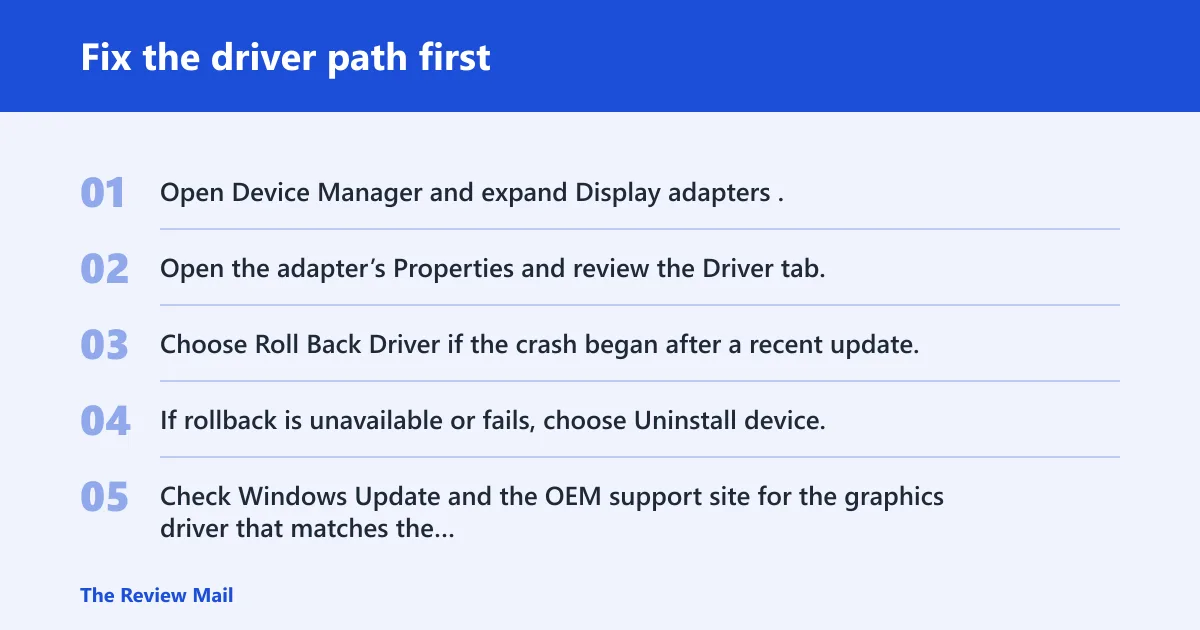
- Open Device Manager and expand Display adapters.
- Open the adapter’s Properties and review the Driver tab.
- Choose Roll Back Driver if the crash began after a recent update.
- If rollback is unavailable or fails, choose Uninstall device, then install the vendor package from the OEM support page.
- Check Windows Update and the OEM support site for the graphics driver that matches the exact adapter model.
If the faulting module in the dump is the video driver, vendor updates are the next place to look.
Should I update, roll back, or reinstall my graphics driver?
Update when the installed driver is older than the OEM release and the crash began before any recent change. Roll back when the crash started right after a new driver. Reinstall when the version looks right but the crash keeps returning; use Device Manager, then the OEM package, not a random driver site.
Could this be the GPU, power, or cooling hardware?
Yes. Repeated crashes after a clean driver pass deserve a hardware check. Watch for heat, unstable stock behavior, and crashes that appear only under load or only when the GPU wakes up.
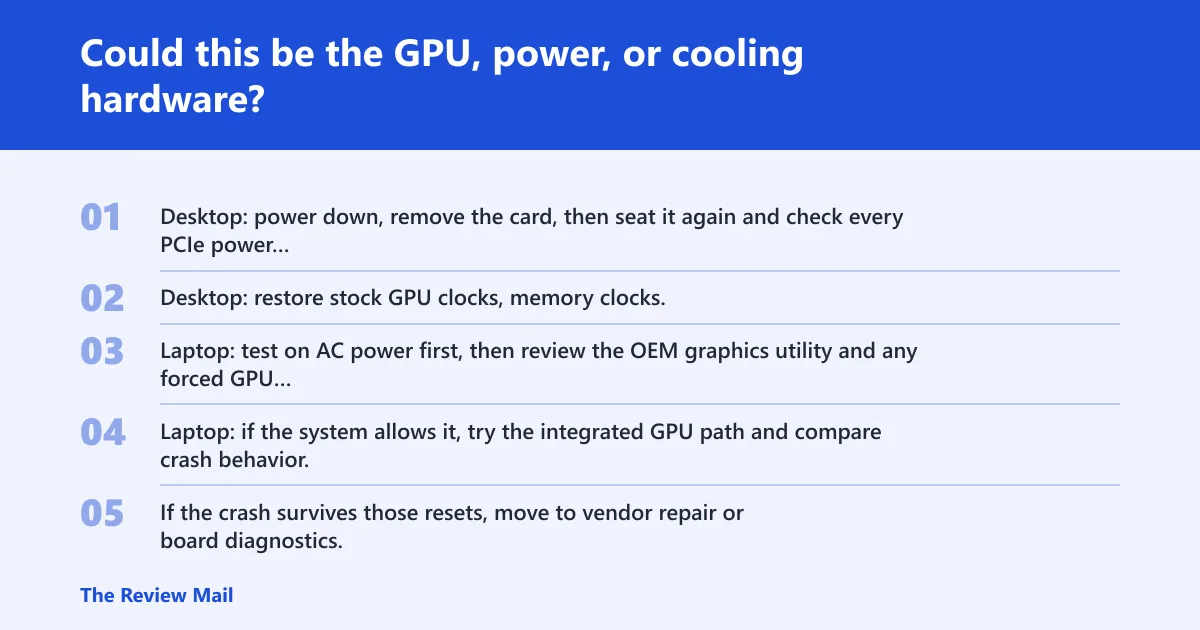
- Desktop: power down, remove the card, then seat it again and check every PCIe power connector and the slot.
- Desktop: restore stock GPU clocks, memory clocks, and voltage offsets before testing again.
- Laptop: test on AC power first, then review the OEM graphics utility and any forced GPU mode.
- Laptop: if the system allows it, try the integrated GPU path and compare crash behavior.
- If the crash survives those resets, move to vendor repair or board diagnostics.
Can bad RAM or overheating trigger this BSOD?
Yes. Bad RAM can corrupt the data the GPU path depends on, and overheating can push an adapter into unstable behavior. Start with Windows Memory Diagnostic or memtest86, then retest after the machine has cooled and after you return graphics settings to stock.
How do I confirm the crash in WinDbg?
Open the dump and use the WinDbg command syntax !analyze -show <code> to display information about the bug check code; if your default number base is not 16, prefix the code with 0x. The point is to identify the faulting module and see whether it matches the driver in use.
WinDbg
!analyze -show
If the output points at the video driver, revisit the vendor package path. If it points toward OS-state corruption or memory pressure, switch to file repair and memory testing before changing more GPU hardware.
Still not working?
If the crash survives driver rollback, reinstall, Safe Mode checks, and stock GPU settings, move from software cleanup to vendor support. At that point, the question is no longer which update is missing; it is whether the board, memory, or power path needs repair or replacement.
- Run
sfc /scannow. - Run
DISM /Online /Cleanup-Image /RestoreHealth. - Run Windows Memory Diagnostic (mdsched.exe) or memtest86.
- For a laptop, ask the OEM for repair or board diagnostics.
- For a desktop, test with known-good power, memory, or a different GPU if available.
Prevention: after recovery, keep the OEM graphics driver package handy and avoid GPU overclock, memory-clock, or voltage changes until the machine has stayed stable for a while.
Frequently asked questions
How do I fix VIDEO_SCHEDULER_INTERNAL_ERROR on Windows 11?
Start with parameter 1, then use Device Manager to roll back or uninstall the graphics adapter driver. If the crash began after a change, that path is the fastest check. If it survives, run sfc /scannow, DISM /Online /Cleanup-Image /RestoreHealth, and a memory test.
What causes the 0x00000119 stop code?
The stop code points to a video scheduler failure. The common split is driver violation, internal OS-state error, or memory corruption and hardware trouble. Parameter 1 helps narrow the next test, so record it before you change the system.
Is VIDEO_SCHEDULER_INTERNAL_ERROR a GPU driver problem or bad hardware?
It can be either. A driver fault is the first thing to test when the crash follows an update or a new install. If the crash keeps returning after a clean rollback or reinstall, move the focus to RAM, heat, power delivery, and the adapter itself.
How do I tell which parameter in 0x119 matters?
Parameter 1 is the main triage clue. On the crash screen or in the dump, write it down exactly, including the 0x prefix when needed. Then use it with the driver, OS-state, and hardware checks above.
When does this error point to a hardware failure instead of software?
When the crash survives driver rollback, reinstall, Safe Mode checks, and stock settings, hardware moves up the list. On desktops, check the card, PCIe slot, and power connectors. On laptops, test AC power, then compare integrated GPU behavior and ask for OEM diagnostics if the issue remains.