Device Manager Troubleshooter Windows 11 Fixes Guide
If Device Manager won’t open in Windows 11, fix the service and system files first; if hardware is missing, show hidden devices and rescan; if a driver error persists, reinstall the device. A broken Device Manager can hide faults, block driver changes, and leave hardware unusable. This guide shows the right fix for launch failures, hidden devices, and stuck driver states.
What Device Manager is fixing in Windows 11
Device Manager is the Windows hardware management utility that lists devices, shows status, and surfaces driver errors. In Windows 11, it is the place to check whether the fault sits with the device, the driver, or the way Windows loads hardware.
That distinction matters. A missing entry can mean the device is disabled, hidden, disconnected, or blocked by policy. An error code can point to a driver load problem rather than a dead device. A launch failure is a separate issue.
What Device Manager shows you
Open Device Manager when you need to see whether Windows detects the hardware at all. It can show warning icons, unknown devices, hidden entries, and driver states that explain why a keyboard, USB adapter, Wi-Fi card, or storage device is not working.
When the problem is the utility itself, not the driver
If Device Manager will not open, freezes, or opens to an empty view, the fault is not always hardware. The problem can sit in Windows Search, the management console, permissions, or the system files that load the utility.
How do I open Device Manager in Windows 11?
Use Start search first, since the usual way to open Device Manager is to search for it from Start and select it from the results. If search fails, Windows 11 still offers other launch paths through Run, Control Panel, and system tools.
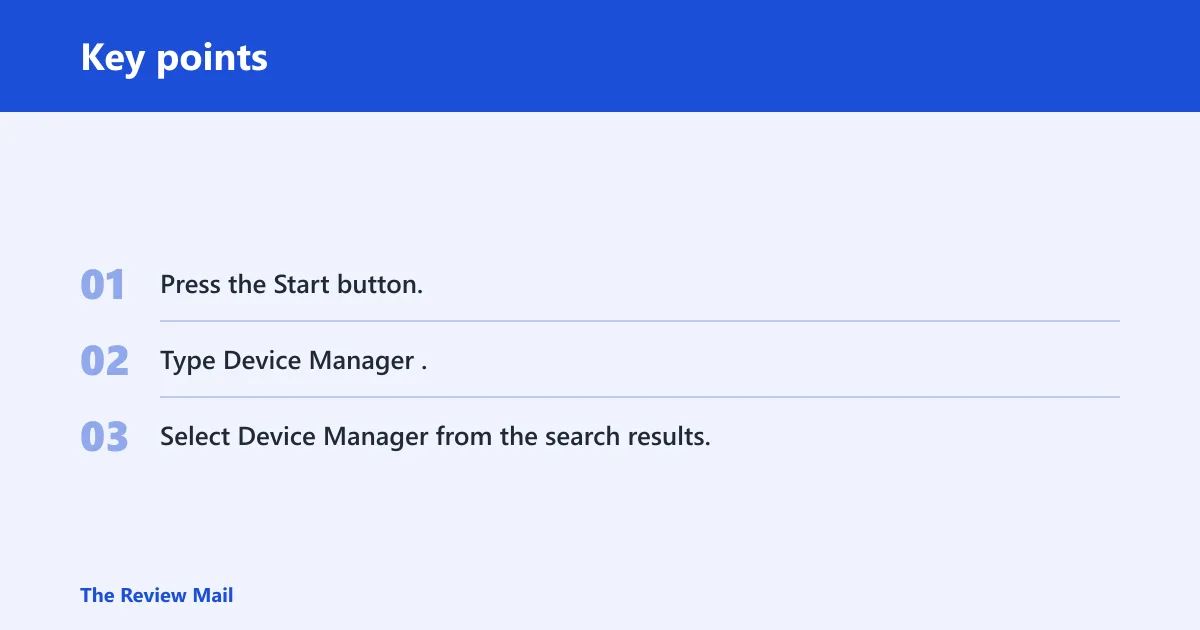
Open it from Start search
- Press the Start button.
- Type Device Manager.
- Select Device Manager from the search results.
That is the fastest route for most users. Microsoft directs users to select Device Manager from search results, and that path is the default starting point on Windows 11.
Use alternate launch paths
If Start search is slow or broken, use another route. Press Win + R, type devmgmt.msc, and press Enter. You can also open it through Control Panel’s hardware area or from the Computer Management console.
These alternate paths matter when the issue is not Device Manager itself. If the utility opens from Run but not from search, the search index or Start menu is the fault line.
What to try if Search does not launch it
Restart Windows first. Then try Run. If both fail, the system file path or permissions may be broken, and the next step is repair rather than driver advice.
Is there a Device Manager troubleshooter in Windows 11?
Windows 11 does not appear to include a built-in troubleshooter with that exact name. Windows does include built-in troubleshooters for some hardware, audio, and connection problems, but they are not a replacement for Device Manager when you need to inspect a driver or device entry.
What Windows 11 includes instead
Use the relevant built-in troubleshooter only when the symptom matches its category. Audio issues, Bluetooth failures, printer problems, and network faults can point to separate troubleshooters. They may identify a system issue before you return to Device Manager for the driver fix.
When manual driver steps are the right next move
If Device Manager shows one of several common codes such as Code 10, Code 28, Code 31, Code 43, or Code 45, you are probably beyond the simplest generic troubleshooting steps. Those codes call for device-specific action: update, reinstall, remove the stale entry, or check whether Windows lost the hardware after a reboot.
Use this decision checklist before you fix anything
Start with the symptom, not the guess. That keeps you from reinstalling drivers when the real issue is Windows Search, and it keeps you from chasing search settings when the device is actually missing or blocked.
| Symptom | Most likely failure point | Best next step |
|---|---|---|
| Device Manager won’t open | System files, permissions, or console launch path | Restart, try devmgmt.msc, then repair Windows files and check admin rights |
| Device Manager opens but shows no devices | View state, hidden hardware, or a broken console load | Enable hidden devices and rescan hardware |
| A device shows Code 10, Code 28, Code 31, Code 43, or Code 45 | Driver load failure or missing device registration | Update, reinstall, or remove and re-add the device |
| The device disappears after reboot | Ghost hardware, power state, or a failing driver/state reset | Show hidden devices, remove stale entries, and check the device again after restart |
Suppose a USB Wi-Fi adapter shows Code 43 after every restart. That usually points to a driver or device-state problem, not a search problem. A missing Bluetooth adapter after a reboot is a different pattern; it often needs hidden-device cleanup or a rescan.
Why won’t Device Manager open from search in Windows 11?
If Device Manager does not open from search, the problem is often Windows Search or the Start menu, not the utility itself. Restart Windows, test another launch path, and check whether search is broken across other apps before you assume the driver stack is at fault.
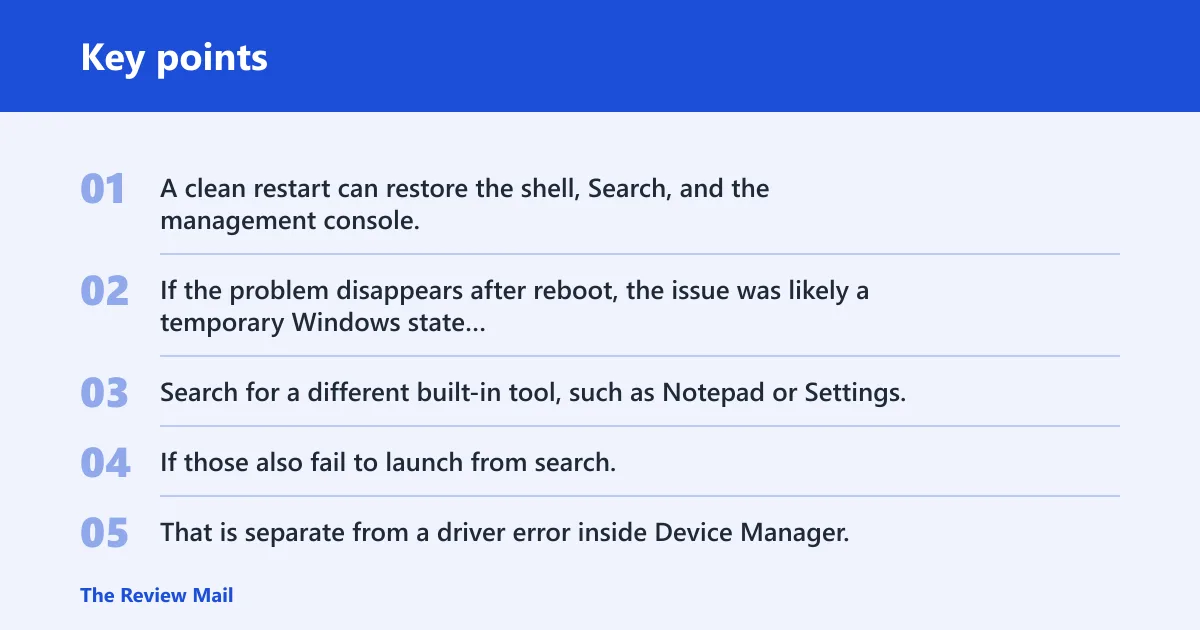
Restart Windows first
A clean restart can restore the shell, Search, and the management console. If the problem disappears after reboot, the issue was likely a temporary Windows state rather than a damaged device database.
Check Windows Search and Start menu behavior
Search for a different built-in tool, such as Notepad or Settings. If those also fail to launch from search, the search index or Start menu process is the likely fault. That is separate from a driver error inside Device Manager.
Try another launch path if search is broken
Use Win + R and run devmgmt.msc. If that works, Device Manager is fine and Windows Search is the problem. If that also fails, move to permissions and system repair.
How do I fix missing or hidden devices in Device Manager?
Turn on hidden devices, then look for stale or ghost entries that can block a fresh device load. If Windows still does not show the hardware, rescan, reconnect the device, or remove the old entry so Windows can rebuild the device state.
Show hidden devices
In Device Manager, use the View menu and choose Show hidden devices. Hidden devices often include disconnected hardware, previous device instances, or entries that remain after an upgrade, dock change, or driver swap.
Find ghost entries and stale hardware
Hidden hardware can confuse troubleshooting because Windows may keep an old copy of a device alongside the current one. Remove stale entries only when you are sure the device is not needed and you can reinstall it if required.
Reinstall or refresh the device after removal
After removing a stale entry, scan for hardware changes or reconnect the device. If Windows redetects it, the missing device was likely a bad device record rather than a dead component.
How can I access Device Manager as an administrator?
Use an account with administrative permissions, especially on managed work or school PCs. If policy blocks Device Manager or limits driver changes, you may be able to view hardware but not repair it until the correct account or admin approval is used.
Sign in with the right account
On a personal PC, use an admin account before making driver changes. On a work-managed device, the local account may not have enough rights to open or modify Device Manager in the way you need.
Work or school device restrictions
Some organizations block hardware changes through policy. That can prevent Device Manager from opening fully, hide device categories, or stop driver updates even when the utility itself launches. If the machine is managed, policy may be the real cause.
When Safe Mode helps you get in
Safe Mode can help when a bad driver or startup component is preventing normal access. If Device Manager works there, the failure is more likely tied to a third-party driver, service, or startup conflict than to the utility itself.
What do I do if Device Manager is not working in Windows 11?
Start with the launch path, then move to system repair, permissions, and Safe Mode. If Device Manager is freezing or refusing to open, the usual first moves are restart, Run-based launch, and checking whether Windows Search or a policy setting is the real obstacle.
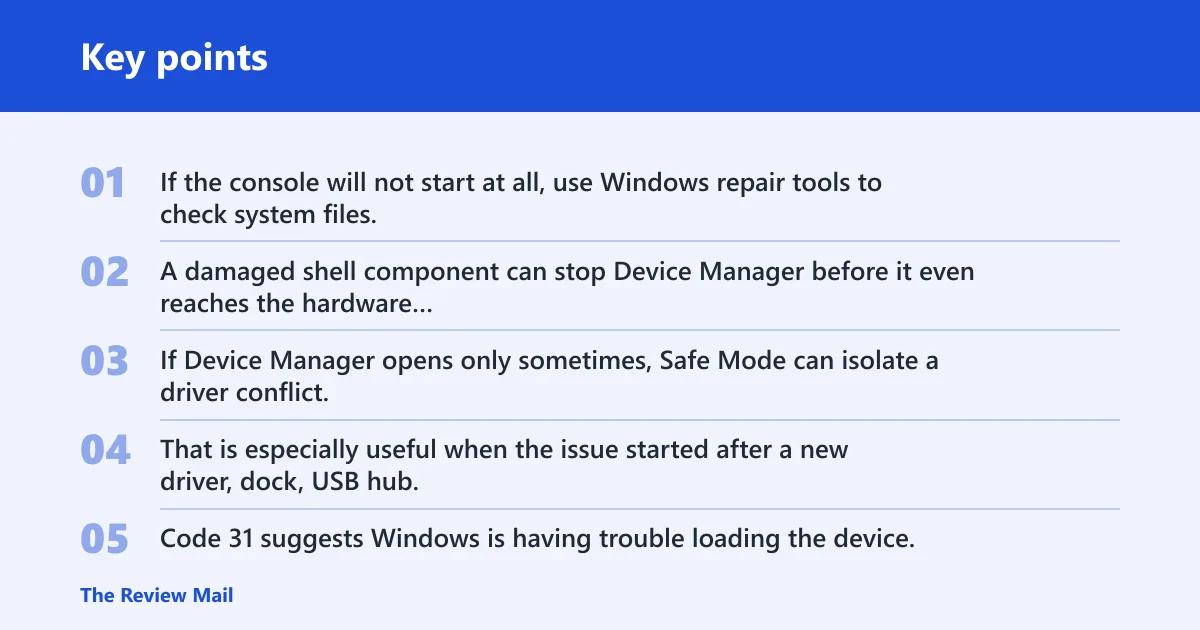
Repair the Windows load path
If the console will not start at all, use Windows repair tools to check system files. A damaged shell component can stop Device Manager before it even reaches the hardware list.
Move to Safe Mode if normal boot is unstable
If Device Manager opens only sometimes, Safe Mode can isolate a driver conflict. That is especially useful when the issue started after a new driver, dock, USB hub, or storage change.
Use the error code as the guide
Code 28 usually points to a missing driver. Code 31 suggests Windows is having trouble loading the device. Code 10 points to a device start failure. Code 43 often means the device reported a problem. Code 45 means Windows thinks the device is not connected.
What should I do if a device error keeps coming back after reboot?
When an error returns after reboot, treat it as a device-state or driver-registration problem. Reinstall the driver, remove the device from Device Manager if appropriate, rescan hardware, and check whether the same code returns in Safe Mode or after a clean restart.
Check whether the device is truly present
Code 45 is especially important because it means Windows does not see the device as connected. That can happen after a dock change, loose cable, disabled port, or a laptop sleep state that did not recover cleanly.
Reinstall the driver cleanly
For recurring Code 10, Code 31, or Code 43 errors, remove the affected device entry and reinstall the driver package. If Windows Update offers a newer driver, that can be the cleanest replacement path.
Look for a pattern after reboot
If the device works once and then disappears after restart, the problem is often not the hardware itself. A stale entry, conflicting driver, or power-state issue is more likely.
What if admin policy is blocking access?
If Device Manager opens on a personal PC but is blocked or incomplete on a work or school machine, the issue may be policy rather than corruption. Use the approved account, contact the device administrator, or test in Safe Mode only if policy allows it.
A common first-timer mistake is to reinstall three drivers before checking whether Windows Search is broken. That wastes time. Another is to treat Code 45 like a generic driver fault when Windows is saying the device is missing or disconnected.
Frequently asked questions
Is there a built-in Device Manager troubleshooter in Windows 11?
No separate built-in troubleshooter with that name exists. Windows 11 includes troubleshooters for some hardware categories, but Device Manager itself is managed through manual steps. Use the relevant built-in troubleshooter for the symptom, then return to Device Manager for driver repair.