How to Fix Unspecified Device in Windows 11 Quickly
If you need to identify a device in Windows 11, check its Hardware Ids in Device Manager, then try the driver path first. If no ID appears, suspect hardware. Ignoring it can leave Bluetooth, USB, PCI, or chipset devices unusable and send you down the wrong repair path. This guide shows the fastest checks, how to read device IDs, and a short decision tree for driver, port, and hardware failure.
What you’ll need
- Admin access to Windows 11
- Device Manager open
- Internet access for Windows Update and manufacturer drivers
- The device that shows as Unknown or Unspecified
- A second USB port and, if available, a different cable
- The manufacturer model name or support page for the device
What an unspecified device means in Windows 11
An unknown or unspecified device means Windows cannot identify the device or its driver. The fix depends on whether Windows can still read the device’s ID and location.
Why the label changes your next step
If Device Manager shows a usable Hardware Ids entry, start with drivers. If the entry disappears, changes by port, or shows a generic USB path only, check the cable, the port, or the device itself. Internal PCI and Bluetooth entries usually need a different path than USB peripherals.
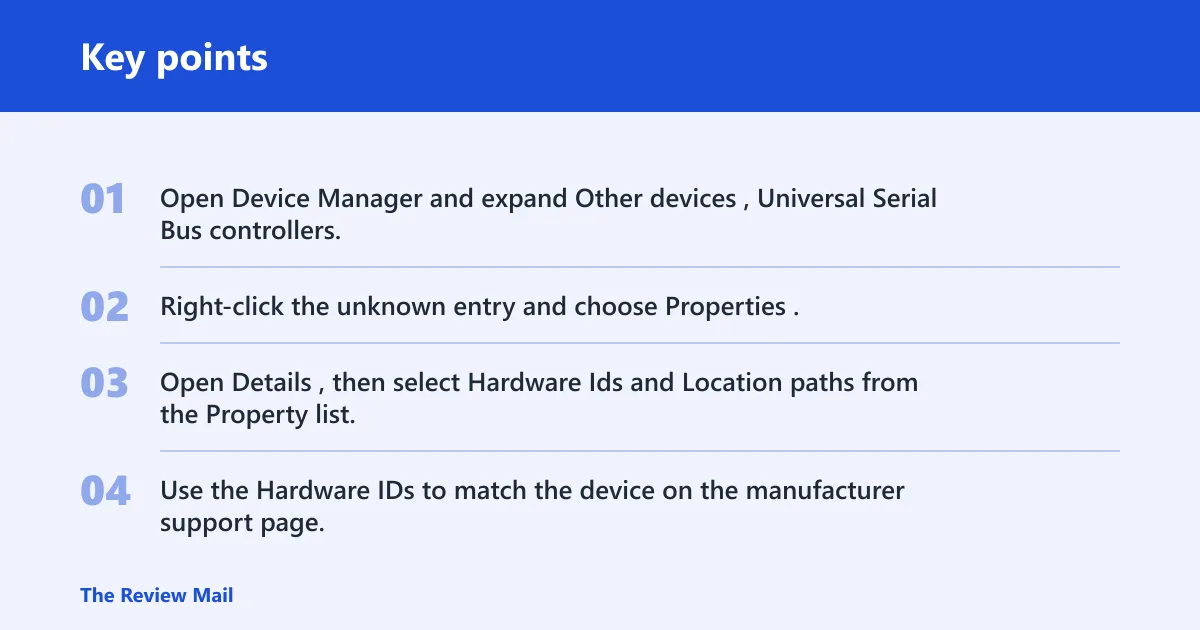
- Open Device Manager and expand Other devices, Universal Serial Bus controllers, Bluetooth, and Network adapters.
- Right-click the unknown entry and choose Properties.
- Open Details, then select Hardware Ids and Location paths from the Property list.
- Use the Hardware IDs to match the device on the manufacturer support page, then use the location path to separate USB, PCI, and Bluetooth devices.
Say your dock shows as unknown on one USB-C port but normal on another. That points to a port, hub, or cable path. Suppose a Wi-Fi adapter appears as an unknown PCI device after a BIOS update. That points away from the cable path and toward the chipset or adapter driver.
How do you identify the unknown device?
Use Hardware Ids first, then Location paths. Hardware IDs usually contain the vendor and device codes, while the location path shows where Windows found the device. That is the fastest way to tell whether you need a USB driver, a Bluetooth package, or an internal chipset driver.
What to look for in Device Manager
Right-click the device, open Properties, and check Details. Hardware IDs such as VEN_, DEV_, or USB\\VID_ often point to the maker. A PCI location path means an internal card or onboard controller. A Bluetooth item usually needs the Bluetooth adapter package from the PC maker.
Step 1: Rule out a simple USB or port problem
For USB devices, a common first set of checks is to reconnect it, try a different port, then try a different cable.
- Unplug the device, wait briefly, then plug it back in.
- Try another USB port on the PC itself, not a hub.
- Try a different cable if the device uses one.
- Open Device Manager > Universal Serial Bus controllers, right-click USB Root Hub or Generic USB Hub, then choose Update driver or Uninstall device.
- Choose Action > Scan for hardware changes.
If the same device appears unknown on multiple ports, the problem follows the device or its driver, not one bad port. If the device works on a different PC, the original Windows install or driver stack is the better target.
Step 2: Update, reinstall, or roll back the driver
If Windows can read the hardware ID, the next step is often to check the driver. Use the device entry itself before you chase broad system fixes. If the error started after a recent update, rollback is often faster than a reinstall. If Windows only offers a generic driver, get the manufacturer package.
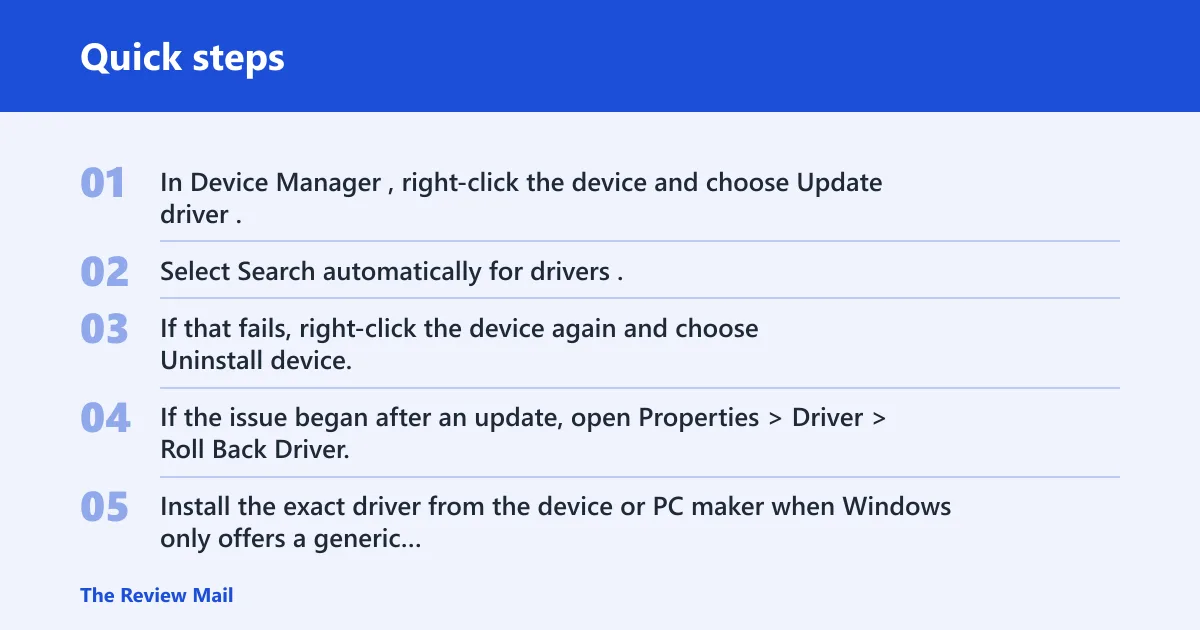
- In Device Manager, right-click the device and choose Update driver.
- Select Search automatically for drivers.
- If that fails, right-click the device again and choose Uninstall device, then restart and run Action > Scan for hardware changes.
- If the issue began after an update, open Properties > Driver > Roll Back Driver, if available.
- Install the exact driver from the device or PC maker when Windows only offers a generic package.
USB, internal PCI, and Bluetooth need different drivers
USB peripherals often need the device package plus the USB root hub path. Internal PCI devices usually need chipset, storage, audio, or network drivers from the system maker. Bluetooth entries usually depend on the Bluetooth radio driver, sometimes bundled with the Wi-Fi package on laptops.
Step 3: Check Windows Update and system repair options
Windows Update can deliver cumulative fixes and drivers. Use this before replacing parts, especially after a feature update or a hardware swap that left the device list incomplete.
- Open Settings > Windows Update > Check for updates.
- Install any available updates, then restart.
- Open Advanced options > Optional updates and install driver updates only for the affected device family.
- If multiple devices look missing after a repair or board change, check Settings > System > Activation and the recovery options for broader setup issues.
Decision tree: Which fix should you try next?
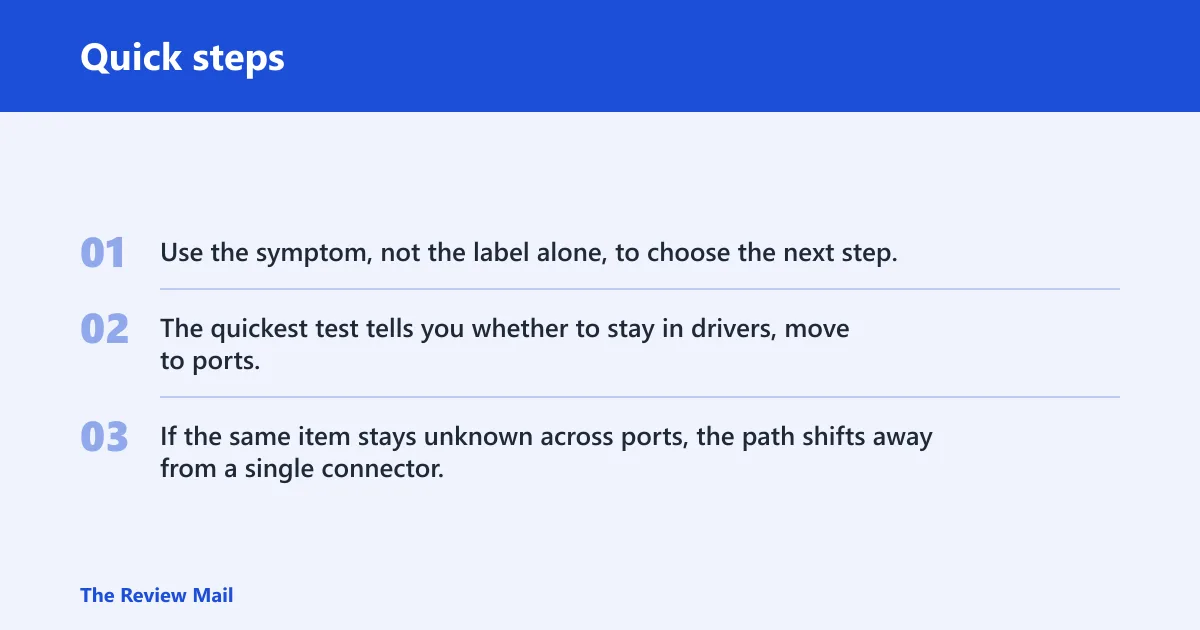
Use the symptom, not the label alone, to choose the next step. The quickest test tells you whether to stay in drivers, move to ports, or stop and inspect hardware. If the same item stays unknown across ports, the path shifts away from a single connector.
| Device Manager symptom | Likely cause | Fastest test | Next action | Escalation point |
|---|---|---|---|---|
| Unknown USB device appears after plugging in | Bad cable, bad port, or missing USB driver | Try another port and cable | Update or reinstall the USB device and USB root hub driver | Device still unknown on two ports |
| Same USB device is unknown on every port | Device failure or device driver mismatch | Test on another PC | Install the manufacturer driver or support package | Unknown on multiple PCs |
| Unknown PCI device after update or repair | Chipset, storage, or onboard controller driver missing | Check Hardware Ids and Location paths | Install the PC maker’s chipset or device package | No matching driver from Windows Update |
| Bluetooth device shows unknown or unavailable | Bluetooth adapter driver or radio problem | Check whether Bluetooth is enabled in Settings | Update or reinstall the Bluetooth adapter driver | Adapter missing from Device Manager |
Common mistakes that keep the error coming back
Do not treat every unknown device as a USB problem. That wastes time and hides internal PCI or Bluetooth causes. Do not skip Hardware Ids, because that is the fastest way to identify the correct driver. Do not stop at a generic driver update if the manufacturer package exists.
Also avoid replacing hardware before checking whether the same device appears unknown on another port or another PC.
If that didn’t work, try this next
Start with the manufacturer support page for the device or the PC model. If the driver package is not obvious, use the Hardware Ids string to search the support documents. If Windows still cannot identify the device after that, the remaining branch is hardware inspection or replacement.
- Install the latest device or chipset package from the device manufacturer support page.
- Remove the device in Device Manager, restart, then rescan hardware.
- Test the device on another computer to see whether the failure follows the device.
- If it still fails, contact device manufacturer support for the correct driver or compatibility guidance.
Frequently asked questions
How do I fix an unknown device in Windows 11?
Open Device Manager, check Properties > Details > Hardware Ids, then update, uninstall, and rescan the device. If Windows still cannot identify it, install the manufacturer driver from the support page and run Settings > Windows Update > Check for updates.
How do I fix an unknown USB device in Windows 11?
Use a different port, a different cable, and then Device Manager > Universal Serial Bus controllers > USB Root Hub > Update driver or Uninstall device. Finish with Action > Scan for hardware changes and a Windows Update check.
What driver do I need for an unknown device in Windows 11?
Use the Hardware Ids string to match the exact device on the PC maker’s support page or the peripheral maker’s support page. If it is internal, start with chipset, storage, audio, or Bluetooth packages from the system model page, not a generic driver catalog entry.
Why does my USB device show as unknown device on Windows 11?
It usually means Windows lost the device’s identification during enumeration or lacks the right driver. Bad cables, weak ports, a failed USB root hub path, and outdated drivers are common causes. Try another port first, then rescan and reinstall the USB path.
How do I fix an unspecified device in Windows 10?
The same path works in Windows 10: open Device Manager, read Hardware Ids, update or remove the device, then scan for hardware changes. Use Settings > Update & Security > Windows Update for system and driver updates.