How to Fix Microsoft License Issue: Fast, Safe Steps
Fix a Microsoft license issue by matching the error to its cause first: activation server failure, wrong edition or key, expired subscription, or hardware change, then use the shortest fix for that category. If you skip the cause, Windows can stay deactivated, block personalization, and stop some apps or updates. This guide maps common Microsoft license errors to the fastest safe fix path, from checking account and key details to running activation troubleshooter and resetting the license state.
This guide is part of our Windows activation errors: full list and fixes series.
Why is my Microsoft license not working?
A fix can mean restoring something to working order again, and troubleshooting is a type of fix. For Windows activation, that means checking whether you have a digital license or a product key problem before you touch broader settings. Start with the activation status page in Settings > System > Activation.
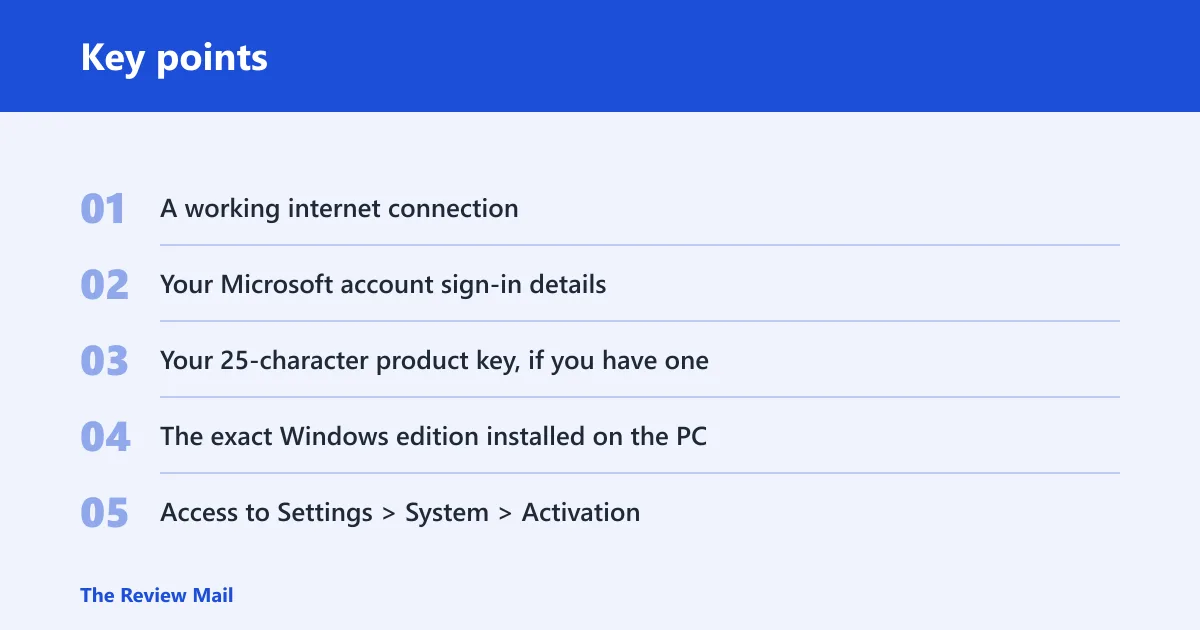
What you’ll need
- A working internet connection
- Your Microsoft account sign-in details
- Your 25-character product key, if you have one
- The exact Windows edition installed on the PC
- Access to Settings > System > Activation
Step 1: identify the failure type
- Open Settings > System > Activation and read the status line and error code.
- Decide whether the message points to a digital license, a product key, or a device-hardware change.
- Check whether the PC recently had a motherboard swap, SSD replacement, or another major hardware change.
Say your PC says it cannot activate after a motherboard replacement. That usually points to hardware revalidation, not a bad key entry. Suppose the status page shows 0xc004f050; that more often fits a wrong or invalid key than an account-link problem.
What you’ll need before you start
Have the basics ready before changing anything in activation settings. A short path is faster when you can sign in, confirm the edition, and compare the key against the installed Windows version. A fix can also mean to repair or mend, but activation failures are easier to solve when the evidence is in front of you.
Short checklist
- Confirm the PC is online.
- Sign in to the Microsoft account tied to the license, if there is one.
- Confirm whether the license is a digital license or a 25-character product key.
- Check whether Windows is Home or Pro.
- Note any recent hardware change, especially the motherboard.
How do I fix a Microsoft license issue on my PC?
Start with the activation page, then move in order: account, key, edition, and hardware change. That order matters because the activation troubleshooter can only repair some cases, and it will not fix a Home-versus-Pro mismatch or a key that belongs to another license channel. Use the shortest safe fix for the cause you found. (Microsoft Support)
Step 2: fix account and digital license problems
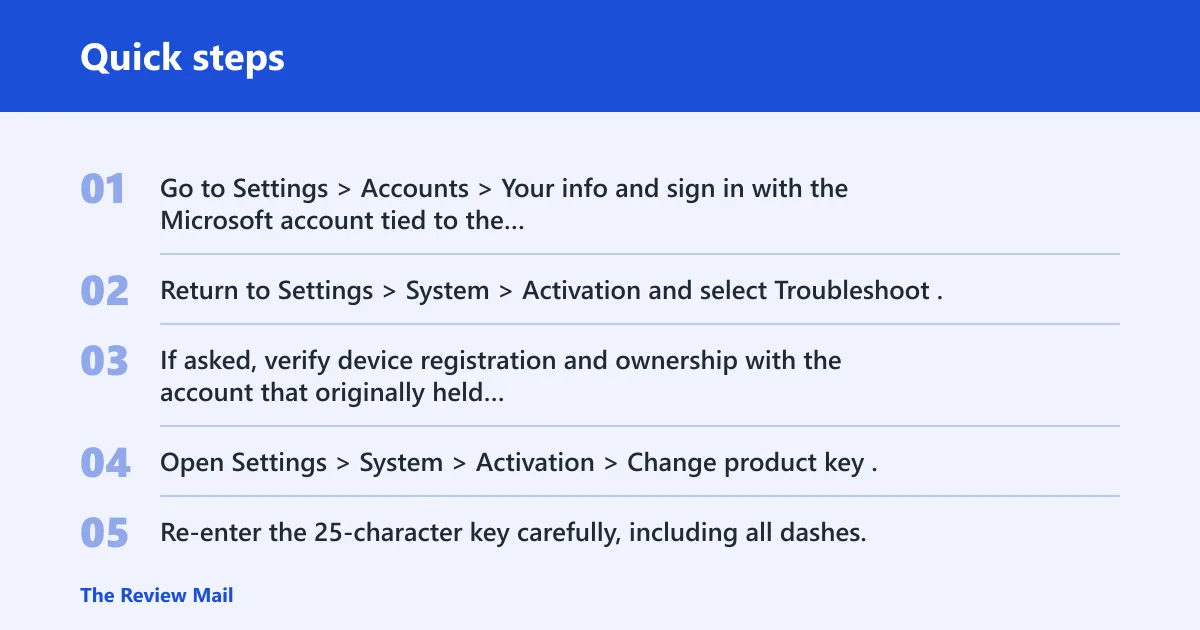
- Go to Settings > Accounts > Your info and sign in with the Microsoft account tied to the license.
- Return to Settings > System > Activation and select Troubleshoot.
- If asked, verify device registration and ownership with the account that originally held the digital license.
The activation troubleshooter is a built-in Windows tool for common use cases such as account re-linking and post-change reactivation. It can fail when the license is not attached to the signed-in account, when the device is not the one registered to that license, or when the edition does not match.
Step 3: fix product key and edition mismatch issues
- Open Settings > System > Activation > Change product key.
- Re-enter the 25-character key carefully, including all dashes.
- Check whether the key is retail, OEM, or volume, then match it to the installed edition.
- If Windows is Home and the key is for Pro, or the reverse, install the correct edition or use a matching replacement key before retrying activation.
Product keys are typically 25 characters long and should match the Windows edition. A retail key is generally movable, an OEM key is usually tied to the original device, and volume keys are handled differently. If the message says a valid product key is needed, the problem may be the wrong edition rather than a mistyped code.
Why does Windows say my license is invalid?
Windows may say a license is invalid when the key does not fit the installed edition, the key was entered incorrectly, or the activation method does not match. The fastest check is to compare the edition in Settings > System > About with the edition named by your key or digital entitlement.
Common mistake to avoid
- Do not run the troubleshooter before checking whether Windows is Home or Pro.
- Do not retry a key that belongs to another edition.
- Do not assume every activation failure is a product-key problem.
How do I reactivate Windows after a hardware change?
Use the activation troubleshooter after a motherboard or major component replacement, then sign in with the original Microsoft account tied to the digital license. Hardware ID changes can force license revalidation because Windows sees a different device fingerprint. If the license was OEM and tied to the old board, replacement key or support may be required.
Step 4: reactivate after a hardware change
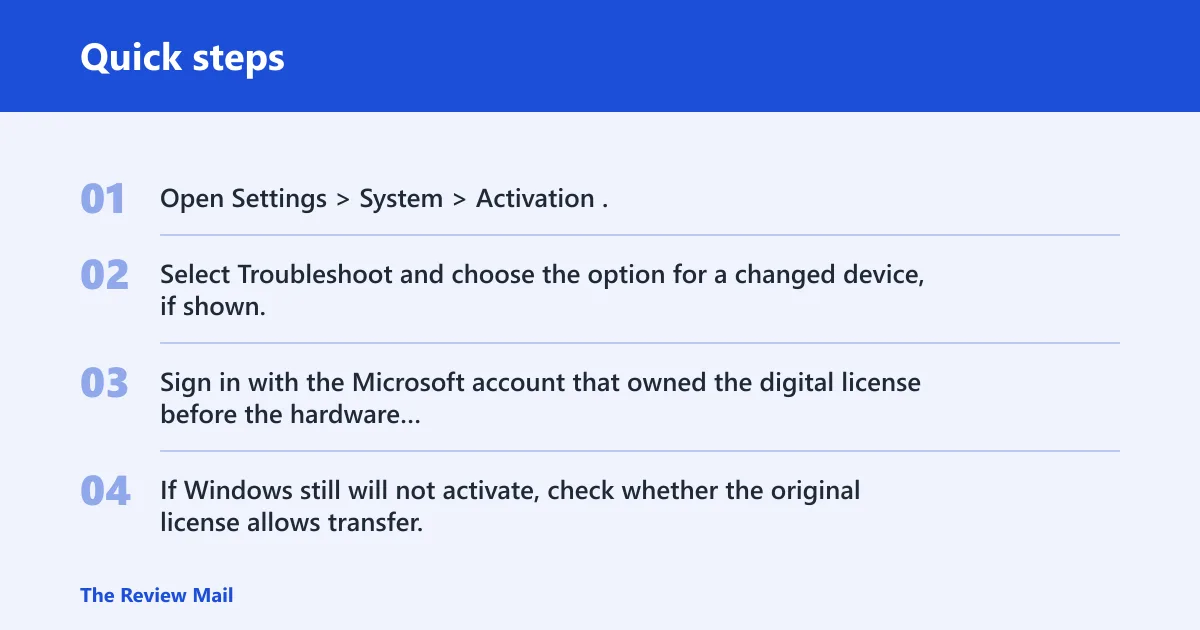
- Open Settings > System > Activation.
- Select Troubleshoot and choose the option for a changed device, if shown.
- Sign in with the Microsoft account that owned the digital license before the hardware change.
- If Windows still will not activate, check whether the original license allows transfer; OEM licenses often do not.
Picture a desktop upgraded with a new motherboard and a fresh SSD. The system may still boot, but activation can fail because the hardware ID no longer matches the stored license. A digital license linked to the right Microsoft account has the best chance of recovery.
What do I do if activation says I need a valid product key?
That message usually means Windows is waiting for a key, or the key it received does not fit the installed edition. Re-enter the key in Settings > System > Activation > Change product key, then confirm whether it is meant for Home, Pro, or a volume-managed device before trying again.
Cause-to-fix decision table
| Error or failure type | Most likely cause | Fastest next action |
|---|---|---|
0xc004f074 | Activation server contact or time-sync problem | Check internet access, then verify date and time in Settings > Time & language > Date & time; retry activation |
0xc004c008 | Key already used or blocked | Confirm the key channel, then try the original Microsoft account or request a replacement key |
0xc004f050 | Invalid or wrong-edition key | Compare the key with the installed edition in Settings > System > About and enter a matching key |
0x8007232b | KMS or network-related activation failure | Confirm the device is on the correct network or activation method, then retry activation after connectivity checks |
How do I fix error 0xc004f074?
For 0xc004f074, start with connectivity and time, because activation can fail if Windows cannot reach its activation service or the local clock is off. Check the date, time, and time zone first, then retry activation from Settings > System > Activation.
Step 5: retry the server and timing checks
- Open Settings > Time & language > Date & time and turn on automatic time and time zone.
- Confirm the PC is online.
- Return to Settings > System > Activation and select Activate.
If the error returns after that, the activation service may be unavailable for that device state. At that point, move to the account, key, or support path instead of repeating the same retry cycle.
Can a Microsoft account sign-in cause license problems?
Yes. A Microsoft account can affect activation when the digital license is linked to a different account, the sign-in state is stale, or device registration does not match the current PC. The shortest fix is to sign out, sign back in, and run Settings > System > Activation > Troubleshoot.
If that didn’t work, try this next
- Open Settings > Accounts > Email & accounts and confirm the correct Microsoft account is present.
- Open Settings > System > Activation > Troubleshoot and let Windows look for the linked license.
- If asked to verify ownership, complete the prompt for the device tied to the license.
Account ownership verification matters most for digital licenses, subscription-linked entitlements, and device transfer cases. If the account cannot prove ownership, the activation troubleshooter may stop there.
Common mistakes
Most failed retries come from mixing the wrong fix with the wrong failure type. If Windows Home is installed and the key is for Pro, no amount of rebooting will fix the edition mismatch. If the license is tied to another account, a product-key-only approach misses the real problem.
- Mixing up Home and Pro: Check Settings > System > About before entering a key.
- Using the wrong channel: Retail, OEM, and volume keys do different jobs.
- Skipping sign-in verification: A digital license needs the right Microsoft account.
- Running the troubleshooter too early: Confirm edition and key type first.
When should I contact Microsoft support for activation issues?
Contact Microsoft support after the activation troubleshooter fails, the edition and key already match, and the PC still will not activate after sign-in and connectivity checks. Support is also the right next step when a replacement key is needed, or when an OEM or volume scenario blocks self-service repair.
Escalation ladder
- Confirm internet access, time, and edition.
- Recheck the Microsoft account linked to the license.
- Retry Settings > System > Activation > Troubleshoot.
- Use Microsoft support if activation still fails.