This Device Is Not Present Windows 10 Fix
In Windows 10, “This device is not present” can mean Device Manager has an old entry for the device, the hardware is disconnected or disabled, or the driver is not loading correctly. Leaving it unresolved can keep the device unusable, so start with Device Manager, then work through the connection and driver checks that match the symptoms.
This guide is part of our Windows driver errors: full list and fixes series.
What this error means in Windows 10
This message means Windows is not currently seeing the device as available for normal use. The hardware may be disconnected, disabled, hidden in Device Manager, or blocked by a driver problem. On Windows 10, that can also happen after a sleep, docking, or reconnect event.
Missing hardware versus missing driver
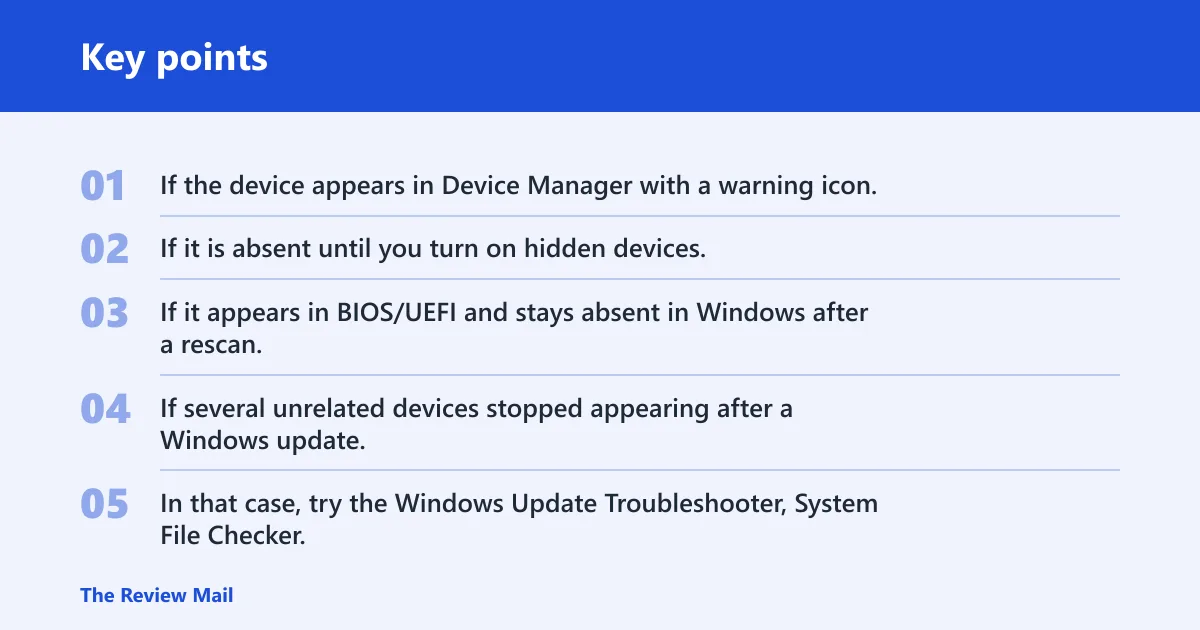
If the device appears in Device Manager with a warning icon, Windows sees it but cannot use it. If it is absent until you turn on hidden devices, Windows may be holding a stale entry or a disconnected record. If it appears in BIOS/UEFI and stays absent in Windows after a rescan, check the connection, port, adapter, or device itself.
Signs that point to update corruption instead
If several unrelated devices stopped appearing after a Windows update, the update path may be involved. In that case, try the Windows Update Troubleshooter, System File Checker, and a Windows Update reset. Windows 10 uses the Device Manager and troubleshooting paths shown below.
Likely causes
Most often, the issue comes from one of four places: the device is disconnected, disabled, or hidden; the driver is damaged or not loaded; Windows Update components may be involved; or the cable, port, adapter, or hardware has failed. Treat those in that order, because the wrong fix wastes time and can hide the real fault.
- Disconnected, disabled, or hidden hardware is common after a move, reboot, docking change, or sleep state.
- Driver not loaded or damaged is likely when the device appears with an error state or a Code 22/Code 43-style failure (reported by windowscentral.com; reported by thewindowsclub.com).
- Windows Update component issues matter when a recent update or driver package may have affected device setup.
- Port, cable, adapter, or device failure becomes more likely after other fixes fail on the same connection path.
How do you check device manager in Windows 10?
Open Device Manager first, because it shows whether Windows sees the hardware, whether it is disabled, and whether a driver problem is blocking it. On Windows 10, you can open it by searching for it from Start or using Microsoft Support. Once inside, hidden devices and status codes are the fastest clues you can read.
- Open Start and type device manager, then open it.
- In Device Manager, select View > Show hidden devices.
- Expand the matching category and look for a faded entry, a down-arrow icon, or a yellow warning icon.
- Right-click the device and open Properties, then read the Device status box.
- If needed, right-click your computer name and choose Scan for hardware changes (reported by thewindowsclub.com).
If the status reads This device is working properly, the hardware is not experiencing issues connecting to Windows 10 (reported by windowscentral.com). If you see Code 22, the device is disabled; if you see a failure code such as Code 43, the driver or hardware may have failed to report correctly to Windows.
Which fix should you try first?
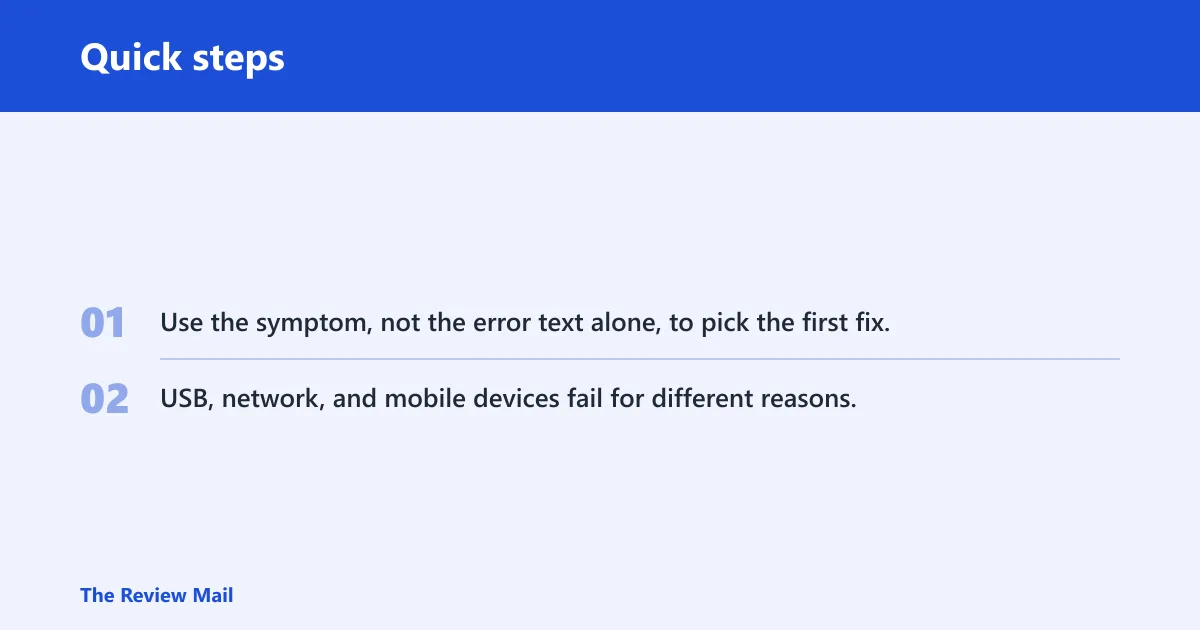
Use the symptom, not the error text alone, to pick the first fix. USB, network, and mobile devices fail for different reasons, and the shortest path is to match where the device appears, then choose the fastest next step.
| Symptom | Where the device appears | Likely cause | Fastest fix | Escalation step |
|---|---|---|---|---|
| USB device absent everywhere | Not in Device Manager, not in File Explorer | Disconnected hardware or bad port | Unplug, replug, and try another USB port | Try another cable or another PC |
| USB device shows with warning icon | Device Manager only | Driver not loaded or damaged | Uninstall or update the driver | Install the vendor driver package |
| Network adapter missing after update | Not in Network Connections, maybe hidden in Device Manager | Driver or Windows Update component issue | Run the Windows Update Troubleshooter | Reset Windows Update components |
| Phone not detected by USB | Charging only, no device entry | Bad cable, charge-only cable, or driver mismatch | Use a data-capable cable and another port | Reinstall the mobile device driver |
| Device visible in BIOS/UEFI but absent in Windows | Firmware sees it; Windows does not | Windows-side driver or configuration issue | Show hidden devices, rescan hardware, reinstall driver | Check the device on another PC |
How do you fix driver and update problems?
Use this branch when Device Manager sees the device, but Windows refuses to load it cleanly, or when several devices failed after an update. In Windows 10, the troubleshooter sits in Settings > Update & Security.
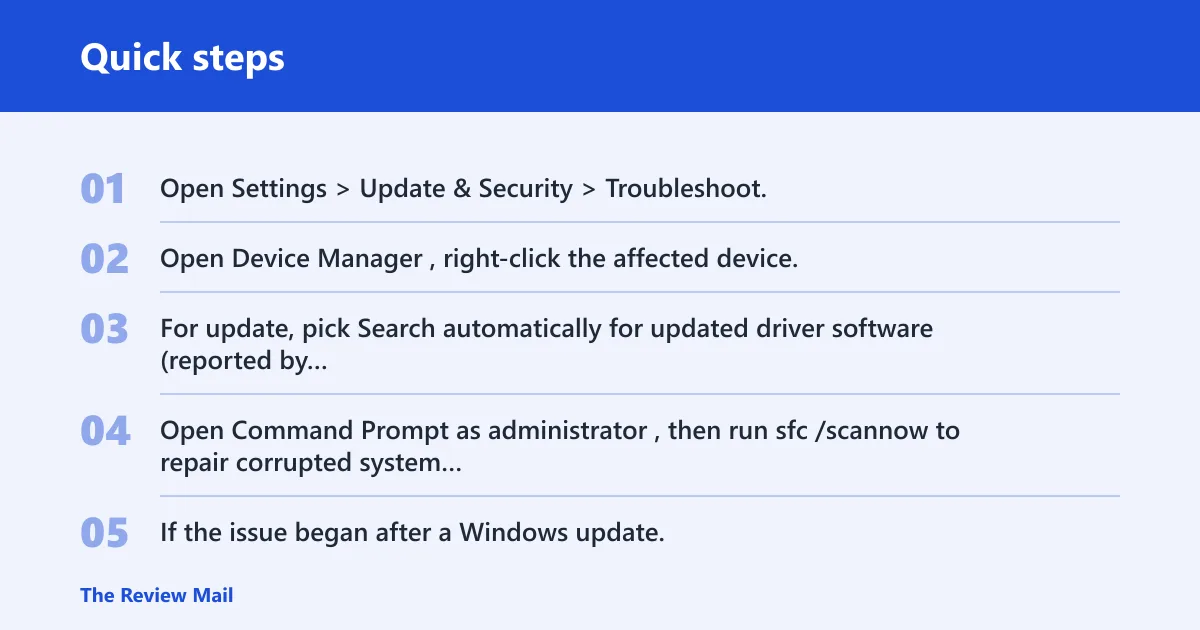
- Open Settings > Update & Security > Troubleshoot, then run the Windows Update Troubleshooter (reported by Driver Easy).
- Open Device Manager, right-click the affected device, and choose Uninstall device or Update driver.
- For update, pick Search automatically for updated driver software (reported by thewindowsclub.com).
- Open Command Prompt as administrator, then run
sfc /scannowto repair corrupted system files. - If the issue began after a Windows update, reset Windows Update components from an elevated Command Prompt: stop wuauserv and bits, rename
C:\Windows\SoftwareDistribution, then start the services again.
Run this branch when the problem appears after a recent Windows update. A broken cache can stop driver delivery even when the hardware is fine. The SoftwareDistribution folder is recreated automatically after the reset.
Reset steps for Windows Update components
- Open Command Prompt as administrator.
- Run
net stop wuauserv. - Run
net stop bits. - Rename
C:\Windows\SoftwareDistribution. - Restart the PC, then check the device again.
Still not working?
If the device still does not appear, move from software repair to connection testing. Try another known-good cable, another port, or another adapter. If the device works elsewhere but not on this PC, the local port or driver stack is still suspect.
- Try another port on the same computer.
- Try another cable or adapter if the device depends on one.
- Test the device on another Windows 10 PC.
- For a laptop, disconnect docks and hubs before retesting.
- If the device fails on two computers, it is usually reasonable to stop troubleshooting software and consider replacing the hardware.
Picture a mobile device that charges but never appears in Device Manager. That usually means the cable is power-only or the driver is wrong, not that Windows 10 lost the device completely. A data-capable cable and a direct port test are faster than another driver reinstall.
Frequently asked questions
How do I fix this device is not present in Windows 10?
Open Device Manager from Start, choose View > Show hidden devices, then right-click your computer name and select Scan for hardware changes. If the device still fails, uninstall or update the driver, then run sfc /scannow from an elevated Command Prompt.
Why is my device not showing in Windows 10?
Windows 10 may not detect the hardware, may be hiding a stale entry, or may be blocked by a driver or update problem. Check Device Manager, then the Windows Update Troubleshooter in Settings > Update & Security.
How do I open device manager in Windows 10?
Open Start, type device manager, and open the result. If needed, Win + R and devmgmt.msc also open the same tool (reported by thewindowsclub.com).
Is my device Windows 10 or Windows 11 compatible?
Check the manufacturer’s support page for the exact model and operating system. If the driver package lists Windows 10 only, use that build on Windows 10. Do not apply a Windows 11 package to a Windows 10 device unless the vendor names both systems.
What should I do if my network device is not present?
Open Device Manager, show hidden devices, and look for the network adapter under Network adapters. If it is missing after an update, run the Windows Update Troubleshooter, then reset Windows Update components with net stop wuauserv, net stop bits, and a C:\Windows\SoftwareDistribution reset.
Is my device Windows 10 or 11?
Check Settings > System > About and read the Windows specifications section. If you are following repair steps, stay on the Windows 10 path for Device Manager and the Windows Update Troubleshooter; Windows 11 uses different menus. (Microsoft Support)