Windows Cannot Identify All Resources This Device Uses: Fix
Unplug docks, hubs, and any newly added hardware, then restart the PC and check the device in Device Manager again. In Windows, Code 12 means Windows cannot assign the resources the device needs. If that changes nothing, work through the safer first-hour triage below.
What Code 12 means
Open Device Manager, right-click the problem device, choose Properties, and read Device status. That is where the exact message appears. On Windows 10 and Windows 11, this entry points to a hardware resource allocation problem, not a generic driver error.
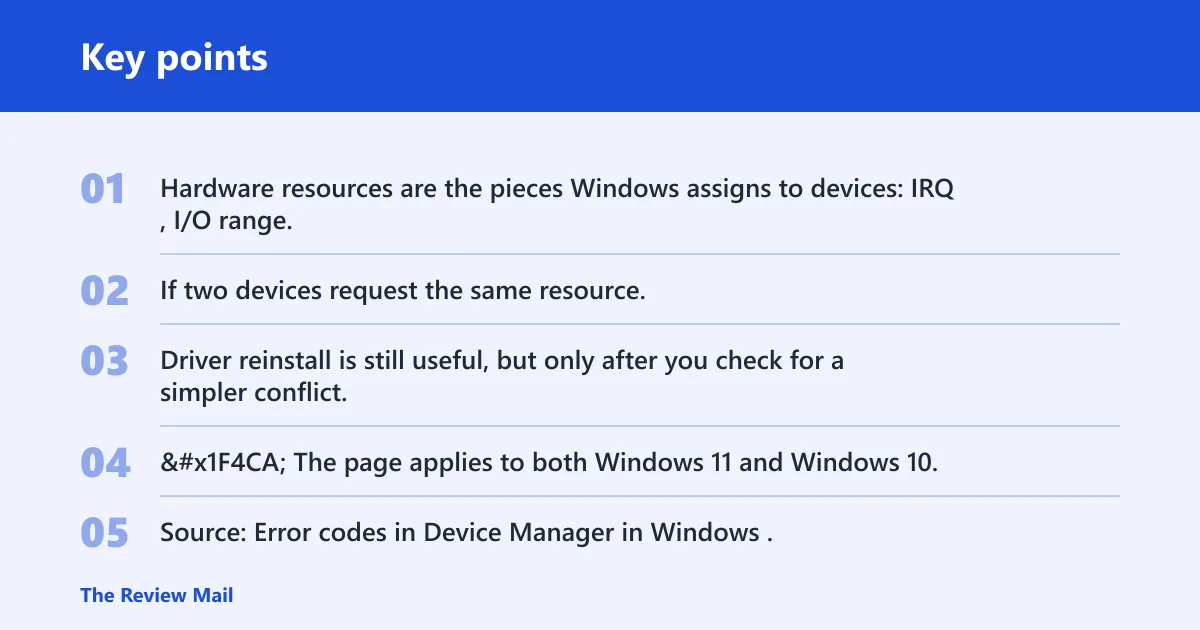
If two devices request the same resource, or if the platform runs out of an available range, the device may stop starting cleanly.
Do not make driver removal your first move. Driver reinstall is still useful, but only after you check for a simpler conflict, because uninstalling and rebooting can waste time when the underlying allocation problem is still there.
📊 The page applies to both Windows 11 and Windows 10. Source: Error codes in Device Manager in Windows.
Code 12 triage table
This table gives a first-hour order. Start with the safest check in the right-hand column, then move to the next row only if the symptom fits.
| Symptom | Likely conflict source | Fastest safe check | Fix priority | When to escalate |
|---|---|---|---|---|
| USB device fails after docking or using a hub | Shared USB controller path, hub, or dock resource limits | Move it to a direct port on the PC, then open Device Manager and choose Action > Scan for hardware changes | High | If it works on a direct port but not through the dock or hub |
| GPU shows Code 12 after a new card or display change | PCIe resource allocation, slot conflict, or another add-in card consuming the needed range | Check whether the card is still listed correctly in Device Manager, then review recent hardware changes | High | If the card stays in Code 12 after a reboot and a hardware rescan |
| Network adapter disappears or shows an error after an update | Adapter conflict, disabled onboard network path, or a resource clash with another card | Open Device Manager, inspect the adapter properties, then run Scan for hardware changes | Medium | If the adapter returns only after a reinstall or vendor package |
| Sound card or audio controller reports Code 12 | Shared resources with another controller or onboard audio path conflict | Check Device Manager for duplicate audio devices and test after a reboot | Medium | If the error returns after the same device is removed and rediscovered |
| Docked laptop only fails while the dock is attached | Dock resource limits, dock firmware, or a docked USB-C path conflict | Disconnect the dock and retest the device directly on the laptop | High | If the device works undocked but not through the dock |
Likely causes
A common cause is a shared or exhausted hardware resource rather than damaged software. Less often, a disabled onboard device, a recently added card, or a platform limit after a Windows update blocks the device from getting what it needs.
Shared IRQ or I/O range conflict
When two devices try to use the same interrupt line or address range, one of them can fail to start. That is especially common after adding a card, moving a device to a different slot, or attaching several devices through a dock.
- Open Device Manager.
- Right-click the affected device and choose Properties.
- Check Device status, then open the Driver tab only to confirm the device is still installed.
- If the problem began after new hardware was added, remove that hardware, then restart the PC.
- Choose Action > Scan for hardware changes.
Memory range or DMA allocation conflict
Some devices need a memory window or DMA path that is no longer available. If system resources are tight, the device can lose its slot in the allocation queue. This can show up after a Windows update or after several controllers are active at once.
- Press Ctrl + Alt + Delete and open Task Manager.
- Check whether memory use is unusually high across the system.
- Open Control Panel > System > Advanced system settings.
- Under the Advanced tab, select Settings in Performance.
- Review Virtual memory if you need to confirm the current paging-file setting, then restart after any change.
Suppose a laptop has 16 GB of RAM, a USB-C dock, an external GPU enclosure, and a network adapter all active at once. If one device starts failing only after the dock connects, the issue is more likely a resource allocation conflict than a bad driver package.
Disabled onboard device or adapter conflict
A disabled integrated controller can leave the system in an awkward state if another device expects that resource path to be available. The fix is not to guess at firmware menus; it is to verify the exact onboard device in the BIOS or UEFI setup screen and only change the control that matches the missing function.
- Restart and enter the BIOS or UEFI setup screen.
- Look for the exact device name, such as onboard audio, onboard LAN, or integrated graphics.
- Enable only the specific controller that matches the missing hardware.
- Save changes, boot Windows, and retest in Device Manager.
Platform resource limits after a Windows update
After an update, Windows can rediscover hardware in a different order. That may expose a limit that was already there but hidden by the old allocation. In that case, a restart and rescan can help, but a driver reinstall is still a later step, not the first one.
- Restart the PC once before changing drivers.
- Open Device Manager.
- Use Action > Scan for hardware changes.
- If the device still shows the same status, continue to the device-specific steps below.
USB devices: start with ports and hubs
For a USB device, the safest first test is a direct port on the PC. Bypass hubs, docking stations, and front-panel extensions first. If the device works on one port and not another, the conflict is in the path, not the device itself.
- Unplug the device from the hub or dock.
- Connect it to a direct USB port on the computer.
- Open Device Manager and confirm whether the status changed.
- Select Action > Scan for hardware changes.
- If it works, keep it on the direct port for now and test the hub or dock later.
Picture a keyboard that fails only through a dock but works from a rear USB port. That points to the dock path first. A driver reinstall on the keyboard is the wrong first move.
Internal cards and GPUs: check the card path
For add-in cards, focus on the slot, the card’s presence in Device Manager, and anything newly installed nearby. If the device only started failing after a new capture card, network card, or GPU change, treat that recent change as the lead suspect.
- Power the PC off completely.
- Check that the card is seated correctly and that no other new card was added at the same time.
- Boot Windows and open Device Manager.
- Open the device Properties and check Device status.
- If the card is still present, use the Driver tab only after the basic hardware check.
- If needed, uninstall the device, restart, and then use Action > Scan for hardware changes.
Removing the driver does nothing if the slot resources are still unavailable.
Network adapters and sound cards: clear resource clashes
Network and audio devices can fail when another controller takes the same resources or when a recent change altered what Windows assigns during startup. These fixes are short, but the order matters: check the device, rescan, then reinstall only if the conflict stays.
- Open Device Manager.
- Check whether the network adapter or sound device is disabled or flagged.
- Choose Action > Scan for hardware changes.
- If the problem began after a driver or Windows update, restart once after the scan.
- Only then use the Driver tab to uninstall the device, restart, and let Windows rediscover it.
Docked laptops: test without the dock
If the device works undocked, the dock path is the conflict source until proven otherwise. That means the dock itself, its firmware, its USB-C path, or its attached peripherals are the first things to inspect, not the laptop’s internal driver stack.
- Disconnect the dock completely.
- Attach the device directly to the laptop.
- Restart the laptop and retest.
- If the device works undocked, reconnect the dock and see whether the fault returns.
- If it does, check the dock’s latest driver package and device-specific documentation from the hardware vendor.
Suppose a Dell laptop shows the message only when the dock is attached. That does not point to a random Windows problem. It points to the docked path, and the next step is vendor documentation for that dock model, not another driver loop on the laptop itself.
When to stop and escalate
Stop the Windows-side steps if the same device still shows the error after a direct-port test, a restart, and a hardware rescan. At that point, move to the device maker’s latest driver download, device-specific documentation, or firmware guidance. If the hardware is internal, the next layer may be chipset, BIOS, or platform support.
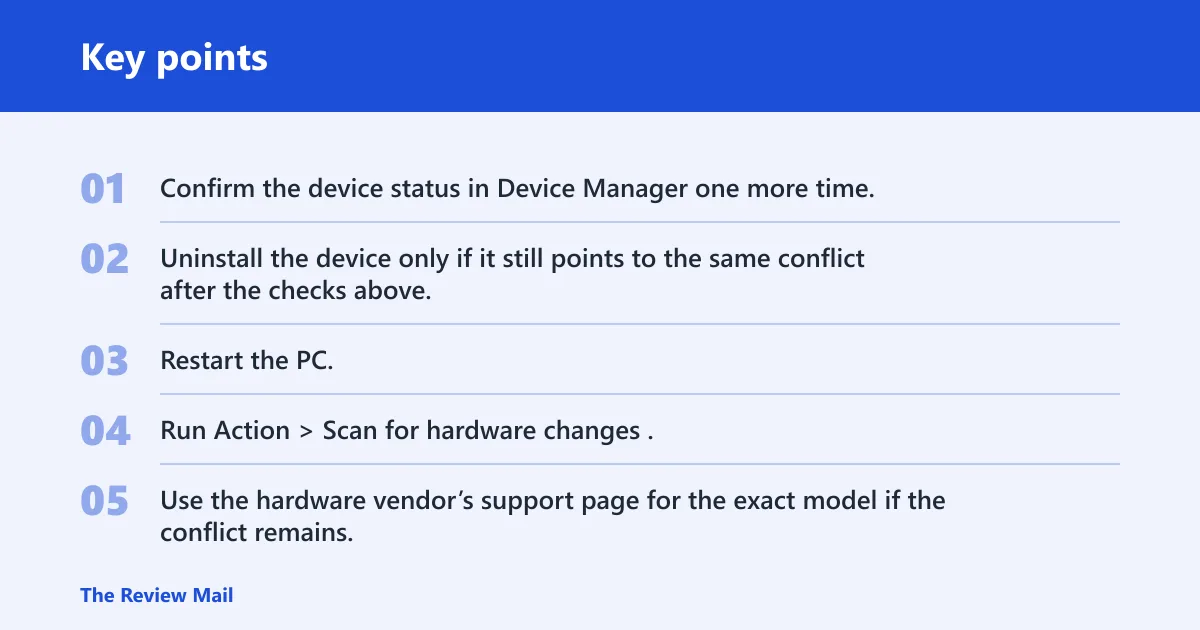
- Confirm the device status in Device Manager one more time.
- Uninstall the device only if it still points to the same conflict after the checks above.
- Restart the PC.
- Run Action > Scan for hardware changes.
- Use the hardware vendor’s support page for the exact model if the conflict remains.
Prevention is limited here, but one useful habit is to change one hardware layer at a time. Add a dock, card, or adapter by itself, then verify that Windows assigns it cleanly before adding the next device.
Frequently asked questions
What does “Windows cannot identify all of the resources this device uses” mean in Device Manager?
It means Device Manager found a resource assignment problem for that device, usually visible in Properties > Device status. Check whether a dock, hub, add-in card, or onboard controller is taking the same path, then rescan with Action > Scan for hardware changes before reinstalling anything.
How do I fix Code 12 in Windows 10?
Start in Device Manager, open Properties, disconnect docks and hubs, restart, and run Action > Scan for hardware changes. If that fails, uninstall the device from the Driver tab, restart, and let Windows reinstall it. Use the vendor’s latest driver only after those checks.
Is Code 12 a driver problem or a hardware resource conflict?
Task Manager and Virtual memory settings are only quick health checks, not automatic fixes.
What should I check first if a device has Code 12 after a Windows update?
Check for recently changed hardware, then open Device Manager and use Action > Scan for hardware changes. If the device is external, move it to a direct port. If it is internal, confirm it still appears in Properties before touching the driver package.
Can a disabled onboard device or BIOS setting cause Code 12?
Yes, if the exact onboard controller is disabled in BIOS or UEFI and another device depends on that resource path. Enter setup, find the named controller, enable only that item, save, and retest in Windows. Do not change unrelated firmware settings while chasing the error.
Do I need to reinstall the driver for Code 12, or is there a safer first step?
A safer first step is to remove the conflict source first: dock, hub, extra card, or duplicate controller. If the device still fails, uninstall it from the Driver tab, restart, and then scan for hardware changes. That order avoids pointless reinstall loops.
What does it mean if two devices are using the same resources?
It means Windows could not give both devices the same IRQ, address range, memory range, or DMA allocation at once. Remove one device from the path, reconnect it elsewhere, or test it undocked. If the same conflict returns, the vendor’s documentation is the next stop.
Will updating the driver fix Code 12 on my PC?
Sometimes, but not as the first move. Start with the conflict check, then update or reinstall the driver only if the device still fails after a restart and rescan. Use the exact model’s latest driver from the hardware vendor when the Windows-side steps do not clear the issue.