Driver Entry Point Not Found
Driver entry point not found usually means the installer or app is calling a missing DLL function; fix the exact dependency first, then choose runtime repair for Microsoft redist files or a clean vendor driver reinstall for package-specific DLLs. Choosing the wrong fix wastes time and can leave the driver half-installed or the app unusable. This guide shows how to identify the missing file or entry point, then match it to the right repair path.
This guide is part of our Windows driver errors: full list and fixes series.
What the error means
An Entry Point Not Found error is a DLL-related launch failure. In plain Windows terms, the program tried to call a function that the DLL cannot provide, or Windows cannot read that DLL at all. On Windows 7, 10, and 11, that often means the file is missing, corrupted, blocked, or the wrong version for the component that requested it.
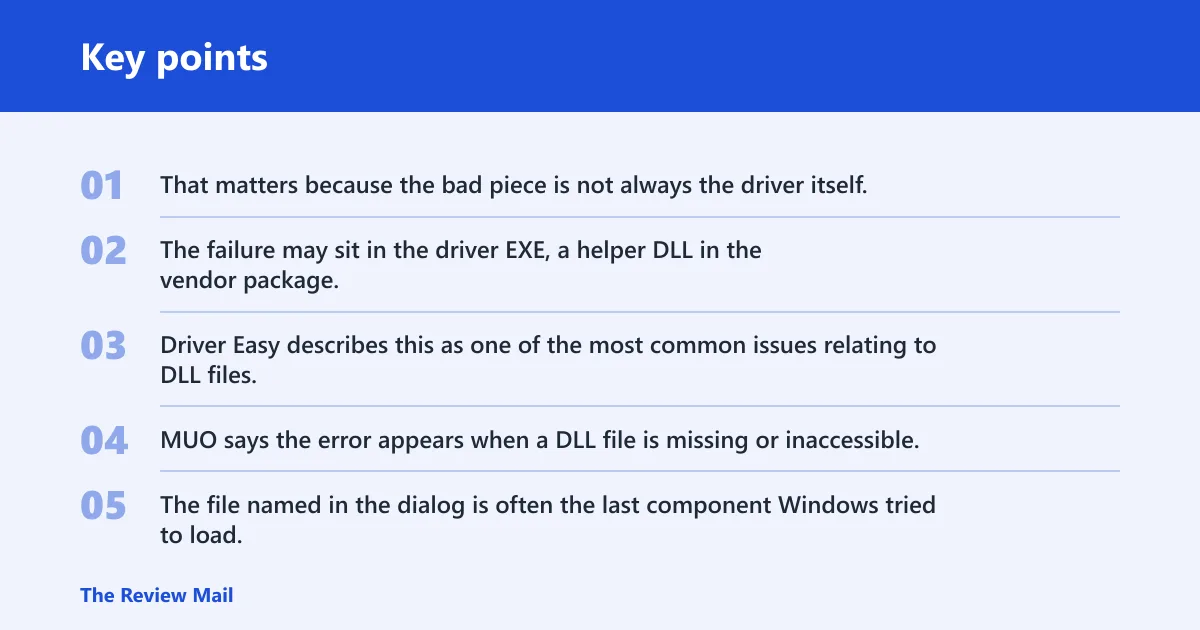
That matters because the bad piece is not always the driver itself. The failure may sit in the driver EXE, a helper DLL in the vendor package, a Microsoft runtime DLL, or a security product that removed the file before launch.
Driver Easy describes this as one of the most common issues relating to DLL files. MUO says the error appears when a DLL file is missing or inaccessible, and Stellar gives the full wording as “The procedure entry point could not be located in the dynamic link library.” EaseUS uses a near-identical description and adds that Windows Defender can be part of the problem.
Why the message can point to the wrong file
The file named in the dialog is often the last component Windows tried to load, not always the true root cause. A vendor installer can fail because a supporting runtime DLL is absent, because a 32-bit helper is being launched on 64-bit Windows, or because a stale copy in a driver folder shadows the correct file.
That is why the fix path changes by component. A missing Microsoft runtime calls for a runtime repair. A vendor-specific DLL points toward driver-package cleanup and reinstall. A security block calls for quarantine recovery before anything else.
What changes between Windows 7, 10, and 11
The core meaning stays the same across Windows 7, 10, and 11. What changes is the repair path you should try first. Newer systems make it easier to check Microsoft Defender Protection history, while older systems may rely more on Event Viewer and vendor logs to expose the missing file name.
Do not treat every version as a different bug. Treat it as the same dependency failure with slightly different tools around it.
Find the missing DLL
If the dialog names a file, start there first. If it does not, use Event Viewer under Windows Logs > Application to look for the launch failure and the module name. MUO specifically recommends Event Viewer when the missing DLL is not named, and that is often the fastest way to separate a vendor DLL from a Windows runtime file.
Read the exact file name in the dialog
Copy the DLL name exactly as shown. Pay attention to the architecture marker if it appears, such as x86 or x64, and note whether the failure happens in the installer bootstrapper, the driver EXE, or a separate support tool. That detail decides whether you need a runtime repair or a vendor package cleanup.
Check event Viewer under Windows Logs application
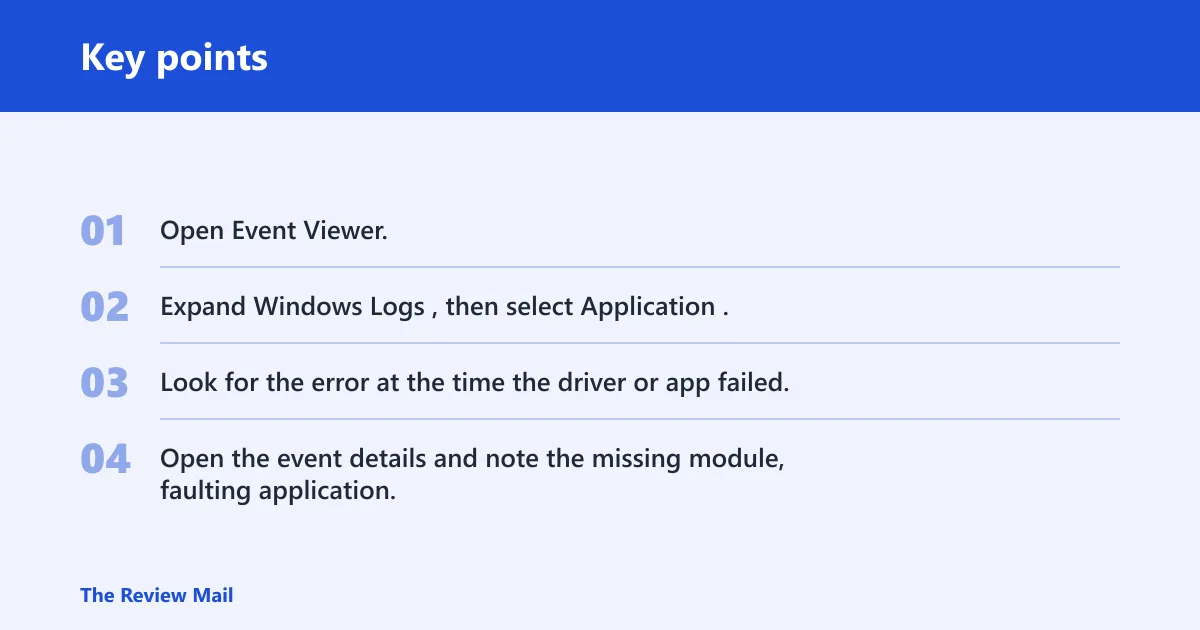
- Open Event Viewer.
- Expand Windows Logs, then select Application.
- Look for the error at the time the driver or app failed.
- Open the event details and note the missing module, faulting application, and any error code.
If the dialog is vague, this log often names the DLL that failed to load. That gives you a better branch point than guessing from the installer name alone.
Use installer logs when the dialog omits the DLL name
Many vendor installers write a log file beside the setup executable or inside a temp folder. Search for the setup name, the driver package name, or the vendor name, then look for lines that mention a missing module, load failure, or access denied message. That is especially useful for driver bundles that unpack several DLLs before the actual install starts.
Driver error triage table
| Symptom pattern | Likely failing component | Fastest safe check | Next step |
|---|---|---|---|
| Dialog names a Microsoft DLL such as a Visual C++ file | Runtime | Check whether the 2015/2017/2019/2022 redistributable is installed | Repair or reinstall the matching runtime, then retry |
| FTDI-style USB driver installer fails before device detection | Driver EXE or supporting DLL in the vendor package | Open Event Viewer and compare the missing file name with the package contents | Remove the old package, reboot, then install the latest vendor-signed driver |
| AMD-style installer stops during extraction or setup | Bootstrapper or helper DLL | Check Protection history and installer logs for a removed file | Restore the quarantined file if trusted, or reinstall the vendor package cleanly |
| Error appears only on one PC after a security alert | Security block | Review Microsoft Defender Protection history and third-party quarantine | Restore the named file from the trusted vendor package, then rerun setup |
| Same driver worked before, now fails after Windows repair | Windows system file or image damage | Run SFC first, then DISM if SFC reports corruption | Retry the installer after the repair cycle finishes |
| Dialog mentions a DLL in System32 but the vendor folder has another copy | Stale or mismatched DLL version | Check whether 32-bit and 64-bit files are mixed or duplicated | Clean the driver package and reinstall from the OEM source |
Suppose an FTDI USB-to-serial installer names a helper DLL but the same package runs on another PC. That points away from the chip driver itself and toward a missing runtime, a quarantined file, or a stale copy left behind by an earlier install. The fix is not random file copying; it is package cleanup and a known-good reinstall.
Picture an AMD-style graphics installer that stops during unpacking and shows an entry-point message. In that case, the bootstrapper may be failing before the driver files ever reach the device. Check the installer log and Protection history first, then repair the vendor package instead of chasing the display driver alone.
Could security software block the DLL?
Yes. Microsoft Defender and third-party security tools can block access to a DLL, quarantine it, or delete it before the installer finishes. That is why security checks belong near the top of the sequence, before you reinstall the same package and hit the same missing file again.
Check microsoft defender Protection history
Open Windows Security, then review Protection history for the missing file name or a recent block. If the named DLL appears there and it came from a trusted vendor package, restore only that file from the trusted source or from the original installer media. Do not restore a file you cannot match to the package.
Check third-party antivirus quarantine
Look for the same file in the antivirus quarantine list. If a vendor DLL was isolated, restore it only after confirming it belongs to the exact installer or driver package you are using. If the security tool removed a Microsoft runtime file, reinstall the runtime after the threat decision is clear.
Restore only the named file from a trusted source
Never pull DLLs from random file sites or copy unknown files into Windows folders. That can hide the original problem and create a worse one. If the file is vendor-specific, restore it from the official installer or the OEM package. If it is a Microsoft runtime file, use the official redistributable or Windows repair path.
Repair Windows files
Use Windows repair commands when the evidence points to corrupted or missing system files, not a vendor-only package. SFC with sfc /scannow is the first pass. If the Windows image itself may be damaged, follow with DISM. Stellar recommends both scans in this kind of repair workflow. (Microsoft Learn)
Run SFC with sfc /scannow
- Open an elevated Command Prompt or Windows Terminal.
- Run
sfc /scannow. - Wait for the verification and repair process to finish.
- Restart if Windows asks for a reboot.
SFC checks protected system files and repairs common corruption. It is useful when the missing file name points into Windows itself or when the installer failure follows a broader system problem.
Use DISM when the Windows image may be damaged
If SFC reports that it could not fix everything, run DISM afterward as a common follow-up step. DISM repairs the Windows image that SFC depends on. That makes it the better second step when the system store behind the files is damaged, not just one file on disk.
After DISM and SFC finish, rerun the installer. If the same vendor DLL is still missing, the failure is probably package-specific and should move to the driver cleanup branch.
Reinstall the right runtime
Install or repair the Microsoft Visual C++ Redistributable 2015/2017/2019/2022 when the missing file belongs to that stack. The same source recommends the Visual C++ Redistributable packages as a last resort, and that is sensible when the error points to a supporting DLL rather than the driver package itself.
Match x64 on 64-bit Windows when needed
On 64-bit Windows, many packages need the x64 runtime. Some installers also need the x86 package for helper tools. If the error names a Microsoft runtime DLL, install the matching redistributable set, then retry the driver or app that failed.
Why this fix matters for supporting DLLs
Driver bundles often rely on shared Microsoft libraries for setup, logging, or device discovery. If those libraries are missing or damaged, the driver package may fail before the actual hardware component is touched. Reinstalling the runtime repairs that shared layer without disturbing the vendor driver itself.
Clean the driver package
Use this branch when the evidence points to a vendor-specific file, a broken driver package, or a stale entry that keeps loading the wrong DLL. The goal is not to force the same installer again. The goal is to remove the bad package, reboot, and install a fresh copy from the OEM or vendor source.
Remove the affected device or driver entry in Device Manager
Open Device Manager and remove the affected device entry if the package attached itself there. If the installer exposed a separate driver package, uninstall that package too. This clears the old reference so Windows does not keep reaching for the same broken dependency.
Uninstall the vendor package before reinstalling
If the installer is from a chipset, graphics, USB, printer, or audio vendor, uninstall the package from Apps and Features or the vendor uninstaller first. Then reboot. A reboot helps release locked files and clears stale loader state that can keep a broken DLL in play.
Reinstall from the OEM or vendor source
Use the device maker’s package, not a generic download mirror. That matters for architecture matches, signed components, and support DLLs that belong to the exact driver version. If the machine is older and still on Windows 7, that source choice matters even more because newer packages may expect different runtimes.
A common first-timer mistake is to keep rerunning the same setup after a quarantine event. If Protection history shows that the missing DLL was removed, fix that first. Reinstalling the same package without restoring the file just repeats the failure.
Frequently asked questions
Why entry point not found
The phrase means Windows could not locate a function that the program expected to find inside a DLL. In most cases, the DLL is missing, corrupted, blocked, or the wrong version for that installer or app. The right fix depends on whether the missing file is a Microsoft runtime, a Windows file, or a vendor package component.
What does driver entry point not found mean?
It usually means a driver installer or driver-related tool tried to load a DLL and call a function that was not available. That can happen with a bad driver package, a quarantined file, or a runtime mismatch. The message does not automatically mean the driver hardware is bad.
How do I fix driver entry point not found in Windows?
Start by identifying the missing DLL name in the dialog, Event Viewer, or the installer log. Then check Protection history, run SFC and DISM if Windows files may be involved, and install the matching Visual C++ runtime if the file belongs to that stack. If the file is vendor-specific, clean-remove the driver package and reinstall from the OEM source.
Is driver entry point not found a DLL problem?
Yes, most of the time it is. The error usually means a DLL is missing, unreadable, quarantined, or the wrong version. The same source says it is one of the most common issues relating to DLL files, and MUO says it appears when a DLL file is missing or inaccessible.
Can antivirus cause entry point not found?
Yes. Microsoft Defender or third-party antivirus can quarantine or delete the DLL that the installer needs, which leads to the same entry-point failure. Check Protection history or the antivirus quarantine list before reinstalling. If the file was blocked, restore only a trusted file that matches the vendor package.
Should I reinstall the driver or the app for entry point not found?
Reinstall the driver when the missing file is vendor-specific or the failure happens in a driver installer. Reinstall the app when the error comes from a standalone application and the missing file belongs to that app’s own folder. If the file is a Microsoft runtime DLL, repair the runtime first rather than reinstalling either one.
How do I find the missing DLL name?
Read the error dialog first. If it does not name the file, open Event Viewer and check Windows Logs > Application for the failed launch. Installer logs can also show the missing module. The same source recommends Event Viewer specifically when the message leaves out the DLL name.
Is Visual C++ redistributable needed for entry point not found?
Often, yes, when the missing file belongs to the Microsoft runtime stack. The same source recommends those packages as a last resort for this error.
Can I copy a DLL from another PC to fix it?
That is a poor fix unless the file came from the exact same vendor package and version. A copied DLL can create a 32-bit and 64-bit mismatch, or it can hide the real problem. Use the official installer, the OEM package, or Windows repair tools instead.
What is the safest order to try fixes?
First identify the missing file. Then check security quarantine, repair the correct runtime or Windows files, and only after that clean-remove the vendor package if the file is driver-specific. The rule is simple: if the missing file is vendor-specific, fix the vendor package; if it is a Microsoft runtime or Windows file, repair the runtime or Windows image first.