Code for Windows 11: Where to Find the Right One
For Windows 11, the “code” is either a 25-character product key, a digital license tied to your Microsoft account or device hardware, or a firmware OEM key stored in UEFI. If activation is missing, identify which one you have before you buy or reinstall again. If you guess wrong, you can lose time, keep seeing “not activated,” or pay for a key you do not need. This guide shows where each activation credential lives and how to check it after purchase, reinstall, or hardware changes.
What “code for Windows 11” usually means
Most people searching this phrase want a Windows activation credential, not software code. For Windows 11, Microsoft says activation may use either a product key or a digital license, and a new PC may already have the key embedded in firmware or preinstalled on the device.
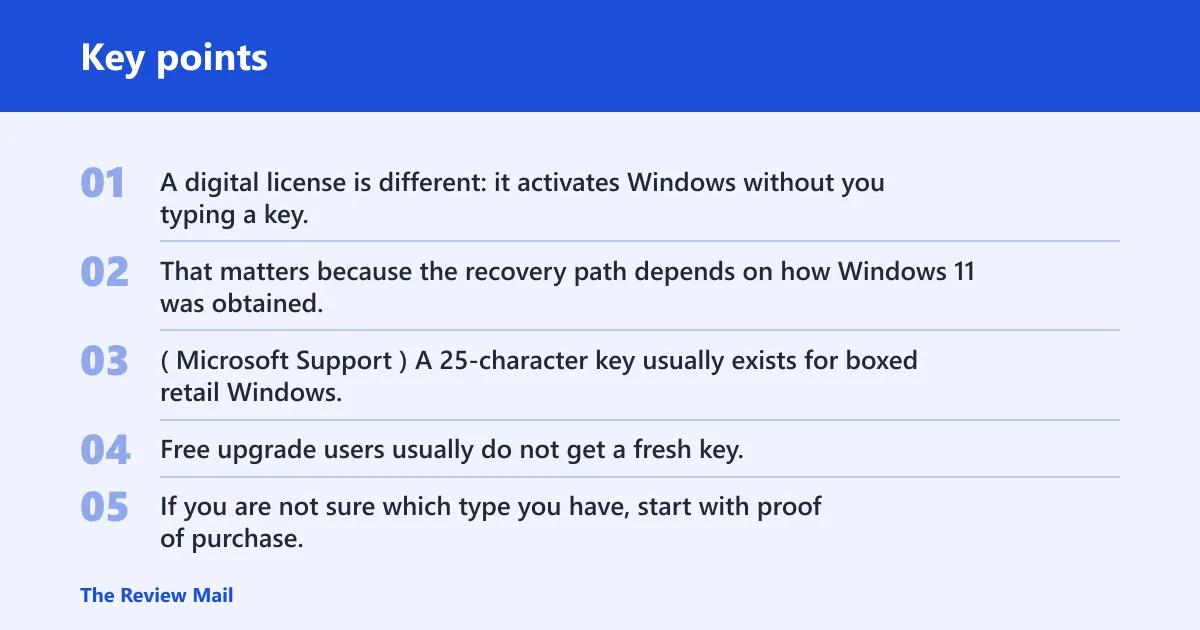
A product key is a 25-character code. A digital license is different: it activates Windows without you typing a key. That matters because the recovery path depends on how Windows 11 was obtained. (Microsoft Support)
When a 25-character key exists
A 25-character key usually exists for boxed retail Windows, some digital retail purchases, and many new PCs. Free upgrade users usually do not get a fresh key; Microsoft says the upgrade should use a digital license instead.
If you are not sure which type you have, start with proof of purchase. The device, the packaging, the retailer email, and your Microsoft account each point to a different activation source.
📊 Creating Windows installation media requires a blank USB flash drive with at least 8 GB. Source: Microsoft.
Windows code matrix
Use this matrix to match the ownership type to the place the activation proof lives. It separates “where is the key” from “do I even have a key,” which is the part many first-time Windows 11 buyers miss.
| Ownership type | Where to find proof of license | 25-character key exists? | Uses digital license? | If missing, contact |
|---|---|---|---|---|
| New PC OEM | On the device, in firmware, or from the OEM order paperwork | Sometimes | Often yes | Hardware manufacturer or system seller |
| Boxed retail | Label or card inside the box | Yes | Can also activate after redemption | Retailer or Microsoft support for replacement proof |
| Digital retail | Confirmation email or retailer digital locker | Often yes | Sometimes tied to account activation | Retailer account support |
| Free upgrade | Microsoft account and device activation status | No separate key in most cases | Yes | Microsoft activation support |
| Microsoft Store Pro upgrade | Confirmation email and Microsoft account order history | Usually no typed key is needed | Yes | Microsoft account and Store support |
What each row means in practice
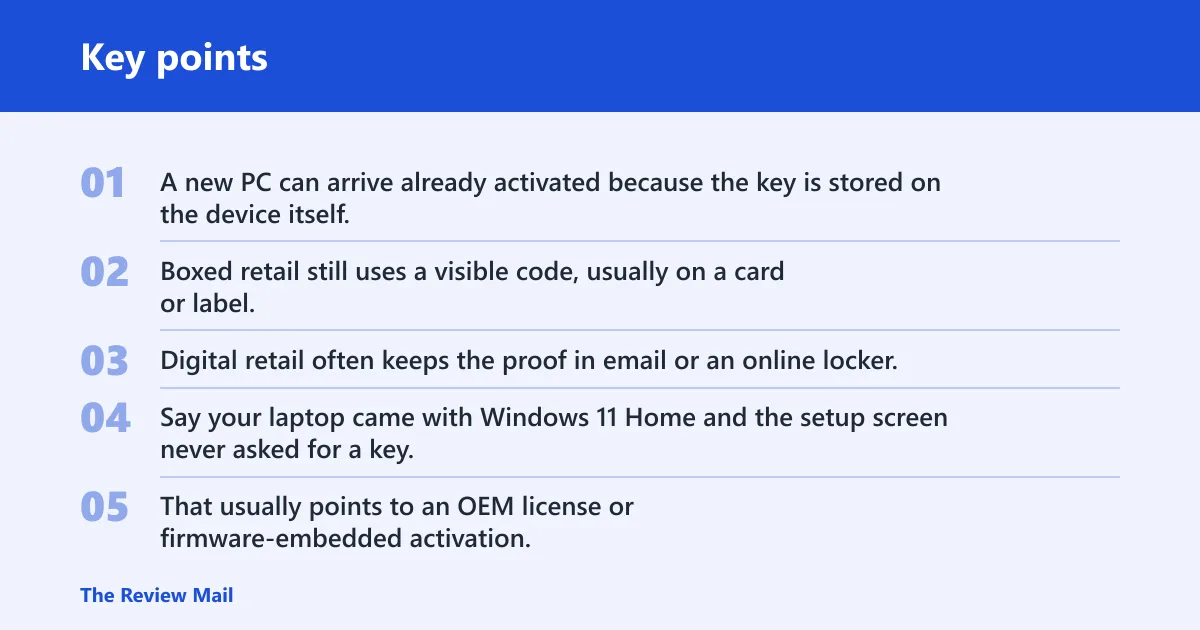
A new PC can arrive already activated because the key is stored on the device itself. Boxed retail still uses a visible code, usually on a card or label. Digital retail often keeps the proof in email or an online locker, while free upgrades and Store upgrades usually live in account records rather than a loose card.
Say your laptop came with Windows 11 Home and the setup screen never asked for a key. That usually points to an OEM license or firmware-embedded activation, not a missing retail code. If the machine later asks for activation after a motherboard swap, the hardware change is the issue, not a lost paper key.
Where to find your Windows 11 proof
Check the place that matches your purchase type before you contact support. Look on the PC itself, the box, the purchase email, the retailer account, or the Microsoft account tied to the purchase. Reinstalling Windows may not require a new key if activation is already associated with the same device.
On the device or packaging
For a new PC, Microsoft says the product key may be preinstalled on the device, and modern devices can have the key embedded in firmware. For boxed retail Windows, the key is on a label or card inside the box. Do not throw away the packaging until activation is confirmed.
In email or retailer account
For digital retail purchases, check the retailer confirmation email and any digital locker or account page the seller provides. If the receipt says Windows 11 Pro or Home, keep that edition detail with the key. Edition mismatches are one of the fastest ways to get a valid key rejected.
In your Microsoft account
Microsoft Store digital copies are tied to a confirmation email and Microsoft account order history. If you bought a Pro upgrade through the Store, your purchase record is often the only place you need. Save the receipt, the order number, and the Microsoft account used for the purchase.
What to save before you reinstall
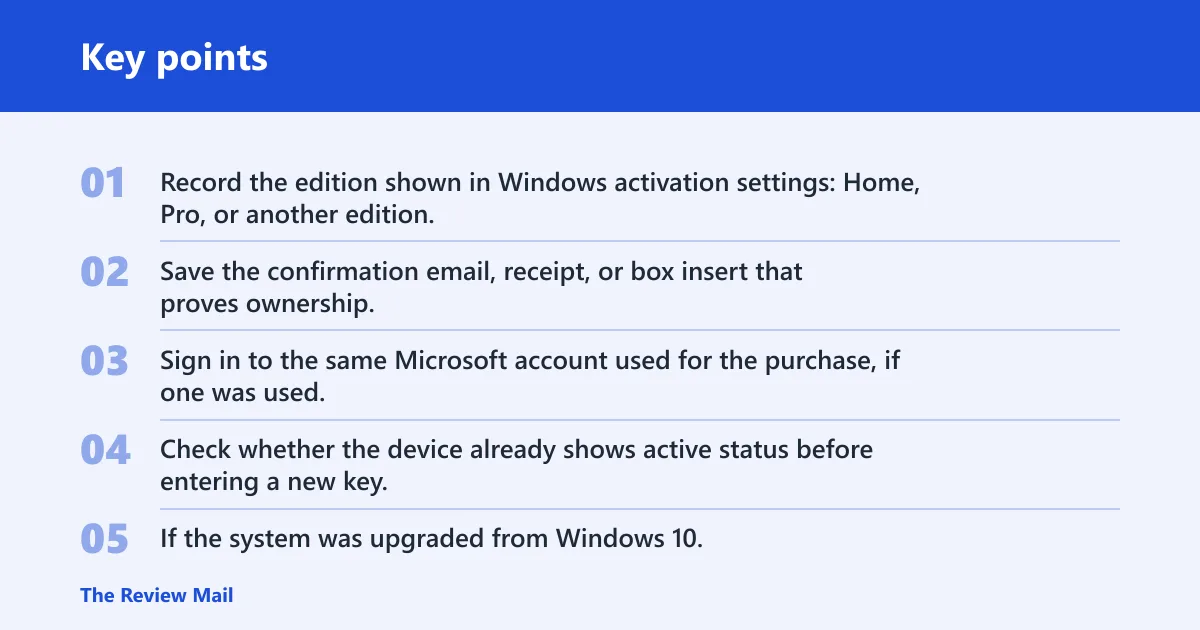
- Record the edition shown in Windows activation settings: Home, Pro, or another edition.
- Save the confirmation email, receipt, or box insert that proves ownership.
- Sign in to the same Microsoft account used for the purchase, if one was used.
- Check whether the device already shows active status before entering a new key.
- If the system was upgraded from Windows 10, keep that upgrade history with the device record.
What if you are reinstalling Windows 11?
Reinstalling Windows 11 often does not require a new key. If the device already has a valid digital license or firmware key, activation can return automatically once the same edition is installed and the device goes online. The edition still has to match.
A common first-timer mistake is reinstalling Windows 11 Pro on a machine that was licensed for Home, then entering a Home key later. That mismatch can make the error look like a bad key when the real problem is edition selection.
When activation returns automatically
If the original activation was tied to the same hardware, Windows 11 can reactivate after reinstall. That is common with OEM devices and with free upgrades from Windows 10, because Microsoft says those upgrades should use a digital license rather than a separate printed key.
When hardware changes break activation
Hardware changes can matter. A motherboard replacement is the classic example, because it can make Windows see the machine as a different device. If that happens, use Microsoft’s activation help page first, because Microsoft says that is the recommended next step after an activation error.
What if the key is missing or rejected?
First check whether you are dealing with the wrong edition, a reused or blocked key, or a hardware change. Then compare the proof you have against the ownership type. If you still cannot line them up, contact the retailer, the hardware manufacturer, or Microsoft support, depending on where the license came from.
Edition mismatch: Home, Pro, or Enterprise
Windows activation is tied to the Windows edition. A Home key will not activate Pro, and a Pro key will not fix an Enterprise install. If the device was sold with Home and you installed Pro, the fix is usually to install the correct edition or supply the correct license.
Reused, blocked, or already redeemed keys
A key can fail because it was already redeemed, reused on another machine, or blocked as invalid. That is most common with secondhand retail keys or copy-paste mistakes from emails and reseller pages. Enter the key exactly as shown, then confirm that the seller is legitimate.
Who to contact next
If the machine is a new PC, contact the hardware manufacturer or the system seller. If the license came from a boxed or digital retail purchase, contact the retailer. If the activation came from Microsoft Store, use your Microsoft account records and Store support. If you see a true activation error, Microsoft’s activation help page is the next step.
If you meant Visual Studio Code
If you meant the editor instead of Windows activation, download Visual Studio Code for Windows 11 from Microsoft’s site. It is free, supports Windows 10 and 11, and current Windows builds are 64-bit only. Choose the installer that fits your setup, not your Windows edition.
Windows 11 64-bit download options
Visual Studio Code offers x64 and Arm64 builds for Windows. You can choose the User Installer or the System Installer, depending on whether you want a per-user install or a machine-wide install. ZIP and CLI downloads are also available for manual setup or scripted deployment.
The Windows edition does not decide the installer choice. Pro and Home both use the same VS Code download paths; architecture and install scope matter more.
X64 and Arm64 builds
Pick x64 for most Intel and AMD Windows PCs. Pick Arm64 for Arm-based Windows devices. If you choose the wrong architecture, the installer will not match the device well, so confirm the processor family before downloading.
User Installer, system Installer, ZIP, and CLI downloads
User Installer is typically installed only for the current account. System Installer is generally a better choice for all-users installs and managed machines. ZIP is a portable package you extract manually. The CLI download is for command-line workflows and automation.
Insiders, vscode.dev, and previous releases
Visual Studio Code Insiders is commonly released daily with newer features and fixes. If you do not want a local install, use vscode.dev in the browser. If you need an older build, browse previous releases on the download page.
Frequently asked questions
Install vs code for windows 11
Choose the Visual Studio Code installer that matches your Windows hardware and install scope. For most Windows 11 PCs, that means the x64 build. Use the User Installer for one account, or the System Installer if you need a machine-wide install. Windows 11 Home and Pro use the same download path.
Download vs code for windows 11 64 bit
Current Visual Studio Code Windows downloads are 64-bit only, so this is the normal choice for Windows 11. Pick x64 for Intel or AMD systems and Arm64 for Arm-based devices. If you are unsure, check the processor type in Windows settings before downloading.
Download vs code for windows 11 pro
Windows 11 Pro does not require a special Visual Studio Code build. Use the same download page you would use for Home, then choose between User Installer, System Installer, ZIP, or CLI based on how you want to install it. The edition mainly matters for Windows activation, not VS Code itself.
Download vs code for windows 11 pro 64 bit
For Windows 11 Pro on a 64-bit PC, the usual choice is the x64 Visual Studio Code build. Pro does not change the installer family. If the device is Arm-based instead of x64, choose the Arm64 build even if the Windows edition is Pro.
Download vs code for windows 11 latest version
Use the stable Visual Studio Code download if you want the current release. If you want newer features and fixes earlier, install Visual Studio Code Insiders instead. If you need an older build for compatibility or comparison, the previous releases list lets you browse older versions.
What is code 11?
In this search context, “code 11” usually means a Windows 11 activation code or product key, not a software language. It can also point to Visual Studio Code if the searcher shortened the name. For Windows, check whether you have a product key, a digital license, or a firmware-based OEM activation first.