Reset Network Settings Windows 10 Powershell
To reset network settings in Windows 10 with PowerShell, first export your adapters, DNS, proxy, and VPN profiles; then use command-line resets only when Windows’ built-in reset is too blunt, because it can wipe static IP and VPN settings. Done badly, you can lose internet access, break split-tunnel VPNs, and spend extra time rebuilding adapter settings from memory. This guide shows the safest PowerShell-first reset path, exactly what to back up first, and what to verify after reboot.
How do you reset network settings in Windows 10?
Use the built-in Windows 10 Network reset when the problem looks broader than one adapter or one profile. It restores default values, removes and reinstalls network adapters, clears saved Wi-Fi profiles and passwords, and triggers an automatic restart five minutes after the reset.
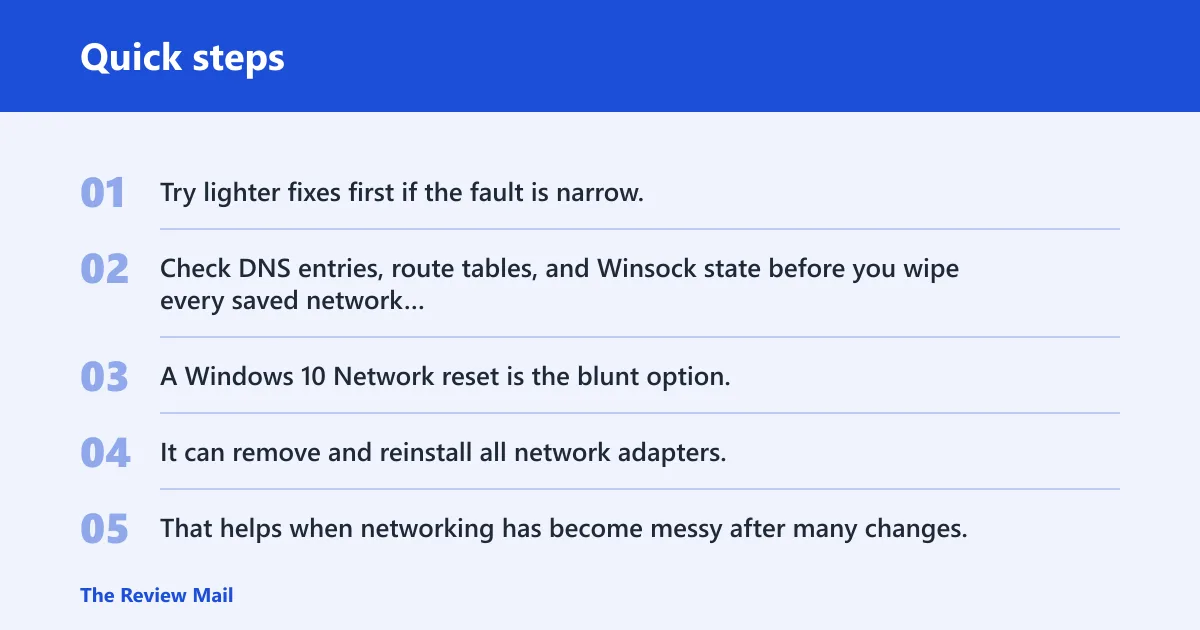
Try lighter fixes first if the fault is narrow. Check DNS entries, route tables, and Winsock state before you wipe every saved network detail.
What the full Windows network reset changes
A Windows 10 Network reset is the blunt option. It can remove and reinstall all network adapters, clear saved Wi-Fi networks and passwords, and return network configuration to default values.
That helps when networking has become messy after many changes. It is risky when the machine depends on a static IP address, custom routes, or VPN software that stores its own virtual adapters and profiles.
When to try selective command-line resets instead
If the issue is limited to name resolution, socket errors, or a damaged TCP/IP stack, start with selective resets. Use PowerShell and command-line tools to inspect the current state first, then reset only what Windows can rebuild cleanly.
Picture a laptop that connects to Wi-Fi but cannot reach any site, while another device on the same network works normally. That often points to local stack or adapter settings, not the whole network profile.
| Item to back up | PowerShell or command-line command | Why it matters | Whether Windows will recreate it automatically |
|---|---|---|---|
| Adapters | Get-NetAdapter | Format-Table -AutoSize | Shows adapter names, status, and link state before any reset | Yes, hardware is re-detected; custom naming and binding details may not return |
| IP configuration | Get-NetIPConfiguration | Format-List | Captures IPv4, IPv6, DNS, gateway, and DHCP details | No, static IP details are not restored automatically |
| Wi-Fi profiles | netsh wlan export profile folder="C:\NetBackup" key=clear | Preserves saved SSIDs and, when allowed, passwords for later import | No, a network reset may clear saved Wi-Fi networks and passwords |
| VPN connections | Get-VpnConnection | Format-Table -AutoSize | Records server names, tunnel type, and whether split tunneling is enabled | No, VPN profiles and virtual adapters may be removed or need rebuilding |
| Routes | route print | Documents custom static routes and gateway paths | No, custom routes are not recreated from scratch |
| Winsock | netsh winsock show catalog | Lists layered service providers and socket catalog state | Yes, the catalog is rebuilt after a reset |
| Firewall state | netsh advfirewall show allprofiles | Shows active firewall profile settings before a firewall reset | No, custom firewall rules are not preserved by a reset |
What should you back up first?
Back up adapter status, IP details, Wi-Fi profiles, VPN settings, and routes before you reset anything. That is the safest order because Windows can rebuild hardware mappings and socket state, but it cannot recreate your static addressing or third-party VPN configuration from memory.
List adapters with PowerShell
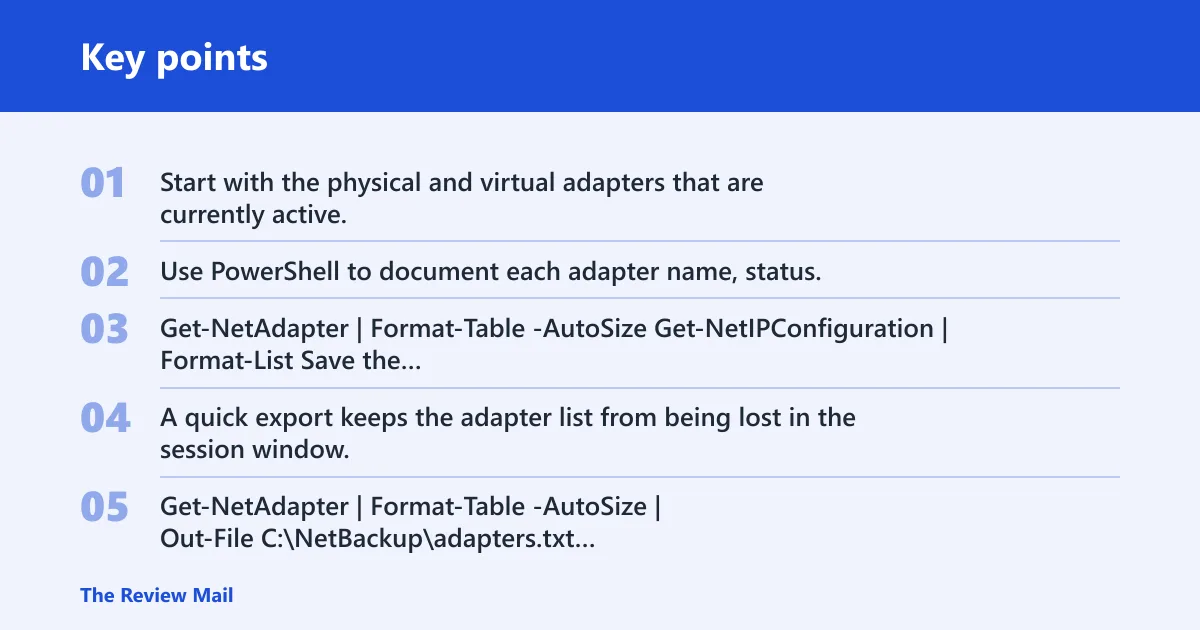
Start with the physical and virtual adapters that are currently active. Use PowerShell to document each adapter name, status, and interface index so you can compare the pre-reset and post-reset state.
Get-NetAdapter | Format-Table -AutoSizeGet-NetIPConfiguration | Format-ListSave the output to a text file if the machine is remote or likely to restart soon. A quick export keeps the adapter list from being lost in the session window.
Get-NetAdapter | Format-Table -AutoSize | Out-File C:\NetBackup\adapters.txt
Get-NetIPConfiguration | Format-List | Out-File C:\NetBackup\ipconfig.txt
Save IP, DNS, and gateway details
Capture the assigned address, prefix length, default gateway, and DNS servers for each adapter. If the device uses a static IP, those values matter after reboot because Windows network reset does not restore them automatically.
ipconfig /allIf proxy settings matter in your environment, document them too.
netsh winhttp show proxyThat matters for managed networks and for machines that only reach the internet through a configured proxy, because browser access and service access can fail in different ways.
Export Wi-Fi profiles and document VPN settings
Export saved Wi-Fi profiles before the reset. Windows 10 network reset may clear them, and the passwords may go with them unless you export first with the clear-key option.
netsh wlan export profile folder="C:\NetBackup" key=clearThen record VPN details. If the VPN client is built into Windows, PowerShell can list the stored connection names and key settings. If a third-party client handles the tunnel, save its profile names, server addresses, and split-tunnel rules in that app too.
Get-VpnConnection | Format-Table -AutoSizeSuppose a home office PC uses a static 192.168.10.x address, a DNS suffix, and a split-tunnel VPN to a work gateway. A full network reset may leave the system online again, yet the file share and intranet routes can fail until those details are entered back exactly.
How do you reset Winsock and TCP/IP from command line?
Use command-line resets when the fault is likely in the socket catalog, IPv4 or IPv6 stack, or firewall policy. A common command sequence is `netsh winsock reset`, then `netsh int ip reset`, then `netsh int ipv6 reset` if IPv6 also needs a refresh.
Run netsh winsock reset
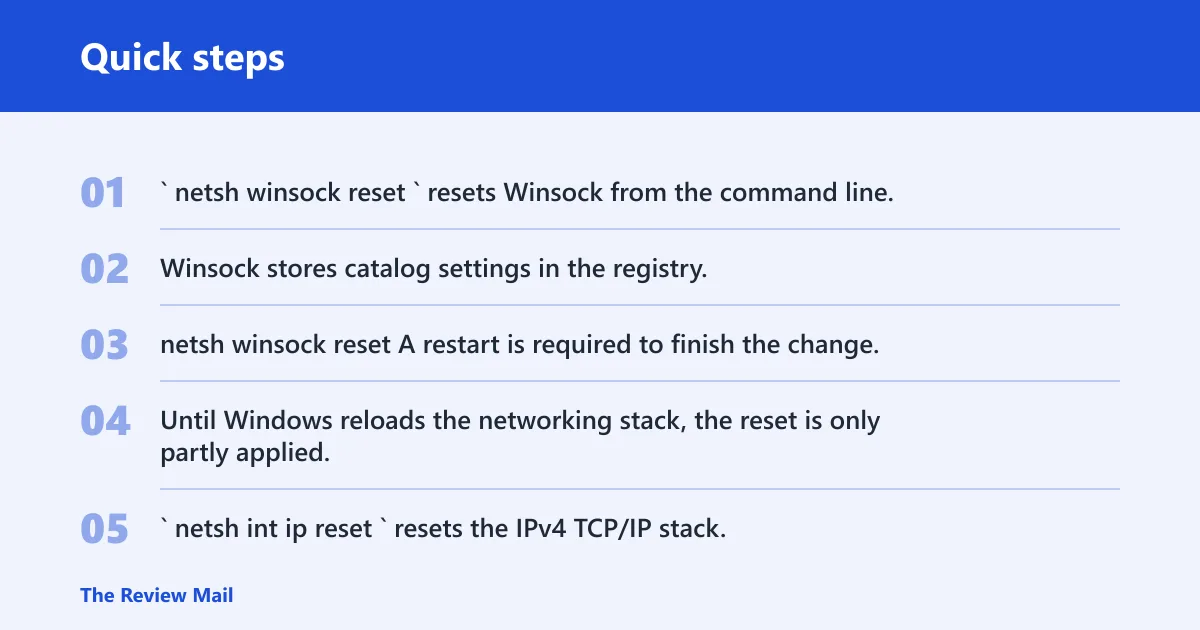
`netsh winsock reset` resets Winsock from the command line. Winsock stores catalog settings in the registry, so this step can fix problems caused by a damaged provider chain or a broken socket catalog.
netsh winsock resetA restart is required to finish the change. Until Windows reloads the networking stack, the reset is only partly applied.
Run netsh int ip reset and netsh int ipv6 reset
`netsh int ip reset` resets the IPv4 TCP/IP stack, and `netsh int ipv6 reset` resets the IPv6 stack. These commands write changes to Tcpip and DHCP registry keys, which is why they also need a reboot.
netsh int ip reset
netsh int ipv6 reset
If the issue is limited to one protocol family, you may not need both. Still, many stubborn connectivity problems involve both stacks, so this pair is a common next step after Winsock.
Reset the firewall if needed
If firewall policy looks corrupted or a custom rule set is causing trouble, reset the firewall state separately. The correct command is `netsh advfirewall reset`.
netsh advfirewall resetThat clears custom firewall rules. Keep your pre-reset export or notes if the machine relies on inbound exceptions for management tools, VPN clients, or local services.
Run the reset in the safest order
Use the least destructive command set that matches the problem, and back up first. If you need the full Windows reset, do it only after you have saved adapter, IP, Wi-Fi, VPN, and route information, because the built-in reset can remove and reinstall adapters and clear saved credentials.
- Open PowerShell as an administrator.
- Export Wi-Fi profiles and save IP, VPN, and route details.
- Run `
netsh winsock reset`. - Run `
netsh int ip reset`. - Run `
netsh int ipv6 reset` if IPv6 is part of the issue. - Run `
netsh advfirewall reset` only if firewall state needs a clean start. - Restart when prompted, or allow Windows to restart after the built-in reset.
Do not use the full Windows Network reset unless you are willing to rebuild the machine’s connection details afterward. It is the right tool for a badly tangled configuration, but it is not a safe substitute for a targeted fix.
Windows 10 and Windows 11 both include a Network reset option in Settings, and the Settings path includes a button labeled Reset now. For Windows 10, the relevant path is the network reset page under Network & Internet settings.
What happens after the restart?
After a reset, Windows reloads network components, re-detects adapters, and rebuilds the state that can be recreated automatically. The restart is required because Winsock, TCP/IP, and adapter changes are written into system-level settings that do not fully apply until boot completes.
Adapter re-detection and driver reload
Windows 10 network reset can remove and reinstall all network adapters, so the device may pause while Windows re-detects hardware and reloads drivers. That is normal if the adapter list changes or briefly disappears during boot.
Check Device Manager or PowerShell afterward for the same adapter names, a working media state, and no warning icons.
Wi-Fi profile and password checks
Verify that the expected Wi-Fi networks still exist. A Windows network reset may clear saved Wi-Fi networks and passwords, so you may need to reconnect and enter credentials again.
If the SSID is missing, import the exported profile or re-create it from the saved settings. If the profile exists but refuses to connect, confirm the security type and password against the original notes.
VPN, route, and IP verification
Confirm that the VPN profile is still present, that the tunnel can connect, and that the expected routes are back. Custom routes and static IP settings are the most common items to go missing after a broad reset.
Get-NetIPConfiguration
route print
Get-VpnConnection
Also confirm that the machine received the expected IP assignment. If DHCP is used, the address should match the current subnet. If static addressing is used, re-enter the exact settings you recorded before the reset.
What if the reset does not fix it?
If connectivity is still broken after the reset, check for missing static IP details, lost VPN settings, or a route table that no longer matches the network. If Windows will not boot at all, use Windows Recovery Environment as the fallback path for broader recovery options.
Windows Recovery Environment is the right place to start when the operating system itself will not load far enough to run PowerShell or Settings. Microsoft also notes that resetting your PC reinstalls Windows and may remove apps, settings, and files, so keep that option separate from a network-only repair.
BitLocker matters here too. Microsoft notes that the BitLocker recovery key may be needed before reset on encrypted devices, so have that key available before you choose a deeper recovery path. (Microsoft Support)
A common first-time mistake is to run the full Network reset, reboot, and then discover the office printer only worked because of a static route that was never written down. The reset fixed the socket layer, but the missing route stopped access to the right subnet.
Frequently asked questions
Will resetting network settings delete anything windows 10?
It can delete saved Wi-Fi profiles and passwords, and it can remove adapter-related configuration that Windows does not recreate exactly, such as static IP settings, VPN profiles, and custom routes. It does not erase personal files, but it can change the machine’s ability to connect until those settings are restored.
How do I reset network settings using PowerShell on Windows 10?
PowerShell is best used first for inspection and backup, not for the entire reset itself. Export Wi-Fi profiles, document IP and VPN settings, then run the command-line resets such as `netsh winsock reset`, `netsh int ip reset`, and `netsh int ipv6 reset` before restarting.
Does network reset remove Wi-Fi passwords and VPN profiles?
Yes, it can remove saved Wi-Fi networks and passwords, and VPN profiles may also be lost or need to be rebuilt. Export Wi-Fi profiles before the reset, and document VPN settings first so you can restore them without guessing after the reboot.
What is the command to reset Winsock in Windows 10?
The command is `netsh winsock reset`. It resets the Winsock catalog stored in the registry and needs a restart to complete. Use it when socket-layer problems block connectivity but the rest of the network stack may still be fine.
How do I reset TCP/IP in Windows 10 from command line?
Use `netsh int ip reset` for the IPv4 TCP/IP stack and `netsh int ipv6 reset` for IPv6. These commands write changes to Tcpip and DHCP registry keys, so a reboot is required afterward. Run them after you have saved static IP and route details.