How to Run Ipconfig /Flushdns
Run Command Prompt or Windows Terminal as administrator, type ipconfig /flushdns, and press Enter. Use it after DNS changes, stale results, or one-site failures, not for Wi‑Fi outages or router-wide drops. Used blindly, it wastes time and can hide the real fault. This guide shows when it helps, what it cannot fix, and the next checks to make.
What the DNS cache does
Windows keeps recent name lookups in the local DNS Resolver Cache. That cache can hold stale entries, and it can also hold negative entries for names that failed earlier. It lives on the machine, so clearing it affects only that PC.
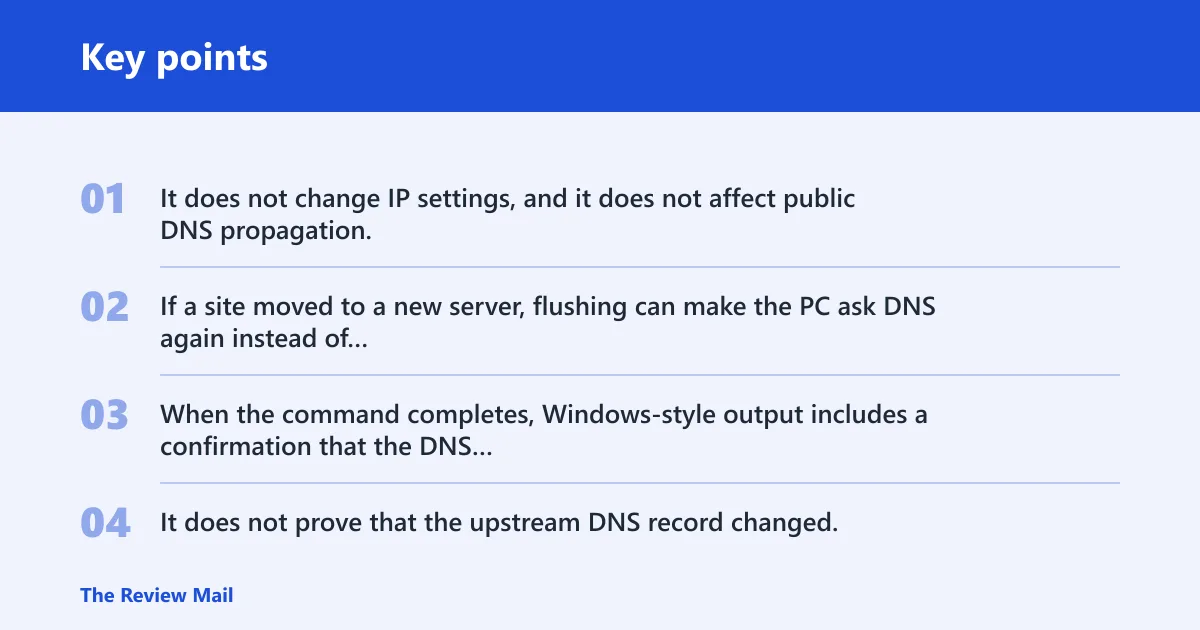
ipconfig /flushdns clears that local cache. It does not change IP settings, and it does not affect public DNS propagation. If a site moved to a new server, flushing can make the PC ask DNS again instead of reusing the old answer.
What the success message means
When the command completes, Windows-style output includes a confirmation that the DNS Resolver Cache was flushed. That tells you the local cache was cleared. It does not prove that the upstream DNS record changed, and it does not prove the site will load.
What you’ll need
- Windows 10 or Windows 11
- Command Prompt or Windows PowerShell
- A Windows account with shell access
nslookupfor a direct DNS check afterward- Optional browser access, if the problem may be browser-only
Open Command Prompt or Windows PowerShell, type ipconfig /flushdns, and press Enter. On current Windows versions, the command normally works without extra changes, though some managed devices may require an elevated shell because of policy. If it succeeds, you should see the cache-flushed confirmation.
- Open Start, type cmd or PowerShell, and open the shell.
- Type
ipconfig /flushdnsand press Enter. - Read the confirmation that the DNS Resolver Cache was flushed.
- If a managed device blocks the command, reopen the shell with higher rights and try again.
PowerShell note: Windows PowerShell also supports the native cmdlet Clear-DnsClientCache. It does the same job as ipconfig /flushdns.
Ipconfig flushdns decision table
| Symptom | Likely cause | Does flushdns help? | Next command to run |
|---|---|---|---|
| One site opens old content or the wrong IP | Stale local DNS answer | Yes | nslookup example.com |
| VPN portal or internal name fails after connecting | Old resolver entry for a private name | Often | ipconfig /displaydns |
| Browser shows failure, but another app works | Browser DNS cache or browser-only resolver state | Maybe | Clear the browser DNS cache |
| No internet on every site | Gateway, DHCP, or adapter issue | No | ipconfig |
| “DNS server not responding” appears across the PC | Upstream DNS or adapter DNS server problem | Sometimes only briefly | Check adapter DNS server settings |
| Domain name works on one PC but not another joined to the same domain | Stale machine record or directory update issue | Sometimes | ipconfig /registerdns |
| Only one browser cannot reach a site | Browser cache or browser security setting | No, not usually | Clear the browser DNS cache |
| A server was migrated and the old address still appears locally | Cached record not yet replaced | Yes | nslookup host.name |
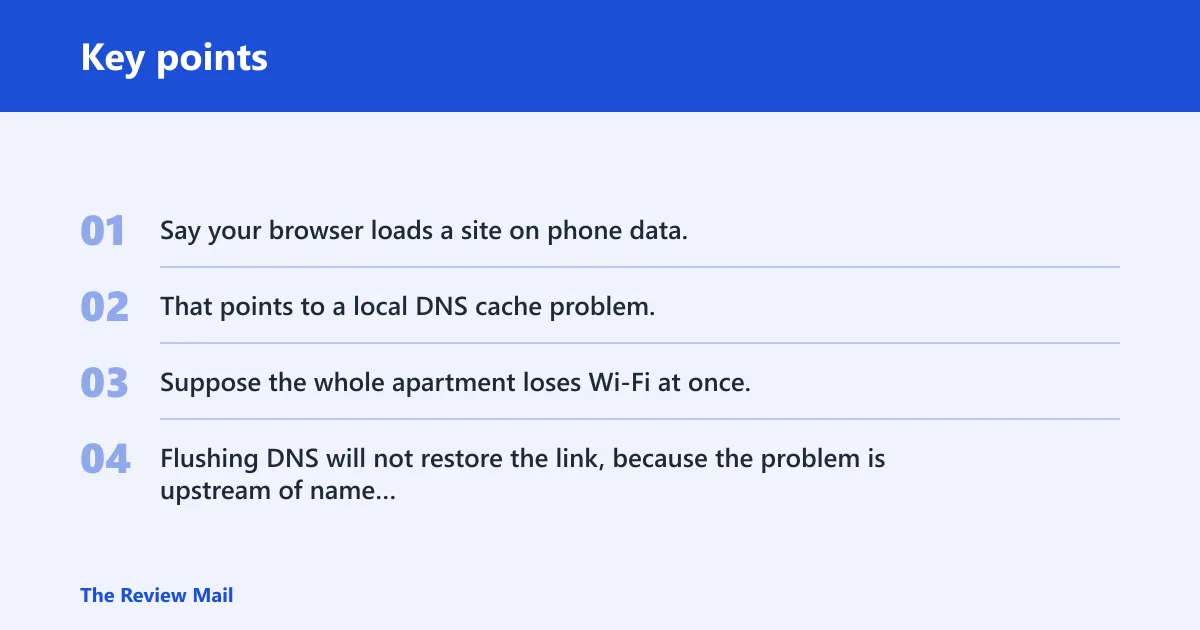
Say your browser loads a site on phone data, but the Windows PC still opens the old server after a move. That points to a local DNS cache problem, so ipconfig /flushdns is a reasonable first step.
Suppose the whole apartment loses Wi‑Fi at once. Flushing DNS will not restore the link, because the problem is upstream of name resolution.
What should you check after flushing DNS?
Use ipconfig /displaydns to inspect what is currently cached, then use nslookup to query a name directly from DNS. If the browser still fails while other apps work, clear the browser DNS cache too. If the adapter is using the wrong DNS server, fix that in the network settings.
- Run
ipconfig /displaydnsto see what Windows is holding. - Run
nslookup example.comto confirm fresh server-side resolution. - Open Settings > Network & internet > Wi-Fi or Ethernet and check the adapter DNS server settings.
- If only the browser still fails, clear the browser DNS cache from that browser’s settings.
The DNS Client service (Dnscache) supports resolver cache operations. If DNS-related commands behave strangely on a managed device, check that the service is running and that policy is not blocking local cache changes.
If that didn’t work, try this next
If the problem still looks like a name-resolution issue, move one step outward: from local cache, to adapter DNS, to directory registration, then to the browser. Do not jump to network resets unless the symptom is broader than one host name.
- Check Settings > Network & internet > Wi-Fi/Ethernet > Hardware properties for the DNS server address.
- If the PC is joined to an Active Directory network and the name is local to that domain, run
ipconfig /registerdns. (Wikihow) - If the browser alone still fails, clear that browser’s DNS cache.
ipconfig /displaydns
ipconfig /flushdns
nslookup example.com
ipconfig /registerdns
Common mistakes
Do not use ipconfig /flushdns for weak signal, disconnected Ethernet, or a dead gateway. It does not change Wi‑Fi state, and it does not reset the adapter. It also cannot repair an ISP outage.
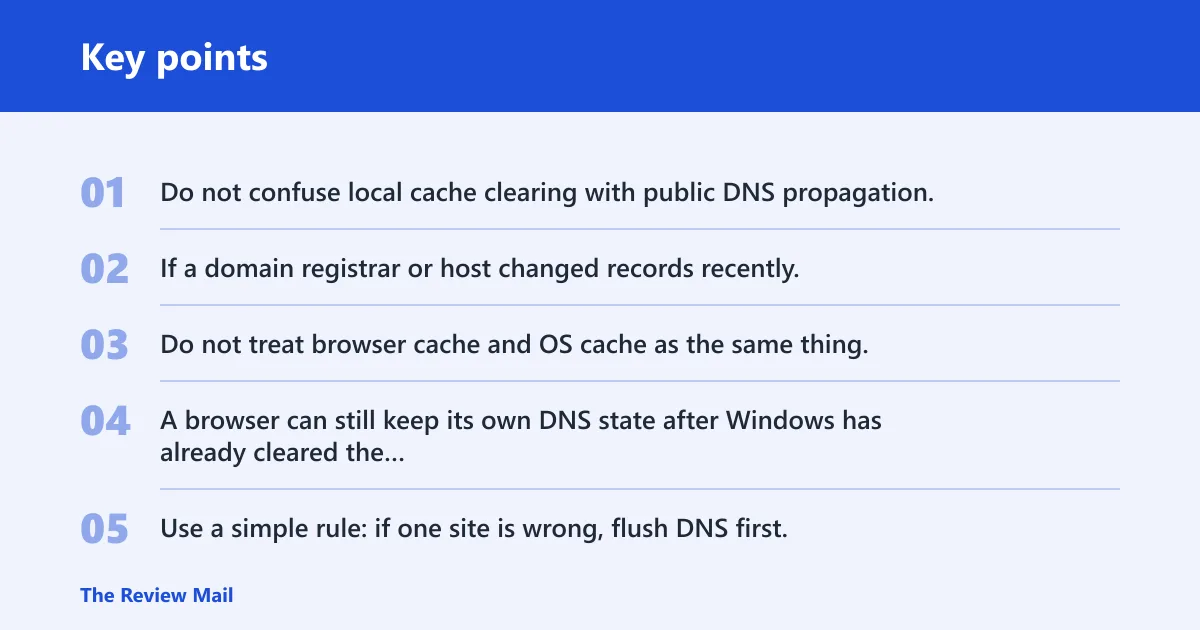
Do not confuse local cache clearing with public DNS propagation. If a domain registrar or host changed records recently, some changes still need time to spread. Flushing only tells your PC to ask again.
Do not treat browser cache and OS cache as the same thing. A browser can still keep its own DNS state after Windows has already cleared the resolver cache.
Use a simple rule: if one site is wrong, flush DNS first. If every site is down, look at the connection path first.
Prevention: after a site migration, clear the local cache once, then confirm the new address with nslookup before you try the browser again.
Frequently asked questions
How do I run ipconfig /flushdns?
Open Command Prompt or Windows PowerShell, type ipconfig /flushdns, and press Enter. The command clears the Windows DNS resolver cache on Windows 10 and Windows 11, then returns a confirmation message when it finishes.
Can I run ipconfig /flushdns in PowerShell?
Yes. PowerShell can run ipconfig /flushdns, and it also has the native equivalent Clear-DnsClientCache. Use either one if you need to clear the local DNS resolver cache on the current machine.
What do I do after ipconfig /flushdns?
Run ipconfig /displaydns if you want to inspect the cache, then use nslookup example.com to query DNS directly. If only the browser still fails, clear the browser DNS cache and check the adapter’s DNS server setting.
Is running ipconfig /flushdns safe?
Yes. It clears only the local DNS resolver cache and does not change IP settings or Wi‑Fi connection state. It is a low-risk step, but it will not fix gateway problems, DHCP problems, or an ISP outage.
Does ipconfig /flushdns fix Wi-Fi issues?
No. It does not repair a weak signal, disconnected adapter, wrong password, or router failure. It only clears the local DNS resolver cache, so it helps name resolution problems, not the wireless connection itself.
How do I know if ipconfig /flushdns worked?
Look for the confirmation that the DNS Resolver Cache was flushed. After that, use ipconfig /displaydns to inspect what remains cached, and use nslookup to confirm that the system is asking DNS again.