Public Network vs Private Network Windows 11
Use Private on home or office networks you trust, where you need discovery and file sharing; use Public for coffee shop Wi-Fi, hotel Wi-Fi, airport Wi-Fi, or any untrusted network. Pick the wrong one and Windows 11 can hide your PC, block sharing, or make troubleshooting look like an internet problem. This guide explains what each profile changes, how to switch it, and how to fix common breakage on Wi-Fi, Ethernet, and laptops that move between networks.
| Decision factor | public network | private network | Winner |
|---|---|---|---|
| Security on untrusted Wi-Fi | Stricter defaults, fewer inbound openings, and the PC is hidden from other devices on that network. | Allows more local access so trusted devices can find each other. | public network |
| Network discovery | Usually disabled, so other PCs and devices on the LAN cannot easily see this PC. | Enabled for trusted local communication and easier device visibility. | private network |
| File and printer sharing | Disabled or restricted by default, so SMB shares and printers often stop appearing. | Designed for sharing with trusted local devices. | private network |
| Troubleshooting simplicity | Safer when the network is unknown, but it can look like sharing is broken. | Better when you need the PC visible on a home or office LAN. | tie |
| Mixed-use laptop behavior | Better fit for hotspots and guest networks. | Better fit for home Ethernet, office LAN, and any trusted LAN you control. | tie |
How Windows 11 classifies and secures networks
Windows uses a network profile per connection, not one global setting for the whole PC. A Wi-Fi network can be Public while Ethernet stays Private on the same laptop, and each adapter can behave differently.
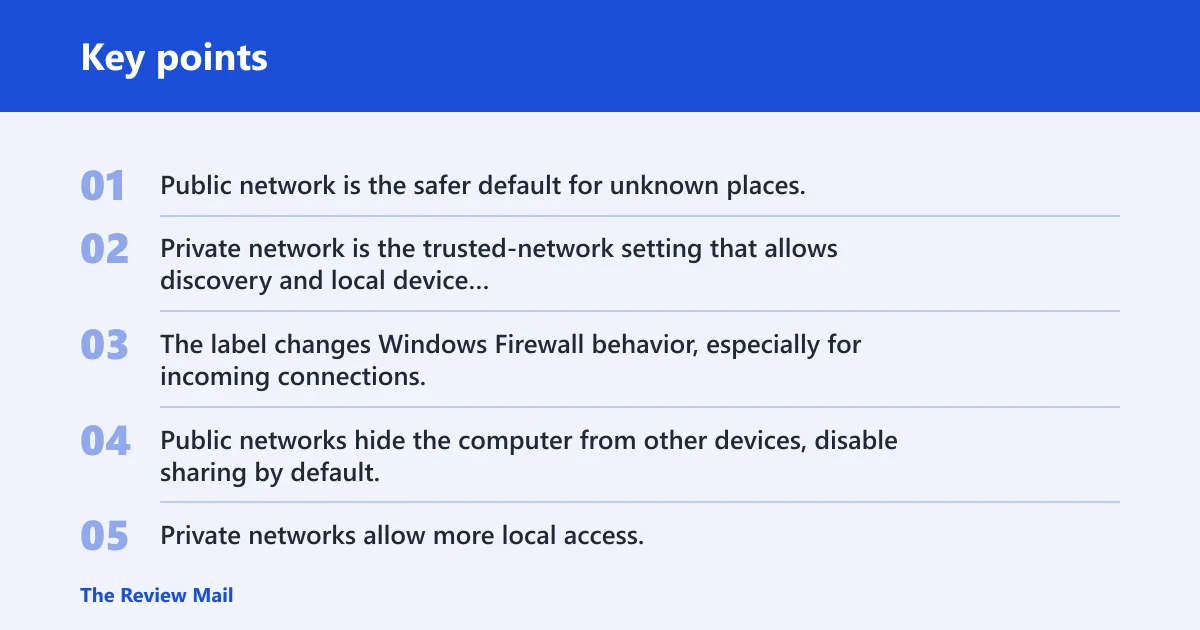
Public network is the safer default for unknown places. Private network is the trusted-network setting that allows discovery and local device communication, which is why it fits home and office networks.
Why the label matters for access
The label changes Windows Firewall behavior, especially for incoming connections. Public networks hide the computer from other devices, disable sharing by default, and block more inbound access. Private networks allow more local access, so shared folders and printers can appear on the LAN.
Network profile decision table
| Scenario | safest profile | what breaks if you choose the wrong one |
|---|---|---|
| Home Wi-Fi | private network | File and printer sharing can stop, and other home devices may not see the PC. |
| Coffee shop Wi-Fi | public network | Switching to private can expose the PC to nearby devices and unnecessary discovery traffic. |
| Office LAN | private network | Public mode can hide the PC, block shared folders, and make printers disappear. |
| Ethernet at home | private network | Public mode can leave the wired connection online but invisible for sharing. |
| Printer sharing | private network | Public mode often blocks the discovery path that other devices use to find the printer. |
| File sharing over SMB | private network | Public mode commonly blocks or restricts SMB access, so shared folders do not appear. |
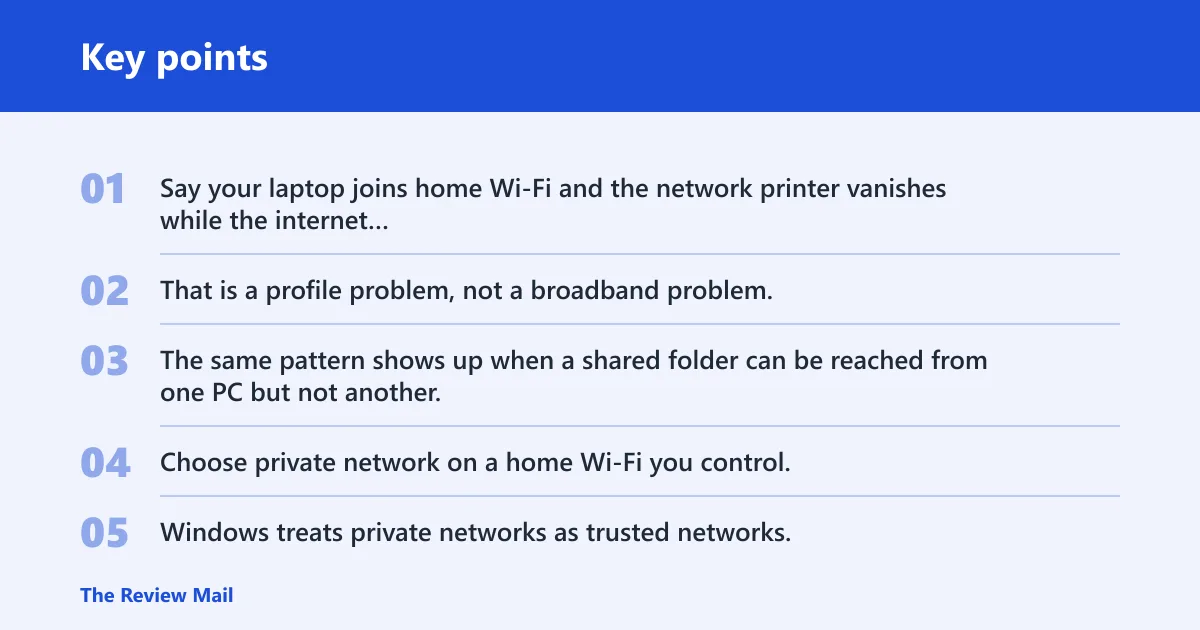
Say your laptop joins home Wi-Fi and the network printer vanishes while the internet still works. That is a profile problem, not a broadband problem. The same pattern shows up when a shared folder can be reached from one PC but not another.
Home Wi-Fi
Choose private network on a home Wi-Fi you control. Windows treats private networks as trusted networks, so discovery and sharing can work with other devices on the same LAN.
F5 matters here: home Wi-Fi on a Public profile blocks file and printer sharing. If a smart TV, printer, or desktop cannot see your laptop, the profile is one of the first things to check.
Coffee shop Wi-Fi
Choose public network for coffee shop Wi-Fi, hotel Wi-Fi, airport Wi-Fi, and other untrusted hotspots. Windows 11 makes networks public by default on first connection, which is the safer behavior for unknown places.
Turning that hotspot into Private can make your laptop visible to nearby devices on a shared network segment. That is the wrong tradeoff unless you fully control the network.
Office LAN
Choose private network on an office LAN when the company expects local discovery, shared printers, or SMB access. If your employer uses a domain network, Windows can handle that third type separately, but many small offices still rely on Private for local sharing.
Public mode can hide the PC from other systems on the LAN and make printer queues or file shares disappear even though the cable or Wi-Fi link is fine.
Ethernet at home
Choose private network for home Ethernet too. The profile applies per network connection, so a wired adapter does not inherit the Wi-Fi choice automatically.
A common first-timer mistake is fixing Wi-Fi to Private and assuming the wired adapter changed with it. If the Ethernet adapter stayed Public, the desktop still may not show up for file sharing.
Printer sharing
Use private network when the goal is to share a printer with trusted local devices. Network discovery is what lets other PCs find that printer on the LAN, and public profiles usually turn that path off.
If printing works from one device but not from a nearby laptop, check whether the PC hosting the printer is on Public. The printer can be online and still invisible.
File sharing over SMB
Use private network for SMB shares on a home or office LAN. Public profiles block or restrict the discovery and inbound rules that SMB sharing depends on, so shared folders may never appear in File Explorer.
Suppose a laptop can browse the web but cannot open a shared folder at \\PC-NAME\Share. If the network is Public, that failure fits the profile, not the folder path.
Why public blocks more
Windows Firewall uses different rules by network type. Public networks get tighter inbound filtering, while private networks allow more local access for trusted devices on the same segment. That is why the same PC can feel open at home and shut down at a café.
Firewall rules by profile
The firewall prompts differently for public and private networks. Windows is more cautious on Public because the network may include strangers nearby, and it tries to limit incoming connections that are not needed for web use.
Hidden PC behavior
Public networks hide the computer from other devices on that network. That hidden state is useful on untrusted Wi-Fi, but it also means discovery-based tasks stop working until you move the profile to Private.
Discovery and sharing defaults
Network sharing is disabled by default on public networks. That is why the internet can still work while shared folders, printers, and nearby device lookup fail at the same time.
When should you choose private?
Choose private network when the LAN is trusted and you need discovery, printer access, or SMB file sharing. Use public network when you do not control the network, even if the connection is stable and internet access is normal.
Mixed-use laptop rule
For a laptop that moves between home Ethernet, office Wi-Fi, and public hotspots, the rule is simple: set trusted networks to Private and leave hotspots on Public. Because the profile applies per connection, one adapter can stay Private at home while another network remains Public elsewhere.
If you often move the same machine between a desk at work and a café table, do not “fix” sharing by making every network Private. That trades convenience for exposure on places you do not control.
How do you change the profile?
Windows 11 lets you switch a network to Private in Settings, or you can also change it in admin PowerShell. Use Settings for a quick GUI change. Use PowerShell when you need a faster command or want to script the change on a known adapter.
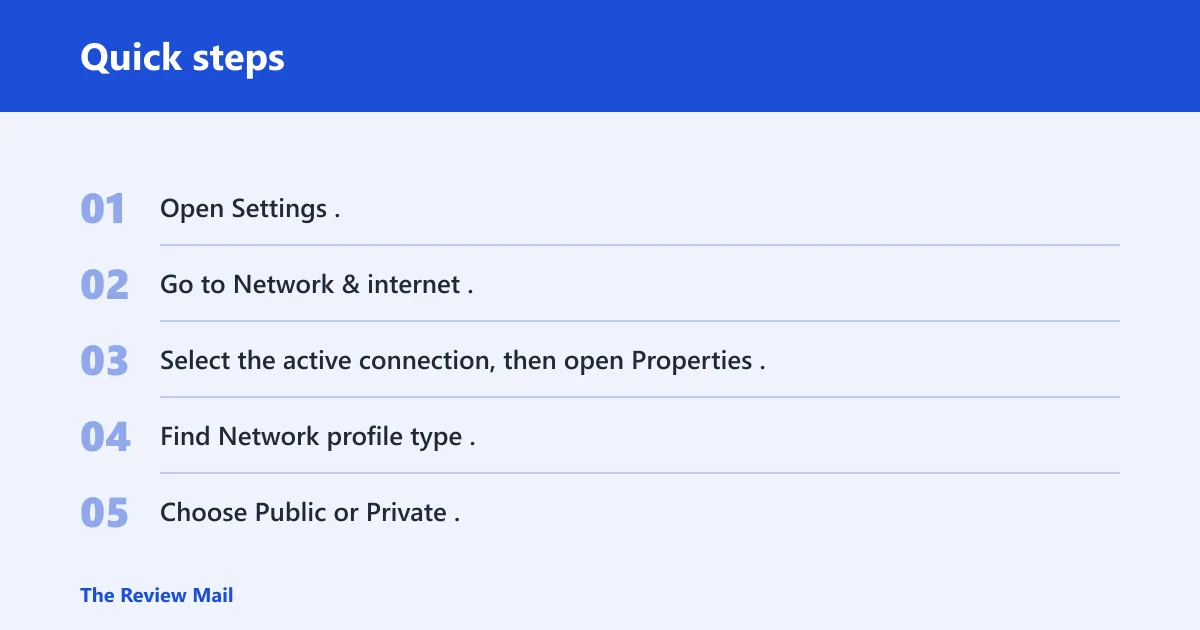
Windows 11 Settings path
- Open Settings.
- Go to Network & internet.
- Select the active connection, then open Properties.
- Find Network profile type.
- Choose Public or Private.
This path shows the active network profile for the current connection. It is the safest place to change a Wi-Fi network type without guessing.
PowerShell with Set-NetConnectionProfile
Open PowerShell as administrator and use Set-NetConnectionProfile to switch the profile. The cmdlet changes the active network category on the selected adapter, so check the interface name first before you run it.
Example:
Set-NetConnectionProfile -InterfaceAlias “Wi-Fi” -NetworkCategory Private
Administrator rights matter here. Without them, the profile change may fail or never stick.
How do you check the current profile?
Check before you change anything. Get-NetConnectionProfile shows the current network category, which helps you confirm whether the problem is Public, Private, or something else on a specific adapter.
PowerShell check
Run Get-NetConnectionProfile in PowerShell to list the active profiles. On a laptop, that may show different results for Wi-Fi and Ethernet, which is exactly why a single guess is often wrong.
Settings verification
Use Settings > Network & internet > Properties to confirm the active profile in the GUI. If sharing fails, verify the exact adapter that is in use, not the one you last changed.
What to confirm before switching
- The adapter you care about is the one actually connected.
- The network is trusted enough for discovery and sharing.
- Windows is not showing a different profile on another adapter.
Why Windows keeps choosing public
Windows makes networks public by default on first connection, and the first network connection is treated as a Public Network. Windows also asks whether the PC should be discoverable on new networks, so a cautious answer keeps the connection on Public.
New network defaults
Public network is the default in Windows 11 on first connection. That default is why a new router, hotspot, or Ethernet segment often arrives locked down until you change it.
Unknown network behavior
When Windows cannot classify a network as trusted, it stays conservative. That is useful for security, but it also means home and office users may need to switch the profile manually the first time.
Adapter-specific profiles
Each connection can keep its own category. Your Wi-Fi may be Private while your Ethernet adapter remains Public, which explains why one sharing path works and the other does not.
Frequently asked questions
What is the difference between public and private network in Windows 11?
Public network uses stricter security defaults, hides the PC from other devices, and disables sharing by default. Private network is meant for trusted home or office networks, where discovery, printer access, and local communication are expected. The profile applies per connection, so adapters can differ.
Should I set my home Wi-Fi to public or private on Windows 11?
Set home Wi-Fi to private network if you want discovery, shared folders, or printer access to work normally. Public network is the safer pick only for untrusted places. If your home network is trusted and controlled, Public usually causes more trouble than it solves.
How do I change public network to private network in Windows 11?
Open Settings > Network & internet > Properties, then change the network profile type to Private. If you prefer PowerShell, run Set-NetConnectionProfile from an administrator window. That command changes the selected adapter’s category directly.
Why does Windows 11 keep setting my network to public?
Windows 11 makes new networks public by default, and it treats the first connection as a Public Network. If Windows does not trust the network yet, it stays cautious. Check the adapter with Get-NetConnectionProfile before changing anything else.
Will private network make my PC less secure on Windows 11?
Private network opens more local access than Public, so it is less restrictive by design. That is fine on a trusted home or office LAN, but it is the wrong choice on guest Wi-Fi or any network you do not control. Security and convenience move in opposite directions here.
Can I use public network and still print or share files?
Usually no, at least not without changing firewall and sharing settings. Public networks hide the computer and disable sharing by default, which is why SMB shares and printers often stop appearing. If printing or file access matters, switch trusted networks to Private instead.
Choose public network if…
Choose public network for coffee shop Wi-Fi, hotel Wi-Fi, airport Wi-Fi, guest Wi-Fi, or any place where you do not control the devices around you. Choose private network for home Wi-Fi, home Ethernet, office LAN, printer sharing, and SMB file sharing. If the PC must be visible to trusted local devices, Private wins; if the network is unknown, Public does.