Wi-Fi Adapter Not Detected Windows 10: Fixes
If Windows 10 says no Wi‑Fi adapter, check three things in order: Device Manager visibility, hardware power state, and WLAN service status. A missing adapter points to hardware or BIOS, a disabled one needs enablement, and an adapter with a warning icon usually needs a driver fix. Skip that order and you can waste time on resets that do nothing and leave you offline.
Wi-fi adapter troubleshooting matrix
Use this before any network reset. It separates a missing internal card, a disabled adapter, a broken driver, and a USB dongle that may simply be on the wrong port or failing at the port level.
| Symptom | Likely cause | Safest next step | What data or action is lost |
|---|---|---|---|
| Internal Wi‑Fi card is missing from Device Manager | Hardware disabled in BIOS or UEFI, loose card, or failed card | Check BIOS or UEFI wireless setting, then scan for hardware changes in Device Manager | No settings are lost yet |
| Adapter appears under Network adapters but is disabled | Adapter turned off in Windows | Enable the device in Device Manager | No settings are lost yet |
| Adapter shows a yellow warning icon or error code | Corrupted or mismatched wireless driver | Update, roll back, or uninstall the driver, then reinstall the vendor package | Driver settings may be cleared; saved Wi‑Fi profiles stay unless you reset networking |
| USB dongle is not detected on one port | Bad port, power issue, or failed dongle | Move it to another USB port and test another PC if needed | No settings are lost yet |
| Adapter disappears after a restart or update | Driver change, Windows update, or service failure | Check Device Manager, WLAN AutoConfig, and the recent update or driver change | No settings are lost yet unless you choose a reset |
📊 Microsoft’s guide applies to both Windows 10 and Windows 11. Source: Microsoft.
What the missing adapter means
A Wi‑Fi adapter can be present, disabled, or absent. That difference matters. A device listed under Network adapters usually points to software or power-state trouble. No listing at all points you toward hardware, firmware settings, or a dead USB path before you touch network resets.
Adapter missing from Device Manager
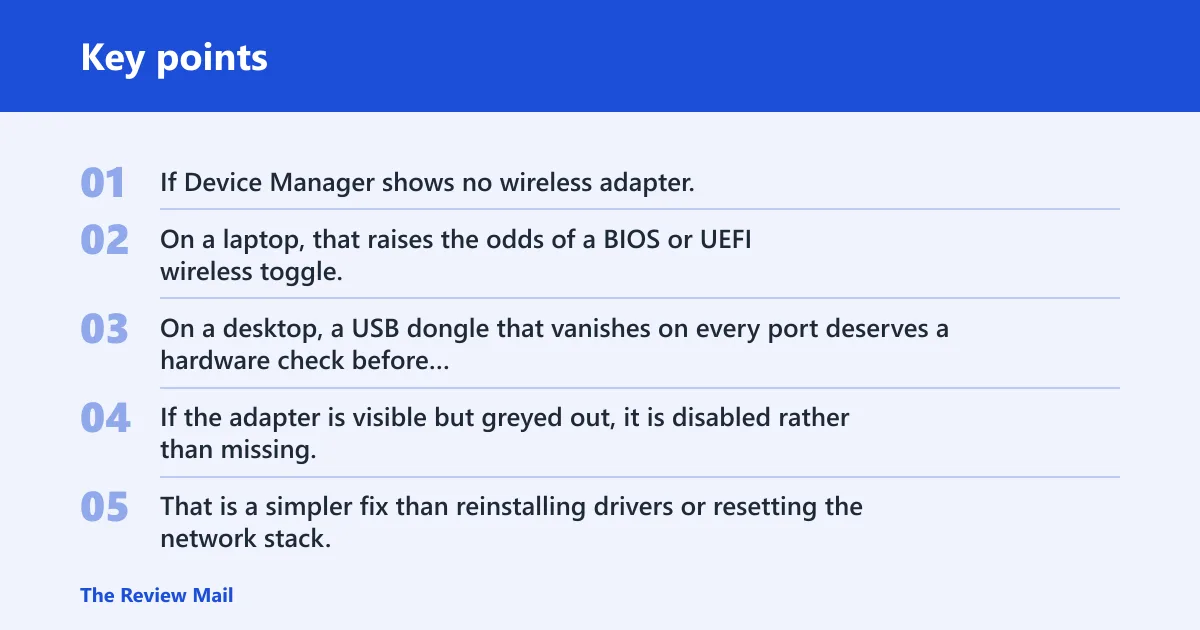
If Device Manager shows no wireless adapter, Windows may not be seeing the card or dongle at all. On a laptop, that raises the odds of a BIOS or UEFI wireless toggle, a loose internal card, or a hardware fault. On a desktop, a USB dongle that vanishes on every port deserves a hardware check before you try a driver update.
Adapter listed but disabled
If the adapter is visible but greyed out, it is disabled rather than missing. Enable it first. That is a simpler fix than reinstalling drivers or resetting the network stack, and it avoids wiping saved settings that might still be fine.
Adapter listed with an error code
A warning icon usually points to a driver fault. Appuals identifies corrupted drivers as a common cause of detection failure, so driver repair belongs near the top of the list. Do not move straight to a full network reset if the device is already present and only failing in software.
USB dongle versus internal card
A USB dongle has one extra failure point: the port. An internal Wi‑Fi card does not. That is why a dongle that fails on one USB port should usually be moved before any deeper fix. If it works on another machine, the adapter is more likely healthy and the original PC is the problem.
Say your laptop shows “Network adapters” in Device Manager, but the wireless card is not listed and the Wi‑Fi switch in Quick Settings does nothing. That pattern points you toward BIOS or UEFI settings, a disabled internal card, or a hardware fault, not a Windows network reset.
Why is my wifi adapter not detected in Windows 10?
If Windows 10 does not detect the adapter, start with visibility and power state, then move to hardware and driver checks. A hidden device, a disabled adapter, a bad USB port, or a recent driver change all fit this symptom. A network reset is too broad for the first move.
Check for a hidden or disabled device
Open Device Manager and expand Network adapters. If the adapter is there, right-click it and check whether it is disabled or reporting an error. If it is hidden, use View to show hidden devices, then look again. Microsoft’s Wi‑Fi connection guidance starts from the taskbar quick settings icons, so also confirm the Wi‑Fi control is not off there.
Scan for hardware changes in Device Manager
Use Device Manager to scan for hardware changes when Windows misses a device after boot. This is a low-risk step and often enough to make a sleeping adapter appear. If the adapter returns only after a scan, the problem was detection, not networking.
Test another USB port or another PC
For a USB dongle, this is one of the best separating tests. If the adapter works in a different port or on another PC, the dongle itself is less likely to be dead. If it fails everywhere, stop chasing drivers and treat it as hardware.
Look for a recent update or driver change
If the problem began after an update, the driver is a likely suspect. Roll back the recent wireless driver if that option is available. A fresh Windows update can also change how the device enumerates, which is why adapter disappearance after reboot or update needs its own branch, not a generic reset.
How do you get Windows 10 to recognize it?
Open Device Manager, inspect Network adapters, and then decide whether to update, uninstall, or manually install the wireless driver. If Windows still does not recognize the device, use Add legacy hardware only when the adapter is real but not auto-detected. That sequence avoids reinstalling the wrong thing.
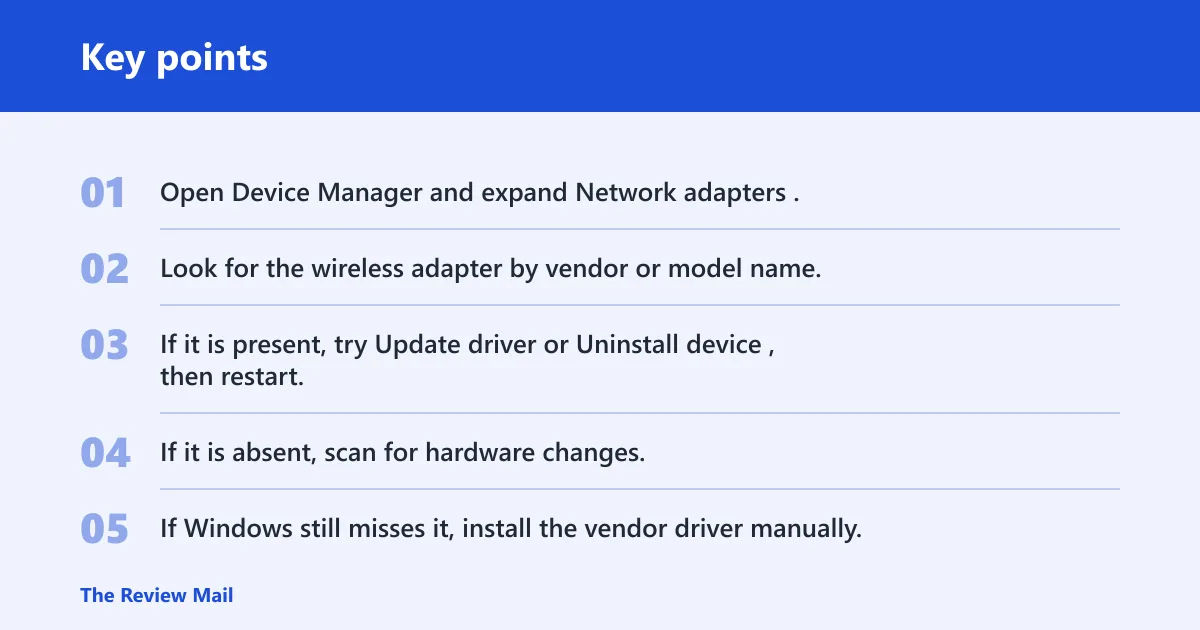
- Open Device Manager and expand Network adapters.
- Look for the wireless adapter by vendor or model name.
- If it is present, try Update driver or Uninstall device, then restart.
- If it is absent, scan for hardware changes.
- If Windows still misses it, install the vendor driver manually.
- Use Add legacy hardware only when Windows refuses to enumerate a known-good adapter.
Uninstall and reinstall the adapter driver
Device Manager can remove the current driver and let Windows rebuild the device on restart. That is useful when the driver is corrupted or mismatched. It is not a fix for a dead USB port or a disabled internal radio.
Manually install the vendor driver
Match the driver to the adapter’s vendor and model number. Wireless drivers are model-specific, and the manufacturer’s download page is the safest source when Windows cannot supply the right package. Appuals recommends downloading the driver from the manufacturer if Windows fails to install it.
Use Add legacy hardware only when needed
Add legacy hardware is a fallback, not a first move. Use it when the adapter is physically present but Windows does not enumerate it normally. That is more common with older devices than with current internal cards.
Suppose a USB dongle works in one PC but not in the other. The sensible next step is not a network reset. It is a port test, then a driver check on the failing machine, because the dongle itself has already passed one hardware test.
WLAN AutoConfig and driver checks
WLAN AutoConfig must be running for Wi‑Fi on laptops and Wi‑Fi cards. Set it to Automatic and confirm the service is running before you spend time on resets. If the service is stopped, Windows may see the adapter but still fail to manage wireless connections.
Set WLAN autoConfig to Automatic
Open Services, find WLAN AutoConfig, and set Startup type to Automatic. Then start the service if it is stopped. The same source says WLAN AutoConfig must be running for Wi‑Fi users, and that fits the symptom where the adapter appears but wireless never comes up.
Confirm the wireless driver model number
Read the adapter name in Device Manager, then match it to the exact vendor and model. Do not guess from the laptop brand alone. The wrong package can install without fixing anything, which is why the model number matters more than the computer name.
Check for driver corruption
If Device Manager shows the adapter with a warning icon, a broken driver is more likely than a hardware failure. Reinstall the vendor package, or roll back to the previous driver if the issue started right after an update. That keeps the repair focused on the layer that changed.
Which reset should you try first?
Start with the built-in Network Adapter troubleshooter, then move to targeted command-line or network resets only if the adapter is already visible and enabled. The safest order is problem-specific repair first, broader reset second. The same source recommends the troubleshooter first, then stronger commands when needed.
Run the network adapter troubleshooter
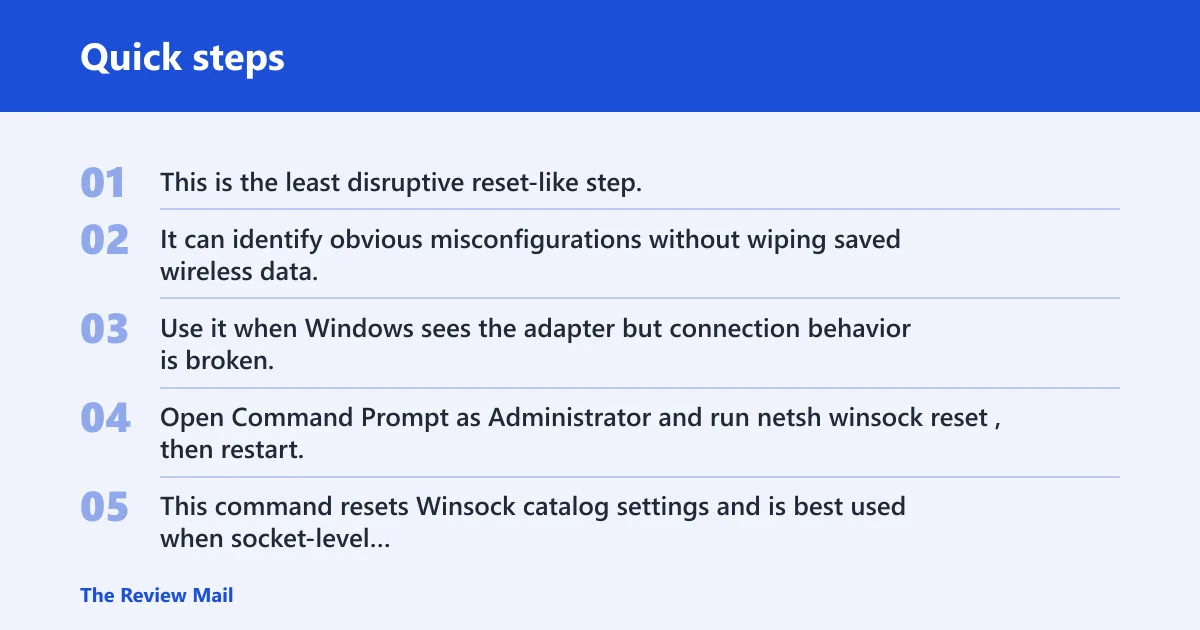
This is the least disruptive reset-like step. It can identify obvious misconfigurations without wiping saved wireless data. Use it when Windows sees the adapter but connection behavior is broken.
Run netsh winsock reset from an elevated Command Prompt
Open Command Prompt as Administrator and run netsh winsock reset, then restart. This command resets Winsock catalog settings and is best used when socket-level networking is damaged. It does not replace a missing adapter or a dead USB dongle.
Use network reset only if simpler fixes fail
Windows network reset reinstalls network adapters and settings. The same source says Windows can reinstall adapters with a network reset. The cost is practical: it removes saved network configuration and can affect VPN profiles and Wi‑Fi passwords, so back those up first if you can still view them in Settings.
Use netcfg -d only as a deeper repair
netcfg -d is a deeper reset of network configuration. It is commonly reported to remove WAN miniports and network adapters, then force a reinstall after reboot. Use it only after easier repairs fail, because it is broader than network reset and more disruptive.
Microsoft documents that Windows can show a Wi‑Fi password in Settings, which is useful before a reset if you need to reconnect other devices later. That is a good time to note any VPN credentials too, since a reset can wipe them from the PC.
When the adapter disappears after update
If a Wi‑Fi adapter vanished after a Windows update, think in this order: driver rollback, vendor reinstall, firmware wireless setting, then hardware testing. A changed driver is more likely than a broken card, but the adapter still may be absent because the update exposed a pre-existing hardware issue.
Roll back a recent driver
If the adapter disappeared right after a driver update, Device Manager may let it be rolled back to the previous version if that option is available. This is the fastest way to undo a bad driver change without changing the rest of the network stack.
Reinstall the vendor package
If rollback is unavailable or ineffective, install the manufacturer’s driver package again. That restores the adapter software with the correct model-specific files. Do not rely on a generic Windows driver if the vendor provides a better match for the exact chip.
Check BIOS or UEFI wireless settings
Some systems can disable the wireless radio at firmware level. If the adapter disappears entirely, check whether wireless is turned off there. That is especially relevant when an internal Wi‑Fi card vanished after a restart and never returned.
Decide when hardware testing is next
If a USB dongle fails on multiple ports and on another PC, the adapter is likely the problem. If an internal card never appears in Device Manager and firmware settings are correct, hardware testing or service attention is the next step. Stop repeating driver repairs when the evidence points below Windows.
Frequently asked questions
How do I get Windows 10 to recognize my wireless adapter?
Open Device Manager, expand Network adapters, and scan for hardware changes. If the adapter appears, enable it or reinstall its driver. If Windows still does not recognize it, install the manufacturer’s driver for the exact model number, or use Add legacy hardware only as a fallback.
What do I do if the wifi dongle is not detected in Windows 10?
Test another USB port first, then test the dongle on another PC. If it fails everywhere, the dongle may be faulty. If it works elsewhere, check the driver on the problem machine. A USB adapter that vanishes only on one port is often a port issue, not a Windows issue.
How do I reinstall a missing network adapter in Device Manager?
Open Device Manager, right-click the adapter if it is listed, and choose Uninstall device. Restart the PC so Windows can reinstall it. If the adapter is not listed, scan for hardware changes first. If that fails, install the vendor driver manually before trying broader resets.
Which services should be running for Wi‑Fi to work on Windows 10?
WLAN AutoConfig should be set to Automatic and should be running. That service manages wireless connectivity on laptops and systems with Wi‑Fi cards. If it is stopped, Windows may show the adapter but still fail to connect or refresh the available network list.
Will resetting network settings remove my Wi‑Fi password?
Yes, a network reset can remove saved network configuration, including Wi‑Fi credentials and VPN profiles. Before you use it, check whether Windows can show the password in Settings and record anything you will need again. Save the reset for cases where driver or service fixes do not work.
What command resets Winsock on Windows 10?
The command is netsh winsock reset. Run it from an Administrator Command Prompt, then restart the computer. It is a useful repair when networking layers are damaged, but it will not fix a missing adapter, a disabled device, or a bad USB port.