Critical System Error BSOD: Causes, Checks, and Fixes
A recurring BSOD usually points to a driver, storage, memory, or Windows-file problem, and you should identify the pattern before trying broad fixes. Guessing wrong can waste hours, trigger repeat crashes, and make recovery harder if you miss the real fault. This guide shows how to sort the crash by symptom, check the fastest evidence, and choose the right next step.
What the crash pattern tells you
The Blue Screen of Death, or BSOD, is commonly described as Windows’ fatal error screen. It appears after a STOP error, a critical system-level failure that halts the OS. A stop code on the screen is the first clue, even if the system restarts right after the crash. (Microsoft Learn)
If the screen flashes too fast to read, the symptom pattern matters just as much as the code. A one-off crash after sleep resumes points somewhere different from a repeat boot loop after a driver install. That difference changes the order of your checks.
Likely causes, from most to least common
- Driver malfunction, especially graphics, network, or audio drivers.
- Corrupted system files or a damaged Windows image.
- Storage faults that break boot or paging reads.
- Memory errors that corrupt data in RAM.
- A recent Windows update or new hardware change.
BSOD triage matrix
Use the table below to match the symptom first, then test the most likely cause class. The goal is to avoid broad repair steps until the evidence points somewhere specific.
| Symptom pattern | Most likely cause | First 3 checks | Expected dump/log evidence | Escalation threshold |
|---|---|---|---|---|
| One-off crash | Driver glitch or temporary file corruption | Write down the stop code; inspect the newest driver or app install; open Reliability Monitor and match the crash time | A one-off crash often leaves a minidump in C:\Windows\Minidump and a stop code that may point to a driver or kernel fault. | If it repeats twice after reboot, treat it as a pattern and move to Safe Mode |
| Repeat boot loop | Boot loader corruption, bad driver, or system file damage | Enter Safe Mode; remove the last driver change; run Startup Repair from Recovery Environment | Minidumps may stop appearing if the crash happens before Windows loads fully | If Safe Mode also fails, move to offline repair or hardware checks |
| Crash after update | Update regression or driver mismatch | Uninstall the latest quality update; roll back the newest driver; pause further updates | Event timing lines up with the install date, and dumps often repeat the same stop code | If the crash started right after the update and stops after removal, keep that change out |
| Crash after new hardware | Driver conflict, seating issue, power draw, or incompatible device | Remove the new device; reseat RAM or storage; check the device-specific driver package | Dumps may name the device class, or none may appear if the fault hits before logging | If removal restores boot, test the device in a different slot or with a different driver |
| Crash with no minidump | Early boot failure, disk write failure, or dump settings disabled | Check startup and recovery settings; confirm paging file is enabled; review whether the crash happens before login | No file in C:\Windows\Minidump; Event Viewer may show a kernel-power event after restart | If repeated crashes still create no dump, suspect storage or firmware before software repair |
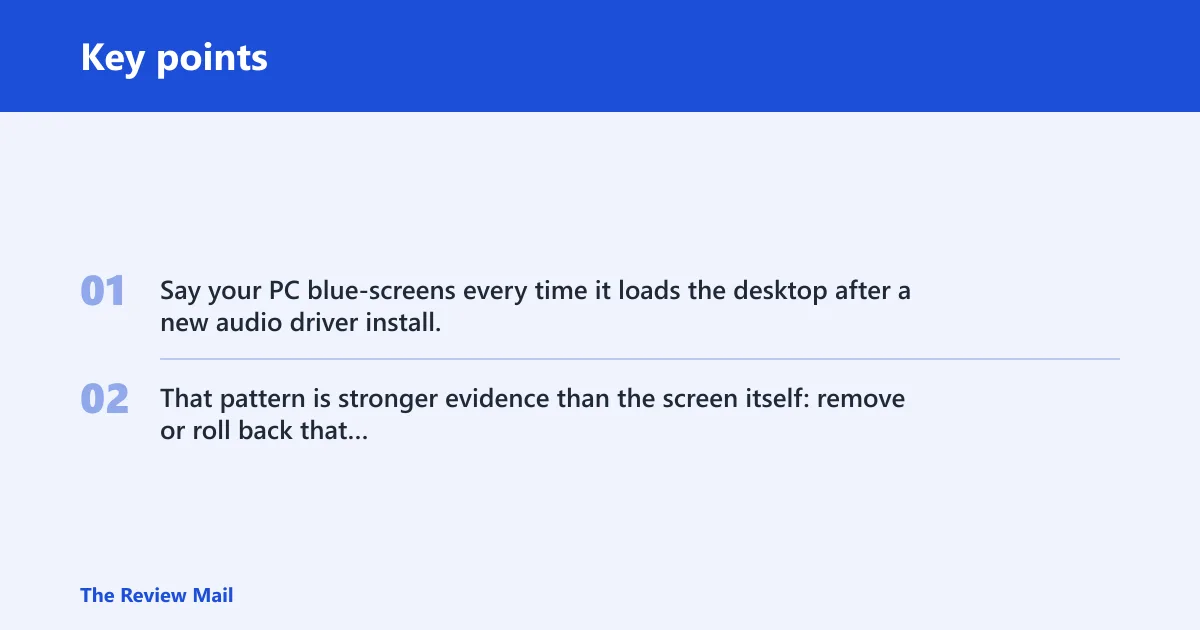
Say your PC blue-screens every time it loads the desktop after a new audio driver install. That pattern is stronger evidence than the screen itself: remove or roll back that driver first, then retest before you run broader repairs.
What is causing the crash?
The fastest way to separate causes is to match timing with the last change. A driver regression tends to appear right after an install or update. Storage and RAM faults are more likely when the machine crashes in different places, including boot, login, and idle use.
Driver malfunction
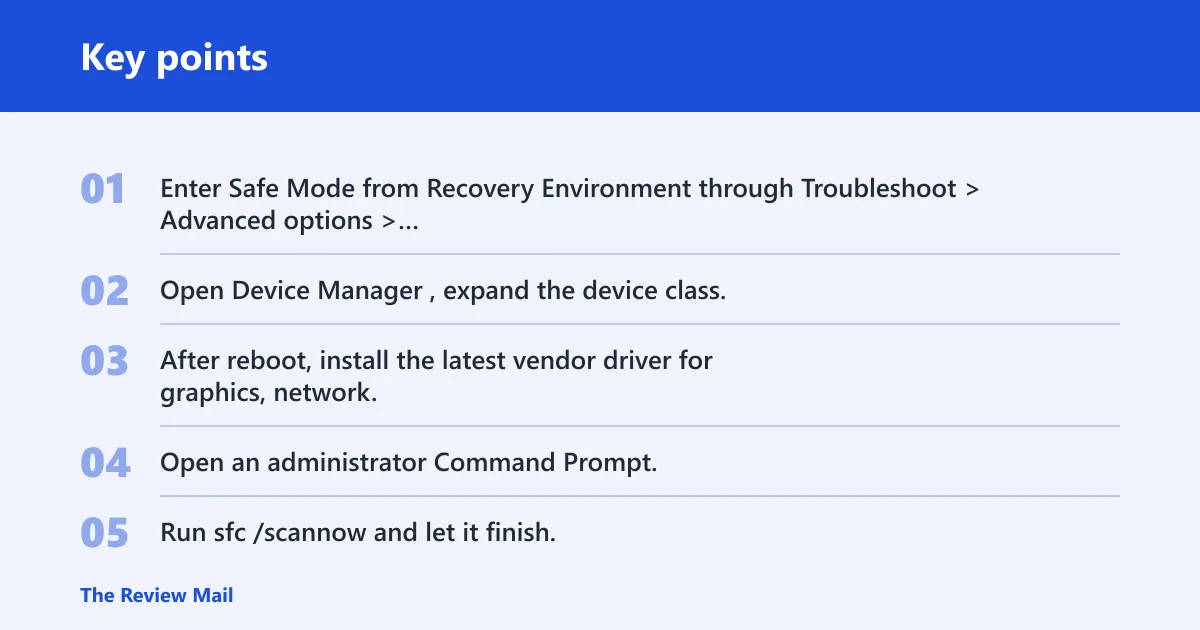
- Enter Safe Mode from Recovery Environment through Troubleshoot > Advanced options > Startup Settings. (Wikihow)
- Open Device Manager, expand the device class, and use Properties > Driver to choose Roll Back Driver or Uninstall device.
- After reboot, install the latest vendor driver for graphics, network, or audio from the device maker, not from a generic updater.
Driver malfunction is a common BSOD trigger because kernel-mode code runs inside Windows itself. Graphics, network, and audio stacks are frequent first suspects when the crash begins after a driver update.
Corrupted system files
- Open an administrator Command Prompt.
- Run
sfc /scannowand let it finish. - If SFC cannot fix the corruption, run
DISM /Online /Cleanup-Image /RestoreHealth, then restart and runsfc /scannowagain.
System File Checker is the first repair pass for damaged Windows files. DISM is the next step when SFC reports problems it cannot repair. If the same stop code returns after both commands, move on rather than repeating them blindly.
Storage fault
- Check whether the crash happens during boot, file access, or after wake from sleep.
- Run
chkdsk /f /rfrom an administrator Command Prompt if Windows still opens. The repair switches can force a reboot and can take a long time on a failing drive. - If the system cannot stay up long enough, test the drive from Recovery Environment or disconnect a newly added storage device.
A storage fault often looks like a random Windows failure, but the pattern is usually repeatable during read-heavy moments. If the crash appears before the desktop, storage moves higher on the list.
Memory error
- Run Windows Memory Diagnostic (mdsched.exe) from Windows, or use memtest86 if you need a longer pass.
- Power down, reseat the RAM sticks, and test one stick at a time if the machine has multiple modules.
- If the crash began after a RAM upgrade, remove the new module and test again.
Memory faults can produce changing stop codes and inconsistent behavior. A no-pattern crash after a hardware swap is a strong reason to check RAM before you rebuild Windows.
Recent update or rollback
- Open Settings > Windows Update > Update history and note the install date that lines up with the first crash.
- Boot into Safe Mode and remove the newest update or driver change.
- If the system stabilizes after removal, pause further updates long enough to confirm the fix.
Suppose the machine was stable for months, then started looping after Patch Tuesday. That timing is a clue, not a coincidence. Remove the most recent update or driver before you assume the hardware failed.
How do you get the minidump?
A memory dump is saved crash data from RAM that Windows can analyze after restart, but it is often hard to interpret without the right tools. The most practical place to look first is C:\Windows\Minidump. If files are there, the crash reached the point where Windows could write a minidump. A basic tool for opening and reading it is WinDbg Preview, where you can check the bug check code and the driver name in the analysis.
When no dump appears
- Check whether the crash happens before login or before the desktop loads.
- Confirm that the paging file is enabled and the system has room to write crash data.
- Look for repeatable boot failure, storage errors, or an immediate power loss instead of a normal BSOD shutdown.
No minidump usually means the crash happened too early, the write failed, or the system never got far enough to save one. That pushes storage and boot-path issues higher on the list than a late-loading app problem.
A generic BSOD is the blue screen itself; named stop codes such as CRITICAL_PROCESS_DIED are the specific clues you should track. If the screen flashes too fast, check the minidump name and any Event Viewer entry tied to the same time. Stop codes vary widely, so the code is the branch point, not the whole answer.
How do you fix a critical system error BSOD on Windows 11?
Start with the pattern, then work down the ladder. On Windows 11, the shortest path is still: Safe Mode, driver rollback or removal, SFC, then DISM. If the crash began after hardware change, remove the new part before you repair the OS.
If that didn’t work, try this next
- Use System Restore if a restore point predates the crash and Windows still offers it in Recovery Environment.
- If the machine still will not boot, create a Windows 11 USB on another PC, boot from it, and choose Repair this Computer to reach the Recovery Environment. Try the available recovery options there first.
- If the crash survives all recovery options, escalate to hardware testing or a repair install before you consider a clean install.
The order matters. A repair install or clean install should not be the first move when the crash pattern still points to one driver, one update, or one failing disk.
After an update or new hardware, what should you check?
A fresh Windows update or a new part changes the timing of the crash, which makes it one of the easiest cases to narrow down. The question is not whether the system changed; it is which change lines up with the first failure and whether Safe Mode stays stable.
- Check Settings > Windows Update > Update history for the last install date.
- Open Device Manager and inspect any newly installed driver or device class.
- Remove the newest change first: uninstall the update, roll back the driver, or unplug the new peripheral.
- If the crash began after RAM, GPU, or storage was added, remove that part and retest before replacing the OS.
Can a Windows update cause a BSOD critical system error? Yes. A bad update can expose a driver mismatch or corrupt a system component, and the quickest proof is that the crashes start right after installation and stop after rollback.
A common first-timer mistake is to keep reinstalling drivers while ignoring the new NVMe drive that was added the same day. If the machine blue-screens before Windows finishes loading, that hardware change may be the more likely lead.
Frequently asked questions
What is bsod error?
BSOD means Blue Screen of Death. It is the Windows fatal error screen that appears after a STOP error, and the machine usually restarts afterward. The useful part is the stop code and any dump file left in C:\Windows\Minidump.
What does critical system error bsod mean?
It means Windows hit a non-recoverable kernel-level failure and stopped to protect the system. That failure can come from a driver, storage, memory, boot loader, or damaged system file, so the symptom pattern matters more than the label alone. If the screen shows a named stop code such as CRITICAL_PROCESS_DIED, use that code as the specific clue to track.
Why does my pc keep getting a critical blue screen error?
Repeated crashes usually mean the same fault is still present. Check whether they start after a driver install, a Windows update, or new hardware, then use Safe Mode to remove the last change before you run SFC or DISM.
Is critical system error bsod caused by drivers or hardware?
It can be either one. Driver malfunction is common, especially with graphics, network, and audio drivers, but storage faults and memory errors also produce stop codes. If the crash follows new hardware, remove that part first.
How do I get a minidump from a bsod loop?
After the restart, look in C:\Windows\Minidump. If nothing is there, check whether the system is crashing before Windows can write the file, whether the paging file is disabled, or whether the disk is failing before the dump saves.
What stop code should I look for after a bsod?
Use the exact code shown on the blue screen, such as KMODE_EXCEPTION_NOT_HANDLED when it appears. If the screen flashes too fast, use the minidump and Event Viewer timestamp to match the crash to the same stop code.