How to Fix Ethernet Connection Not Working
Fix Ethernet by matching the symptom: no link light points to cable, port, or adapter; connected but no internet usually means DHCP or DNS; intermittent drops often mean driver, power, or port problems. If you chase the wrong layer, you lose time and stay offline. This guide gives a Windows decision tree so you can stop after the first proven fix.
Ethernet fault decision table
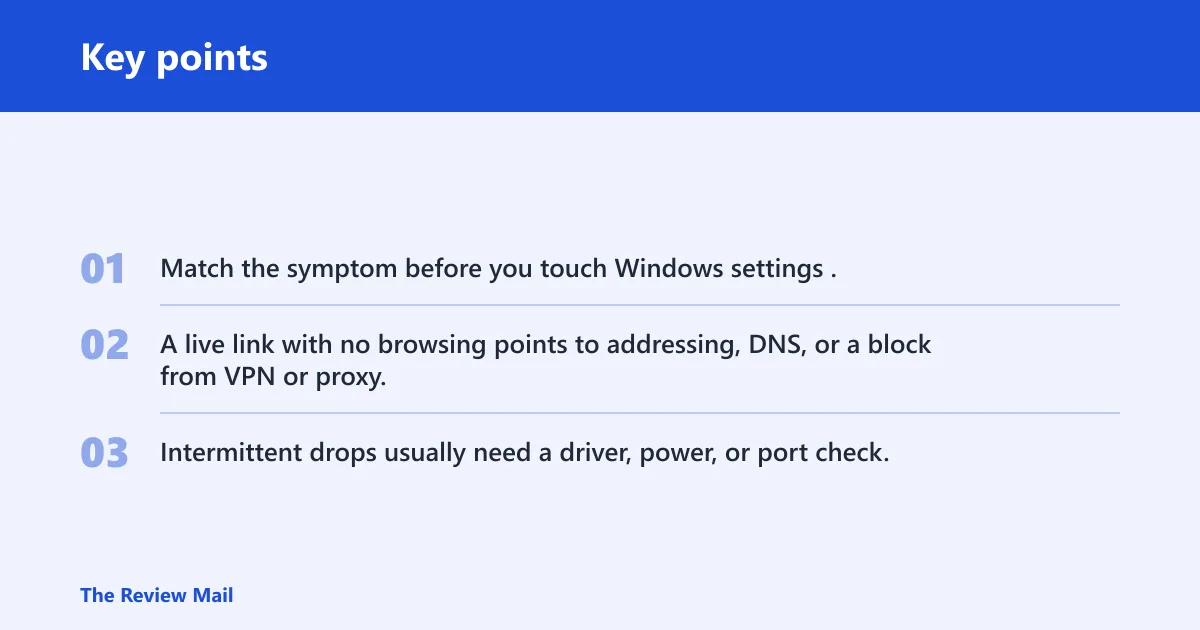
Use this table first. Match the symptom before you touch Windows settings. A dead link is a physical-path problem. A live link with no browsing points to addressing, DNS, or a block from VPN or proxy. Intermittent drops usually need a driver, power, or port check.
| Symptom | Likely layer | Fastest test | Exact Windows action | Stop here? |
|---|---|---|---|---|
| No link light | Cable, Ethernet port, router LAN port, or USB adapter | Check link/activity LEDs on both ends | Settings > Network & internet > Ethernet | Yes, if a port or cable swap restores the light |
| Connected but no internet | DHCP, DNS, VPN, proxy, or upstream modem/router | Open a site, then run Windows diagnostics | Get Help app or Settings > System > Troubleshoot > Other troubleshooters | Yes, if diagnostics or IP renewal fixes it |
| Intermittent disconnects | Driver, power saving, bad cable, loose port, or adapter hardware | Watch the link light while moving the cable gently | Device Manager > Network adapters | Yes, if a driver rollback or port swap stabilizes it |
What you’ll need
- A known-good Ethernet cable
- Access to another router or switch port
- Windows administrator access
- A spare USB to Ethernet adapter if the PC has no built-in port
Why is my wired connection not working?
Start by splitting the failure into three buckets: no link light, connected but no internet, or intermittent disconnects. That split tells you whether to check the cable and port first, Windows addressing next, or the adapter driver and power settings last. It keeps you from resetting the wrong layer.
No link light means the physical path is failing
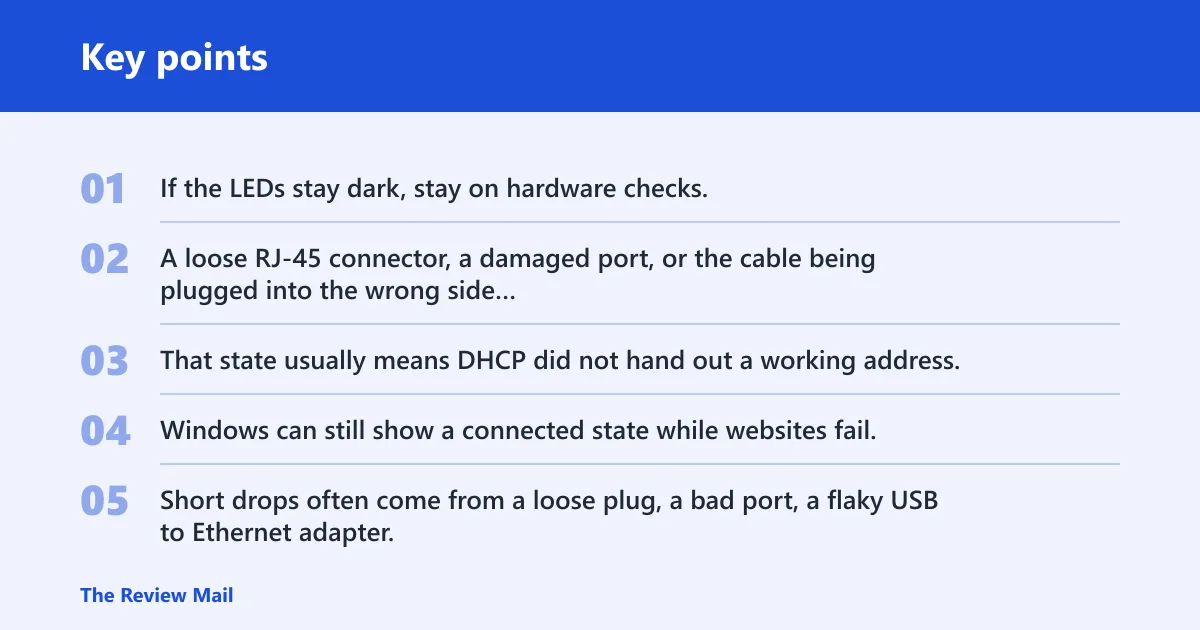
If the LEDs stay dark, stay on hardware checks. A loose RJ-45 connector, a damaged port, or the cable being plugged into the wrong side of a router or modem can prevent the link from coming up.
Connected but no internet means Windows has a valid link but traffic still fails
That state usually means DHCP did not hand out a working address, DNS cannot resolve names, or something like a VPN or proxy is rerouting traffic. Windows can still show a connected state while websites fail, so the fix is different from a dead port.
Intermittent disconnects point to unstable hardware or drivers
Short drops often come from a loose plug, a bad port, a flaky USB to Ethernet adapter, or a driver that started misbehaving after an update. Power-saving settings can also cut the link for a second, which looks like a network problem until you check Device Manager.
How do you fix a dead Ethernet link on Windows?
If the link light is off, stay with the physical path. Reseat both ends, try another LAN port, then try another cable. If the PC still shows no link, the fault is more likely the PC port or the USB to Ethernet adapter than the internet connection itself.
- Unplug the cable from the PC and router, then plug it back in until each latch clicks.
- Move the cable to a different port on the router or switch.
- Swap the cable with another Ethernet cable that you know works.
- Inspect the PC port, dock port, monitor hub port, or USB to Ethernet adapter for bent contacts, damaged plastic, or looseness.
Suppose a laptop dock has one dead Ethernet port but the dock’s USB ports still work. A port swap that restores the link points to the dock or its port, not to Windows.
How do you fix Ethernet when Windows says connected but no internet?
Use Windows diagnostics first, then renew the address, then clear DNS. If the link stays up after that, the fault is usually DHCP, DNS, or a temporary block from VPN or proxy. (Microsoft Support)
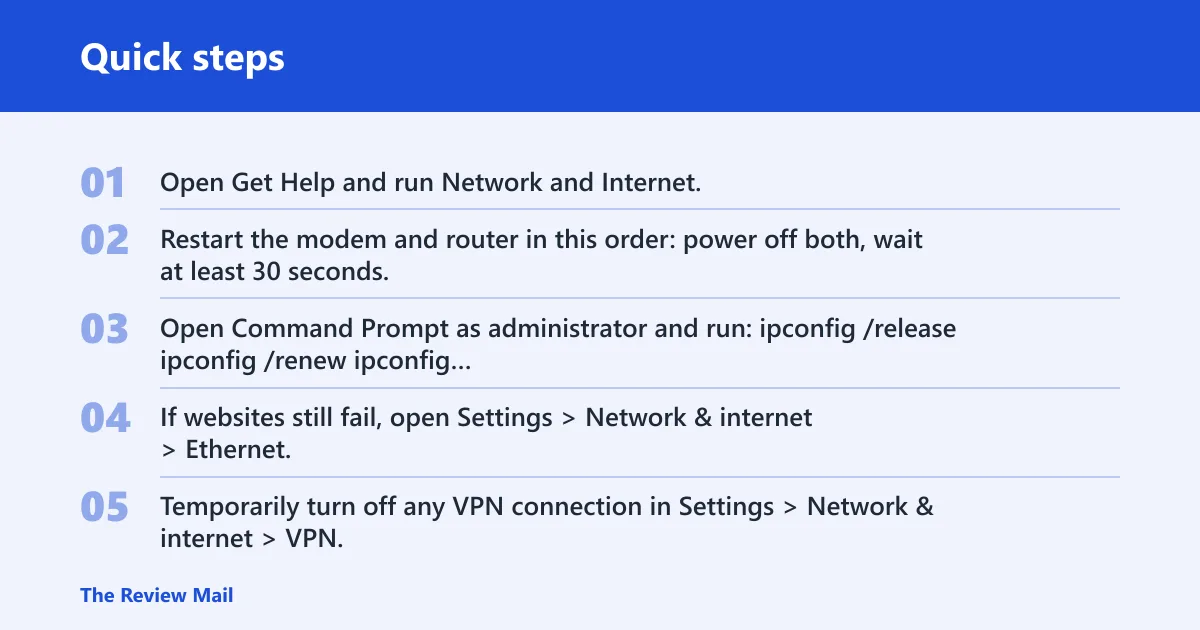
- Open Get Help and run Network and Internet, or go to Settings > System > Troubleshoot > Other troubleshooters.
- Restart the modem and router in this order: power off both, wait at least 30 seconds, power on the modem, then the router.
- Open Command Prompt as administrator and run:
ipconfig /release
ipconfig /renew
ipconfig /flushdns
- If websites still fail, open Settings > Network & internet > Ethernet, select your connection, and change DNS server assignment to Manual. Then enter 8.8.8.8 or 1.1.1.1 in the preferred DNS box.
- Temporarily turn off any VPN connection in Settings > Network & internet > VPN, and disable any proxy under Settings > Network & internet > Proxy.
Say your PC shows a connected state, but every website times out after the browser starts loading. If ipconfig /renew restores browsing, stop there. If it does not, DNS or a VPN/proxy block is the next best bet.
How do you fix an Ethernet adapter driver problem?
If the link drops after updates or only one PC fails on the same cable and router port, check the driver. Open Device Manager, find the adapter under Network adapters, and use update, uninstall, or rollback in that order.
- Right-click Start, open Device Manager, then expand Network adapters.
- Right-click the Ethernet adapter and choose Update driver.
- If the problem began after a driver change, open Properties > Driver and choose Roll Back Driver if available.
- If that fails, choose Uninstall device, then restart Windows or scan for hardware changes.
Device Manager > Network adapters > (adapter) > Uninstall device
Then scan for hardware changes
If the adapter comes back cleanly and the link stays up, stop. If the PC lacks an Ethernet port and depends on a USB to Ethernet adapter, test the dongle on another machine before blaming Windows.
If that didn’t work, try this next
Use this escalation order only after the earlier layer fails. It starts with the least invasive software checks and ends with stack resets. That order matters because netsh resets are broader than an IP renew and can hide the real fault if you run them too early.
- Run the Windows Network troubleshooter or Get Help again after every change.
- Use Settings > Network & internet > Ethernet to confirm the connection still shows Connected and not an error state.
- Open Command Prompt as administrator and run:
netsh winsock reset
netsh int ip reset
ipconfig /release
ipconfig /renew
ipconfig /flushdns
- Restart the PC after the
netsh commands. - If the problem remains, open Settings > Network & internet > Advanced network settings and use Network reset.
A common first-timer mistake is running the full command sequence before checking LEDs or swapping ports. That can waste time and make the real fault harder to spot.
Common mistakes
- Skipping LED checks and guessing the fault
- Running
netshresets before trying another cable or port - Changing DNS before proving that the link is up
- Ignoring a dock, hub, or USB adapter that is actually the bad part
- Assuming the ISP is at fault before testing another router or switch port
Change DNS only after the PC has a working link and an IP address but websites still fail. Google DNS 8.8.8.8 and Cloudflare DNS 1.1.1.1 are useful at that stage, not before it.
Frequently asked questions
How to fix internet connected but not working
Run the Get Help Network and Internet troubleshooter first, then renew the IP and flush DNS. If browsers still fail, switch DNS to 8.8.8.8 or 1.1.1.1 and temporarily disable VPN or proxy. That sequence separates DHCP from DNS and traffic filtering.
How to fix ethernet adapter is not working properly
Open Device Manager, update the adapter driver, then roll it back if a recent update caused the issue. If that fails, uninstall the adapter and restart. If the PC uses a USB to Ethernet adapter, test the dongle on another port or another PC.