Windows Critical Service Failed
CRITICAL SERVICE FAILED usually means Windows hit a boot failure after some recent change. Start with Startup Repair in WinRE, then match the next step to the pattern: roll back the latest update, check Safe Mode for a driver issue, or inspect the disk and offline files first. Microsoft’s recovery guidance also points to WinRE, Startup Settings, and Safe Mode as the first recovery layers.
What this error looks like
CRITICAL SERVICE FAILED is a BSOD stop error with code 0x0000005A. It can appear on supported Windows versions during startup or shortly after an update. The real question is not “what does it mean?” but “what changed just before the loop started?”
Say your PC rebooted normally after patch Tuesday, then dropped into Automatic Repair on the next start. That pattern points to update-related breakage. Suppose the crash started right after a driver install, device removal, or a display driver update. That points more toward a driver conflict than a disk problem.
What are the likely causes?
Rank the problem by what changed first. After an update, the top suspect is a driver or system file conflict. A bad driver can block startup too, and storage or file system damage becomes more likely when the machine stalls before Windows can load consistently.
Update-related breakage
If the loop began immediately after a Windows update, roll the update back before you try deeper repair commands. Microsoft’s uninstall updates path is the safest first rollback when startup still fails.
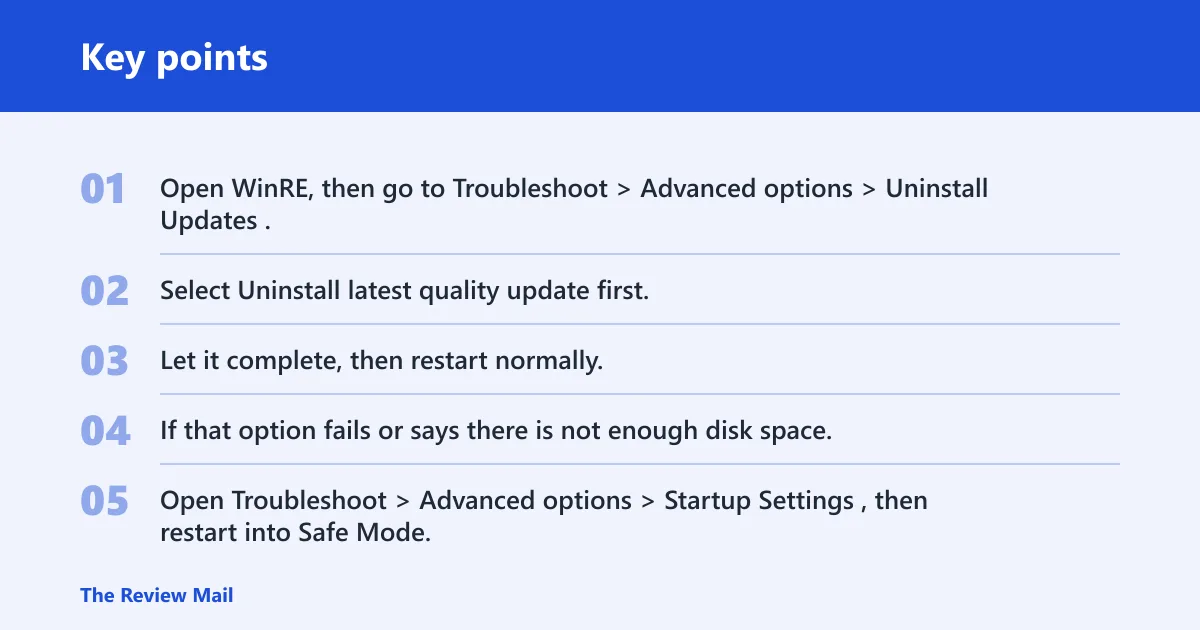
- Open WinRE, then go to Troubleshoot > Advanced options > Uninstall Updates.
- Select Uninstall latest quality update first.
- Let it complete, then restart normally.
- If that option fails or says there is not enough disk space, move to Safe Mode and free space first.
Driver-related breakage
If the loop began after new hardware, a display driver update, or a device change, use Safe Mode to isolate the trigger before you touch the disk. Microsoft recommends Safe Mode for loading a minimal set of drivers so you can remove the offending change more cleanly.
- Open Troubleshoot > Advanced options > Startup Settings, then restart into Safe Mode.
- Use Safe Mode to remove a recent driver or app change that may match the crash.
- If an unsigned driver is involved, review Driver Signature Enforcement and Secure Boot settings from Startup Settings and UEFI.
- If the machine returns to Windows after that, update or roll back the problem device driver from Device Manager.
Storage or file system damage
If Windows keeps failing before it can stabilize, disk damage or file system corruption may be part of the problem. Use CHKDSK when storage health is suspect, and use offline repair with the correct drive letter because WinRE often assigns letters differently than normal Windows. The same source notes that SFC and DISM are complementary repair tools, but the offline and online forms are not interchangeable.
- Open Command Prompt from WinRE.
- Find the offline Windows volume by checking which letter contains Windows, Users, and Program Files.
- Run
chkdsk /f /ron that drive letter if disk health is the main concern. - If file corruption looks more likely than bad sectors, run
DISM /Online /Cleanup-Image /RestoreHealthfrom a running Windows session when possible, thensfc /scannow.
Boot configuration damage
If Windows is installed but the boot path is broken, use Bootrec as a targeted repair rather than a blanket fix. Microsoft’s startup troubleshooting guidance treats boot configuration work as a later step, after Startup Repair and update rollback, because the wrong command sequence can waste time without improving the boot state.
- Open Command Prompt in WinRE.
- Try bootrec /scanos and bootrec /rebuildbcd when Windows is not being found at boot.
- Use bootrec /fixmbr and bootrec /fixboot only when the boot configuration itself looks damaged.
- If the system is UEFI-based and /fixboot fails, stop there and move back to the update or disk path rather than forcing more boot repair.
How do you get into WinRE?
WinRE is the recovery environment that gives access to Startup Repair, Safe Mode, Command Prompt, and update uninstall when Windows will not boot normally. You can open it with installation media or by interrupting boot several times until recovery options appear. If the PC is UEFI-based, Microsoft’s boot recovery pages recommend starting here before deeper command-line work.
Use installation media if Windows will not boot
- Boot from a Windows installation USB.
- Select Repair your computer instead of Install.
- Choose Troubleshoot to reach the recovery menu.
Use forced boot interruptions
- Turn the PC on.
- As soon as Windows starts loading, hold the power button to force it off.
- Repeat that interruption until recovery options appear.
- Pick Troubleshoot when the menu opens.
Find the tools you need
- Open Troubleshoot > Advanced options.
- Use Startup Repair for the first repair attempt.
- Use Startup Settings for Safe Mode and driver checks.
- Use Command Prompt for DISM, SFC,
CHKDSK, and bootrec. - Use Uninstall Updates for a recent quality update rollback.
How do you try Startup Repair first?
Startup Repair should be your first move because it targets boot problems before you start changing drivers, files, or disk state. If it finishes and the machine boots, stop there. If the loop returns, move to the section that matches the symptom pattern best. The same source lists Startup Repair as the first automated repair to try in WinRE.
- In WinRE, open Troubleshoot > Advanced options > Startup Repair.
- Select the Windows installation if prompted.
- Let the scan finish.
- Restart when prompted.
- If Windows still loops, return to Advanced options and choose the cause that best matches the crash pattern.
Can a bad driver cause critical service failed BSOD?
Yes. A driver change is one of the first things to suspect when the crash starts right after new hardware, display work, or another device update. If Safe Mode works, that makes a driver or update trigger more likely than a broken disk. Microsoft’s Safe Mode guidance is designed for exactly this kind of minimal-startup troubleshooting.
- From WinRE, go to Startup Settings and restart into Safe Mode.
- Choose the option that enables Safe Mode with Networking if you need downloads or driver packages.
- In Safe Mode, remove the recent driver or app that lines up with the failure.
- If the driver is unsigned, check Driver Signature Enforcement and Secure Boot settings before trying the same install again.
How do I uninstall a bad update after critical service failed?
If the crash began after a Windows update, remove the latest quality update first. If WinRE cannot finish that rollback, use Safe Mode to free disk space or remove the update manually by KB number. That is the cleanest path when the loop began right after patching, and Microsoft recommends uninstalling updates before more invasive repair.
- In WinRE, open Troubleshoot > Advanced options > Uninstall Updates.
- Select Uninstall latest quality update.
- Let it complete, then restart normally.
- If recovery says there is not enough space, boot Safe Mode, press Win + R, type cleanmgr, select C:, check the boxes for temporary files and previous Windows installations if available, then click OK.
- If you know the KB number, open an elevated Command Prompt and run wusa /uninstall /kb:XXXXX /norestart.
What if Startup Repair and SFC do not fix critical service failed?
If Startup Repair and SFC do not change the loop, move to the offline repair path that fits the strongest clue. Use CHKDSK when the drive looks suspect, DISM when system files are damaged, and bootrec only when the boot record or BCD is the clear problem. Stop trial-and-error once the same repair fails twice. For offline repair, the Windows drive in WinRE may not be C:, so confirm the letter first.
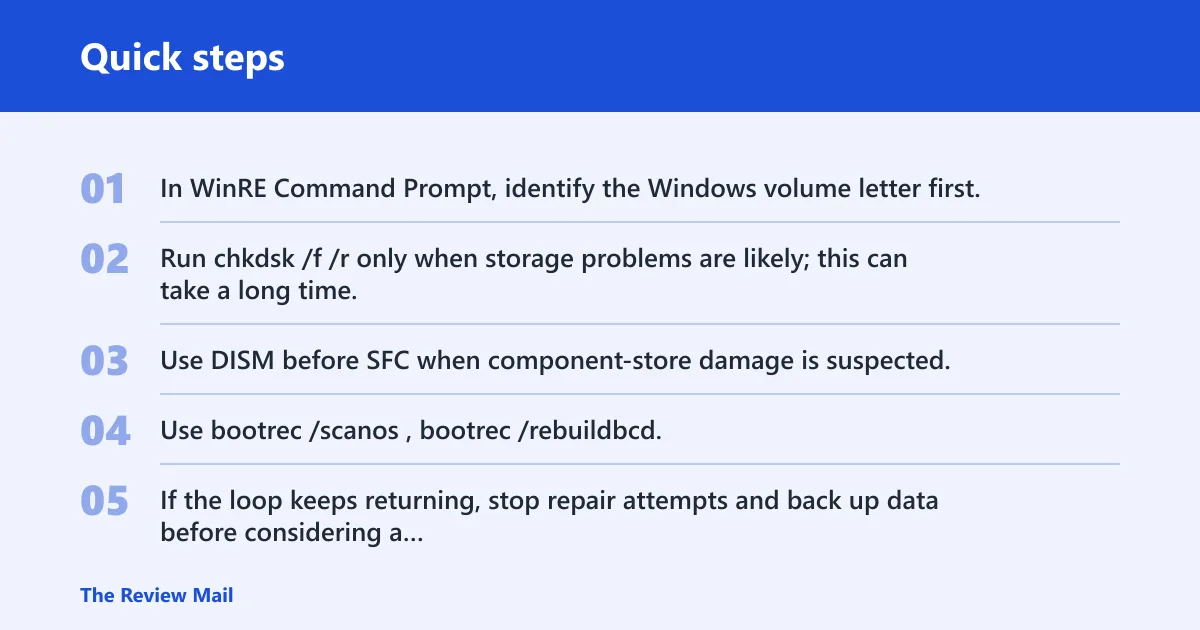
- In WinRE Command Prompt, identify the Windows volume letter first.
- Run
chkdsk /f /ronly when storage problems are likely; this can take a long time. - Use DISM before SFC when component-store damage is suspected.
- Use bootrec /scanos, bootrec /rebuildbcd, and only if needed bootrec /fixmbr or bootrec /fixboot for boot configuration damage.
- If the loop keeps returning, stop repair attempts and back up data before considering a reinstall.
For offline repair, use the Windows volume you identified in WinRE, not a guessed drive letter. A typical pattern is DISM /Image:<WindowsDrive>:\ /Cleanup-Image /RestoreHealth followed by SFC /SCANNOW /OFFBOOTDIR=<WindowsDrive>:\ /OFFWINDIR=<WindowsDrive>:\Windows. In a normal running Windows session, use DISM /Online /Cleanup-Image /RestoreHealth and then sfc /scannow. Do not mix the online and offline forms.
When should you run CHKDSK, and how long can it take?
Run CHKDSK when the crash pattern suggests disk or file system trouble, such as repeated repair loops, slow startup, or unexplained file errors. Microsoft warns that disk repair can take a long time, especially with /r, so use it when storage issues are genuinely suspected rather than as a default first move.
- In WinRE Command Prompt, find the correct offline Windows volume letter.
- Run
chkdsk /f /ron that volume only when storage problems are likely. - Allow the scan to finish before you decide whether to keep repairing.
- If the disk reports repeated problems or the loop continues, treat the data as at risk and prepare to back it up.
When should you use Bootrec for Windows boot repair?
Use Bootrec when the boot loader, MBR, or BCD appears damaged and Windows is found but not starting correctly. Microsoft’s boot troubleshooting guidance uses Bootrec as a targeted recovery tool, not a universal fix. If /fixboot fails on UEFI systems, stop forcing boot repairs and return to update rollback or disk checks.
- Open Command Prompt in WinRE.
- Run bootrec /scanos to look for installed Windows systems.
- Run bootrec /rebuildbcd if Windows is found but not listed correctly.
- Use bootrec /fixmbr and bootrec /fixboot only when the boot structure itself is the likely failure.
- If the repair still fails, move to backup mode instead of repeating the same commands.
When should you stop repairing and back up data?
Stop once repairs repeat without changing the boot behavior, or when the disk starts sounding unhealthy, checks slow dramatically, or errors keep returning. At that point, the priority shifts from fixing Windows to preserving files. Microsoft’s recovery flow supports copying data before a reinstall when repeated repair attempts no longer improve startup.
- Open WinRE and get to Command Prompt or another file-copy path.
- Confirm the offline Windows drive letter so you can reach user data.
- Copy the important folders to external storage before more repair attempts.
- If the system remains unstable, plan for a clean reinstall after the backup is complete.
Critical service triage table
| Symptom pattern | Likely cause | Best first action in WinRE | Next action if it fails | When to stop repairing and back up data |
|---|---|---|---|---|
| Crash starts right after a Windows update | Update-related driver or system file conflict | Uninstall Updates > Uninstall latest quality update | Boot Safe Mode, then remove the update by KB number or free space with cleanmgr | Stop if the same update rollback fails twice or the loop returns immediately after restart |
| Crash starts right after a driver install or device change | Driver-related breakage | Startup Settings > Safe Mode | Uninstall or roll back the driver; review Driver Signature Enforcement if the driver is unsigned | Stop if Safe Mode will not load and the change cannot be isolated |
| Startup Repair fails and Windows still will not boot | File corruption or boot configuration damage | Command Prompt, then identify the offline Windows drive letter | Run DISM, then SFC; if boot paths are broken, use bootrec | Stop if repeated repair commands do not change boot behavior |
| Repeated repair loops, slow startup, or disk-check symptoms | Storage or file system damage | Run chkdsk /f /r on the offline Windows volume | If the drive checks poorly or the loop persists, copy data off the disk | Back up data as soon as the same disk repair keeps failing or the system becomes unstable during checks |
Frequently asked questions
How do I boot into safe mode when critical service failed loops?
In WinRE, open Troubleshoot > Advanced options > Startup Settings, then restart and choose the Safe Mode option. If networking is needed, pick Safe Mode with Networking. If the menu does not appear, boot from installation media and enter recovery from there.
What if startup repair and sfc do not fix critical service failed: move to the next layer?
Move to the next layer only after identifying the symptom pattern. If the crash followed an update, uninstall it. If the loop looks driver-related, use Safe Mode and remove the driver. If storage damage is the stronger clue, run CHKDSK and then decide whether the disk is still worth repairing.
Sources
- Repair your computer in Windows
- Windows startup settings
- Start your PC in safe mode in Windows
- How to uninstall a Windows update
- Use the System File Checker tool to repair missing or corrupted system files
- Repair a Windows image
- Repair the offline Windows image