Windows 11 Inaccessible Boot Device Fix
Check whether the SSD or HDD appears in BIOS or UEFI first, then confirm whether the problem started after an update or BIOS change. If the drive is missing, treat it as a hardware, cable, or slot problem, not a Windows file repair job. Picking the wrong branch wastes time, and a failing disk can turn a repairable boot issue into data loss.
The fastest safe first move is simple: unplug external USB storage, then restart into BIOS or UEFI and look for the boot drive and Windows Boot Manager.
Troubleshooting steps before repair commands
Use this decision flow before you run repair commands:
- If the drive is visible in BIOS or UEFI, boot into WinRE and try Startup Repair first.
- If the failure started after an update, driver change, or BIOS setting change, try System Restore or uninstall the most recent update from WinRE.
- If Windows is reachable in Safe Mode, remove the last storage or chipset change, then reboot normally.
- If the drive is visible but Windows still will not boot, use WinRE Command Prompt to identify the Windows volume, then run offline SFC or DISM only if the disk is stable.
- If the drive is missing or keeps disappearing, stop software repair, verify hardware and firmware settings, and recover data first if possible.
What the stop code means
The INACCESSIBLE_BOOT_DEVICE BSOD with bug check code 0x0000007B appears during startup when Windows cannot reach the boot volume. That can happen after a storage driver change, a BIOS or controller setting change, damaged boot data, or a disk problem.
Windows 10 users see the same pattern. The first step stays the same: separate a visible drive from a missing one before you run repair commands.
Likely causes
A common trigger is a recent Windows update or storage driver change. Less often, the cause is a BIOS or storage-mode change, then corrupted boot data or system files, and finally a failing SSD or HDD.
Recent Windows update or driver change
Microsoft’s recovery guidance for WinRE, System Restore, Startup Repair, and uninstalling updates fits this branch best when the problem starts right after a patch or storage driver change. If the boot drive is visible, remove the most recent update before you spend time on disk repair.
BIOS or storage mode change
Storage controller mode matters. A SATA, AHCI, IDE, RAID, or VMD mismatch can sometimes block boot access after a BIOS change, a firmware update, or a clone. Some systems need the same mode the installation used before the change.
Corrupted boot data or system files
Boot Configuration Data corruption is a common repair target because Windows Boot Manager depends on correct boot-path metadata. Startup Repair, offline SFC, and offline DISM all fit here when the drive is visible and stable. Use command-line recovery carefully and only after you identify the correct Windows volume in WinRE, because the drive letter there may not be C: (Microsoft WinRE and SFC/DISM documentation).
Failing SSD or HDD
File-system repair can be too much for a disk already struggling to read.
Boot device triage table
| Symptom pattern | Trigger | Safest next step | Exact WinRE tool | Stop and recover data branch |
|---|---|---|---|---|
| Drive is visible in BIOS or UEFI, and the failure began after an update, driver change, or BIOS setting change | Update, driver rollback, or firmware/controller change | Check Windows Boot Manager, then enter WinRE and try Startup Repair first | WinRE > Startup Repair | Stop if the drive starts disappearing, throws repeated I/O errors, or hangs during repair |
| Drive is visible in BIOS or UEFI, but Windows will not boot | Boot metadata corruption, wrong boot order, or incomplete repair after a clone | Use WinRE Command Prompt for offline checks after Startup Repair | diskpart / list vol, then offline SFC or DISM after you locate the Windows volume; use bootrec only when appropriate for the boot layout | Stop if the disk becomes unstable, unreadable, or slow enough that commands hang for long periods |
| Drive is missing in BIOS or UEFI | Loose cable, bad port, failed slot, disabled controller, or incompatible firmware setting | Stop software repair and verify cable, power, slot, or storage-mode settings | BIOS or UEFI storage page, SATA cable, NVMe reseat | Recover data only after the drive is detected again or through a separate enclosure or recovery path |
| Drive is visible, but the system shows repeated I/O errors, clicking, disappearing detection, or repair hangs on disk access | Failing SSD/HDD or unstable controller path | Back up or image the drive first if possible, then stop aggressive repair attempts | Vendor diagnostics or cloning tool from recovery media | Yes — stop and recover data before CHKDSK /r, repeated reboot attempts, or multiple repair loops |
| Do not continue: repeated I/O errors, disappearing drive, or obvious hardware symptoms | Hardware fault or severe media degradation | Do not run heavy disk checks or repeated repair loops; recover data first | Avoid chkdsk /r until the drive is stable | Image or copy the disk first if it is still readable; do not force the issue |
If the drive is visible in BIOS
If the SSD or HDD shows up in BIOS or UEFI, the problem is usually in boot metadata, a controller setting, or a recent software change. Start with Windows Boot Manager in UEFI systems, then move into WinRE and only use command-line repairs if the disk looks stable. Microsoft’s Startup Repair, WinRE, SFC, and DISM documentation all assume you first identify the correct Windows installation and volume before repairing offline files.
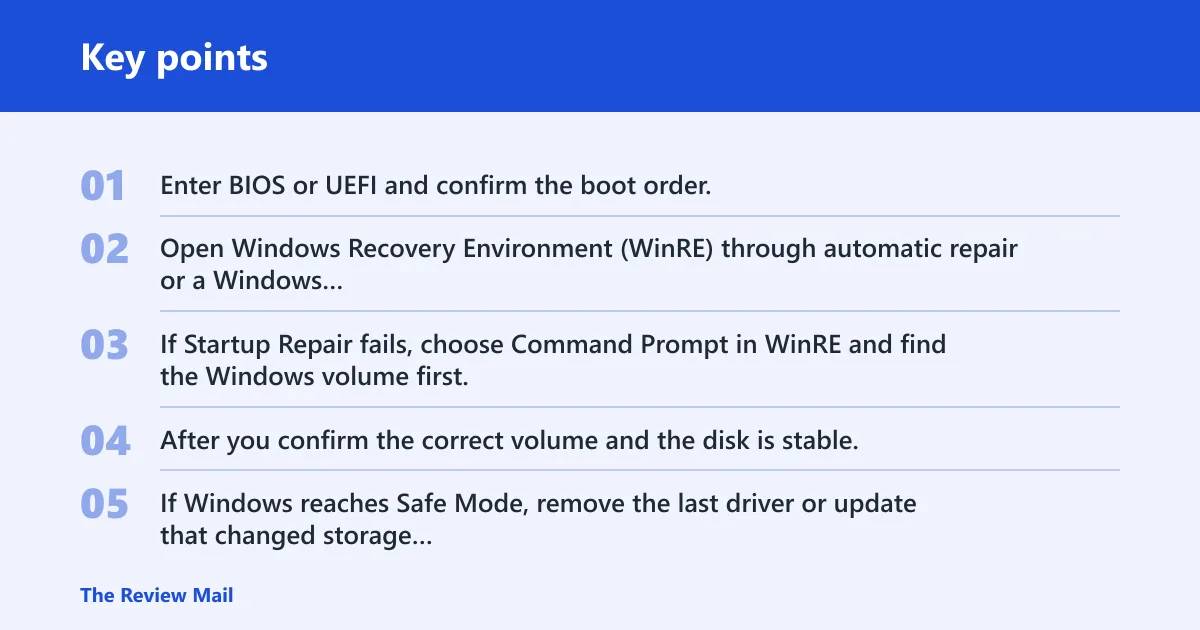
- Enter BIOS or UEFI and confirm the boot order. On many UEFI systems, Windows Boot Manager should appear ahead of the raw SSD or HDD entry.
- Open Windows Recovery Environment (WinRE) through automatic repair or a Windows installation USB. Select Startup Repair first. Microsoft documents WinRE as the recovery path for startup problems.
- If Startup Repair fails, choose Command Prompt in WinRE and find the Windows volume first. Run:
diskpart
list vol
Then note the letter assigned to the Windows partition in WinRE, because it may not be C:. - After you confirm the correct volume and the disk is stable, use boot repair commands only when the boot layout calls for them:
bootrec /scanos
bootrec /rebuildbcd
Do not assume bootrec is required or universally safe on every UEFI system. Microsoft’s boot repair guidance is layout-dependent, so use it selectively. - If Windows reaches Safe Mode, remove the last driver or update that changed storage behavior. Microsoft’s Safe Mode guidance is the right next step when the system can boot far enough to load a minimal environment.
- Run offline file repair only if the drive looks healthy:
sfc /scannow/offbootdir=X:\ /offwindir=X:\Windows. For DISM, use matching installation media as the source if needed. Replace X: with the Windows volume you found in WinRE.
Suppose a laptop shows the BSOD after a BIOS update and the BIOS still lists the NVMe drive. That points away from a dead disk and toward boot settings, Windows Boot Manager order, or a changed storage controller mode.
WinRE access, BIOS/UEFI boot order, Safe Mode, DISM and SFC usage, CHKDSK, SSD not detected in BIOS, and clean install and reset guides are the most relevant follow-up guides when this error appears.
Why does Windows 11 show INACCESSIBLE_BOOT_DEVICE after an update?
An update can replace a storage driver, change boot metadata, or expose a controller-mode mismatch that was already waiting in the background. If the problem began right after a patch, try rolling back that change before you spend time on disk repairs. Microsoft’s WinRE guidance covers uninstalling updates, Startup Repair, and System Restore as the recovery sequence for this type of failure.
- Boot into WinRE from automatic repair or installation USB.
- Choose Uninstall Updates, then remove the latest quality update first. If that fails, try the latest feature update rollback option if it is available.
- If Windows reaches Safe Mode, use Settings > Windows Update > Update history only after booting, then remove the update there if the recovery path allows it.
- Open System Restore from WinRE and roll back to a point before the update or driver change. Microsoft support documents System Restore as a standard way to undo recent system changes.
- If the problem started after a storage driver update, open Device Manager in Safe Mode and revert or remove the storage controller driver.
A common first-timer mistake is assuming the Windows 11 inaccessible boot device error means the SSD is dead and immediately wiping the drive instead of checking the SATA mode or storage driver first. If the failure began right after an update and the drive is visible, a rollback or restore point is safer and faster than wiping the system.
What should you check if the SSD is missing in BIOS?
If BIOS or UEFI cannot see the SSD or HDD, it is usually not a Windows startup problem. Check hardware detection first, because no amount of SFC, DISM, or bootrec work can fix a drive the firmware cannot find.
- Power off fully and disconnect external USB drives.
- For a SATA drive, check the data cable, power cable, and port. Move the cable to a known-good port if the board has one.
- For an NVMe drive, reseat the module and confirm the slot detects storage in BIOS or UEFI.
- Review the storage controller setting. Check SATA, AHCI, RAID, or VMD wording in the firmware menus and return it to the setting that matches the installed system.
- If the drive still does not appear, stop and back up data from a recovery environment only if another machine or enclosure can read it.
Next of Windows recommends disabling VMD in BIOS for some users. That can help on systems where a firmware change switched the controller path, but the correct setting depends on the way the system was installed.
When is reinstalling Windows the safest option?
Reinstalling becomes the safer choice after the drive is confirmed stable, recovery attempts fail, and you still have the data you need. If the disk is healthy, CHKDSK, bootrec, Startup Repair, and System Restore are worth trying first. If the disk is not healthy, protect data before anything else. Microsoft’s CHKDSK, SFC, DISM, Startup Repair, and WinRE guidance all fit this sequence: identify the volume, test the disk’s stability, then repair only what is appropriate for the failure mode.
- Use
CHKDSKonly when the drive is visible and there are no obvious hardware symptoms. From WinRE Command Prompt, runchkdskX: /f after you identify the correct Windows volume with diskpart and list vol. Avoid aggressive read-heavy passes on a suspect drive. - Run boot repair commands only when the drive is stable enough to read: bootrec /fixmbr, bootrec /fixboot, bootrec /rebuildbcd. Use them selectively, not as a universal fix for every UEFI boot failure.
- Use offline SFC and DISM if the disk is healthy enough for file repair. DISM often needs matching installation media as the source in WinRE, and SFC/DISM require the correct offline Windows path, not a guessed C: drive.
CHKDSK can stress a bad drive. If repair prompts mention unreadable sectors, repeated retries, or timeouts, stop and image the disk instead of pushing through a full scan.
Frequently asked questions
How do you fix blue screen windows 11 inaccessible boot device?
Start with BIOS or UEFI to confirm the boot drive is present, then use WinRE. Try Startup Repair first, then System Restore if the failure followed an update or driver change. If the disk is stable, finish with offline SFC and boot repair commands that match the boot layout. Microsoft’s guidance for WinRE, Startup Repair, System Restore, and SFC supports this order.
How do you fix inaccessible boot device windows 10?
The same triage applies in Windows 10. If the drive is visible, use WinRE, remove recent updates, and try Startup Repair. If Safe Mode loads, remove the most recent storage or chipset change there. If the drive is missing, check firmware settings and hardware before software repair.
Can I fix inaccessible boot device from Command Prompt in WinRE?
Yes. In WinRE Command Prompt, use diskpart and list vol to find the Windows volume first, then use bootrec /scanos and bootrec /rebuildbcd only when the boot layout calls for it. After that, run offline sfc /scannow /offbootdir=X:\ /offwindir=X:\Windows for system files. If you use offline DISM, be ready to point it at matching installation media and the correct offline Windows path.
Should I change SATA mode or VMD settings to fix this BSOD?
Only if the setting changed from the one the system used before the failure. A SATA, AHCI, RAID, or VMD mismatch can block boot access. Check BIOS or UEFI carefully, and note the exact setting before you change it so you can undo the step if needed.
What should I check first when my SSD is missing in BIOS?
Check the physical connection first on SATA systems, then the NVMe seating or slot on M.2 systems. After that, review storage-mode settings such as AHCI, RAID, or VMD. If the drive still does not appear, stop software repair and treat it as a hardware fault.