Sharing Folder Not Accessible Windows 11
On Windows 11, a shared folder that will not open usually comes down to one of a few common faults: share permissions, NTFS permissions, SMB version mismatch, saved credentials, or a stopped network service. Leave it unchecked, and you can chase the wrong fix or give the share broader access than intended. This guide can help spot the failure and apply the right repair.
Shared folder diagnostic matrix
Start with the symptom you see, then match it to the layer that is actually failing. That keeps you from enabling SMB1 for a simple permission problem, or editing permissions when the real issue is a dead discovery service.
| Symptom | Likely layer | Fastest test | Exact fix |
|---|---|---|---|
| Folder is visible, but it will not open | Permissions or credentials | Try the same share with a known user account, or check whether a password prompt repeats | Match the Sharing and Security tab permissions, then enter the correct username and password or adjust password-protected sharing |
| Access denied after a Windows 11 update | Credentials, security, or policy change | Test from another PC on the same LAN, or sign in again with the saved account | Remove stale saved credentials, confirm permissions, and retry after updating Windows and the sharing services |
| Old Windows 7 share or old NAS share fails | SMB compatibility | See whether the device is legacy and whether SMB1 is disabled on Windows 11 | Enable SMB 1.0/CIFS File Sharing Support only if the old device truly requires it |
| Guest access is blocked | Password sharing or guest-auth policy | Check whether the share is meant to allow anonymous access on a trusted local network | Turn off password-protected sharing only for trusted networks, or use the correct account; for legacy cases, review the LanmanWorkstation guest-auth workaround |
| Share works yesterday, but today nothing responds | Services | Look for stopped sharing services on the host PC | Set Function Discovery Provider Host and Function Discovery Resource Publication to Automatic, then start SSDP Discovery and UPnP Device Host |
| PCs cannot see each other on the LAN | Network discovery or network mismatch | Check whether both devices are on the same local network and whether one is on guest Wi-Fi | Use a private network, turn on Network discovery, and enable File and printer sharing |
Yes/no branch for the first three checks
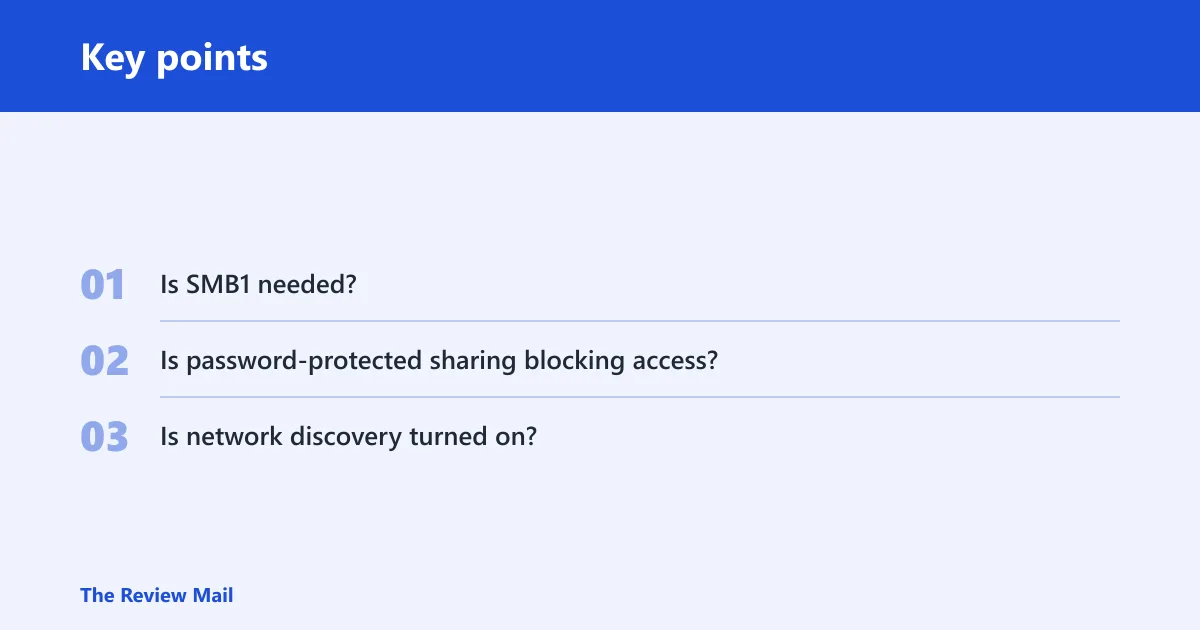
- Is SMB1 needed? Yes only for an old NAS or other legacy device that cannot use newer SMB versions. No for normal Windows 10 or Windows 11 sharing, and Windows 7 also supports SMB2 in typical file-sharing setups.
- Is password-protected sharing blocking access? Yes if the share only opens after matching credentials are entered. No if the share already uses a named user and password that should work.
- Is network discovery turned on? Yes if the PC can see the other machine and the share list updates. No if Windows shows the Network discovery is turned off banner or the machine stays hidden.
Why the shared folder fails
Most failures fall into one of six layers: the network path itself, discovery, sharing services, permissions, credentials, or legacy compatibility. Windows 11 can expose the same share as Windows 10 or Windows 7, yet still fail in a different layer if the network profile, service state, or SMB version has changed.
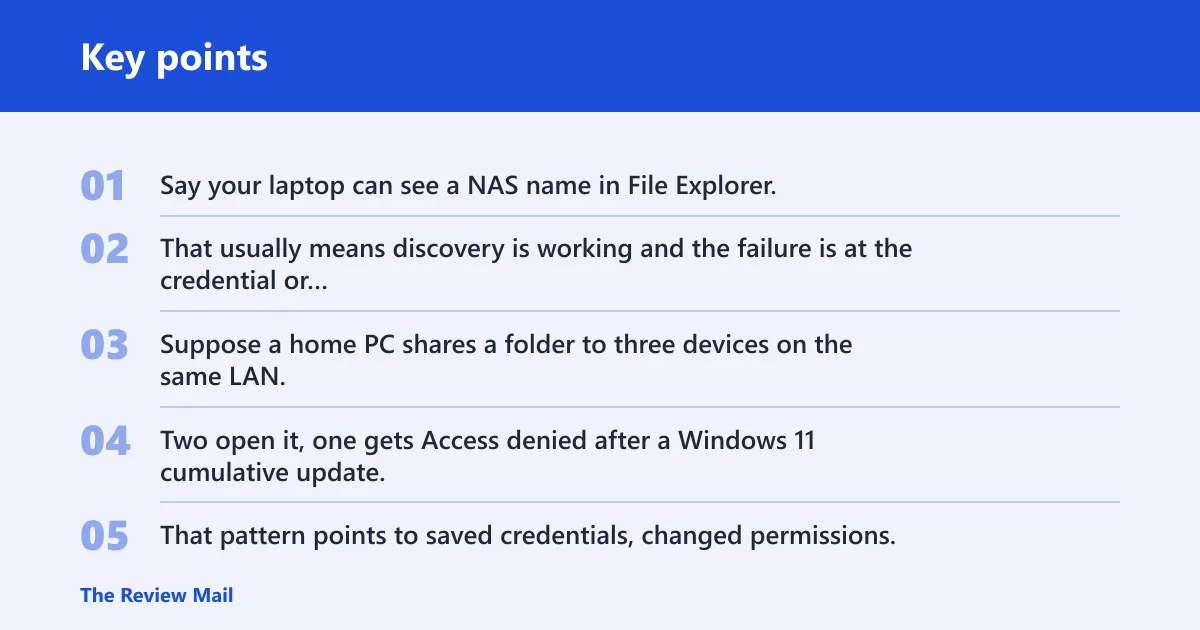
Say your laptop can see a NAS name in File Explorer, but the share opens to a credential loop. That usually means discovery is working and the failure is at the credential or permission layer, not the cable, Wi-Fi, or router.
Suppose a home PC shares a folder to three devices on the same LAN. Two open it, one gets Access denied after a Windows 11 cumulative update. That pattern points to saved credentials, changed permissions, or a policy shift on the one failing PC.
Windows support guidance applies to both Windows 10 and Windows 11. It also frames file sharing as a local area network feature, not an internet feature, so first confirm that both devices are on the same LAN and not split across guest Wi-Fi or another network segment.
Is network discovery turned on?
If Windows says Network discovery is turned off, that is a discovery problem, not a share permission problem. Turn it on in Advanced sharing settings on a private network, then enable File and printer sharing in the same place so the machine can be seen and reached on the LAN. (Microsoft Support)
Turn it on in Advanced sharing settings
Open Settings, then search for Advanced sharing settings. Under Private networks, switch on Network discovery and File and printer sharing. The Network discovery is turned off banner can take you straight to the same setting.
Confirm the device is on a private network
A public profile can block discovery even when the share itself is correct. If one device is on guest Wi-Fi and the other is on the normal home network, they may not reach each other at all. Put both on the same local network before you chase permissions.
Do shared permissions match?
Permissions must line up in two places: the Sharing tab and the Security tab. If either one is too narrow, the share may appear but refuse access. For broad access, choose Everyone; for tighter control, use a specific user account and the exact access level needed.
Check the Sharing tab
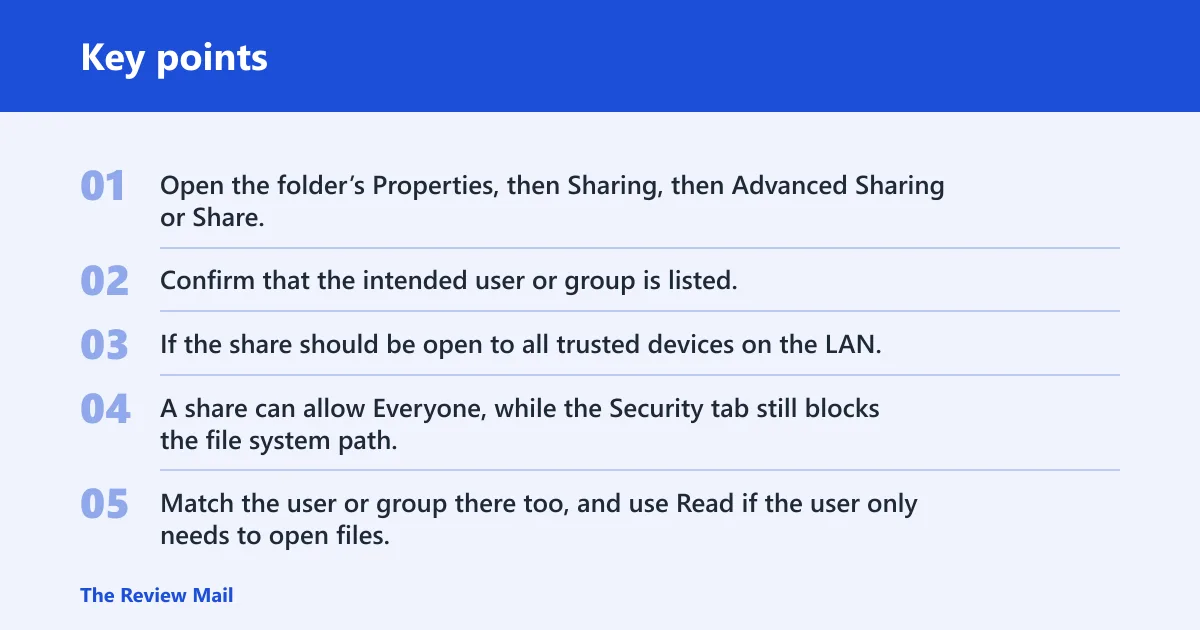
Open the folder’s Properties, then Sharing, then Advanced Sharing or Share. Confirm that the intended user or group is listed. If the share should be open to all trusted devices on the LAN, Everyone can be used for the share entry, but only on a network you trust.
Check the Security tab
The Security tab controls NTFS access. A share can allow Everyone, while the Security tab still blocks the file system path. Match the user or group there too, and use Read if the user only needs to open files, or Full Control if that user must change files and subfolders.
A common first-timer mistake is to fix the Sharing tab, then stop there. If the Security tab still denies access, the folder stays closed even though the share looks correct in the network list.
Should you change password sharing?
Password-protected sharing can block access when the remote PC does not have matching credentials. On a trusted local network, you can turn it off under All Networks. If the network is shared with guests or mixed trust devices, keep it on and sign in with the correct username and password instead.
When to turn it off
Turn it off only when the network is private and trusted, and the goal is simple LAN access without account prompts. That can reduce confusion on a home network where every device should reach the same files.
When to keep it
Keep it on when the share is exposed to work devices, guest devices, or a mixed-version environment where credential control matters. In that case, create or reuse a matching account on the host and enter the right password from the client PC.
What services must be running for Windows file sharing to work?
Sharing can fail even when the folder, permissions, and credentials are correct if the discovery services are stopped. The key services in the sharing checklist are Function Discovery Provider Host and Function Discovery Resource Publication.
Function discovery provider host
This service should be set to Automatic and running during troubleshooting. It helps Windows expose shared resources on the network.
Function discovery resource publication
This service should also be set to Automatic. It supports discovery so other devices can find the host computer and its shares.
SSDP discovery and UPnP device host
These services are not generally required for standard Windows file sharing access. They can be left alone unless you are troubleshooting a specific legacy or device-discovery scenario that depends on them.
If a share worked earlier the same day and then stopped with no permission change, a stopped service is a strong candidate. Check services before you assume a Windows update changed the share itself.
Legacy shares and SMB1
Older NAS boxes may depend on SMB 1.0/CIFS File Sharing Support. Windows 11 often keeps SMB1 disabled by default, so a legacy device can disappear even though newer Windows shares still work. Use SMB1 only when the old hardware or software truly requires it.
When SMB1 is the right fix
If the share comes from an old NAS or another legacy system that cannot negotiate newer SMB versions, check SMB 1.0/CIFS File Sharing Support in Windows Features. That is a compatibility fix, not a general-purpose solution.
When guest access is the real issue
If the folder opens only on one old device and fails everywhere else, the problem may be guest authentication rather than SMB1 itself. For a legacy-only edge case, the supported policy path is Local Group Policy Editor > Computer Configuration > Administrative Templates > Network > Lanman Workstation > Enable insecure guest logons. Treat that as a narrow workaround, not a default setting.
Do not use guest-auth workarounds for a share that should require accounts. They are for old devices that cannot do proper authenticated sharing, not for normal Windows-to-Windows file sharing.
How to map a network drive to a shared folder
Map network drive lets you connect to a share by drive letter. It can reconnect at sign-in, which is useful when you want the share to open automatically after restart. Use the folder path or computer name, then choose the reconnect option if the share should stay available.
Map it from File Explorer
- Open File Explorer.
- Select This PC.
- Choose Map network drive.
- Pick a drive letter.
- Enter the folder path or computer name, such as a UNC path to the shared folder.
- Select reconnect at sign-in if you want it to return after you log on.
If you want a direct connection from a command prompt, use a valid UNC path in the form net use <DeviceName>: \\<ServerName>\<ShareName>. That is useful when File Explorer mapping fails but the path and credentials are known.
Why a Windows 11 update can break access
Yes, a Windows 11 update can break shared folder access, but only after you verify which layer changed. A cumulative update can alter saved credentials, network behavior, or service state, and a 24H2 change can expose an older SMB or guest-auth setup that used to slip through.
First check whether the failure is limited to one PC or one user account. If another device can still open the share, the problem is local to the failing client, not the server folder. If every device fails at once, look at the host services, share settings, or network profile.
Frequently asked questions
Why is my shared folder not working windows 11?
Most of the time, one layer is failing: permissions, credentials, SMB compatibility, discovery, or a sharing service. Start with the symptom. Visible but not openable points to permissions or login data. Invisible points to network discovery or the LAN path. Old NAS shares point to SMB1.
Why shared folder not accessible
A shared folder becomes inaccessible when the host blocks it, the client cannot authenticate, or Windows cannot discover it on the network. Check the share on both the Sharing and Security tabs, confirm the same local network, and verify that the discovery services are running.
How do I turn on network discovery in Windows 11?
Open Advanced sharing settings, then under Private networks turn on Network discovery and File and printer sharing. If you see the Network discovery is turned off banner, use it as a shortcut to the same setting. This is for private LAN use, not internet exposure.
How do I fix shared folder permissions in Windows 11?
Open the folder’s Properties, then check both the Sharing tab and the Security tab. Use Everyone for broad trusted access, or a specific user for tighter control. Match the level to the need: Read for viewing, Full Control for editing, deleting, and creating files.
Should I disable password-protected sharing to access a folder?
Only if the network is trusted and you want simple access without account prompts. You can turn it off under All Networks. If the network includes guests or work devices, keep it on and use the correct username and password instead.
Do I need SMB1 to access old shared folders from Windows 11?
Only for legacy devices that cannot speak newer SMB versions, such as some old NAS boxes. Windows 11 often disables SMB 1.0/CIFS File Sharing Support by default. Use it only when the older device truly requires it.