Computer Stuck in Airplane Mode Windows 10
Start with the hardware radio and Fn key. Then use Windows Network Troubleshooter, the Airplane mode toggle, Device Manager, and finally restart the Radio Management service. If the airplane-mode switch is grayed out, the problem is usually at the driver or service level. Leaving it wrong can keep Wi‑Fi and Bluetooth disabled, block updates, and waste time on fixes that can’t work. This guide gives the fastest-to-deepest path and shows how to tell laptop-specific, driver-specific, and service-level causes apart.
What a stuck airplane mode state means
Airplane mode stops all wireless communication, including Wi‑Fi, Bluetooth, and cellular. On Windows 10, the toggle can sometimes change without the radio state following it, so the icon may look off while wireless stays disabled. That usually points to a laptop key, an adapter or driver problem, or a Windows service that is not responding.
The fastest first check is simple: open Action Center or the taskbar quick-action icons, turn airplane mode off, then open Settings > Network & Internet > Airplane mode to confirm the toggle matches. If wireless still stays off, move straight to the cause that best matches your symptom.
Likely causes, from common to rare
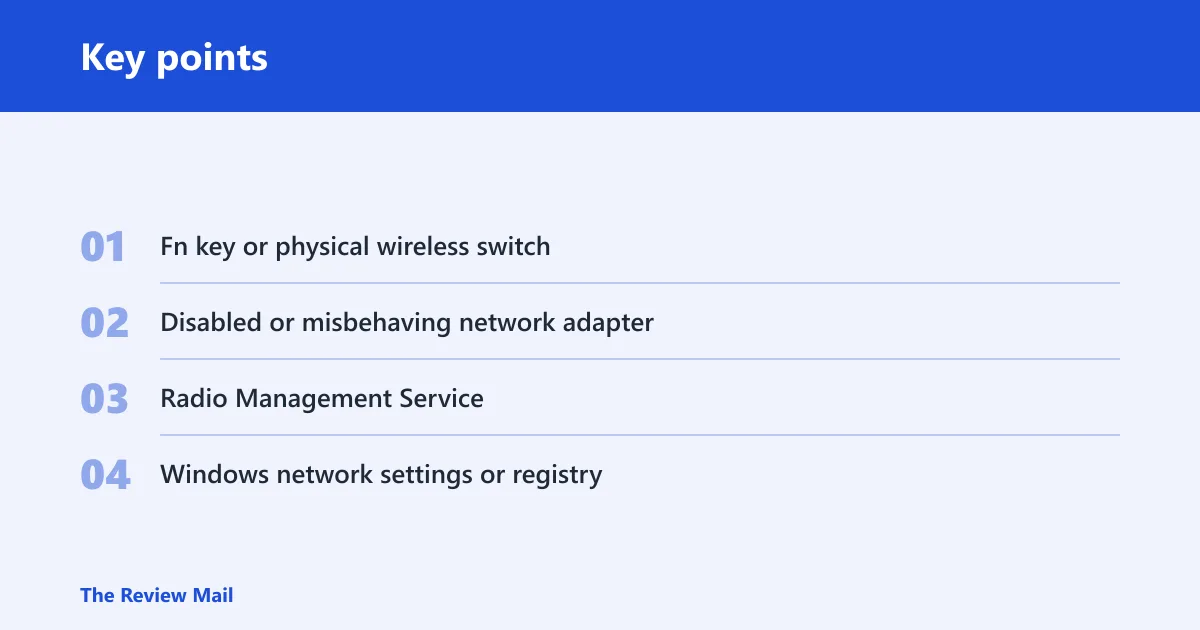
- Fn key or physical wireless switch. Common on laptops with a radio tower key or side switch.
- Disabled or misbehaving network adapter. The Wi‑Fi adapter may be disabled, missing, or set to save power too aggressively.
- Radio Management Service. Microsoft Learn documents this service as part of airplane mode control. (Microsoft Learn)
- Windows network settings or registry. A reset or older registry fix may be needed when the usual path fails.
Say your 14-inch laptop turns on airplane mode after sleep, the toggle is not gray, and Wi‑Fi stays off even after tapping it twice. That pattern usually points to a radio key, driver, or service issue rather than a dead router.
Suppose a desktop has no wireless key, no Bluetooth device, and the toggle is gray in Settings. That points away from a physical control and toward the adapter, service, or a deeper Windows setting.
How do you turn off airplane mode if the toggle won’t work?
If the toggle is available, turn airplane mode off in Action Center or the quick-action icon first, then confirm it in Settings > Network & Internet > Airplane mode. If the switch is gray or unresponsive, stop clicking it. Windows cannot hand control back to the radio stack until the driver or service issue is fixed.
Turn it off from Windows 10 controls
- Open Action Center from the notification area, or click the network / quick-action icons on the taskbar.
- Click Airplane mode once to turn it off.
- Open Settings > Network & Internet > Airplane mode and confirm the toggle is off there too.
- If it turns back on right away, restart the PC once and recheck.
What to do if the toggle is gray
- Open Device Manager with Win+X > Device Manager or by typing
devmgmt.msc. - If the Wi‑Fi adapter appears, continue to the adapter section below.
- If it does not appear, check whether it is hidden or disabled first, then move to the service section.
Could a laptop key or switch keep it on?
Yes. On laptops, an Fn wireless key or physical switch can keep radios off even when Windows says airplane mode is disabled. The exact shortcut varies by manufacturer, and the key often has a radio tower or antenna icon. Desktops usually do not have this layer, so you can skip it there.
Check the hardware radio controls
- Look for an Fn key paired with a wireless icon key, often on the top row.
- Press the function combo that your laptop brand uses for wireless radio control.
- Check the laptop edges for a physical wireless switch and move it to the on position.
- After each change, wait a few seconds and check Wi‑Fi again.
If the machine has no wireless key and no switch, stop searching for one. Move on to the adapter instead.
Use Device Manager to check the adapter
Device Manager is the right place to confirm whether the Wi‑Fi adapter is present, enabled, and using a driver that still matches the hardware. TechWiser and MajorGeeks both point to Device Manager for checking driver and adapter issues. If the adapter is missing, disabled, or broken, airplane mode symptoms can follow.
Find the Wi‑Fi adapter and check power settings
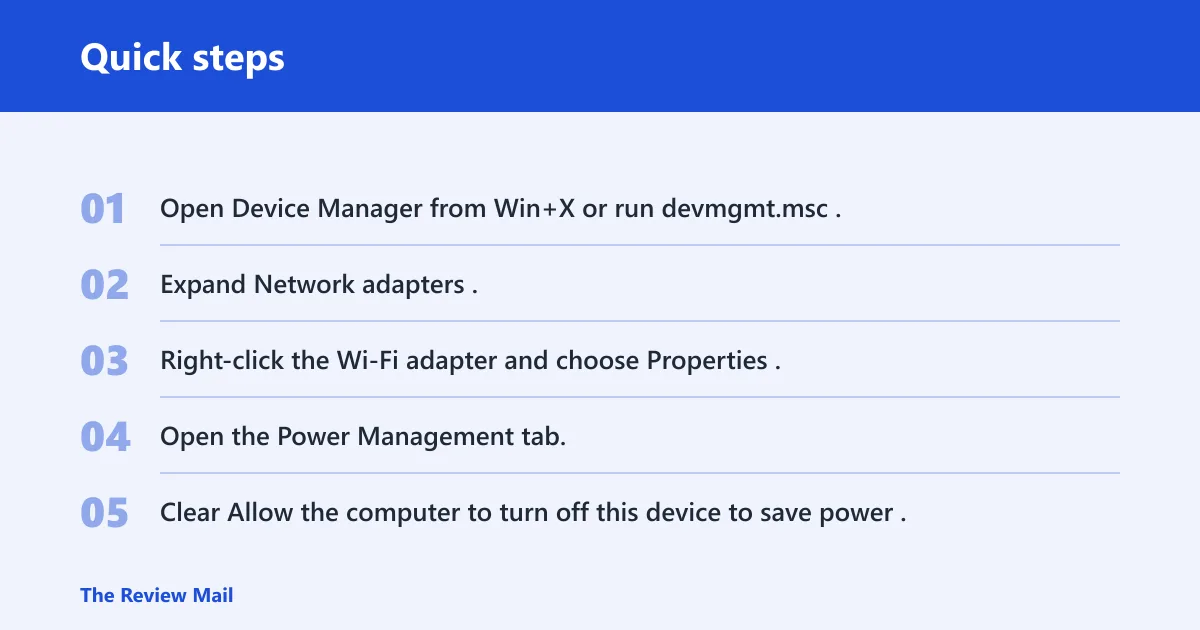
- Open Device Manager from Win+X or run
devmgmt.msc. - Expand Network adapters.
- Right-click the Wi‑Fi adapter and choose Properties.
- Open the Power Management tab.
- Clear Allow the computer to turn off this device to save power.
- Click OK, then restart.
Decide between updating and rolling back
- If the problem started after a recent driver update or Windows update, open the adapter Properties again.
- On the Driver tab, choose Roll Back Driver if that button is available.
- If there was no recent change, choose Update Driver and let Windows search locally first.
- If the adapter is disabled, right-click it and choose Enable device.
When the adapter does not appear at all, that is a stronger signal than a failed toggle. Check the service next, then consider a network reset.
Radio management service fix
Radio Management Service is specifically named as required for airplane mode, and it can be one reason the PC gets stuck. If the toggle is gray, or airplane mode returns after sleep, service state is worth checking before deeper repairs. A start, stop, or startup-type change can clear a stuck radio state.
Check the service in Services.msc
- Press Win+R, type
services.msc, and press Enter. - Find Radio Management Service.
- Open Properties and check the Startup type.
- If it is Disabled, change it to a startup type that is not disabled.
- Click Start, then Stop, then Start again if the controls are available.
- Restart Windows and test the airplane mode toggle again.
If the service change helps once but the problem comes back after sleep, the laptop may also have a driver or power setting issue. That is the point to move to the network reset step.
Airplane mode fix checklist
Use this section when the earlier steps did not hold. Network reset is the heavier built-in fix, and Microsoft’s Windows 10 Settings app places it under Network & Internet. A reset can clear saved Wi‑Fi passwords and settings, so treat it as a later step, not the first move.
| Symptom | Most likely next step | Stop escalating when |
|---|---|---|
| Airplane mode toggle is gray | Check services.msc for Radio Management Service | The toggle becomes clickable and wireless turns on |
| Wi‑Fi adapter appears in Device Manager | Update or roll back the adapter driver | The adapter is enabled and connects normally |
| Problem started after sleep or resume | Clear adapter power saving, then restart | Wireless stays on after the next resume |
| Laptop with Fn radio key | Use the wireless key or physical switch | Airplane mode stays off after a restart |
| No saved network survives and Wi‑Fi still fails | Run Network reset | Windows reconnects after you re-enter Wi‑Fi credentials |
| Registry fix already tried | Escalate to vendor support or deeper repair | Radio mode stays stable after a full reboot |
Run network reset from Settings
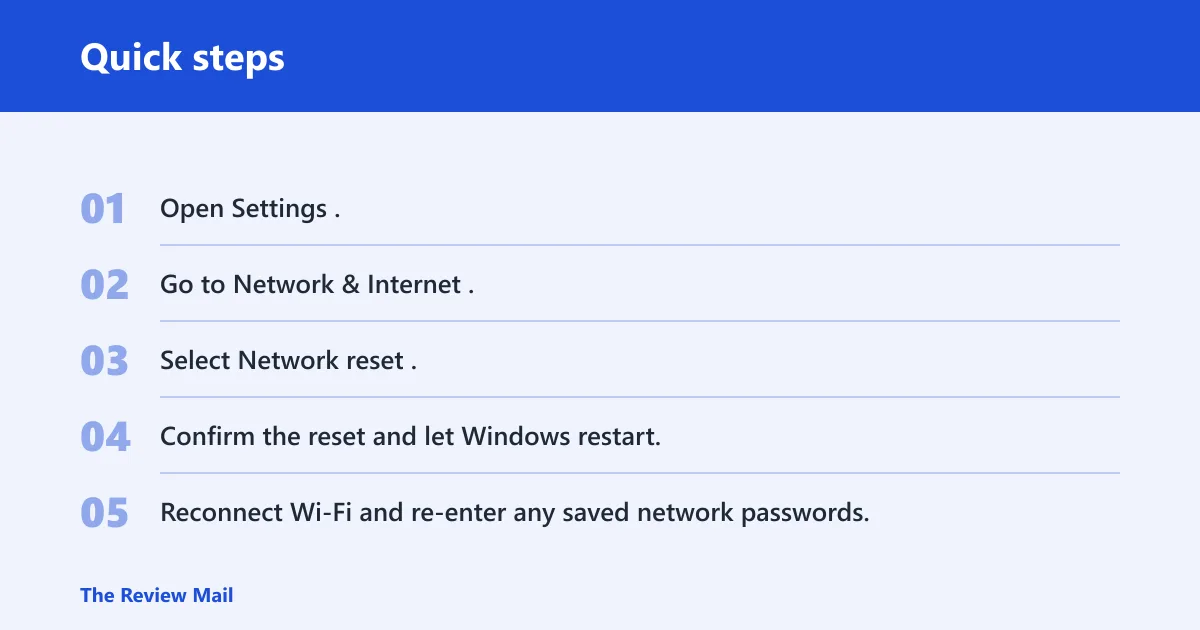
- Open Settings.
- Go to Network & Internet.
- Select Network reset.
- Confirm the reset and let Windows restart.
- Reconnect Wi‑Fi and re-enter any saved network passwords.
Use the registry only as an advanced step
- Press Win+R, type regedit, and open the Registry Editor.
- Back up the relevant key before making any change.
- Restart after the edit and test the toggle once.
A common first-timer mistake is jumping to the registry before checking the adapter or service. That can add risk without solving the cause.
What if airplane mode comes back after sleep or restart?
If the problem returns after sleep or reboot, the machine is probably not holding a radio state across power changes. Guiding Tech notes that Windows may fail to switch on Wi‑Fi after resume from sleep. That makes power management, driver behavior, and service state more likely than a one-time toggle error.
Check after a resume cycle
- Open Device Manager and revisit the Wi‑Fi adapter Power Management tab.
- Uncheck Allow the computer to turn off this device to save power if it is still enabled.
- Check
services.mscagain for Radio Management Service. - If a recent update started the issue, use Roll Back Driver before trying a newer one.
If third-party security software includes a firewall, VPN, or device-control feature, disable it only long enough to test whether it is blocking the radio stack. Do not leave protection off after the test.
Keep wireless drivers current, and after major updates, check that the adapter still has the power-saving box cleared.
Frequently asked questions
Why is my computer stuck in airplane mode Windows 10?
The usual causes are a laptop wireless key, a disabled Wi‑Fi adapter, or Radio Management Service. Start with Settings > Network & Internet > Airplane mode, then check Device Manager and services.msc. If the toggle is gray, that usually points to driver or service trouble.
Can a function key or physical switch keep airplane mode stuck on?
Yes. Many laptops use an Fn key combo or a physical radio switch for Wi‑Fi control. Look for a key with a wireless icon, then check the laptop edges for a hardware switch. Desktops usually skip this layer, so the adapter or service is more likely there. (Intel)
Will resetting network settings fix airplane mode in Windows 10?
It can, especially when the adapter or network stack is corrupted. Open Settings > Network & Internet and choose Network reset. Be ready to reconnect to Wi‑Fi afterward, because saved Wi‑Fi passwords and settings can be cleared.
Should I update or roll back my network driver?
Roll back first if the problem began right after a driver or Windows update. Update first if nothing changed recently and the adapter still appears in Device Manager. MajorGeeks recommends Device Manager for this step, and the adapter’s Driver tab gives you both options.
Could the Radio Management Service be causing airplane mode to stay on?
Yes. Open services.msc, find Radio Management Service, and check whether it is disabled or stopped. Change the startup type away from Disabled, then start the service and restart Windows. If that does nothing, move back to the adapter or driver.
Is there a registry fix for airplane mode stuck on Windows 10?
There is an older one under Windows registry settings that changes RadioEnable from 1 to 0. Use it only after safer fixes fail. Back up the key first, because it is an advanced edit and not the usual starting point.
Do I need to disable third-party firewall or malware to fix this?
Only as a short test. Some security tools can block wireless control or network services, especially after an update. Disable the tool briefly, test the radio, and turn protection back on right away. If the symptom disappears, adjust that app’s network or device-control settings.