Windows 11 Can’t Set Up Mobile Hotspot
If Windows 11 can’t set up Mobile Hotspot, check the symptom path first: hotspot won’t turn on, the service won’t start, or devices can’t connect. Picking the wrong branch wastes time and can leave sharing broken after a restart. Follow the fixes in this order so you can restore hotspot setup fast.
What the error means and when to follow this guide
The message “We can’t set up Mobile Hotspot” points to a setup failure, not always a dead internet connection. A common first step is to restart the PC, then check the Windows Mobile Hotspot Service and WLAN AutoConfig before changing deeper settings.
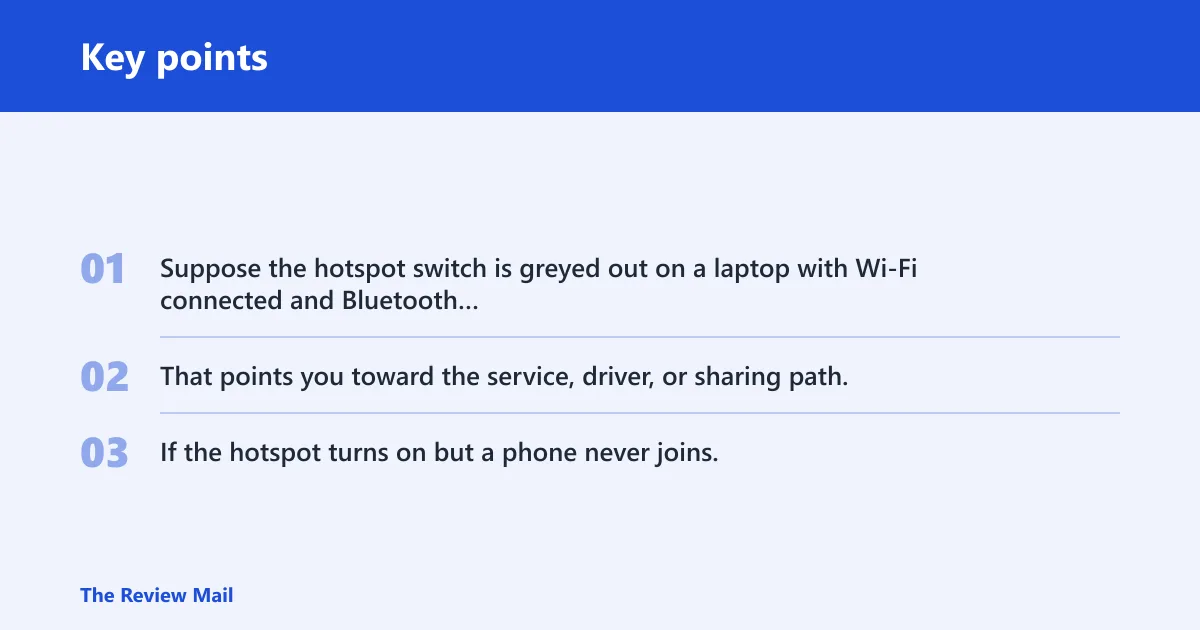
Suppose the hotspot switch is greyed out on a laptop with Wi-Fi connected and Bluetooth on. That points you toward the service, driver, or sharing path. If the hotspot turns on but a phone never joins, that is a different branch and needs connection checks instead.
Likely causes, in the right order
A common cause of hotspot setup failure is that Windows Mobile Hotspot Service is stopped or stuck. Next most common is WLAN AutoConfig not set to Automatic, which can block wireless detection and keep hotspot availability unstable. After that, look at adapter sharing settings, VPN or Bluetooth interference, driver or adapter issues, a recent Windows update, and finally registry or network configuration damage.
Decision table for the symptom path
| Symptom | Most likely cause | First action | Second action | When to stop escalating |
|---|---|---|---|---|
| We can’t set up Mobile Hotspot | Hotspot service stopped or WLAN AutoConfig not set correctly | Restart Windows Mobile Hotspot Service | Set WLAN AutoConfig to Automatic | Stop if the toggle turns on and sharing begins normally |
| Hotspot toggle won’t turn on | Service, driver, VPN, Bluetooth, or adapter issue | Run the Network Adapter troubleshooter | Disable VPN and Bluetooth, then test again | Stop if the toggle turns on after one of those changes |
| Hotspot turns on but devices can’t connect | Sharing settings or upstream network problem | Check adapter sharing settings | Test with one device, then verify the PC has internet | Stop if one device joins and gets internet access |
| Issue started after update | Problem update or changed driver state | Open Windows Update history | Uninstall the most recent update if timing matches | Stop if hotspot returns after rollback |
| Issue only affects one Wi-Fi adapter | Adapter-specific driver or hardware limit | Switch to another adapter if available | Use older wireless driver if Windows offers it | Stop if the alternate adapter works or the driver rollback fixes it |
How do you fix the hotspot service?
Start here when Windows says it cannot set up Mobile Hotspot, because the background service is a common blocker. If the service is stopped, the toggle may fail before any connection is attempted. Start or restart it first, then move on only if the problem remains.
- Press Win + R, type
services.msc, and press Enter. - Find Windows Mobile Hotspot Service.
- Right-click it and choose Restart. If it is not running, choose Start.
- Find WLAN AutoConfig, open Properties, and set Startup type to Automatic.
- Select Apply, then OK, and try Mobile Hotspot again in Settings > Network & internet > Mobile hotspot.
Why won’t the hotspot toggle turn on?
A toggle failure usually means Windows is blocked before sharing starts. That often points to the adapter state, a VPN, Bluetooth interference, or a driver mismatch. Check the built-in troubleshooter first, then remove the common blockers one by one.
- Open Settings > System > Troubleshoot > Other troubleshooters.
- Run Network Adapter and follow the prompts.
- Turn off any active VPN app, then retry the hotspot.
- Turn off Bluetooth, then test again.
- Open Device Manager > Network adapters, then check whether the Wi-Fi adapter shows an error icon or missing driver state.
A common setup mistake is trying to create a mobile hotspot while Windows 11 is using airplane mode and the Wi‑Fi adapter is disabled. Picture a 13-inch laptop on Wi-Fi with the hotspot slider refusing to move; if the VPN profile stays active, Windows may keep the hotspot from starting at all.
Why can devices not connect to the hotspot?
If the hotspot turns on but a phone or tablet cannot join, the PC may be sharing the wrong adapter, or sharing may be off entirely. This branch is about connection handoff, not startup. Check the sharing box and confirm the PC has a live upstream connection before you keep changing settings.
- Open Control Panel > Network and Internet > Network Connections.
- Right-click the active internet adapter and open Properties.
- Select the Sharing tab.
- Check whether Allow other network users to connect through this computer’s Internet connection is enabled. If a fix path calls for clearing it, uncheck it first, apply, then re-enable only if the adapter path requires it.
- Retest with one device only, then reconnect a second device after the first works.
Suppose the hotspot SSID appears, but the phone says it cannot obtain an address. That often points back to sharing or upstream internet, not the phone itself. Test once with only one band and one device, then stop if that single device connects cleanly.
What should you try after an update?
If the hotspot broke right after Windows updated, the timing matters. Use Windows Update history first so you can see what changed. If the failure began immediately after a specific update, rolling that update back is more targeted than a broad reset.
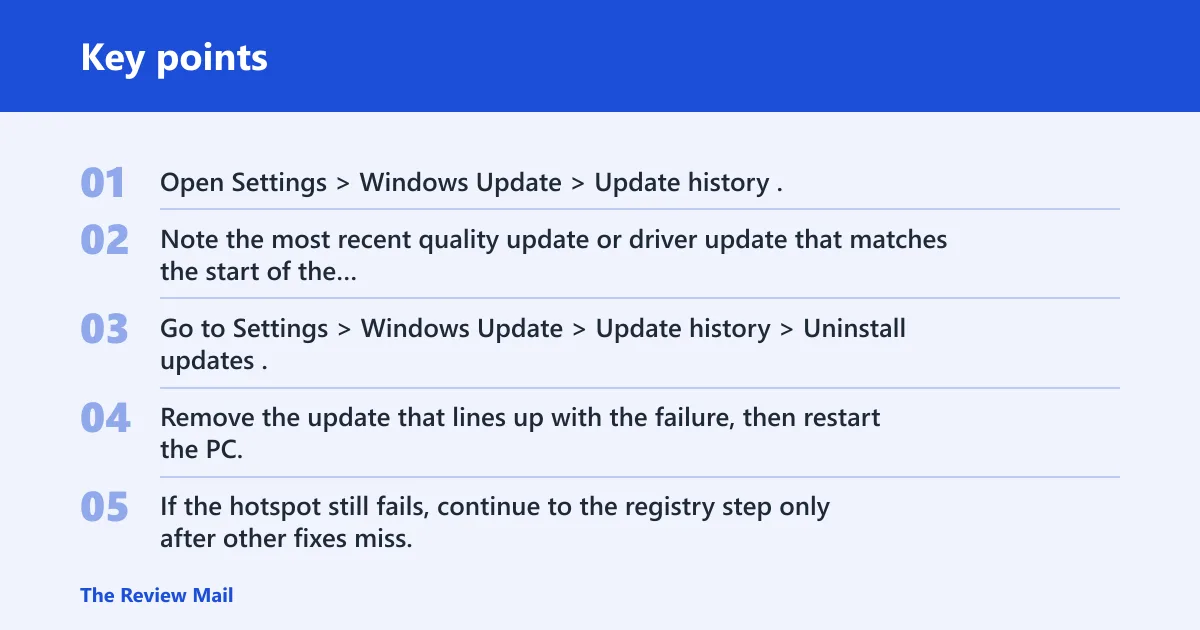
- Open Settings > Windows Update > Update history.
- Note the most recent quality update or driver update that matches the start of the problem.
- Go to Settings > Windows Update > Update history > Uninstall updates.
- Remove the update that lines up with the failure, then restart the PC.
- If the hotspot still fails, continue to the registry step only after other fixes miss.
If the machine uses an OEM Wi-Fi utility or a managed work profile, keep that in mind before rolling back. A work-managed PC may block driver changes, and vendor software can override Windows settings.
What if adapter sharing or registry data is corrupted?
These steps are more invasive. Use them after services, sharing, VPN, Bluetooth, and update rollback have all failed. The registry path below is the cautionary one, because a wrong edit can create a new problem faster than it fixes the old one.
- Open Registry Editor and back up the key before changing anything.
- Go to
HKEY_LOCAL_MACHINE\SYSTEM\CurrentControlSet\Services\WlanSvc\Parameters\HostedNetworkSettings. - Delete HostedNetworkSettings only if the hotspot still fails after the earlier steps.
- Restart the PC, then try Mobile Hotspot again from Settings > Network & internet > Mobile hotspot.
Delete the key only when the symptom has survived the simpler repairs. If the hotspot returns after the restart, stop there and do not keep changing registry data.
Still not working?
Use Network reset as the last resort when the PC still cannot set up hotspot, the toggle stays broken, or connection sharing keeps failing after every earlier step. It clears network configuration and forces Windows to rebuild adapters and related settings.
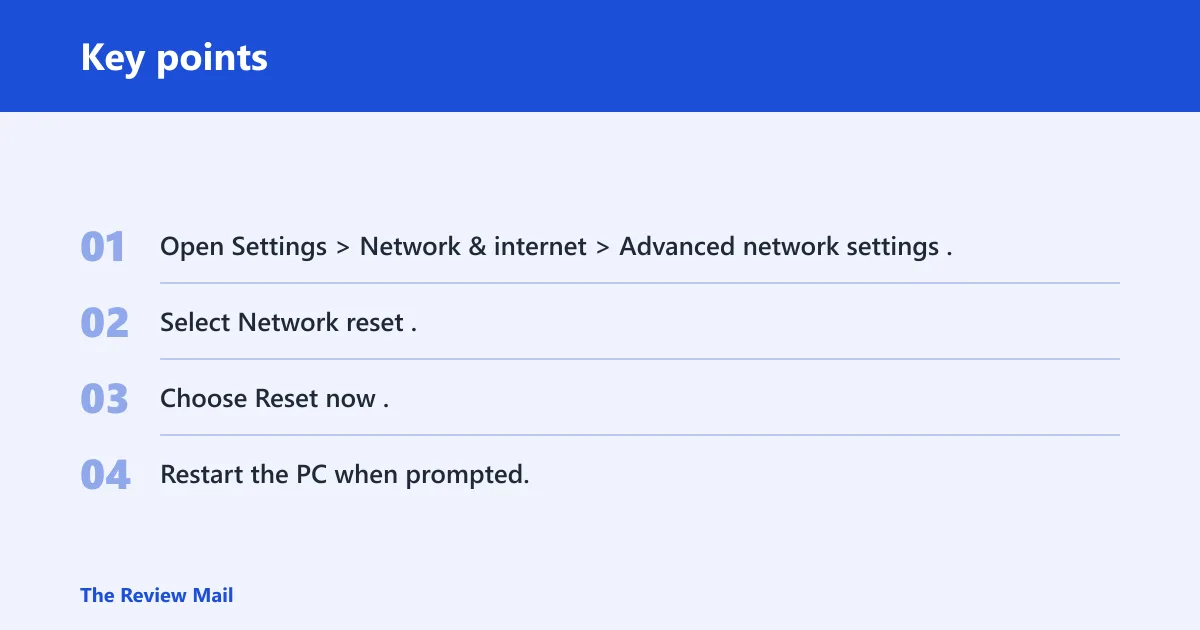
- Open Settings > Network & internet > Advanced network settings.
- Select Network reset.
- Choose Reset now.
- Restart the PC when prompted.
If the same adapter fails after reset while another Wi-Fi adapter works, the hardware or its driver is the limit. At that point, contact the device maker or IT support, especially on a managed work PC.
After Windows updates, check Update history before changing several network settings at once. That makes it easier to spot the exact change that broke hotspot sharing.
Frequently asked questions
Why does Windows 11 say we can’t set up mobile hotspot?
That message usually points to a blocked hotspot startup path, not a total loss of internet. Start with services.msc, restart Windows Mobile Hotspot Service, and set WLAN AutoConfig to Automatic. If the message remains, run Settings > System > Troubleshoot > Other troubleshooters > Network Adapter.
How do I fix mobile hotspot not working on Windows 11?
Start with the service and adapter path in this order: restart Windows Mobile Hotspot Service, confirm WLAN AutoConfig is Automatic, then run the Network Adapter troubleshooter. If the hotspot still fails, disable VPN and Bluetooth, then check adapter sharing under Properties > Sharing.
Why can’t I turn on mobile hotspot in Windows 11?
A failed toggle usually means Windows is blocked before it starts sharing. Check Network Adapter troubleshooting first, then turn off VPN and Bluetooth, and inspect the Wi-Fi adapter in Device Manager. If only one adapter fails, the driver or adapter itself is the likely limit.
How do I restart the Windows Mobile Hotspot service?
Press Win + R, type services.msc, and press Enter. Right-click Windows Mobile Hotspot Service, then choose Restart. If it is stopped, choose Start instead. After that, confirm WLAN AutoConfig is set to Automatic.
Could a VPN stop Windows 11 mobile hotspot from working?
Yes. VPN software can block hotspot use on Windows 11, so disconnect or exit the VPN and test again from Settings > Network & internet > Mobile hotspot. If the hotspot starts after that, leave the VPN off while you retest the sharing path and adapter settings.
How do I reset network settings to fix hotspot issues?
Go to Settings > Network & internet > Advanced network settings > Network reset, then choose Reset now. Use this only after service, sharing, driver, and update checks fail. Restart afterward, because the reset does not finish until Windows reloads the network stack.
Should I uninstall a recent Windows update if hotspot broke?
If the problem started right after an update, yes, that is worth trying. Open Settings > Windows Update > Update history, identify the most recent change, and use Uninstall updates if the timing matches. If the hotspot issue started before the update, skip rollback and keep troubleshooting the service path.
What service controls Mobile Hotspot in Windows 11?
The main one to check is Windows Mobile Hotspot Service. It should be running in the background, and it can be restarted or started from Services. WLAN AutoConfig also matters, because it should be set to Automatic for wireless detection and connection support.