Device Manager in System32: Where It Is and How to Open It
Device Manager is the Windows tool you open by running devmgmt.msc, which is typically located in C:\Windows\System32. Device Manager itself is not a separate folder item in System32. Searching System32 is usually not necessary when you need hardware settings fast. This guide shows where Device Manager actually comes from, how to open it quickly, and why System32 keeps coming up.
Device Manager vs System32 vs devmgmt.msc
Device Manager is Windows’ built-in hardware and driver management utility. It can show device type, status, manufacturer, properties, and driver information, and it can display a yellow exclamation point when Windows sees a problem. It also hides some devices by default, so a missing item is not always the same thing as a missing driver. (Microsoft Learn)
| term | what it is | how to open/find it |
|---|---|---|
| Device Manager | The Windows utility for viewing hardware, drivers, device status, and properties. | Search for Device Manager in Start, or open it with devmgmt.msc. |
| System32 | A Windows system folder commonly associated with administrative tools and legacy executable locations. | Open File Explorer and go to the Windows system folder, usually under the Windows install path. |
devmgmt.msc | The file used to launch Device Manager through the Microsoft Management Console. | Press Win + R, type devmgmt.msc, then press Enter. |
People often mix these up because they are looking for a tool, while Windows exposes that tool through a launch file and a system folder path. If you are trying to fix a driver issue, the shortest path is usually to open Device Manager directly, not to search folders first.
Is device Manager in System32?
No. Device Manager is the interface you open, while the launch file devmgmt.msc is typically stored in C:\Windows\System32. The confusion comes from the fact that Windows administrative tools and legacy management files often live in system locations, while Device Manager itself is the window you use.
System32 is a Windows system folder. Device Manager is the hardware and driver management utility. The launch file devmgmt.msc starts Device Manager, and that distinction matters when you are troubleshooting a driver error or checking whether Windows can still open the tool cleanly.
Say your Wi-Fi adapter shows a warning icon after a driver update. You do not need to browse through System32 looking for “Device Manager.” You need to open Device Manager, find the adapter, and check the device status and error code in Properties.
Why System32 gets mentioned at all
System32 gets mentioned because many Windows tools, shells, and administrative components have long been tied to system files and system paths. That makes it an easy place for users to search when they expect a tool to be stored somewhere on disk. In this case, the tool is launched through a file in that folder.
That is why the question “Is Device Manager in System32?” usually points to a path problem, not a hardware problem. If a reader is searching folders instead of opening the utility, the real fix is to use Start search or the Run command.
What devmgmt.msc does
devmgmt.msc is the Device Manager launch file. Microsoft says it is a way to open Device Manager, and It is often faster than searching menus, especially when Start search is slow or crowded with other results.
The file association matters because .msc files open Microsoft Management Console snap-ins. Device Manager is one of those snap-ins. So when you run devmgmt.msc, Windows opens the Device Manager interface instead of a separate standalone program window.
When this is faster than Start search
- Press Win + R.
- Type
devmgmt.msc. - Press Enter.
This route helps when you already know the tool name and want it open right away. It also avoids search results that mix settings pages, Control Panel links, and unrelated system items before the hardware utility appears.
Suppose a laptop will not detect a USB camera after a driver install. Running devmgmt.msc gets you into Device Manager directly, where you can check whether the camera is listed, whether it is hidden, and whether the status box shows an error code.
How do you open Device Manager?
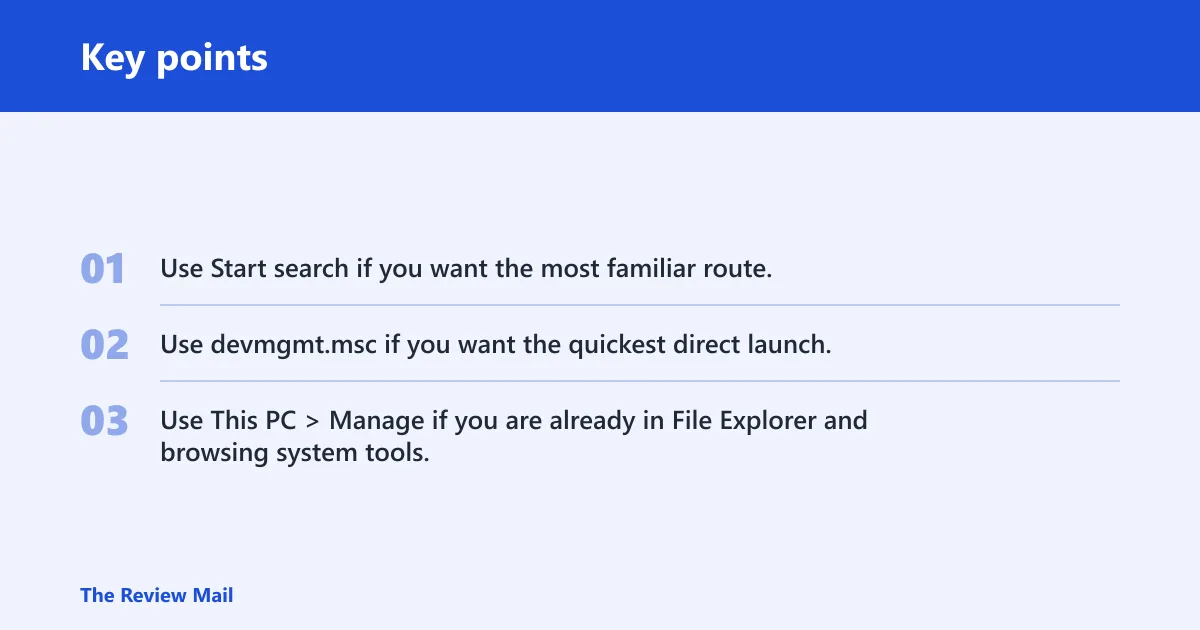
You can open Device Manager from Start search, from This PC > Manage, or by running devmgmt.msc. Microsoft documents both Start search and This PC > Manage, and the Run command is a direct launch method. If one route fails or feels slow, use another.
Open it from Start search
Type Device Manager in the Start menu search box and open the result. Microsoft says this is a supported way to launch it. Search for Device Manager in Start. Use Start search if you want the most familiar route. This is the simplest path for most Windows users because it avoids folders and file names entirely.
Open it from This PC > Manage
Microsoft also says Device Manager can be opened from This PC > Manage. This is a legacy-style path that still helps when a user is already in File Explorer or looking for system administration tools from a control-panel era workflow.
Open it with devmgmt.msc
Use Win + R, type devmgmt.msc, and press Enter. This is the best option when you know the command and want the tool immediately. It is also the clearest answer to “what does devmgmt.msc do?” because it opens Device Manager itself.
If you are unsure which path to use
- Use Start search if you want the most familiar route.
- Use
devmgmt.mscif you want the quickest direct launch. - Use This PC > Manage if you are already in File Explorer and browsing system tools.
Why are devices hidden?
Devices can be hidden in Device Manager because Windows does not always show every previously installed, disconnected, or nonpresent device by default. That does not automatically mean something is broken. It often means the item is being kept out of the main view until you ask Device Manager to reveal it.
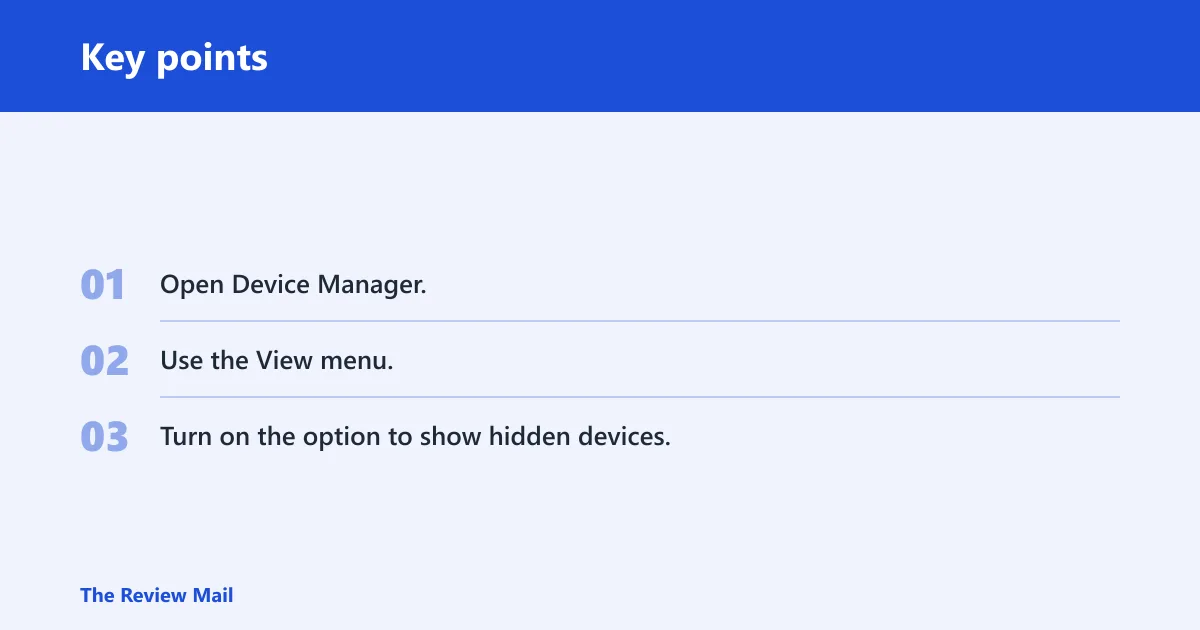
Microsoft says Device Manager can hide some devices by default, and hidden devices can be revealed by viewing hidden devices. That option matters when you are checking for old hardware entries, stale driver records, or a device that appeared, disappeared, and then left a trace behind.
How to show hidden devices
- Open Device Manager.
- Use the View menu.
- Turn on the option to show hidden devices.
Once hidden entries are visible, Device Manager can show more than the live hardware list. That helps when a port, adapter, or peripheral seems to have vanished after a change and you need to see whether Windows still has a record of it.
A common first-timer mistake is to see a grayed-out entry and assume the driver failed. A grayed-out or hidden entry may simply be a device that is not currently connected. The next step is to check its status and properties, not to assume the hardware is dead.
Device Manager Properties tabs
Right-clicking a device and opening Properties gives you the details that matter most for diagnosis. Microsoft says the Properties dialog includes General, Driver, Details, and Events tabs. The General tab is where Device status appears, including error information.
General tab and Device status
The General tab is the first place to check when a device has a warning symbol or is not working correctly. The Device status box tells you whether Windows thinks the device is working and may show an error code. That makes it the fastest diagnostic view.
Driver and Details tabs
The Driver tab is where you can inspect driver-related information and, when needed, update or uninstall a driver. The Details tab is for more specific device data, which is useful when you need identifiers or low-level fields rather than a plain status summary.
Events tab
The Events tab lists recent changes tied to the device. That can help you connect a failure to a driver install, a reconnect, or another system change without guessing which event came first.
| tab | what you check there | why it matters |
|---|---|---|
| General | Device status and error code information. | Shows whether Windows sees the device as working. |
| Driver | Driver details and related actions. | Helps when the issue is driver-related. |
| Details | Specific device data fields. | Useful for deeper identification and troubleshooting. |
| Events | Recent device events. | Helps link the problem to a recent change. |
Device Manager error codes and status
Device Manager error codes appear in the Device status area on the General tab. Microsoft’s error-code article applies to Windows 11 and Windows 10, and it lists examples such as Code 1 and Code 3. Those codes help narrow whether the issue looks driver-related, memory-related, or something else.
Code 1 is listed by Microsoft as a driver-related problem in Device Manager. Code 3 may be caused by corrupted drivers or low memory. Those are not the only possible problems, but they give you a much better starting point than a blank warning icon. (Microsoft Support)
When you see a yellow exclamation point, open Properties and read the Device status box before changing drivers at random. That sequence matters because the message may already point you to the right class of problem.
How the status box guides the next step
If Device status points to a driver issue, the Driver tab becomes the next stop. If it points to a device that is not present, hidden devices may explain the missing entry. If the status shows a code, that code helps you decide whether the next step is reinstalling a driver, checking hardware, or looking for a memory-related issue.
Device Manager search decision table
Use this quick decision table when you are not sure whether you need Device Manager, System32, or the launch file. It keeps the path problem separate from the hardware problem.
| term | what it is | how to open/find it |
|---|---|---|
| Device Manager | The tool for checking hardware, drivers, device status, and error codes. | Search for Device Manager in Start or run devmgmt.msc. |
| System32 | A Windows system folder that people often search by mistake when they want a tool. | Open the Windows folder in File Explorer; do not expect Device Manager itself to live there. |
devmgmt.msc | The file used to launch Device Manager. | Run it from the Run dialog with Win + R. |
| If you searched System32 because… | what you probably need | next action |
|---|---|---|
| you thought Device Manager was stored there | the actual launch method | Open Device Manager from Start search or run devmgmt.msc. |
| you were chasing a driver error | device status and error code details | Open the device Properties dialog and read the General tab. |
| you could not find a missing device | hidden device visibility | Turn on the option to show hidden devices in Device Manager. |
Frequently asked questions
Why is System32 called System32?
The name comes from Windows’ system-directory naming convention for core system files and components. For a user trying to fix hardware, the reason for the name matters less than the practical point: System32 is a folder, while Device Manager is a tool that you open separately.
Why are devices hidden in Device Manager?
Windows hides some devices by default so the main list stays focused on the devices it considers active or currently relevant. Hidden entries can still matter during troubleshooting, especially after a device was removed, disconnected, or replaced. Use the view option to reveal them when needed.
Is Device Manager in System32: device Manager itself is not?
Device Manager itself is not a folder item inside System32. The launch file devmgmt.msc is typically located in C:\Windows\System32, and that is the part you can run to open the Device Manager interface.
What does devmgmt.msc do?
devmgmt.msc launches Device Manager. It is a Microsoft Management Console snap-in file, and it works as a direct open method in Windows 11 and Windows 10. If you want the tool quickly, this command is one of the shortest routes.