Static Ip Address in Windows 11
To set a static IP in Windows 11, pick an unused address outside your router’s DHCP range and assign it manually. Choose the wrong one, and another device can take that address, which can break file sharing, printers, Remote Desktop, or internet access. This guide shows how to choose the right address first, then configure it in Windows 11 without disrupting the network.
What a static IP changes
A static IP stays the same until you change it. DHCP does the opposite: the router’s DHCP server assigns an address automatically, and that lease can change over time. Windows 11 can use either method on IPv4, but a manual address only helps when it matches the same subnet as your gateway and stays clear of the DHCP pool.
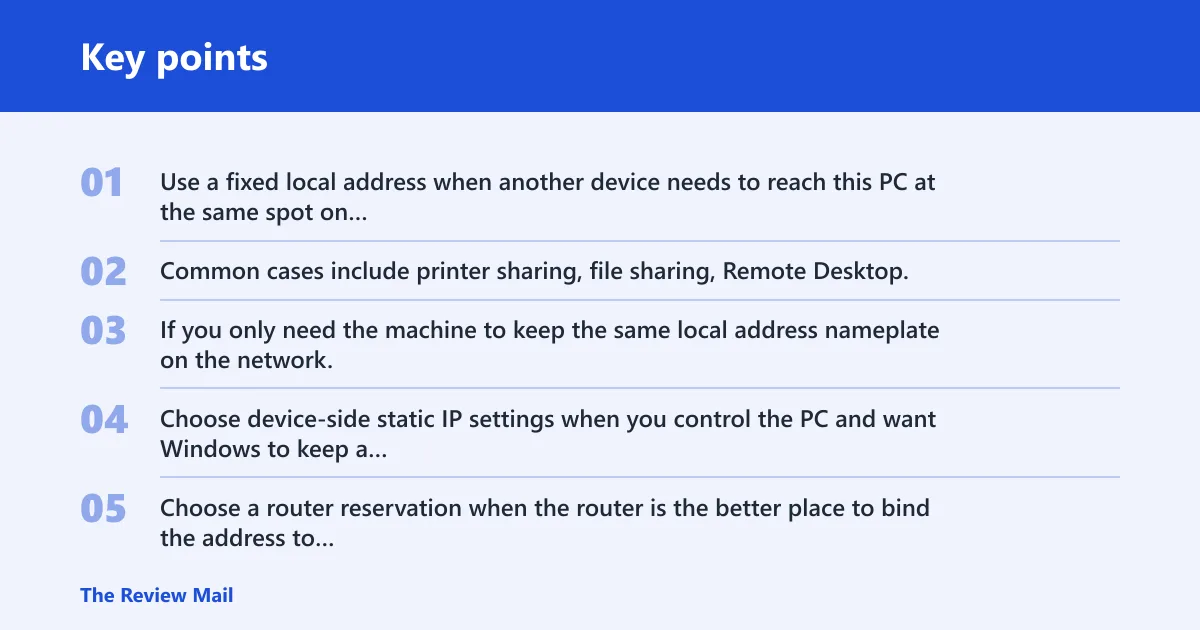
Use a fixed local address when another device needs to reach this PC at the same spot on your LAN. Common cases include printer sharing, file sharing, Remote Desktop, and port forwarding rules. If you only need the machine to keep the same local address nameplate on the network, a router DHCP reservation is often cleaner at home because the router still manages the lease.
Choose device-side static IP settings when you control the PC and want Windows to keep a fixed local address. Choose a router reservation when the router is the better place to bind the address to the device’s MAC address. The subnet rules are the same either way. The difference is where the assignment is enforced.
When a router reservation is the better choice
Use a router reservation when the network is home or small office, the router is managed by you, and the PC may move between Wi-Fi and Ethernet. The reservation keeps DHCP active while pinning one address to one device. That reduces manual drift and makes recovery easier if the router changes its LAN settings.
Use a true static IP on the PC when the router does not offer reservations, when the machine must keep a fixed address even if the router is replaced, or when you need the setting to follow the device across boot states without relying on DHCP. Managed office networks often prefer central control, so check the local policy first.
What details you need first?
Before assigning a static IP in Windows 11, gather the current IPv4 address, subnet mask, default gateway, and DNS servers. Those values show the local subnet and tell you which addresses belong to the network. Also check the router’s DHCP scope if you can, because the safest static address is outside that pool.
Use ipconfig /all to collect the numbers
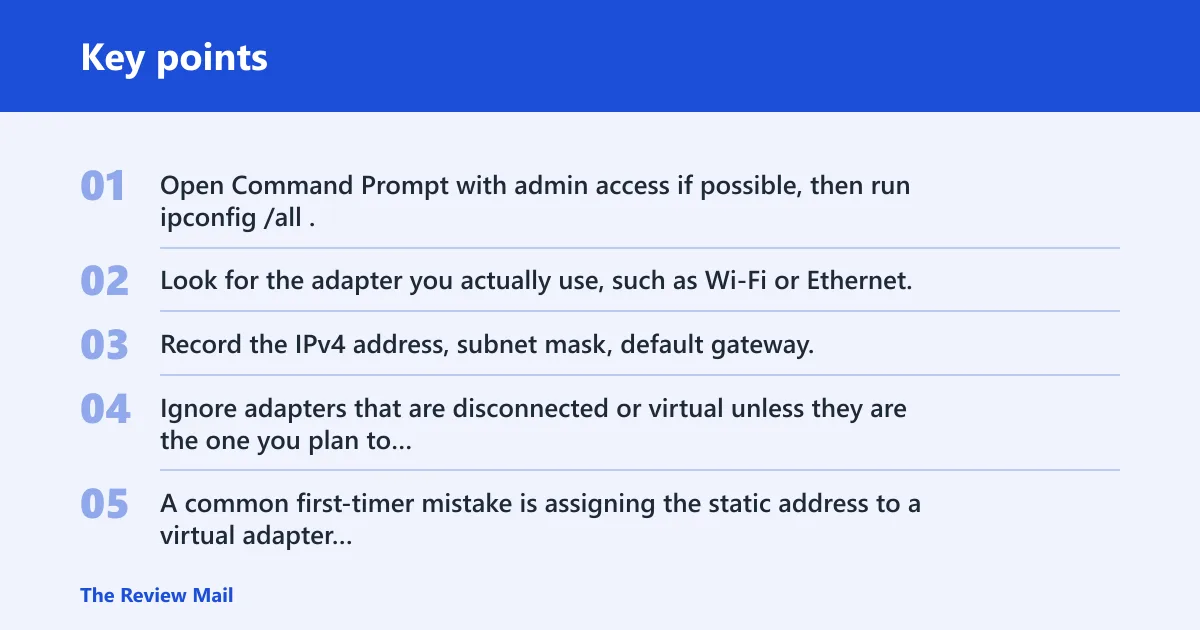
Open Command Prompt with admin access if possible, then run ipconfig /all. Look for the adapter you actually use, such as Wi-Fi or Ethernet. Record the IPv4 address, subnet mask, default gateway, and DNS server entries from that adapter only. Ignore adapters that are disconnected or virtual unless they are the one you plan to change.
A common first-timer mistake is assigning the static address to a virtual adapter instead of the active Wi‑Fi connection. Suppose Wi-Fi shows 10.1.4.23 with gateway 10.1.4.1, but Ethernet shows a disconnected 169.254.x.x address. If you build the static setup from the wrong interface, the PC may lose access as soon as you save.
Check the router DHCP scope
The DHCP scope is the range the router hands out automatically. If a DHCP pool covers roughly 10.1.4.2 through 10.1.4.100, a static address inside that span can collide with a lease later. The safest manual address is in the same subnet as the gateway but outside the active DHCP pool, and not already assigned to another device.
| Current IPv4 | Subnet mask | Default gateway | Safe static IP range |
|---|---|---|---|
| 10.1.4.23 | 255.255.255.0 | 10.1.4.1 | 10.1.4.101-10.1.4.254, excluding 10.1.4.1 and any DHCP lease range |
| 192.168.1.87 | 255.255.255.0 | 192.168.1.1 | 192.168.1.200-192.168.1.254, excluding 192.168.1.1 and any DHCP lease range |
| 10.0.0.54 | 255.255.255.0 | 10.0.0.1 | 10.0.0.150-10.0.0.254, excluding 10.0.0.1 and any DHCP lease range |
This table gives safe ranges, not fixed picks. The exact address still needs to be unused on your network. If your router’s DHCP pool already reaches into the upper end of the subnet, shift the static choice farther away.
How do I set a static IP address in Windows 11?
Open Settings, go to Network & internet, open the adapter you use, then find IP assignment and choose Edit. Select Manual, turn on the IPv4 switch, and enter the address, subnet mask, gateway, and DNS values you collected. Save, then verify that the PC still reaches the network.
Set it in the Settings app
- Open Settings.
- Go to Network & internet.
- Select the active adapter, such as Wi-Fi or Ethernet.
- Find IP assignment and select Edit.
- Change the mode to Manual.
- Turn IPv4 on.
- Enter a static IPv4 address that matches the subnet.
- Enter the subnet mask, default gateway, and DNS servers.
- Save the changes.
How-To Geek documents this path under Network & Internet, with IP assignment changed to Manual and the IPv4 switch turned on. That route is the simplest way to set a fixed address in Windows 11.
Keep DNS separate from the address itself. The PC can have a valid static IP and still fail to browse if DNS is wrong. If you want the router to resolve names, use the router’s DNS. If you want public resolvers, set those explicitly in the DNS fields.
How do I set a static IP address using Command Prompt on Windows 11?
Use an elevated Command Prompt, inspect the adapter with ipconfig /all, then apply the address with netsh interface ip set address and DNS with netsh interface ip set dns. This method is useful when you want a direct command-line setup or need to script the change on a machine without using Settings.
Set it with netsh
Open Command Prompt as administrator, then use a command in this structure:
netsh interface ip set address name="Wi-Fi" static 10.1.4.50 255.255.255.0 10.1.4.1
netsh interface ip set dns name="Wi-Fi" static 10.1.4.10
netsh interface ip add dns name="Wi-Fi" 10.1.4.11 index=2
The sample subnet mask uses 255.255.255.0, and the sample gateway uses 10.1.4.1. Replace both with values that match your own LAN. The interface name must also match your active adapter.
After the change, run ipconfig /all again and confirm that the IPv4 address, subnet mask, default gateway, and DNS values match what you entered. If the adapter shows an address but no internet, the gateway or DNS is the first thing to recheck.
Set it with PowerShell
PowerShell can set a static IP by adapter index instead of by visible name. Use Get-NetIPConfiguration to find the correct InterfaceIndex, then create the IPv4 address with New-NetIPAddress and set DNS with Set-DnsClientServerAddress. This is a clean option for administrators and scripted setups.
Use InterfaceIndex-based commands
Get-NetIPConfiguration

New-NetIPAddress -InterfaceIndex 12 -IPAddress 10.1.4.50 -PrefixLength 24 -DefaultGateway 10.1.4.1

Set-DnsClientServerAddress -InterfaceIndex 12 -ServerAddresses 10.1.4.10,10.1.4.11
The PowerShell example uses PrefixLength 24, which corresponds to a common /24 LAN range. It also uses Set-DnsClientServerAddress to set DNS separately from the address itself. That separation matters when the IP is correct but name resolution still fails.
Windows Central notes that dynamic TCP/IP is usually assigned by the router’s DHCP server, which is why a static change should stay outside the lease range. WindowsLoop also notes that a static IP gives the device a constant identity, which is exactly why Remote Desktop and file sharing benefit from it.
How do I choose a safe static IP address for my PC?
Pick an IPv4 address in the same subnet as the default gateway, keep it outside the router’s DHCP pool, and avoid any address already in use. A good choice is usually near the upper end of the subnet, after the DHCP range ends, with the gateway excluded. That prevents lease collisions and keeps the network stable.
Use this decision rule
A safe manual choice might be 10.1.4.200, but only if the DHCP pool does not reach that high and the address is free. If the router hands out addresses up to 10.1.4.220, move above that or lower the static choice below the pool.
Do not pick an address outside the subnet. Do not reuse the gateway’s address. Do not assume Wi-Fi and Ethernet need different logic. The subnet rules are the same. The active adapter and the router’s lease scope are what matter.
Why did it break internet access?
No internet after saving usually means one of three things: the gateway is wrong, the IP duplicates another device, or DNS is bad. The fix is to restore the correct gateway and DNS first, then check whether the static address conflicts with the DHCP pool or another reserved device. If needed, roll the adapter back to automatic settings.
Fix a wrong gateway
If the gateway does not match the router on the same subnet, the PC can keep a valid local address and still lose internet access. Correct the default gateway to the router’s LAN address, then save again. A gateway mismatch is one of the fastest ways to break a manual setup.
Fix a duplicate IP conflict
If another device already uses the same IPv4 address, Windows may connect briefly and then fail, or the network may warn about an address conflict. Change the static address to one that is outside the DHCP pool and not already assigned. If the router dashboard lists active leases, confirm the new address is absent there.
Restore automatic IP and DNS
If the manual setup fails and you need the machine back online fast, switch the adapter back to automatic IP and DNS. In Settings, return to IP assignment and choose automatic configuration. In command line tools, remove the manual address and restore DHCP, then let the router assign a fresh lease.
Validation checklist
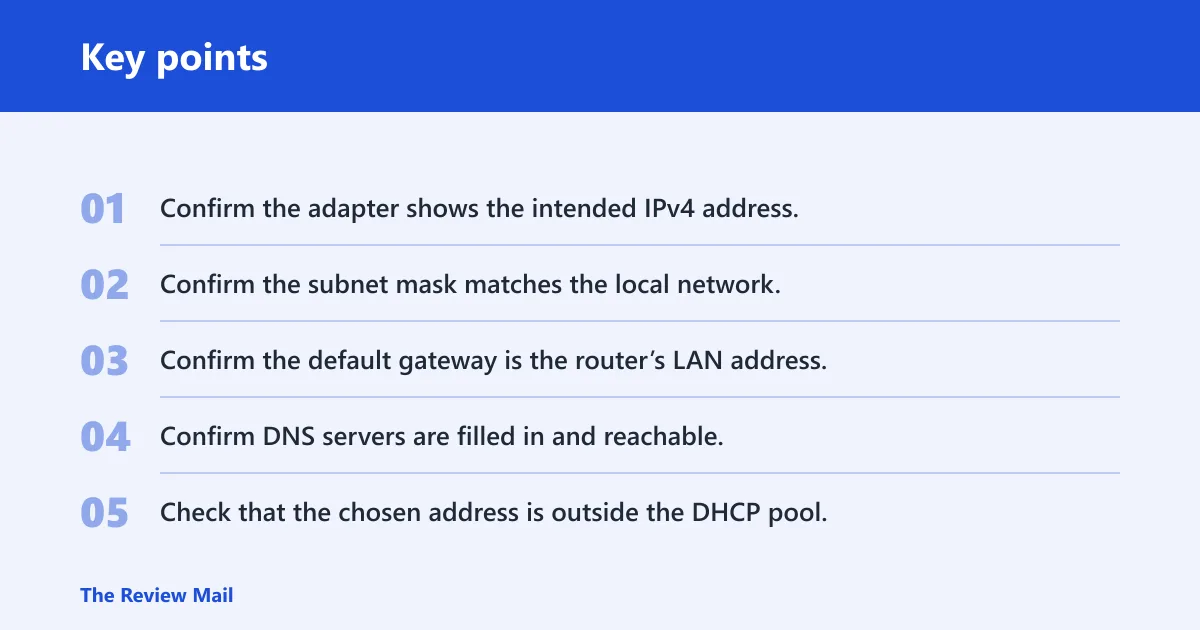
- Confirm the adapter shows the intended IPv4 address.
- Confirm the subnet mask matches the local network.
- Confirm the default gateway is the router’s LAN address.
- Confirm DNS servers are filled in and reachable.
- Check that the chosen address is outside the DHCP pool.
- Confirm the PC can reach another local device.
- Confirm file sharing or Remote Desktop works if needed.
- Check that the router does not list the same address as a lease.
Say your PC needs Remote Desktop from a laptop on the same LAN. If the fixed address is correct but RDP still fails, the issue may be firewall rules, not the IP itself. The static address only gives the machine a predictable target. It does not replace service permissions.
Frequently asked questions
How do I make my IP address static in Windows 11?
Gather your current IPv4 address, subnet mask, default gateway, and DNS first. Then either use the Settings app, an elevated Command Prompt with netsh, or PowerShell with New-NetIPAddress and Set-DnsClientServerAddress. The key is choosing a free address on the same subnet.
How do I set a static IP on Windows 11 from Settings?
Go to Network & internet, open the adapter you use, and edit IP assignment. Select Manual, turn on IPv4, and fill in the static IP, subnet mask, gateway, and DNS. Windows 11 can set a static IP this way directly from Settings.
What details do I need before assigning a static IP in Windows 11?
You need the current IPv4 address, subnet mask, default gateway, DNS servers, and the router’s DHCP scope if possible. Those values tell you which addresses are safe to use. Without them, it is easy to pick an address that conflicts with the DHCP pool or the gateway.
Should I set a static IP on Windows or reserve it in my router?
For a home network, a router reservation is often the better choice because DHCP still manages the lease while keeping the address fixed for that device. Use a true static IP on Windows when the router cannot reserve addresses, when the device must keep a fixed local address independently, or when network policy requires it.