Attempted_Switch_From_Dpc
Start with the minidump and the faulting driver. If the same module shows up in about 2 or more crashes, treat that device class as the likely suspect before changing anything else. Skipping the pattern usually leads to random driver swaps, wasted time, and repeat blue screens. This guide shows how to read dump files, narrow the likely hardware or driver class, and fix ATTEMPTED_SWITCH_FROM_DPC without guesswork.
For the fastest path, use the crash dump first, then confirm the pattern with BSOD error codes, WinDbg and minidump analysis, Safe Mode and WinRE boot guides, Driver Verifier, and memory and RAM diagnostics.
How DPC crashes actually work at IRQL 2
ATTEMPTED_SWITCH_FROM_DPC is a Windows bug check with value 0x000000B8, also shown as STOP 0x100000B8. Microsoft’s bug check reference and debugger documentation indicate that this crash happens when a Deferred Procedure Call tries an illegal operation at elevated IRQL, which is why the system stops instead of continuing with corrupted kernel execution. See Microsoft’s bug check 0xB8 reference and WinDbg debugger commands for the underlying mechanics.
The fastest first step is to pull the newest dump file and look for a repeated third-party .sys name before you change drivers at random. That keeps you from blaming ntoskrnl.exe just because it appears in the stack summary. The kernel often shows up as the crash wrapper, not the real cause.
The practical fix is to identify the repeated third-party driver or device class, then roll back, reinstall, or remove only that component. If the machine will not boot normally, move into Safe Mode or WinRE first so you can make the change without loading the same failing path again. Microsoft’s WinDbg, Driver Verifier, and Windows Recovery Environment guidance are the core tools for that flow.
What it does and does not tell you
This stop code says the fault happened inside kernel execution at DISPATCH_LEVEL, which is IRQL 2. It does not, by itself, prove a bad update, a broken part, or malware. It does tell you where to look next: the DPC routine, its driver, or the device chain behind it.
Picture a desktop that blue screens every time a new USB dock connects. That pattern is more useful than the code alone. It can point to storage, display, Bluetooth, or another device path that changed recently.
Likely causes, ranked
Most often, the cause is a third-party driver that misbehaves in kernel mode. Less often, a device conflict, memory corruption, or a bad firmware interaction is the real trigger. Use the order below so you do not chase every possible device at once. Microsoft’s driver debugging guidance and OEM firmware notes are more reliable than generic support pages for this kind of kernel-level triage.
Third-party drivers and recent updates
Drivers are the first place to look because Microsoft’s debugger docs tie the crash to a DPC routine that attempted an illegal transition, and the stack usually leads to the original third-party component rather than the kernel wrapper. A newly updated or newly installed .sys file deserves priority, especially after a Windows update or a vendor driver change. For more context on isolating the exact driver, see Microsoft’s Driver Verifier guidance and kernel debugging overview.
Display, Bluetooth, storage, and dock devices
These device classes can trigger repeat crashes when their drivers or firmware conflict with the system. Bluetooth adapters, graphics drivers, NVMe and SATA storage controllers, and laptop docks are frequent suspects because they sit close to boot and sleep paths. If the crash began after a new peripheral or dock, start there. OEM firmware and BIOS pages are especially important for docks, storage controllers, and integrated graphics issues; use the support page for the exact model from your PC maker before applying any firmware change.
RAM or broader memory corruption
Bad memory can corrupt driver data so the dump points at the wrong module, which is why memory checks matter when dumps are inconsistent or the machine fails in more than one code path. Microsoft’s Windows Memory Diagnostic can help confirm whether RAM is involved. One bad DIMM can mimic a driver issue.
No clear lead from the first dump
If the first dump only shows ntoskrnl.exe, do not stop there. That name often appears in kernel crashes because it manages the failure, not because it caused it. You need repeated evidence from more than one crash before you widen the suspect list.
Attempted switch from dpc triage matrix
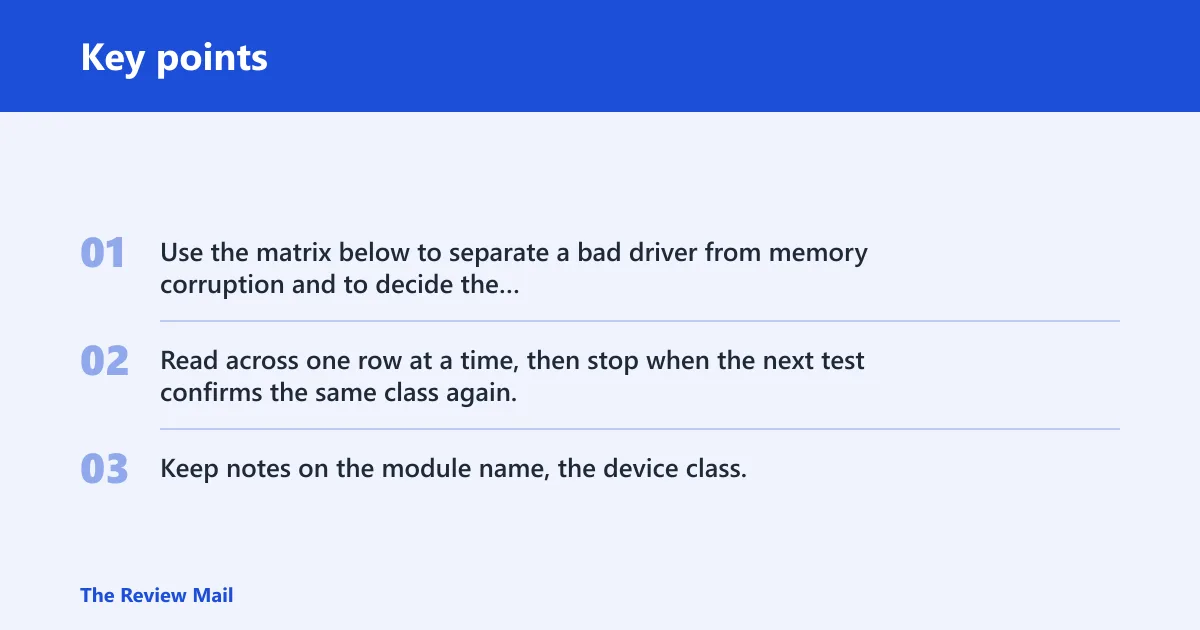
Use the matrix below to separate a bad driver from memory corruption and to decide the next test. Read across one row at a time, then stop when the next test confirms the same class again. Keep notes on the module name, the device class, and whether the crash repeats after one change.
| Symptom | Boot state | Dump clue | Likely culprit class | Next test | Stop condition |
|---|---|---|---|---|---|
| Same blue screen after every reboot | Normal boot or loop | ntoskrnl.exe appears again, with one third-party .sys changing nearby | Driver chain, not ntoskrnl itself | Compare 2 or more dumps first, then Event Viewer; match the shared .sys file to a recent change | Stop if the same driver class repeats in 2 crashes |
| Crash after launching a game or waking the screen | Normal boot | Display driver module appears near the faulting stack | Graphics driver or GPU helper | Roll back or reinstall the vendor graphics driver | Stop if the same display module returns after reinstall |
| Crash after pairing audio, mouse, or headset | Normal boot | Bluetooth or USB device driver shows up in the stack | Bluetooth adapter or USB peripheral path | Unplug the adapter or dock; retest without it | Stop if the crash disappears when the device is removed |
| Different stop points, random failures, or odd file corruption | Normal boot or Safe Mode | Driver names vary, or the dump is inconsistent | RAM or memory corruption | Run Windows Memory Diagnostic and review Event Viewer | Stop if memory errors are logged twice or more |
| Single dump, no repeat pattern | Any | Only ntoskrnl.exe, no useful third-party .sys pattern | No clear lead yet | Collect another dump after one controlled change | Stop if a second dump still gives no shared module |
How do you find the failing driver?
Use dump files first, then Event Viewer, then a recent-change check. The goal is to match the crash to one driver or one device class, not to guess from a single screen photo. WinDbg and Event Viewer give the fastest evidence trail when the system still records the crash. Microsoft documents both the dump workflow and the system log path in its debugger and Event Viewer guidance.
- Open
C:\Windows\Minidumpand copy the newest file, or checkC:\Windows\MEMORY.DMPif a full dump exists. - Open the dump in WinDbg and run !analyze -v. Look for a third-party .sys file that repeats across crashes.
- Open Event Viewer and go to Windows Logs > System. Check Event ID 1001 for BugCheck details. If you are tracing a related cluster or paired crash record, Event ID 1000 can also help connect the timing.
- Match the crash time to the last driver, firmware, or device change. If the same module appears in about 2 or more dumps, it is a common rule of thumb to target that device class first.
Suppose a laptop starts crashing after a Bluetooth mouse dongle is added. If the dump points to a Bluetooth stack file twice, that adapter class gets priority over a graphics driver that only appears once.
Fix the driver or device issue
Once the suspect class is clear, fix only that path. A single targeted change is better than updating every driver on the machine. If Windows will not boot normally, use Safe Mode or WinRE so you can remove or roll back the bad change without loading the same driver again.
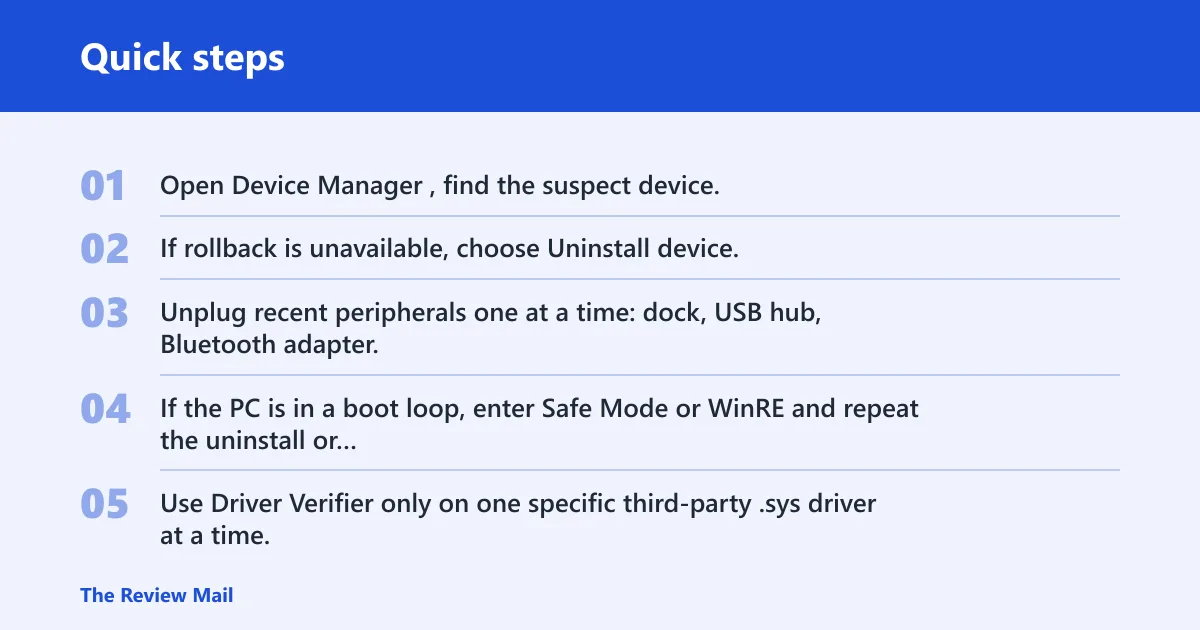
- Open Device Manager, find the suspect device, and use Properties > Driver > Roll Back Driver if that button is available.
- If rollback is unavailable, choose Uninstall device, then restart and install the vendor driver package, not just the generic Windows Update version.
- Unplug recent peripherals one at a time: dock, USB hub, Bluetooth adapter, external drive, or display adapter, then retest after each change.
- If the PC is in a boot loop, enter Safe Mode or WinRE and repeat the uninstall or rollback there.
- Use Driver Verifier only on one specific third-party .sys driver at a time. Keep an off-switch plan ready so you can disable it if the system becomes less bootable.
Driver Verifier can force a crash faster, which is useful only when you already have one target in mind. Do not point it at all drivers. That usually turns a solvable case into a boot problem. Microsoft’s Driver Verifier documentation also recommends using it selectively, not as a blanket setting.
Should you update BIOS for this stop code?
Only if the crash pattern points to firmware or a vendor support note for the exact model. A BIOS or firmware update can help when storage, GPU, or docking behavior changed after a platform update. It is not the first move when the dump points to a clear third-party driver. For the safest path, use the OEM’s BIOS update instructions for the exact model and confirm their rollback guidance before flashing.
Can bad RAM cause this stop code?
Yes. Faulty memory can trigger ATTEMPTED_SWITCH_FROM_DPC directly, or corrupt a driver path so the dump misleads you. Microsoft’s Windows Memory Diagnostic tool is the standard first check, and inconsistency across crashes is the practical clue: different modules, different stop points, or crashes that do not track one device change.
- Open Windows Memory Diagnostic, choose Restart now and check for problems, and let it run.
- After Windows loads, open Event Viewer and check Windows Logs > System for memory test results, as Microsoft recommends.
- If the system has two or more sticks, reseat them or test one stick at a time to isolate a module.
- If memory checks stay clean and the crash repeats with the same driver class, move past RAM and back to the suspect .sys file.
A common first-timer mistake is to interpret one uncertain boot symptom as proof of RAM failure. That is too fast. Wait for the same kind of fault to repeat, or for the memory test and Event Viewer to show a pattern.
How do you boot Windows again?
If Windows will not boot normally, use Safe Mode or WinRE to remove the driver or update that is blocking startup. That is the right path when the system blue screens before you can reach the desktop. If Driver Verifier made booting worse, turn it off first.
- Force WinRE by interrupting startup, then choose Troubleshoot > Advanced options > Startup Settings and boot Safe Mode.
- In Safe Mode, uninstall or roll back the suspect driver in Device Manager.
- If the crash started right after an update, use WinRE > Uninstall Updates or restore from a known good point if available.
- If Driver Verifier was enabled, use Safe Mode to disable it before the next normal boot attempt.
If that still fails, move to hardware checks only after the dump and Event Viewer evidence stop pointing to software. At that point, a storage controller, GPU, dock, or RAM path is a better fit than random driver changes.
Frequently asked questions
What does stop code ATTEMPTED_SWITCH_FROM_DPC mean?
It means the kernel stopped because a DPC routine attempted an illegal operation at elevated IRQL, with the bug check value 0x000000B8. The practical next step is to inspect the newest minidump in C:\Windows\Minidump, then run !analyze -v in WinDbg.
Is attempted switch from dpc a driver problem?
Often, yes. A faulty or incompatible third-party driver is one of the main suspects, but the dump is what proves it. If the same .sys file appears in 2 or more crashes, roll it back or reinstall the vendor package instead of changing unrelated drivers.
Can bad RAM cause attempted switch from dpc?
Yes. Run Windows Memory Diagnostic with Restart now and check for problems, then review Event Viewer > Windows Logs > System for the results. If memory looks clean and the same driver still repeats in dumps, move back to the device path instead of replacing RAM.
How do I find the driver causing attempted switch from dpc?
Check C:\Windows\Minidump, open the newest file in WinDbg, and run !analyze -v. Then compare the faulting module across at least 2 crashes. A repeated third-party .sys file matters more than a one-off mention of ntoskrnl.exe.
How do I boot Windows after attempted switch from dpc?
Boot into Safe Mode or WinRE, then remove, roll back, or update the suspect driver from Device Manager. If the machine started crashing after Driver Verifier, disable it first. If Windows still loops, use WinRE to uninstall the last driver or update.
Should I update BIOS for attempted switch from dpc?
Only when the evidence points to firmware, docking, storage, or a vendor release for the exact model. A BIOS update is not the default fix. Start with the dump, Event Viewer, and the repeated driver pattern; move to firmware only after that evidence fits.
Sources
- Microsoft Learn: Bug Check 0xB8: ATTEMPTED_SWITCH_FROM_DPC
- Microsoft Learn: WinDbg debugger commands
- Microsoft Learn: Driver Verifier
- Microsoft Support: View event logs in Event Viewer
- Microsoft Support: Use Windows Memory Diagnostic to test your RAM
- Microsoft Support: Windows Recovery Environment (WinRE)
- Microsoft Support: Start your PC in safe mode in Windows