
Windows 11 User Account Locked Out
If a Windows 11 user account is locked out, first identify whether it is a local account, a Microsoft account, or a work or school account, because the fastest safe fix depends on that split. Picking the wrong path wastes time and can trigger more lockouts. This guide shows the quickest route for Home and Pro editions, plus the safest steps for local, administrator, and limited-access setups.
Lockout checklist table
| Symptom | Likely lockout type | Fastest valid fix | What not to do |
|---|---|---|---|
| You entered the correct password several times and the sign-in screen keeps rejecting it. | True lockout from repeated sign-in attempts | Wait for the lockout period to expire, or use another administrator account to clear it in Local Users and Groups. | Keep retrying the same password over and over. |
| The account says it is locked out, but you still see the profile name at sign-in. | Local account lockout | Open lusrmgr.msc, go to Users, open the account, and clear Account is locked out. | Assume the password is wrong when the account is actually locked. |
| The account is marked disabled instead of locked. | Disabled account, not a lockout | Use an administrator account to enable it in Local Users and Groups or from an elevated command prompt. | Uncheck only the lockout box and expect that to fix a disabled account. |
| You are on Windows 11 Home and cannot open Local Users and Groups. | Home edition tool limitation | Use the password reset screen if it appears, wait for the timeout, or use another admin path on the device. | Waste time looking for lusrmgr.msc on Home editions. |
| Only one account exists on the PC and it is locked. | One-account lockout | Wait for the lockout period to expire, then use the reset screen or security questions if they appear. | Assume Safe Mode alone will clear the lockout. |
| The password is correct, but a work app or mapped drive keeps triggering sign-in failures. | Background retry loop | Update the saved password in the app, service, or mapped drive that is retrying the old one. | Change the Windows password and stop there. |
| You forgot the password but see the password reset screen on sign-in. | Password reset flow | Use the reset screen and answer the security questions if the account offers them. | Force repeated guesses and trigger more lockouts. |
| You cannot sign in normally, but need a troubleshooting path. | Fallback recovery path | Enter Windows Recovery Environment, open Startup Settings, then try Safe Mode for admin access or repair steps. | Expect Safe Mode to clear an account lock by itself. |
| The device is joined to a work or school environment. | Domain or managed account policy | Contact the organization’s IT admin, since local unlock steps may not apply. | Keep trying local-only fixes that do not control the account. |
What kind of lockout is it?
A true lockout is different from a disabled account, and that difference changes the fix. A lockout is temporary and tied to Windows account lockout policy; a disabled account is turned off until an administrator enables it. If the password is correct but the account still fails, the account may also be locked by repeated background retries.
Locked account vs disabled account
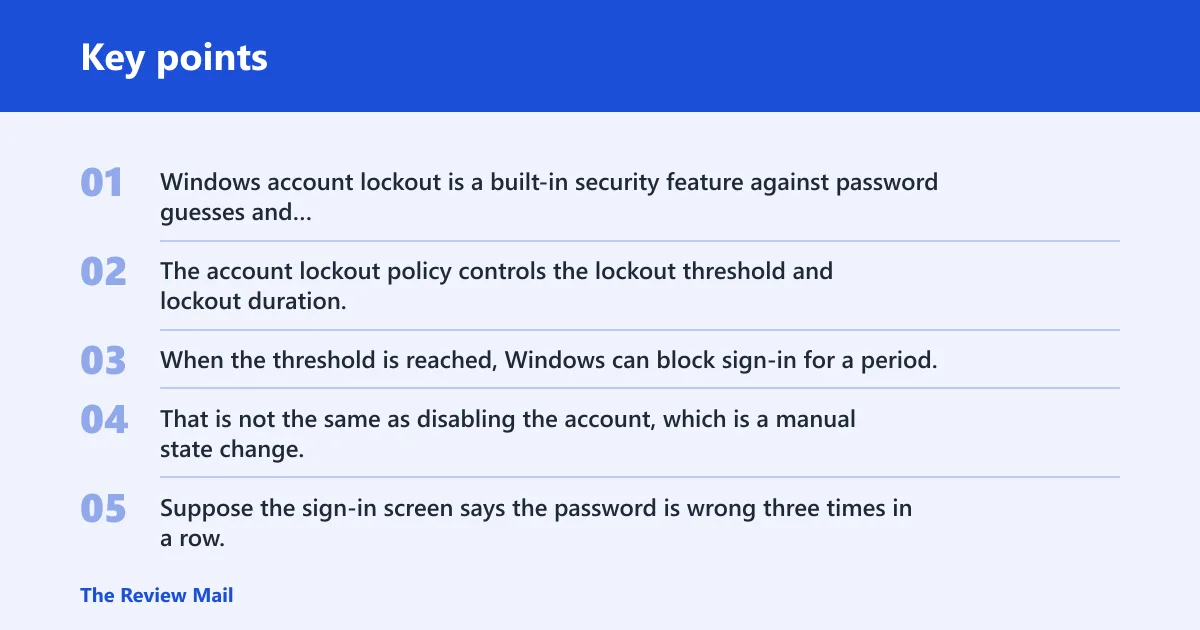
Windows account lockout is a built-in security feature against password guesses and brute force attacks. The account lockout policy controls the lockout threshold and lockout duration. When the threshold is reached, Windows can block sign-in for a period. That is not the same as disabling the account, which is a manual state change.
Suppose the sign-in screen says the password is wrong three times in a row, then suddenly says the account is locked. That is a lockout. If an administrator opened account properties earlier and disabled the account, the fix is different: the account must be re-enabled, not merely cleared.
Why repeated correct passwords can still fail
Correct passwords can still fail when something else keeps sending the old one. Cached credentials in an app, stale saved passwords, mapped drives, or a service running under that account can repeat failed attempts in the background. In that case, clearing the account without fixing the source often leads to another lockout.
When the lockout is policy-based
If the device is managed, the policy may be set to lock the account after a certain number of failures and hold it for a set duration. TechViral says Group Policy Editor can change lockout duration, threshold, and more, but that only helps if you already have admin access and the device policy is under your control.
Clear it in lusrmgr.msc
If you have another administrator account, this is usually the shortest local fix for a Windows 11 local account. The Local Users and Groups tool opens with lusrmgr.msc, and the account is found under the Users folder. Open the account properties and clear the Account is locked out box.
Open local Users and groups
- Press Windows Key + R to open Run.
- Type
lusrmgr.mscand press Enter. - Open Users.
- Double-click the locked account.
- Clear Account is locked out, then apply the change.
That checkbox is the direct GUI path for clearing the lock state. It does not reset the password, and it does not fix a disabled account. Use it only when the account is actually locked and you have an administrator account that can open the tool.
What changes on Windows 11 Home
lusrmgr.msc is not available on Windows 11 Home. That means the direct GUI path is missing there. On Home, the usual alternatives are the password reset screen, waiting out the timeout, or another administrator-based method if one exists on the PC.
Use net user from Terminal
The command-line path starts with net user, which can list local usernames from an elevated Command Prompt or Terminal. That is useful when you know the account exists but cannot reach the GUI. It is also useful for checking whether an account is active before you try other fixes.
List local usernames
- Open an elevated Command Prompt or Terminal with administrator rights.
- Run net user.
- Review the list of local usernames on the machine.
- Use the exact account name in any follow-up command.
TechViral’s command example uses net user <username> /active:yes, and the command should return The command completed successfully. That command enables an account that has been disabled. It does not clear a lockout on its own.
What net user can and cannot fix
Use net user when you need to check usernames or change account state from an elevated shell. Do not rely on /active:yes to clear a locked account. If the account is locked, the GUI step in Local Users and Groups or a policy timeout is the relevant path.
When to use an elevated Command Prompt
You need administrator rights for this route. A non-admin Command Prompt cannot clear another user account. If you are already signed in with an administrator account, open the elevated shell and verify the account state before changing anything else.
Can you clear it without a second admin account?
Sometimes you cannot. If the PC has only one account and that account is locked, Windows may require you to wait for the lockout period to expire. If the sign-in screen offers password reset, use it there and answer the security questions if they are available.
Wait out the lockout duration
How long a Windows account lockout lasts depends on the device’s policy settings. If no other administrator account is available, waiting is often the only immediate path. F2 says that if you only have one locked account, you may need to wait for the lockout period to timeout. (Microsoft)
Use the password reset screen
The password reset screen appears on the sign-in screen on some accounts. It can use security questions. That helps when the problem is a forgotten password rather than a true lockout, and it can also get you back into the account after the timeout ends.
A common first-timer mistake is to keep trying the same password while the account is still in the lockout window. That only stretches the problem. Wait first, then reset the password if the screen offers that option.
What to do on a one-account PC
If the PC has one account and no spare administrator, do not assume Safe Mode will bypass the lockout. Safe Mode can help you troubleshoot, but it does not cancel the lockout timer. If the account is locked, you still need the timeout to expire or another admin path to open it.
Use WinRE or Safe Mode
Windows Recovery Environment, or WinRE, is the route to Advanced Startup. The same source says you can enter WinRE by force-turning off the PC three to four times. From there, you can reach Startup Settings and try Safe Mode. That is useful when normal sign-in is blocked or the device is stuck in a retry loop.
Enter Advanced Startup from winRE
- Force-turn off the PC three to four times until Windows enters recovery.
- Choose Troubleshoot.
- Open Advanced options.
- Select Startup Settings.
- Restart and choose Safe Mode from the Startup Settings list.
What Safe Mode can still do
Safe Mode can help you sign in with an administrator account, inspect startup items, and remove the app or service that keeps retrying an old password. It is also useful for reaching repair tools when the normal desktop will not load. That makes it a troubleshooting path, not a direct clear switch.
When Safe Mode will not help
Safe Mode will not help if the only available account is still inside the lockout period and no administrator account can sign in. It also will not help if the problem is a domain-controlled or work-managed account, because local changes may not affect the central policy.
Why the correct password still fails
Correct passwords can fail because Windows is not the only thing trying to sign in. Cached credentials in an app, stale saved passwords, mapped drives, or a service can keep retrying an old password and trigger the lockout again. In that case, the account itself may be fine, but the retry source is not.
Stale saved passwords in apps
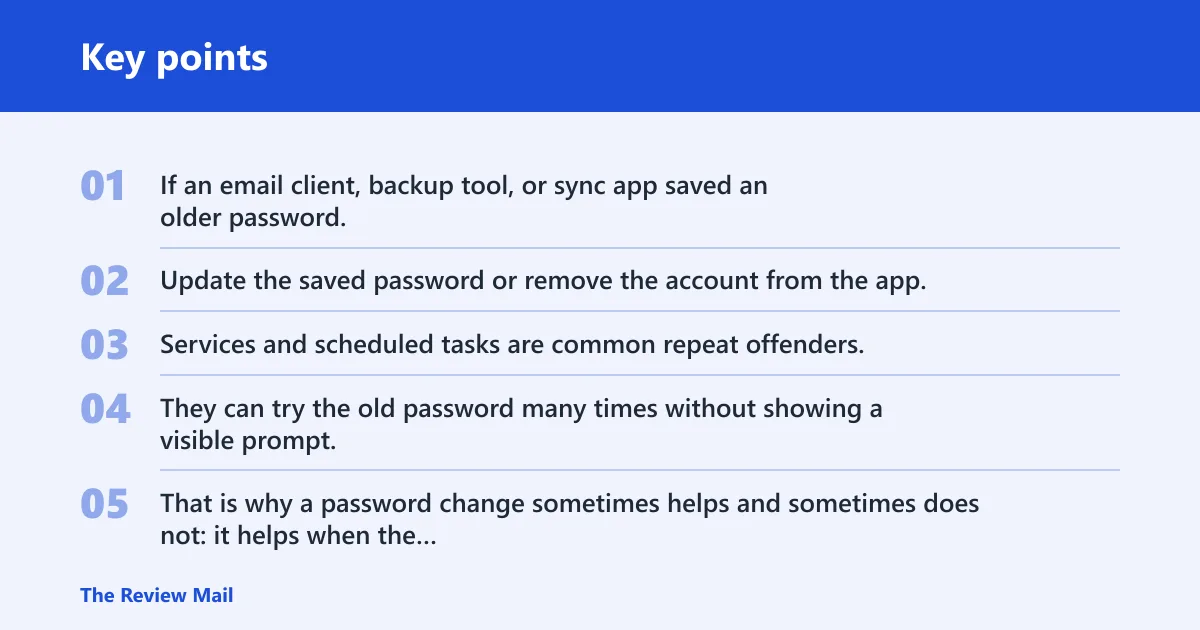
If an email client, backup tool, or sync app saved an older password, it may keep hammering the account with the wrong value. Update the saved password or remove the account from the app, then sign in again with the current one.
Background sign-in retries
Services and scheduled tasks are common repeat offenders. They can try the old password many times without showing a visible prompt. That is why a password change sometimes helps and sometimes does not: it helps when the stale credential is updated, but it does nothing if the failing retry source stays in place.
Mapped drives and services
Mapped drives, remote tasks, and services can all hold old credentials. If the lockout returns after you clear it, look for those hidden retries first. That is the fastest way to stop a repeat lockout cycle.
Work or school account lockout
If the account is connected to work or school, local unlock steps may not apply. The organization may control the lockout policy, the password, and the sign-in limits from elsewhere. In that case, the fastest valid fix is usually to contact IT and ask whether the account is locked, disabled, or awaiting a policy timeout.
What local tools can miss
Local Users and Groups and net user only manage local accounts. They do not replace directory or cloud account controls. If the PC shows a managed sign-in, the local machine may only be the endpoint, not the authority.
Frequently asked questions
Why user account keeps getting locked out
Repeated wrong passwords are the usual trigger, but background retry loops are a close second. An app, mapped drive, or service may keep sending an old password after you have already typed the right one. That is why the account locks again soon after you clear it.
Why does my Windows 11 account keep locking itself out?
Windows 11 does not usually lock an account on its own without a trigger. The lockout usually comes from repeated failures, cached credentials, or a managed policy. If the device is joined to work or school, the organization may also be enforcing the lockout rules centrally.
How do I clear a locked user account in Windows 11?
With another administrator account, open lusrmgr.msc, go to Users, open the locked account, and clear Account is locked out. If you cannot use that tool, an elevated command prompt can help confirm the account state, but it does not clear a lockout by itself.
What if I only have one account and it is locked?
Wait for the lockout period to expire if no other administrator account exists. If the sign-in screen offers password reset, use it and answer the security questions if they are available. Safe Mode does not usually bypass a live lockout on its own.
How long does a Windows account lockout last?
It depends on the account lockout policy set on that device or by the organization. The policy controls the lockout duration and the threshold that triggered it. If you do not have another admin account, waiting is often the only immediate option.
Can Safe Mode help if Windows 11 says the account is locked?
Safe Mode can help you troubleshoot what is causing the lockout, especially if a service or app keeps retrying the wrong password. It cannot clear the lockout by itself. You still need the timeout to expire or another administrator account to clear the user.