Windows 11 Not Seeing Wi‑Fi Networks: Fixes
If Windows 11 shows no Wi‑Fi networks, first tell whether the adapter is off, Windows is filtering the list, or the router is hiding the SSID. The fix depends on that symptom. Ignoring the wrong layer wastes time, can leave you offline, and can mask a router or driver fault. This guide shows how to pinpoint the failure mode and apply only the matching fix.
Wi‑Fi decision table
| Symptom pattern | Most likely cause | Exact next step |
|---|---|---|
| No networks at all | Wi‑Fi is off, airplane mode is on, or the adapter is disabled or unhealthy | Open Settings > Network & internet, confirm the Wi‑Fi toggle is on and Airplane mode is off, then check Device Manager for a disabled adapter or driver error. Verify by reopening the network list and checking for SSIDs. |
| Wi‑Fi toggle missing entirely | The wireless adapter is disabled, hidden, missing a driver, or not detected | Open Device Manager and confirm the wireless adapter appears under Network adapters. If it is absent, check for hidden devices or an unknown wireless controller, then verify by returning to Settings > Network & internet and checking whether the Wi‑Fi control returns. |
| Adapter missing in Device Manager | Driver failure, hardware disablement, or a device detection problem | In Device Manager, use View and check for hidden devices, then look under Other devices for an unknown network controller. Verify by running Scan for hardware changes and checking whether the wireless adapter reappears. |
| One band visible but not the other | Band mismatch, range limits, channel settings, or adapter support limits | Check whether the missing SSID is the 2.4 GHz or 5 GHz band. Verify by moving closer to the router, comparing both bands on the router admin page, and refreshing the network list to see whether the missing band appears. |
| Only some networks are missing | Hidden SSID, guest network policy, channel issue, or security-mode incompatibility | Check whether the missing network is hidden, on a guest profile, or using a different security mode. Verify by comparing the router’s broadcast settings and reopening the Wi‑Fi list after the router changes are saved. |
| Wi‑Fi disappears after sleep | List refresh bug, adapter power-state issue, or driver problem after resume | Toggle Wi‑Fi off and on in Settings > Network & internet, then run the network troubleshooter. Verify by putting the PC to sleep and checking whether the list returns after wake. |
| Empty SSID list even though Ethernet works | Windows is online through Ethernet, but the wireless radio or scan state is not updating | Disconnect Ethernet briefly, then check whether the Wi‑Fi picker refreshes. Verify by turning Wi‑Fi off and back on and confirming whether nearby SSIDs appear after the scan completes. |
| Setup screen cannot detect Wi‑Fi | Adapter not available yet, unsupported driver, or setup conditions not met | Check the adapter in Device Manager after setup if possible. If setup is the problem, verify the device meets Microsoft’s published Windows 11 requirements and then continue with the network check once the desktop loads. |
Why is Windows 11 not seeing Wi‑Fi networks?
Start by separating a dead list from a stale one. If the network picker is empty, the adapter, radio state, or router broadcast is usually at fault. If the list appears late or changes only after you toggle Wi‑Fi, Windows may be holding an outdated scan result.
Check the Wi‑Fi toggle first
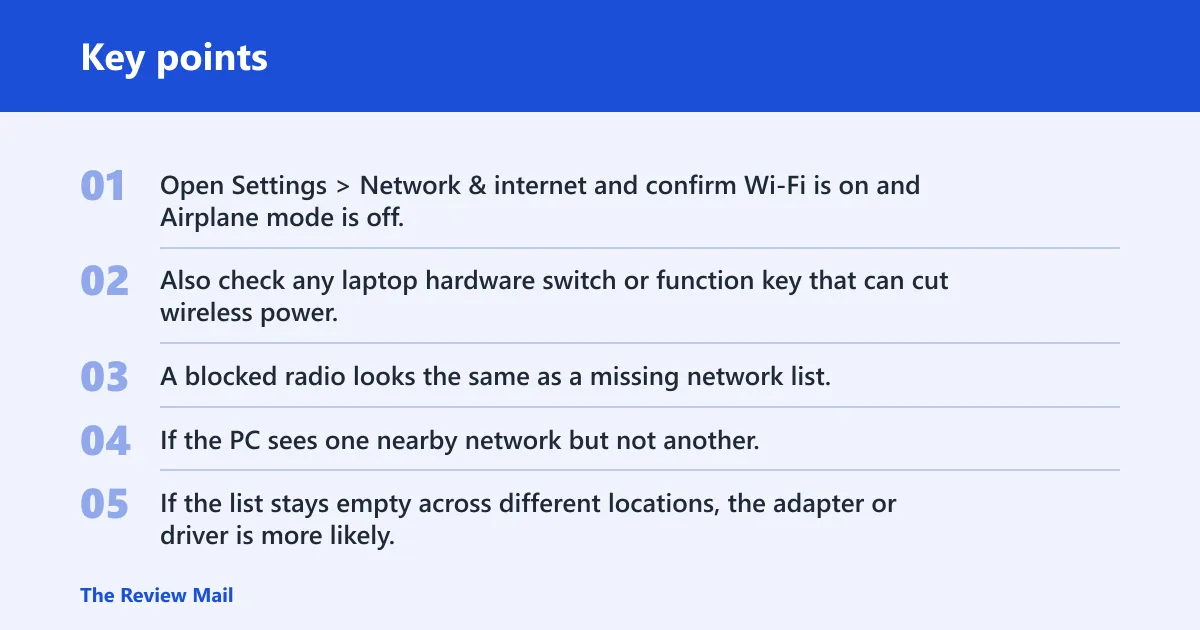
Open Settings > Network & internet and confirm Wi‑Fi is on and Airplane mode is off. Also check any laptop hardware switch or function key that can cut wireless power. A blocked radio looks the same as a missing network list.
Match the symptom to the layer
If the PC sees one nearby network but not another, the router side is a stronger suspect than Windows itself. If the list stays empty across different locations, the adapter or driver is more likely. If networks vanish only after sleep, look at resume behavior before touching the router.
Use the list refresh behavior as a clue
A wireless list can lag behind the actual radio state. A common pattern is this: the adapter is on, but the picker does not refresh until you turn Wi‑Fi off and back on. That points to a display or resume issue, not a dead access point.
Why does Windows see some Wi‑Fi networks but not others?
When Windows shows some networks and hides others, the adapter is usually working. The problem is often band-specific, hidden-SSID related, or tied to a router setting that your PC cannot match. That is a different failure mode from seeing no networks at all.
Compare 2.4 GHz and 5 GHz visibility
Check whether you can see the 2.4 GHz band but not 5 GHz, or the other way around. Many routers broadcast both under the same SSID, but a client may only show one band if the channel, signal, or driver support is limited. A missing 5 GHz name does not prove all Wi‑Fi is broken.
Say your router uses one name for both bands, and the laptop shows that name on the kitchen table but not in the bedroom. That can point to 5 GHz range and wall loss, while 2.4 GHz still reaches the room. Move the PC closer only long enough to check which band appears.
Check SSID broadcast and hidden network behavior
An SSID can be broadcast, hidden, or split by band. If broadcast is off, the network may not appear in the normal list at all, even though it still works for devices that already know the name. Hidden networks often need a manual connection, not a simple click from the picker.
Watch for channel or security-mode mismatch
Some adapters will not show a network if the router uses a channel or security mode the driver does not like. This is common after a router change or a Windows update that swapped in a different driver. If one machine sees the SSID and another does not, compare the router’s band, channel, and security settings.
Wi‑Fi option missing from Windows 11
If the Wi‑Fi option itself is missing, focus on adapter detection before router settings. That usually means Windows is not loading the wireless device correctly, the adapter has been disabled, or the driver is missing. The goal is to make the Wi‑Fi control reappear before you troubleshoot the network list.
Check Device Manager for the wireless adapter
Open Device Manager, expand Network adapters, and look for the wireless adapter. If it is disabled, enable it. If it is missing, check View for hidden devices and look under Other devices for an unknown wireless controller.
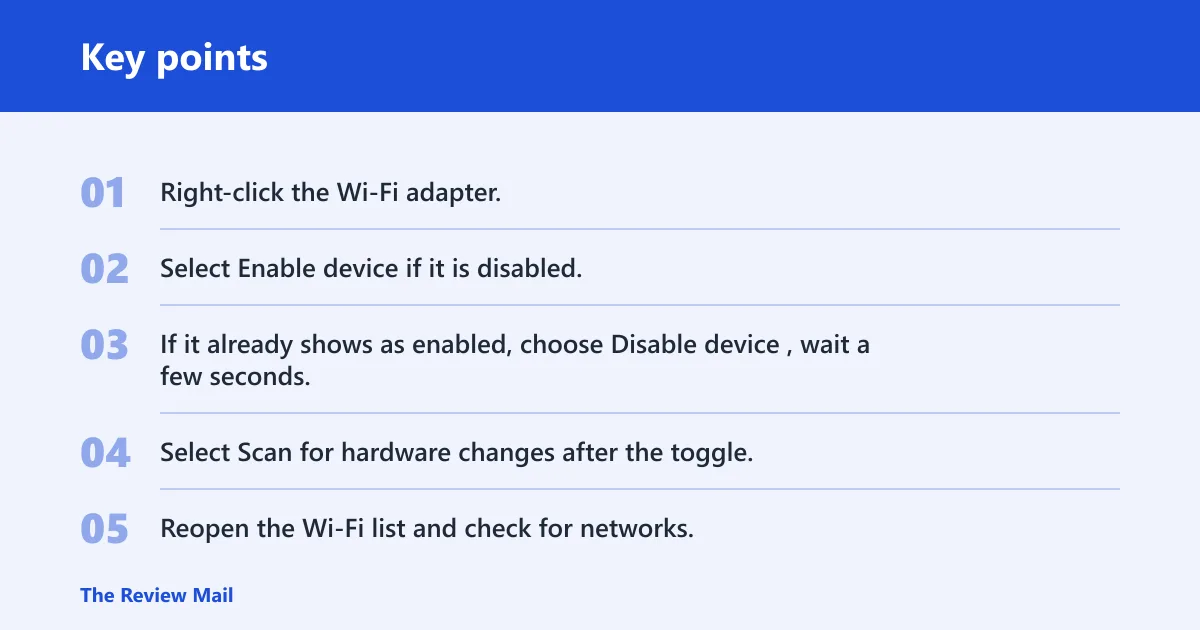
- Right-click the Wi‑Fi adapter.
- Select Enable device if it is disabled.
- If it already shows as enabled, choose Disable device, wait a few seconds, then enable it again.
- Select Scan for hardware changes after the toggle.
- Reopen the Wi‑Fi list and check for networks.
Use a focused internal reference if the adapter is absent
If you need more detail on a missing or disabled adapter, see disabled Wi‑Fi adapter in Windows 11. That is the right branch when Windows cannot show the wireless device at all, not just when the SSID list is empty.
Check driver health and version source
Open the adapter’s properties and inspect the driver status. If the problem began after a Windows update, the inbox driver may be the issue, while the vendor OEM driver may be the better match for that hardware. Roll back if the latest update broke the radio; update if the driver is old or missing.
Look for radio conflicts
Some laptops still include a physical wireless switch or a function key that cuts radio power. Airplane mode can create the same result from software. If Device Manager shows a healthy adapter but no networks appear, verify that neither control has disabled the wireless radio at a lower level.
Why does Windows 11 not see all Wi‑Fi networks?
Partial visibility usually means the adapter is fine and the router settings need attention. Start with band support, then check hidden SSIDs, guest networks, and channel or security compatibility. That path is faster than reinstalling drivers for a problem that sits on the access point side.
Check router broadcast and SSID settings
Open the router or access point settings and confirm the SSID is broadcast. If broadcast is off, the network may not appear in Windows without manual entry. Also check whether the main network, guest network, and any hidden SSID are using different names or different bands.
Suppose the home router shows a hidden guest network for a smart TV and a visible main SSID for laptops. Windows 11 may show only the visible main network, or only the guest name on devices that the router rules allow. That difference points to router policy, not a bad laptop adapter.
Review band and security compatibility
Confirm that both 2.4 GHz and 5 GHz are broadcasting if you expect both. If a network appears on one band and not the other, the channel or security mode may be too new or too strict for the adapter driver. A same-name multi-band setup can blur this distinction unless the signal and band are checked one by one.
Use the router view to verify the SSID
If the router admin page shows the SSID as active but Windows does not, the issue may be the client’s ability to scan that band or channel. If the SSID is off, hidden, or limited to a guest profile, fix that first. The PC cannot join a network that the access point is not presenting.
Why does Wi‑Fi disappear after sleep or setup?
If Wi‑Fi disappears after sleep, the adapter may not be refreshing cleanly after resume. If the problem appears during setup, the issue can be broader: the adapter may need a driver, or the device may not meet the install conditions needed for Windows 11 setup. Treat those as different failure modes.
Refresh the list in Windows 11 Network & internet settings
Open Settings > Network & internet, turn Wi‑Fi off, wait a few seconds, and turn it back on. Then reopen the network list. This is a quick way to force a rescan when the picker is stale after sleep or a dock change.
Open the troubleshooter from Settings
From Settings, go to System > Troubleshoot > Other troubleshooters, then run the network-related troubleshooter. Use it after the simple toggle check, not before. It can repair common configuration faults, but it will not fix a router that is hiding the SSID.
Handle setup-time failures separately
Windows 11 setup can fail to detect Wi‑Fi even when the adapter works later in the desktop environment. Microsoft says internet connectivity is required for Windows 11 Home setup and for personal use on Pro. If setup is the issue, verify the device against Microsoft’s published Windows 11 requirements, then continue with the network check after the desktop loads.
Use the compatibility path in Settings if setup refuses to proceed. If the PC is missing a requirement, setup may not finish cleanly, and the wireless step can look like the cause when it is only part of the failure. Verify the hardware first, then the driver, then the network.
Reset networking only after the basics fail
Use a network reset after you have checked the toggle, the adapter, the driver, and the router broadcast settings. Network reset is a broad repair. It typically resets networking components, removes and reinstalls adapters, and forces a reboot afterward, so it is usually not the first move.
Update or roll back the Wi‑Fi driver
If the issue started after a Windows update, try a rollback first. If the driver is old, install the vendor OEM driver rather than relying only on the inbox driver. A clean driver from the hardware maker often fits the chip and power management rules better.
Use Network reset when standard fixes fail
Open Settings > Network & internet > Advanced network settings and choose Network reset only after the other checks fail. Expect the PC to reboot and the adapters to return afterward. Reconnect to Wi‑Fi once Windows comes back up.
Frequently asked questions
Why are no wifi networks showing up?
When no networks show up at all, the most likely causes are a disabled Wi‑Fi radio, airplane mode, a bad adapter state, or a router that is not broadcasting a visible SSID. Check the Windows Wi‑Fi toggle first, then inspect Device Manager for a disabled or failing wireless adapter.
Windows 11 not finding wifi networks
If Windows 11 is not finding Wi‑Fi networks, separate a blank list from a delayed refresh. A blank list points to adapter, driver, or router broadcast issues. A delayed list often improves after you toggle Wi‑Fi off and back on in Settings > Network & internet.
Windows 11 cannot see wifi networks
When Windows 11 cannot see Wi‑Fi networks, compare what is missing. If every SSID is absent, check the adapter and radio state. If only one band or one network is missing, look at SSID broadcast, hidden network settings, band support, and router channel or security compatibility.
Windows 11 not seeing all wifi networks
Seeing only some Wi‑Fi networks usually means the wireless card is working but cannot match every broadcast. Check whether the missing networks are 5 GHz, hidden, or on a guest SSID. Also confirm the router is not using a channel or security mode the adapter cannot read.
Windows 11 laptop not showing wifi networks
A laptop that shows no Wi‑Fi networks may have a disabled adapter, a hardware switch conflict, or a driver problem after sleep or update. Open Device Manager, verify the wireless adapter is enabled, and check whether airplane mode or a function key turned off the radio.
Why wifi is not showing in windows 10
Windows 10 can show the same symptom for the same reasons: disabled Wi‑Fi, airplane mode, driver trouble, or a router that hides the SSID. If the PC is meant to upgrade to Windows 11, remember that Microsoft says Windows 10 version 2004 or later is required for the upgrade path.