Disabled Devices Windows 11: Find and Enable Them
To find disabled devices in Windows 11, open Device Manager, choose View > Show hidden devices, then check the device’s status: if it appears only there, it is hidden or not currently detected; if it shows in the normal list with a disabled icon, it is turned off. Skip that check, and you can chase the wrong fix while audio or other hardware stays silent. This guide shows how to find, show, hide, enable, disable, and troubleshoot disabled devices in Windows 11, especially sound devices.
Diagnosing device visibility issues in Windows 11
The first task is diagnosis. A disabled device, a hidden device, and a missing device need different fixes, and Windows can show each one in a different way. A disabled device still exists in Device Manager and typically stops receiving system resources; a hidden device may be stale or temporarily absent; a missing device may never have loaded, or may be blocked by policy or a driver problem.
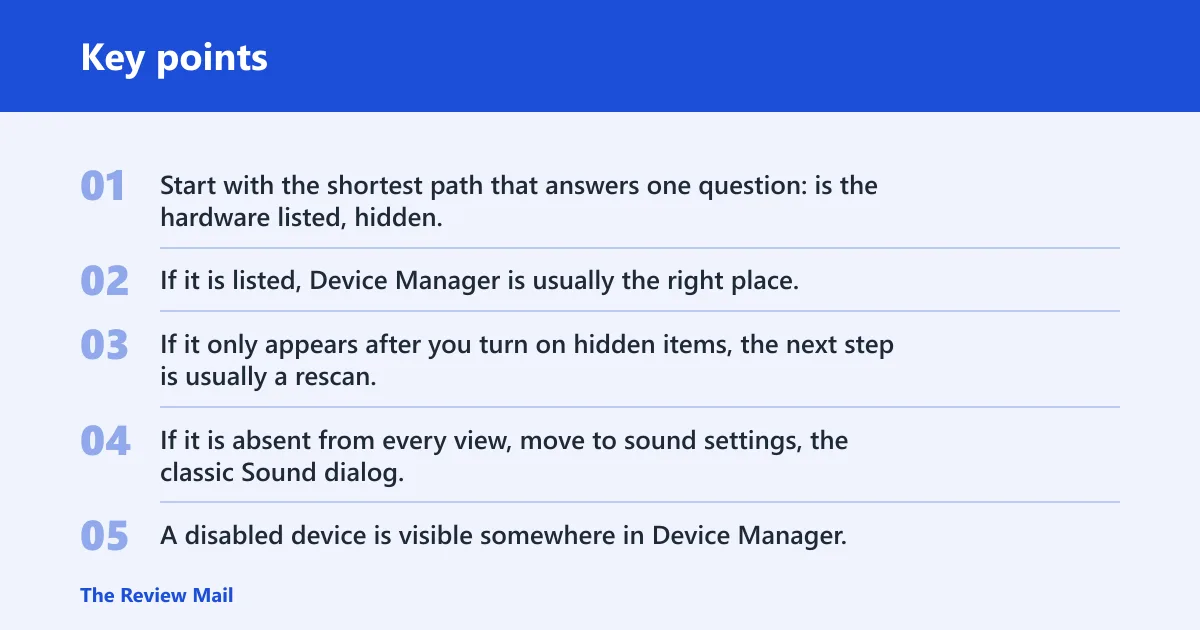
Start with the shortest path that answers one question: is the hardware listed, hidden, or absent? If it is listed, Device Manager is usually the right place. If it only appears after you turn on hidden items, the next step is usually a rescan. If it is absent from every view, move to sound settings, the classic Sound dialog, or policy checks as needed.
Disabled, hidden, or missing: how to tell the difference
A disabled device is visible somewhere in Device Manager, often with a down-arrow or similar disabled marker, and Windows no longer sends it system resources. A hidden device may only appear after View > Show hidden devices. A missing device does not appear at all in normal category lists and may need a rescan, a driver check, or a policy review.
Say your USB headset vanished after a restart. If it appears under Sound, video and game controllers only after you show hidden devices, that points to a hidden or stale entry. If it still does not appear, the problem is higher up: detection, driver loading, or a work or school policy.
When to stop troubleshooting and when to move
Stop when the device is found and the action matches the symptom. If the item is disabled, enable it. If it is hidden, unhide it and scan again. If it is present but audio still fails, move to the sound-specific tools below. Do not jump straight to uninstalling hardware when the device is simply hidden.
How do you find disabled devices in Windows 11?
Open Device Manager, then inspect the device categories for the item you need. Device Manager is the main Windows utility for enabling and disabling hardware, and you can open it from Win + X or by searching Start. A disabled device remains in the list, but it will not behave like active hardware until you re-enable it.
Open device Manager
- Press Win + X and choose Device Manager.
- Or open Start and search for Device Manager.
- Expand the relevant category and look for the device name.
- Check whether the icon or status indicates that it is disabled.
Windows may place audio hardware under Sound, video and game controllers. That category matters when the output device is missing or disabled after an update. (Microsoft Support)
Use a category check before you guess
If the device is audio, start with Sound, video and game controllers. If it is a printer, network adapter, Bluetooth adapter, or storage controller, check the matching category instead. Category names are the fastest way to avoid hunting through unrelated entries.
Suppose a laptop speaker disappears after a driver update and Windows shows No audio output device is installed. The next step is not a random settings change. Check Device Manager first, then move to hidden devices or sound pages only if the hardware is not in the normal list.
How do you enable or disable a device?
Device Manager lets you turn hardware on or off without removing it from Windows. A disabled device stops receiving system resources, but it is still known to the system. A disabled device can also be turned back on later, and Microsoft notes that a disabled device can be re-enabled from the Driver tab.
Enable device in Device Manager
- Open Device Manager.
- Find the device in its category.
- Right-click the device.
- Select Enable device if the option is available.
- If prompted, confirm the change.
Windows applies the change right away in many cases, but some hardware still needs a restart or a refresh before it works normally.
Disable a device without uninstalling it
- Open Device Manager.
- Right-click the device you want to turn off.
- Select Disable device.
- Confirm the choice.
This is the clean way to stop a device temporarily. It is useful for a noisy adapter, a conflicting audio endpoint, or hardware you do not want Windows to use right now. It does not remove the device from the system.
What changes immediately and what does not
Some changes appear at once, especially in Device Manager and sound lists. Other changes need a restart, a sign-out, or a hardware rescan. If the device is still behaving as active hardware after you disable it, restart the PC before assuming the change failed.
How do you show hidden devices?
Use View > Show hidden devices in Device Manager when a device does not appear where you expect it. Microsoft recommends this path when the audio device is missing, and it pairs well with Scan for hardware changes. Hidden devices often show up as faded entries or as old device records that are still stored by Windows.
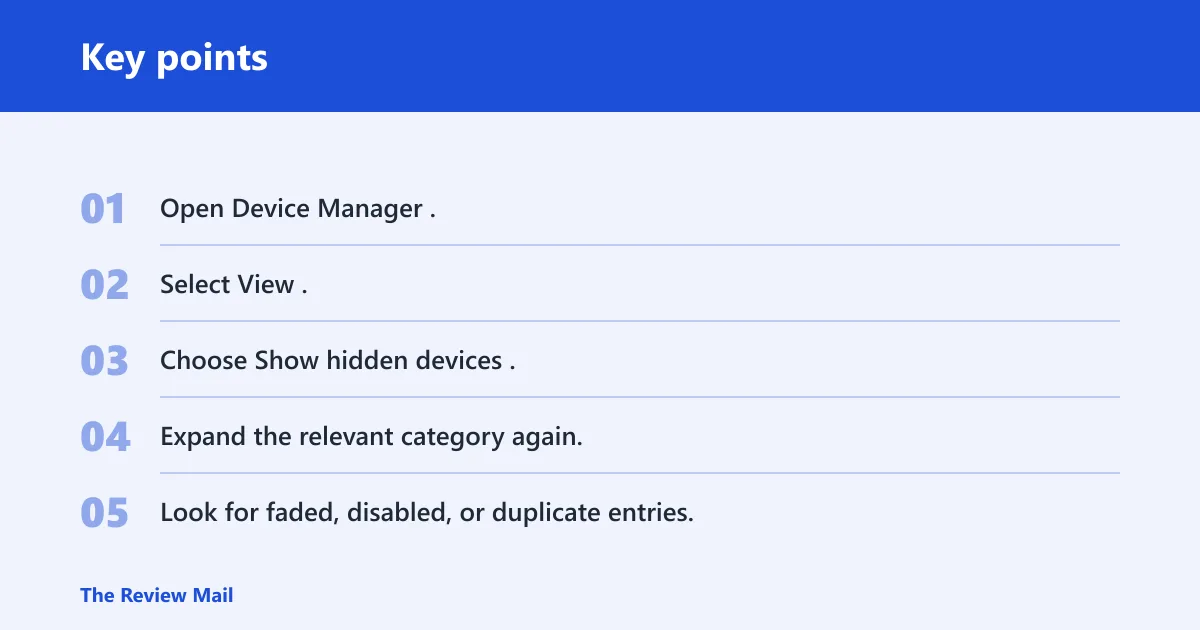
Turn on Show hidden devices
- Open Device Manager.
- Select View.
- Choose Show hidden devices.
- Expand the relevant category again.
- Look for faded, disabled, or duplicate entries.
- Select Action > Scan for hardware changes.
That scan matters after a restart, an unplug, a dock change, or a driver update. It tells Windows to check for hardware that was not loaded on the first pass.
Use hidden devices with missing hardware
If an audio device is not visible in the standard list, hidden items can reveal a stale entry that still knows the device name. If the entry appears there, you can try enabling it or refreshing the hardware scan. If nothing appears, the issue is detection rather than visibility.
| Symptom | Where to check | What a disabled device looks like | Exact action to take | When to stop troubleshooting |
|---|---|---|---|---|
| Hardware is listed but not working | Device Manager | Present in its category, often with a disabled marker | Right-click the device and select Enable device | Stop if the device returns and functions normally |
| Device is missing from normal lists | Device Manager with Show hidden devices | Appears as a faded or hidden entry, or shows only after the view changes | Turn on hidden devices, then run Scan for hardware changes | Stop if the device appears and can be enabled |
| Audio output exists but sound still fails | Settings > System > Sound > All sound devices | The device is listed as disabled in the sound page | Use Show disabled devices on supported builds, then enable the output | Stop if audio returns and the device stays selected |
| Playback or recording device is hidden in classic sound controls | mmsys.cpl | Disabled device is hidden from the default Playback or Recording list | Open the Sound dialog and enable Show Disabled Devices | Stop if the device appears and can be enabled |
| Sound toggle is missing in Settings | Registry Editor | No Settings switch appears on the current build | Check ShowDisabledDevices at HKEY_CURRENT_USER\Software\Microsoft\Multimedia\Audio\DeviceCpl | Stop if the sound device becomes visible in the classic or Settings view |
How do you show disabled sound devices?
Windows 11 has more than one route for sound. The modern path is Settings > System > Sound > All sound devices, which includes a Show disabled devices switch on supported builds. If that switch is missing, the classic Sound dialog or Registry Editor can still expose disabled playback and recording devices.
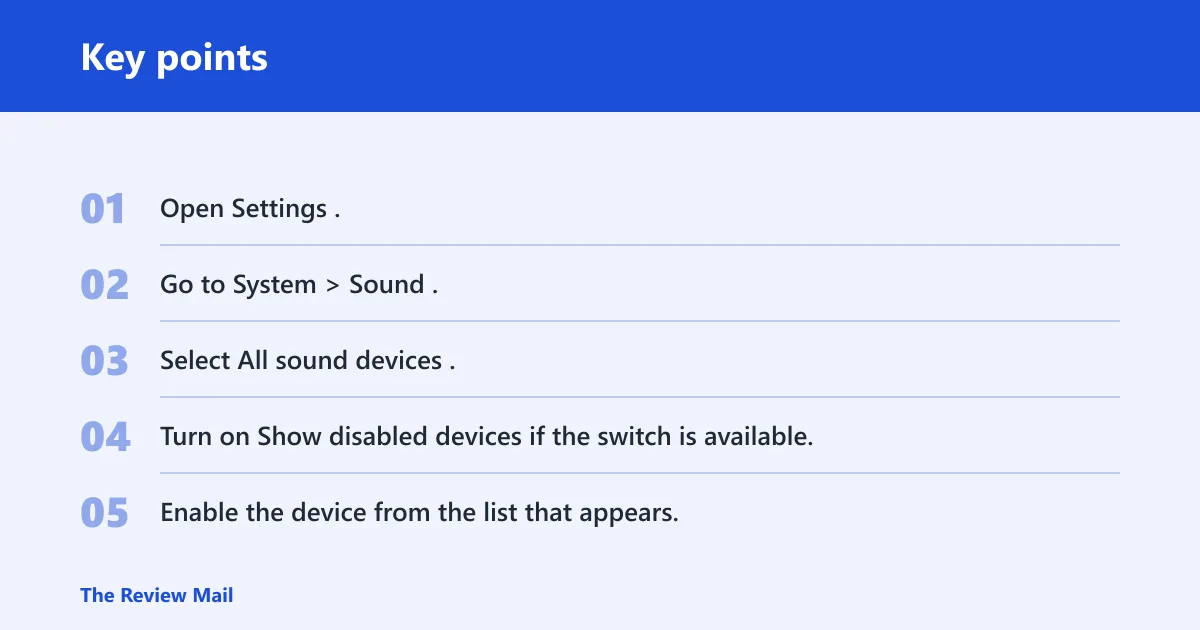
Use Settings on supported builds
- Open Settings.
- Go to System > Sound.
- Select All sound devices.
- Turn on Show disabled devices if the switch is available.
- Enable the device from the list that appears.
This option is build-dependent. It may appear on one Windows 11 build and be absent on another, especially on regular releases that do not include the feature yet. If it is missing, do not assume the device is gone. Use the fallback paths below.
Use mmsys.cpl for playback and recording devices
Open the classic Sound dialog with mmsys.cpl. In that window, Show Disabled Devices is available in the Playback and Recording tabs. This route is useful when the modern Settings page does not show the switch, or when you need the older list format.
- Press Win + R.
- Type mmsys.cpl and press Enter.
- Open the Playback or Recording tab.
- Right-click inside the list and enable Show Disabled Devices.
Use Registry Editor when the Settings switch is missing
The registry method uses the ShowDisabledDevices value at HKEY_CURRENT_USER\Software\Microsoft\Multimedia\Audio\DeviceCpl. That path is useful when the Settings toggle is absent on the current build. Use it only for the sound visibility setting named here, not as a general registry fix for unrelated hardware.
What if Windows 11 still does not detect audio?
If the audio output device still does not appear, the problem may be detection, not visibility. Windows can show No audio output device is installed when the output device is missing, disabled, outdated, or failing to load correctly. Check whether the device exists in Sound, video and game controllers, then compare that result with the sound pages and the classic dialog.
Check the audio output device state
First, verify whether the audio device is present in Device Manager. If it is present, use Enable device if available. If it is missing, use View > Show hidden devices and then Scan for hardware changes. That sequence follows Microsoft’s own recommended order.
Handle policy-managed PCs differently
On work or school PCs, a policy can block visibility or access even when the device is technically installed. If Device Manager and the sound pages do not show the device, and other hardware is also restricted, the next step is to check with the device owner or administrator. Do not assume the problem is a local setting if management policy may be in play.
Simple next steps after a change
After you enable or reveal the device, a restart can help Windows reload the driver and rebuild the sound list. That is a normal follow-up step, not a fix by itself. If the device returns after the restart, leave it alone unless the symptom comes back.
Frequently asked questions
How do I show disabled devices in Windows 11?
Open Device Manager, then choose View > Show hidden devices. For sound devices, also check Settings > System > Sound > All sound devices on supported builds, or open mmsys.cpl and use the Playback and Recording tabs. If the toggle is missing, use the classic Sound dialog or Registry Editor.
How do I enable a disabled device in Device Manager on Windows 11?
Right-click the device in Device Manager and select Enable device if it appears. Microsoft also notes that a disabled device can be re-enabled from the Driver tab. If the device does not reappear right away, run a hardware scan or restart the PC before trying deeper fixes.
How do I disable a device in Windows 11 without uninstalling it?
Open Device Manager, right-click the device, and choose Disable device. That stops the device from receiving system resources, but it does not remove the hardware from Windows. It is the right option when you want to stop a device temporarily or test whether another device is causing a conflict.
What should I do if Windows 11 doesn’t detect my audio output device?
Check Device Manager first. If the audio device is present, use Enable device. If it is missing, turn on Show hidden devices and then run Scan for hardware changes. If Windows still shows No audio output device is installed, check sound pages, the classic Sound dialog, and any device-management policy.
How do I show or hide disabled sound devices in Windows 11?
On supported builds, use Settings > System > Sound > All sound devices and turn on Show disabled devices. If that switch is not present, open mmsys.cpl and use the Playback or Recording tab. If the modern switch is missing entirely, the Registry Editor path for ShowDisabledDevices can expose the setting.