Windows 11 Screen Freezes
If Windows 11 freezes while the cursor, sound, or keyboard still respond, check whether the fault points to GPU, boot-state, memory, or a virtual machine before you change settings. Guessing wrong can waste hours and hide the real trigger. This guide shows how to sort post-update, gaming, boot, and VM freezes by symptom first, then by the next safe check.
What kind of freeze do you have?
The first clue is whether the display froze or the whole system did. A moving cursor, live audio, or a keyboard light that still toggles usually points away from a full lockup and toward a display-pipeline stall, driver conflict, or VM graphics fault. A dead mouse and dead audio point elsewhere.
Screen frozen but cursor still moves
That pattern usually means Windows is still running, but the graphics path stopped presenting frames correctly. If clicks do nothing and the desktop does not redraw, start with the display-driver reset shortcut, then move to the GPU driver branch instead of treating it like a full system crash.
Audio keeps playing while the image stops
Ongoing audio is another sign that the session is alive and the freeze is likely isolated to the graphics stack. That is especially true after alt-tab, a game launch, or a driver update. If audio keeps moving but the screen does not, use the shortest display recovery path first.
Freeze after wake, update, alt-tab, or gaming
Those timing clues matter. Freezes after wake or after a Windows Update often point to Fast Startup or a driver conflict. Freezes after alt-tab or during graphics-heavy tasks point more often to a GPU driver stall or Hardware Accelerated GPU Scheduling. Random freezes with no trigger deserve a memory check later.
Boot freeze versus desktop freeze
If Windows freezes before the desktop appears, the branch changes. A first-boot or every-boot freeze shifts suspicion toward saved startup state, damaged system files, or RAM instability. If the desktop loads and then locks, the display driver, HAGS, or a conflict after wake is more likely.
Freeze pattern decision table
Use the first symptom that matches what you can observe. Stop at the first branch that produces a clear change, because the next step depends on whether the freeze is a display stall, a boot-state problem, or something broader.
| Symptom pattern | Likely cause | First test | Next step | When to stop |
|---|---|---|---|---|
| Screen frozen but mouse moves | GPU driver stall or graphics pipeline hang | Press Win + Ctrl + Shift + B | If it recurs, update or roll back the GPU driver | Stop if the desktop redraws and stays stable |
| Audio continues | Display path stalled, not full system hang | Try the graphics-driver reset shortcut first | Turn off Hardware Accelerated GPU Scheduling if the issue returns during heavy graphics tasks | Stop if sound resumes normal sync and input works |
| Freeze after update | Driver conflict or bad saved kernel state | Disable Fast Startup | Then update or roll back the GPU driver | Stop if the freeze no longer appears after reboot |
| Freeze after alt-tab or gaming | GPU driver stall or HAGS issue | Turn off HAGS | Update or roll back the GPU driver | Stop if the freeze no longer happens during graphics-heavy tasks |
| Freeze on every boot | Fast Startup, corrupted system files, or RAM instability | Disable Fast Startup | Run DISM, then SFC, then Windows Memory Diagnostic if needed | Stop when the system boots cleanly several times in a row |
| Windows 11 VM freeze with 100% CPU | VirtualBox graphics settings or guest state issue | Enable 3D acceleration and set video memory to 256MB | If the guest still freezes, rename or delete the .VirtualBox directory and re-add the VM | Stop if the guest stays responsive after reboot |
How do you recover a frozen display fast?
Start with Win + Ctrl + Shift + B. It is the quickest safe recovery when the screen is frozen but Windows may still be alive in the background. The shortcut resets the graphics driver, may briefly cause a black screen, and can sometimes restore the desktop without forcing a reboot. (Microsoft Support)
Try Win + Ctrl + Shift + B first
Press the shortcut once and wait a few seconds. A brief beep or a short black screen often means the reset worked and the display pipeline reinitialized. If the screen comes back and input works again, the immediate issue was likely a graphics-driver stall rather than damaged Windows files.
What a brief black screen means
A short blackout is expected. It means Windows is reloading the graphics stack, which can recover from a stuck frame without touching your open apps. If the display returns but freezes again later, move to the driver and HAGS branches instead of repeating the shortcut over and over.
When the shortcut does nothing
If Win + Ctrl + Shift + B has no visible effect, the failure mode matters. If the cursor still moves, continue down the GPU path. If the whole machine is inert, go toward Fast Startup, image repair, or memory checks. If this is a virtual machine, jump to the VM branch instead of changing host settings.
Say the screen locks during a game while the audio keeps playing and the cursor still moves. That points to a graphics stall, so start with the graphics reset shortcut, not a broad reset of power or storage settings.
Is it a GPU driver problem?
Very often, yes. A GPU driver stall can freeze the display while the cursor still moves, especially after Windows Update, during full-screen games, or after alt-tab. If the shortcut helps even once, the driver path becomes the shortest fix path: update, roll back, or remove a graphics-setting conflict.
Why display-pipeline stalls happen
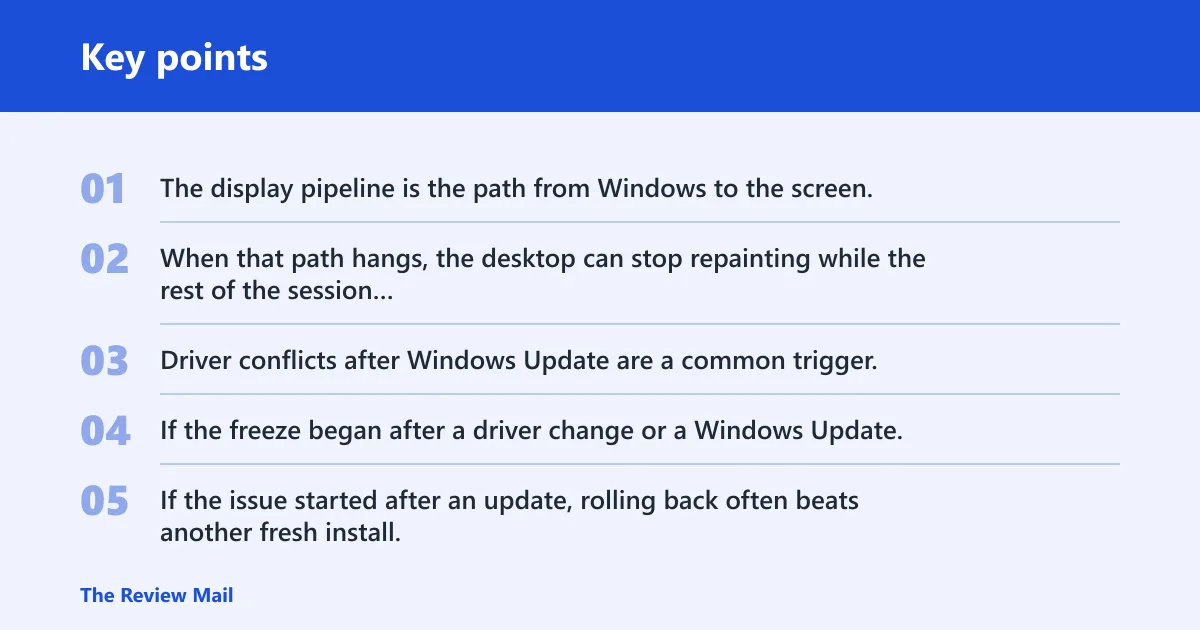
The display pipeline is the path from Windows to the screen. When that path hangs, the desktop can stop repainting while the rest of the session keeps running. Driver conflicts after Windows Update are a common trigger, because a new graphics stack can clash with the installed GPU package.
Update or roll back the GPU driver
If the freeze began after a driver change or a Windows Update, try the last known good driver first. If the issue started after an update, rolling back often beats another fresh install. If the driver is old, updating can fix a bug that only appears under modern Windows 11 graphics paths.
Disable hardware accelerated GPU scheduling
HAGS is a Windows graphics setting, and it matters when freezes happen during graphics-heavy tasks. Turn it off in Settings if the screen locks during games, video playback, or app switching. If the freeze stops after disabling it, leave it off and avoid changing other graphics settings at random.
Why Windows Update can trigger the problem
Windows Update can swap out parts of the graphics stack or change how the driver talks to the OS. That can leave a working driver in a bad state, especially if the freeze starts immediately after update day or after wake from sleep. In that case, update-versus-rollback is the right fork.
Suppose a laptop freezes every time it returns from sleep, but the keyboard backlight still responds. That pattern points more toward a driver or saved-state issue than bad RAM, so Fast Startup and the GPU driver deserve attention before hardware replacement does.
Could Fast Startup be keeping the freeze alive?
Yes. Fast Startup can preserve a saved kernel state across shutdown, which means a bad state can survive reboot and reappear after the next start. If freezes began after an update or after sleep, disabling Fast Startup is a sensible next step before deeper repairs.
What saved kernel state does
Fast Startup does not always start Windows from a clean slate. It can restore parts of the previous session, including a broken driver state or a problem introduced by a recent update. That makes it useful for boot speed, but risky when the freeze started only after a change.
Why this matters after updates or sleep
If the freeze appears after shutdown and restart, not just after a fresh cold boot, Fast Startup may be reloading the problem. The same logic applies when the screen locks after waking from sleep. A repeated bad state is a clue that the issue is being carried forward.
How to turn Fast Startup off
- Open Power Options.
- Choose the power-button settings link.
- Select the option to change unavailable settings.
- Clear the Fast Startup checkbox.
- Shut down fully, then boot again and retest.
If the freeze stops after this change, keep it off until you have confirmed the machine is stable through several restarts. If nothing changes, move to file repair or memory checks rather than toggling more power settings.
Repair Windows image files
Use repair commands when the freeze is not clearly tied to graphics, or when boot freezes persist after driver and power-state fixes. Run DISM first, then SFC after it completes. That order matters because DISM can repair the Windows image that SFC relies on.
Run DISM /Online /Cleanup-Image /RestoreHealth
DISM checks the Windows image and can download repair files, so it needs internet access. Run DISM /Online /Cleanup-Image /RestoreHealth first if Windows files may be damaged. This is the right branch when freezes are persistent, broad, and not explained by a simple display reset.
Run sfc /scannow after DISM
After DISM finishes, run sfc /scannow to check and repair protected Windows files. SFC is the follow-up, not the first step. If both commands complete and the freeze continues, you have narrowed the problem away from common system file corruption. (Microsoft Support)
When repair commands are the right branch
Use this branch when the freeze happens on every boot, after a failed update, or when multiple apps and screens behave oddly. If the system only freezes in one graphics-heavy app, driver work is usually a better first move. If the pattern is random and broad, image repair is worth the time.
When should you check RAM or a VM?
Check RAM when freezes are random, repeat without a clear trigger, or do not fit the graphics pattern. Check a VM branch when the problem is inside Windows 11 as a guest, not on the host. Those two paths are easy to confuse, but they need different fixes.
Use Windows Memory Diagnostic for random freezes
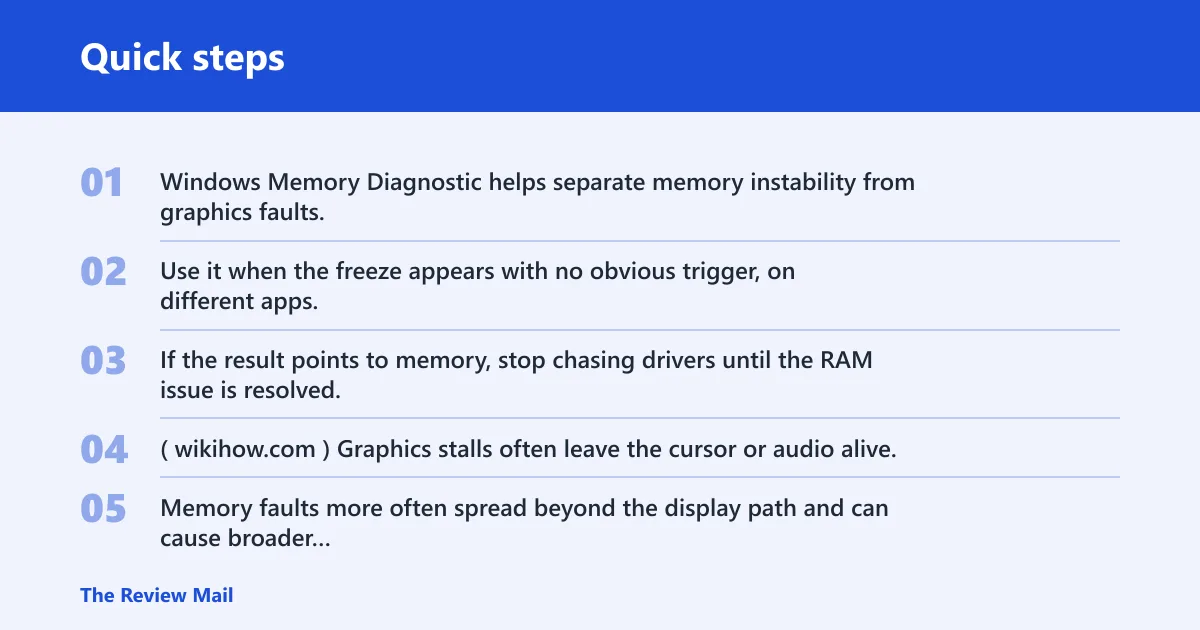
Windows Memory Diagnostic helps separate memory instability from graphics faults. Use it when the freeze appears with no obvious trigger, on different apps, or after the system has been stable for a while. If the result points to memory, stop chasing drivers until the RAM issue is resolved. (Wikihow)
How to read a memory-vs-graphics clue
Graphics stalls often leave the cursor or audio alive. Memory faults more often spread beyond the display path and can cause broader instability, repeated app crashes, or boot problems. If Win + Ctrl + Shift + B helps once, that leans graphics; if the machine freezes everywhere, memory deserves attention.
VirtualBox 3D acceleration and 256MB video memory
If the freeze is in a Windows 11 guest, do not apply host-only fixes first. A reported case involved a Windows 11 22H2 guest after upgrade from Windows 10, with the guest frozen within 4 minutes after power on and login, CPU busy at 100%, and no further actions possible except reboot. One fix was enabling 3D acceleration and setting video memory to 256MB.
When to rename or delete the.VirtualBox folder
If the guest still freezes, another workaround is to delete or rename the .VirtualBox directory and re-add the VM. That resets per-user VM state and can clear a stubborn configuration issue. This is a VM-only step. It is not a general Windows 11 fix for host machines.
A common first-timer mistake is to disable random Windows settings after a guest freeze on a Linux host. That wastes time if the only failing system is the Windows 11 VM. In that case, focus on VirtualBox graphics settings, then the .VirtualBox reset if the guest still dies early after login.
Frequently asked questions
Why does my windows 11 screen freeze?
The most common cause is a graphics driver problem, especially when the screen freezes but the cursor still moves or sound continues. Other causes include Fast Startup preserving a bad state, corrupted system files, RAM instability, and VM graphics settings when the freeze happens inside a guest.
What should I do if windows 11 screen freezes but mouse works?
That usually points to a display-pipeline stall rather than a full system hang. Press Win + Ctrl + Shift + B first. If the freeze returns, update or roll back the GPU driver, turn off HAGS if it happens during graphics-heavy tasks, and check whether Windows Update changed the timing.
Why does my screen freeze but audio continues?
Ongoing audio means Windows may still be running while the graphics path is stuck. That pattern often fits a GPU driver stall, especially after alt-tab, gaming, or waking from sleep. Try the graphics reset shortcut first, then move to driver changes and HAGS if the problem repeats.
How do I know if it is a gpu driver stall or ram problem?
If the mouse still moves or audio keeps playing, the graphics path is the stronger suspect. If the freeze is random, affects different apps, or happens on every boot, RAM or system-file damage moves up the list. Use Windows Memory Diagnostic for the memory branch, and DISM plus SFC for the file branch.
Why does my windows 11 screen freeze after update?
Updates can change the graphics stack, trigger a driver conflict, or leave a bad saved state behind. That is why Fast Startup matters after updates, and why GPU driver rollback is often the quickest fix when the freeze begins right after patching or after the first reboot.
Why windows freezes randomly
Random freezes are harder to pin on one cause. They can come from RAM instability, corrupted Windows files, or a graphics driver that only fails under certain loads. If the pattern has no clear trigger, do not keep changing settings blindly; start with repair commands and memory checks.