Network Reset Windows Command Prompt
Use the Command Prompt reset sequence when Wi-Fi, Ethernet, DNS, DHCP, or adapter settings are broken. The main commands are ipconfig /flushdns, ipconfig /release, ipconfig /renew, netsh winsock reset, and netsh int ip reset. Start with the lightest fix that matches the symptom, then reboot only when the command branch calls for it. Use the full Windows network reset only if those fixes fail or the stack is badly corrupted.
When to use Command Prompt reset
Start with Command Prompt if the problem looks like a broken DNS cache, a bad DHCP lease, Winsock corruption, or a TCP/IP stack issue. That route is lighter, faster, and less disruptive than the Windows Settings reset, which can remove saved Wi-Fi and VPN profiles and may reinstall adapters.
If the PC uses a static IP address, skip ipconfig /release and ipconfig /renew unless an administrator has set DHCP on that adapter. Releasing and renewing a manually assigned address can be misleading because those commands are meant to refresh a DHCP lease, not a static configuration.
Start here
Use this decision tree to choose the right branch and command order:
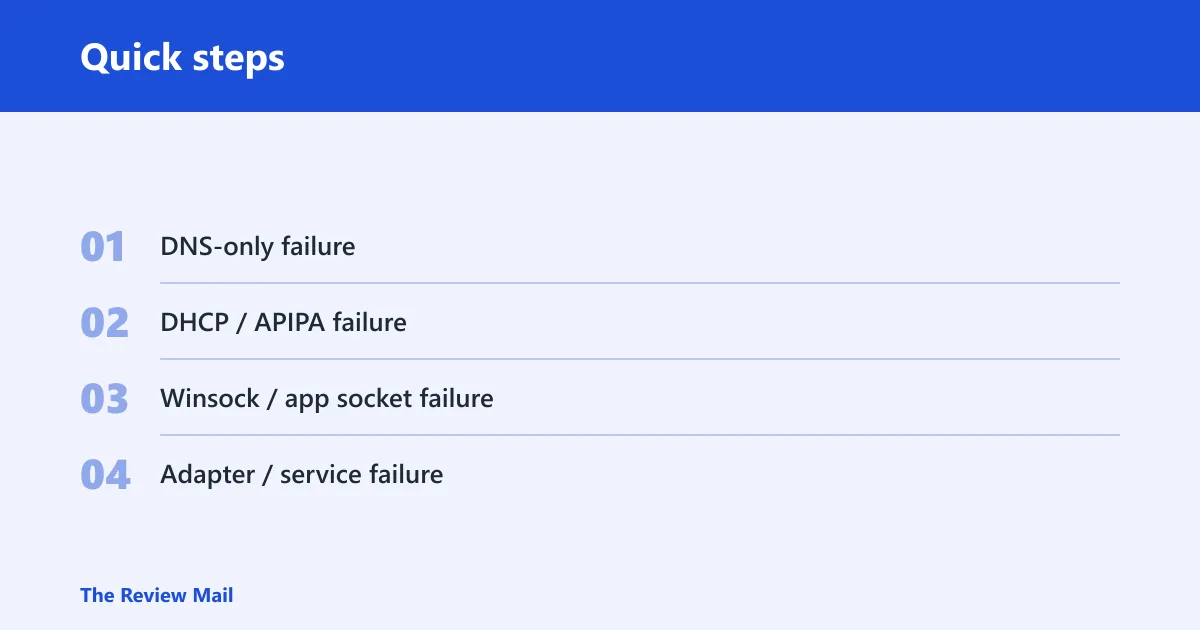
- DNS-only failure — If IP connectivity works but names do not resolve, run
ipconfig /flushdns, then test again. If the problem remains, continue to the Winsock branch only if apps or browsers still fail to open sockets. - DHCP / APIPA failure — If the adapter has no valid lease, shows 169.254.x.x, or says connected but no internet, run
ipconfig /release, thenipconfig /renew. If renew still fails, addnetsh int ip reset, then restart. - Winsock / app socket failure — If browsers, store apps, VPN apps, or sign-in flows fail while basic link status looks normal, run netsh winsock reset, then
netsh int ip reset, then restart. After reboot, if needed, runipconfig /renewon DHCP adapters. - Adapter / service failure — If Wi-Fi or Ethernet disappears, is disabled, or keeps failing after reset, check WLAN AutoConfig and review Device Manager for the adapter before repeating any command sequence.
Command Prompt first, full reset second
A common first-timer mistake is going straight to the full reset because the browser cannot reach one site. If other devices on the same router work, or if the PC gets an IP address but DNS lookups fail, the command sequence is the better first move.
Suppose a laptop shows “connected, no internet” after joining the office network. If ipconfig /flushdns or a DHCP refresh fixes it, there is no need to remove Wi-Fi profiles or reinstall adapters.
Network reset command table
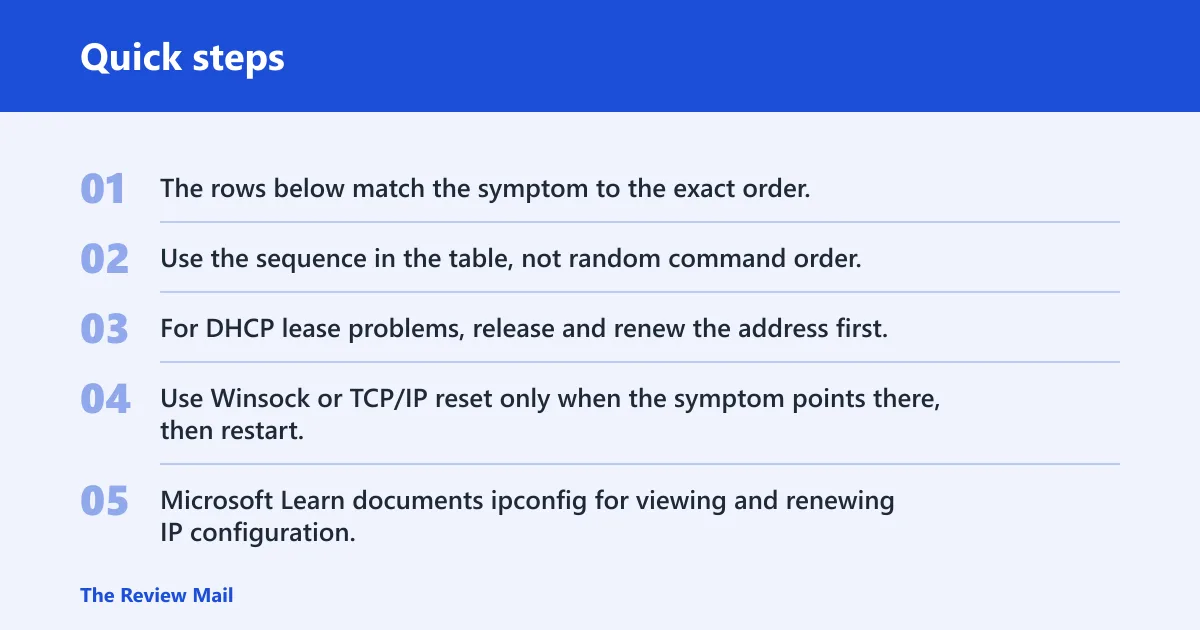
The rows below match the symptom to the exact order. Use the sequence in the table, not random command order. For DNS-only issues, clear DNS first. For DHCP lease problems, release and renew the address first. Use Winsock or TCP/IP reset only when the symptom points there, then restart. Microsoft Learn documents ipconfig for viewing and renewing IP configuration, and Microsoft Learn documents netsh winsock reset and netsh int ip reset as reset commands that require a restart to complete.
| Symptom | Exact command(s) | Expected result | Failure clue |
|---|---|---|---|
| DNS failure | ipconfig /flushdns | Windows clears the DNS client resolver cache, so old or bad name lookups are removed. | The browser still cannot resolve names, but direct IP addresses may work; the problem may be upstream DNS or a proxy. |
| DHCP/IP failure | ipconfig /release then ipconfig /renew; if needed add netsh int ip reset | The current lease is dropped, then Windows asks DHCP for a new IP address. | Renew returns an APIPA-style address or fails to contact DHCP; the router, cable, or adapter may be the real fault. |
| Winsock corruption | netsh winsock reset then restart | Windows resets the Winsock catalog and rebuilds socket layer settings after reboot. | Apps still cannot open sockets after restart; the issue may be a driver, filter, or security tool. |
| Post-reset adapter or service problems | Check WLAN AutoConfig and Wired AutoConfig; review adapters in Device Manager | Services should be running, and the adapter list should show Wi-Fi, Ethernet, Bluetooth, and virtual devices as expected. | One or more adapters are missing, disabled, or show a warning icon; a driver or service fix is still needed. |
How do you run the commands?
Open an elevated Command Prompt, run the commands in the right order for the symptom you are fixing, and restart when Windows asks you to. Microsoft Learn documents netsh winsock reset and netsh int ip reset as reset operations that complete after a reboot.
- Open Command Prompt as administrator.
- Run
ipconfig /releaseto drop the current DHCP lease. (Microsoft Learn) - Run
ipconfig /flushdnsto clear the DNS cache. - Run
netsh winsock resetto reset the Winsock catalog. - Run
netsh int ip resetto reset the TCP/IP stack. - Run
ipconfig /renewto request a new IP address from DHCP. - Restart the PC.
netsh winsock reset resets the Winsock catalog, runs in elevated Command Prompt, and requires restart. netsh int ip reset resets the TCP/IP stack, is often paired with DNS and IP renew commands, and also requires restart. That is why the reboot is part of the fix, not an optional final step.
ipconfig /flushdns is used after connectivity issues when cached name resolution may be stale. ipconfig /release releases the current IP address, and ipconfig /renew asks DHCP for a new one. The release step comes first because Windows should drop the bad lease before requesting a fresh one. On a static-IP system, skip the release and renew pair unless the adapter has been switched to DHCP.
What each command changes
These commands touch different layers of the network stack. Use them in sequence because they solve different faults, and each one can reveal whether the next step is actually needed. Microsoft Learn’s documentation for ipconfig covers renewing and displaying address configuration, while the netsh reset commands are used when the socket layer or TCP/IP stack needs rebuilding.
DNS, DHCP, and stack repair
ipconfig /flushdns clears the local resolver cache. It does not change your router, your VPN, or your adapter, but it can remove stale entries that keep a domain from resolving.
ipconfig /release and ipconfig /renew refresh the DHCP lease. That helps when Windows has a broken or expired IP address, or when the adapter stayed on a bad network configuration after sleep, resume, or cable changes.
netsh winsock reset rebuilds the Winsock catalog. That matters when security software, network filters, or a damaged socket layer blocks browser traffic, app connections, or sign-in flows. Use the internal Winsock reference when the symptom points to app-level connection failure rather than simple name resolution.
netsh int ip reset resets the TCP/IP stack. It is the heavier Command Prompt repair, and it often belongs in the same run as the DNS and IP renewal commands.
What does Windows network reset do?
Windows network reset restores network-related settings to defaults, and on Windows 11 it can remove saved Wi-Fi networks and VPN connections. Microsoft describes it as a broader reset that can reinstall network adapters and return network components to a clean state, which makes it more disruptive than the Command Prompt sequence but useful when the stack is badly broken.
What gets reset or removed
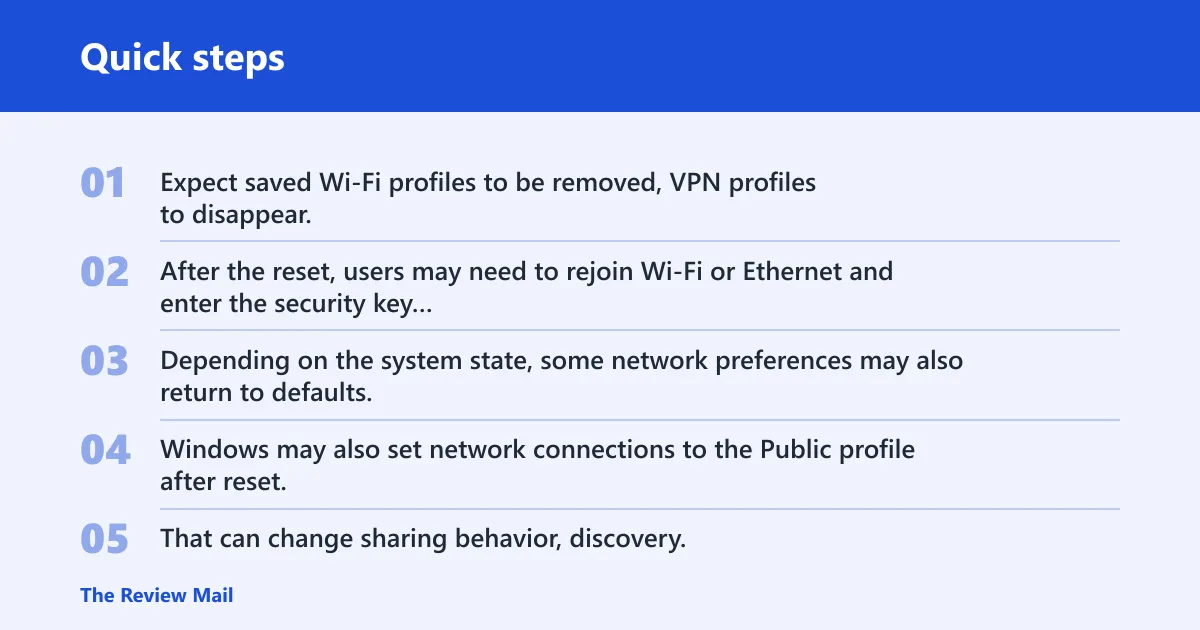
Expect saved Wi-Fi profiles to be removed, VPN profiles to disappear, and adapters to be removed and reinstalled. After the reset, users may need to rejoin Wi-Fi or Ethernet and enter the security key again. Depending on the system state, some network preferences may also return to defaults.
Windows may also set network connections to the Public profile after reset. That can change sharing behavior, discovery, and printer access until you switch the profile back.
What usually stays in place
System files stay in place, and the reset is not a Windows reinstall. Personal documents are not the target here. The change is centered on network-related settings, adapter state, and saved connection data.
| Item | Command Prompt reset | Windows network reset |
|---|---|---|
| Static IP | Usually stays unless you change it with TCP/IP commands | Can be forgotten or returned to default behavior |
| Wi-Fi profiles | Usually stay | Can be removed |
| VPN profiles | Usually stay | Can be removed |
| Public/private network profile | Usually stays as set | May revert to Public |
| Adapters | Usually stay installed | May be removed and reinstalled |
When the full reset is the safer choice
Use the full Windows network reset when the command sequence works but connectivity still breaks after reboot, or when multiple adapters fail at once. It is also the safer choice if a VPN or filter driver has left the system in a confused state and you need Windows to rebuild the network list.
After the reset: services and adapters
If connectivity remains broken after the command sequence or after the full reset, check services and device state next. WLAN AutoConfig should be running, and Automatic startup is commonly recommended. If the service is stopped, Wi-Fi connectivity can fail even when the commands completed. Microsoft’s service behavior for this component is especially relevant after a reset because adapter and profile rebuilding depends on it.
Check adapters in Device Manager
Look in Device Manager for missing, disabled, or warning-marked network adapters. Network adapters can be removed and reinstalled during a Windows network reset, and driver issues can persist after reset. That includes Wi-Fi, Ethernet, Bluetooth, and virtual adapters.
If an adapter is missing after reset, open Device Manager, use View to show hidden devices if needed, and check whether the network adapter appears disabled or unknown. Then verify that WLAN AutoConfig is running before repeating any reset command.
Say a desktop can ping the router after reboot but still cannot see a VPN tunnel. The reset may have cleared the VPN profile, or a virtual adapter may need reinstalling before the tunnel works again.
Handle leftover drivers and filters
Driver problems can survive both the Command Prompt sequence and the built-in reset. If Device Manager shows an error icon, reinstall the adapter driver from the PC maker or adapter vendor. If a virtual switch or VPN filter is involved, check whether the related software needs a repair install or removal.
Frequently asked questions
How do I reset my network settings from cmd?
Open an elevated Command Prompt and run the branch that matches the symptom. For DNS-only failure, use ipconfig /flushdns. For DHCP or APIPA failure, use ipconfig /release and ipconfig /renew. For socket-layer problems, use netsh winsock reset and then netsh int ip reset, followed by a restart. That sequence fixes many DNS, DHCP, and Winsock faults without removing saved Wi-Fi or VPN profiles.
How to reset network settings Windows 11 from Command Prompt
Use an elevated Command Prompt, run the release, flush, Winsock reset, TCP/IP reset, and renew commands only when that order matches the symptom, then reboot. On Windows 11, that is often enough for bad DNS, a broken DHCP lease, or socket-layer corruption. Use the Settings-based network reset only if the stack stays broken.
What commands reset TCP IP and DNS on Windows?
ipconfig /flushdns resets the local DNS cache, while netsh int ip reset resets the TCP/IP stack. If IP assignment is part of the failure, add ipconfig /release and ipconfig /renew on DHCP adapters. For socket-layer issues, include netsh winsock reset too.
Will a network reset delete my Wi-Fi passwords and VPNs?
Yes, a Windows network reset can remove saved Wi-Fi networks and VPN connections on Windows 11. It may also reinstall network adapters and forget static IP configurations. Afterward, you may need to reconnect to Wi-Fi and enter the security key again.
What does a network reset do on PC?
On a PC, Windows network reset restores network-related settings to defaults and may reinstall adapters. It can fix stubborn driver, VPN, or profile problems, but it can also clear saved Wi-Fi and VPN data. If only DNS or DHCP is broken, the Command Prompt sequence is usually less disruptive.