Windows 11 Sign Out Missing
If Windows 11’s Sign out option is missing, start with the Start menu account/avatar menu, then use Ctrl+Alt+Del, Task Manager, or a command-line logout if the normal UI is broken. Leaving it unresolved can trap your session, block account switching, and force a full reboot. This guide covers the quickest UI fixes, policy checks, and shell repairs that bring back Sign out access.
Where the sign-out option usually
On Windows 11, the most reliable path is Start > account/avatar menu > Sign out. That is the primary route Microsoft documents for ending a session from the Start experience. In some builds and layouts, the same account controls may appear in a different visual position, but the sign-out action is normally tied to the account menu rather than the power menu.
Start menu account/avatar menu
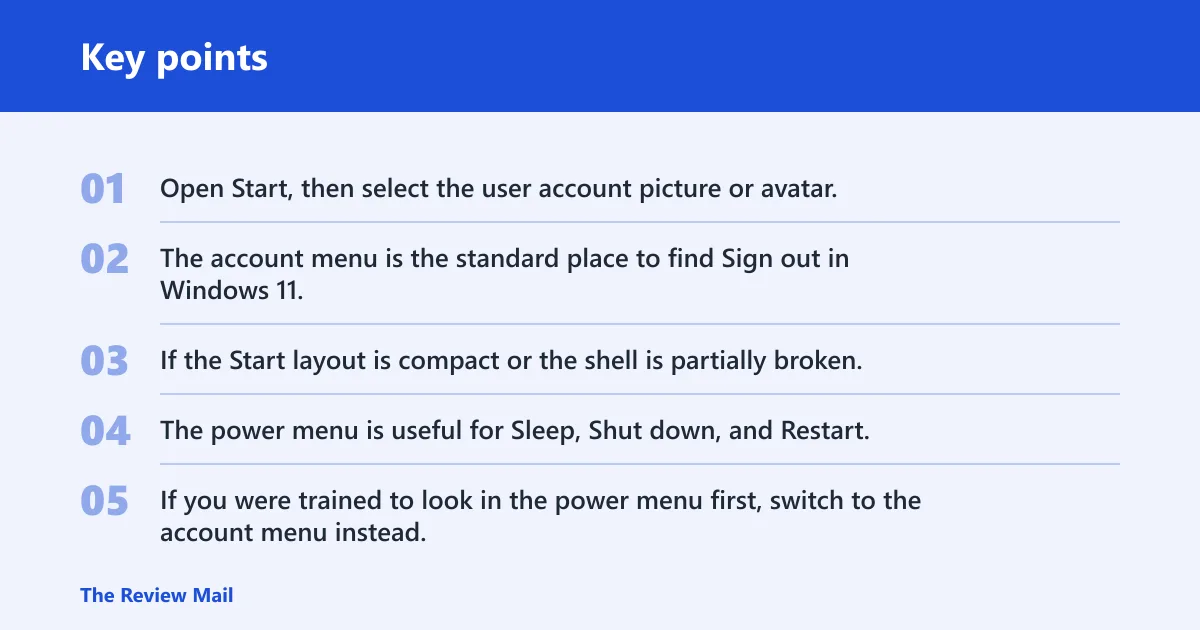
Open Start, then select the user account picture or avatar. The account menu is the standard place to find Sign out in Windows 11, especially when the power button only shows Sleep, Shut down, and Restart. If the Start layout is compact or the shell is partially broken, the avatar may be smaller, moved, or temporarily missing.
Power menu is not the primary path
The power menu is useful for Sleep, Shut down, and Restart, but it is not the main place to expect Sign out unless a particular build or interface state places it there. If you were trained to look in the power menu first, switch to the account menu instead. That distinction matters because the control can be present even when the power flyout looks incomplete.
Sign out versus lock, sleep, switch user, and restart
These actions are easy to confuse, but they do different jobs. Lock keeps the session alive, Sleep pauses the machine, Switch user keeps the current session open while another account signs in, and Restart closes everything and starts Windows again. Sign out ends the current account session without rebooting the PC.
If the Start menu opens normally but the avatar menu is the only place with account controls, use that route first. If the avatar menu is missing too, move to Ctrl+Alt+Del, because Microsoft documents that security screen as a separate session-control surface that can still expose sign-out options even when Start is unstable.
Why did the sign out option disappear in Windows 11?
Most missing-sign-out cases come from a shell failure, a hidden or incomplete account menu, policy restrictions, a tablet or full-screen Start variation, or a corrupted Explorer/session state. A broken account is only one possible cause. The goal is to recover session controls, not to troubleshoot the Microsoft account in isolation.
Shell failure or corrupted Explorer session state
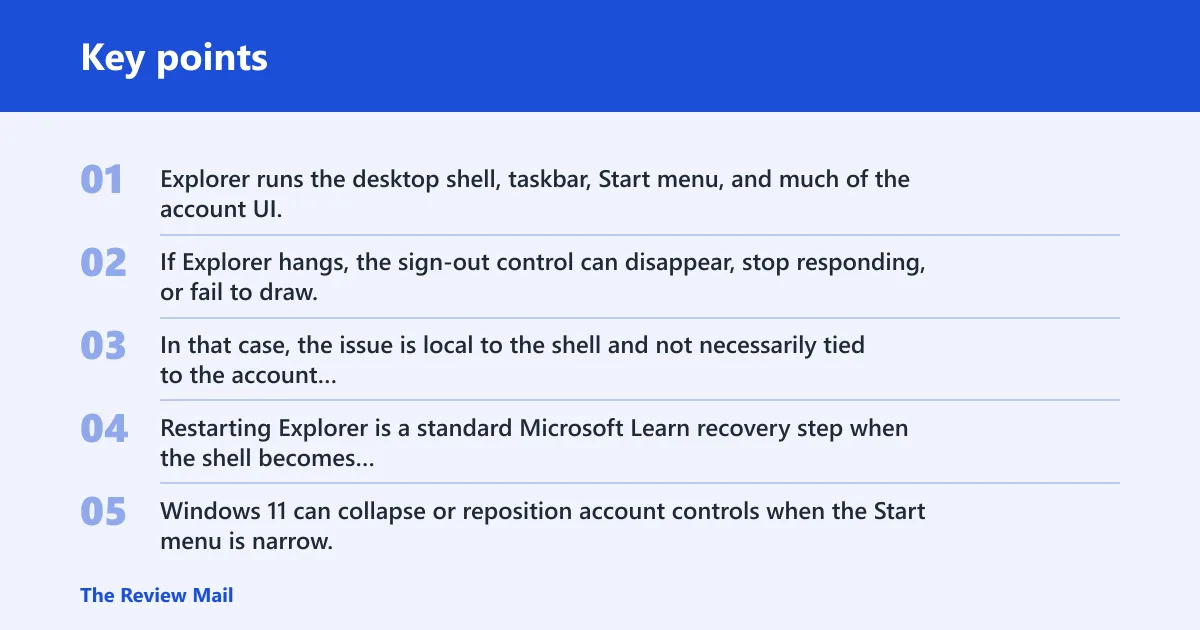
Explorer runs the desktop shell, taskbar, Start menu, and much of the account UI. If Explorer hangs, the sign-out control can disappear, stop responding, or fail to draw. In that case, the issue is local to the shell and not necessarily tied to the account itself. Restarting Explorer is a standard Microsoft Learn recovery step when the shell becomes unresponsive.
Hidden account menu or compact Start layout
Windows 11 can collapse or reposition account controls when the Start menu is narrow, full-screen, or in a tablet-style presentation. The avatar can be harder to spot, or the menu may open in a way that hides the sign-out command behind another tap. If the Start area is visually different from what you expect, treat it as a layout issue before assuming the feature is gone.
Policy-managed device restrictions
On domain-joined or managed devices, IT can limit sign-out, switch-user, or other session options. Some kiosk setups also lock the shell to a single app or a restricted user flow. Microsoft’s management guidance for Access work or school helps identify whether the PC is connected to an organization that may enforce those restrictions. If the machine belongs to an employer or school, missing Sign out may be deliberate.
If the account menu disappears after a policy refresh, the problem is often not the user profile itself. In that case, the most useful clue is whether Ctrl+Alt+Del still opens the security screen. If it does, the session is alive and the UI path is the problem; if it does not, the device may be locked down more aggressively and needs admin review.
Sign-out recovery table
| Symptom | Likely cause | Exact recovery step | Escalate to admin support when |
|---|---|---|---|
| Start menu missing Sign out | Shell glitch, compact layout, or Explorer problem | Open Start, select the account/avatar menu, then choose Sign out; if needed, press Ctrl+Alt+Del and choose Sign out from the security screen | The account menu stays missing after Explorer restarts and a normal reboot |
| Account avatar missing | Compact layout, tablet/full-screen Start variation, or broken shell rendering | Use Ctrl+Alt+Del, then check Task Manager for shell recovery options or sign out from the security screen | Avatar and Start controls both fail to appear on a managed device |
| Ctrl+Alt+Del works | Start menu UI is broken, but the session is intact | Use Ctrl+Alt+Del as the main sign-out route, then repair Explorer from Task Manager | Sign out works only on the security screen and the Start menu returns to the same failure |
| Policy-managed PC | Group Policy, kiosk mode, or organization restrictions | Check Settings > Accounts and Access work or school to confirm whether the device is connected to an organization; ask IT whether sign-out, switch-user, or session controls are intentionally disabled | You do not control policy settings or the device belongs to a domain |
| Frozen Explorer | Broken shell process | Open Task Manager, use Run new task, type explorer.exe, and restart the shell | Explorer restarts fail, taskbar stays broken, or the shell freezes again |
| Repeated sign-in prompts | Corrupted session state or account/token refresh problem | Sign out from Ctrl+Alt+Del, then sign in again; if the prompt loops, restart Explorer or use shutdown.exe /l from Run new task or Command Prompt | The prompt loops after a clean sign-out and a fresh sign-in attempt |
| Switching accounts when sign-out is absent | Session UI hidden or restricted | Use Switch user from Ctrl+Alt+Del if available; if not, check policy and the account menu in Start | No account-switch path exists on a managed device or the security screen is restricted |
Can you sign out with the keyboard?
Yes. A common keyboard path is Ctrl+Alt+Del, which opens the Windows security screen even when the Start menu is broken. From there, Sign out is often available directly. If the desktop shell is frozen, this route can work when the normal UI cannot.
Ctrl+Alt+Del security screen
Press Ctrl+Alt+Del, then look for Sign out on the security screen. Microsoft documents this as the Windows security screen used for session actions when the desktop is unresponsive or obscured. Because it is separate from Start, it can bypass a broken taskbar, hidden Start menu, or missing avatar button.
Task Manager and Run new task
If Ctrl+Alt+Del opens but the desktop still looks wrong, choose Task Manager. Use Run new task, type explorer.exe, and start it again. That restarts the shell without a full reboot and often restores the Start menu, the avatar button, and the sign-out path.
Command-line fallback
If the UI is unreliable, a command-line logout can end the session directly. From Run new task or Command Prompt, use shutdown.exe /l as the sign-out fallback. This is especially useful when Start, the account menu, and the taskbar all fail at once, because it acts on the current session rather than the shell controls.
Restarting Explorer without a full reboot
When Explorer is the problem, a full restart is not always necessary. Restarting the shell can be enough to bring back the account menu and sign-out path. If Task Manager opens with limited options, that itself suggests a session-state issue worth checking against policy or admin restrictions.
Is this a policy issue?
It may be. If the device belongs to a workplace, school, or domain, policy can hide Sign out, Switch user, or other session controls. Kiosk mode and restricted sign-in profiles can also remove normal account actions even though Windows itself is functioning. Microsoft’s device-management guidance for Access work or school is the most useful place to confirm whether the PC is managed.
Domain-managed PCs
On domain-managed devices, Group Policy may control which session commands appear. A local repair may not change that. If the device is joined to a business or school network, the missing sign-out control can be intentional and should be checked against the organization’s rules.
Kiosk mode and restricted sessions
Kiosk setups often keep users inside a single app or a narrow shell. That means Sign out may be hidden or replaced with a different exit path. If the machine is meant to run only one account or one app, changing the UI locally may not be possible.
When to ask IT for help
Ask IT when the missing option affects a managed device, returns after every reboot, or appears tied to an account policy you cannot edit. If multiple users see the same limit on the same PC, that points to administrative configuration rather than a personal profile problem.
Check account settings
Account settings help separate a local account issue from a Microsoft account or work account issue. Go to Settings, then Accounts. Check Email & accounts and Access work or school to see whether the PC is connected to an organization, and whether your sign-in context changed after a policy refresh or account switch.
Local account versus Microsoft account
A local account can sign out normally even without cloud sync. A Microsoft account may trigger extra sign-in prompts if Windows needs credentials refreshed, but that does not by itself remove the Sign out control. The menu problem and the account problem can happen at the same time, but they are not the same thing.
Email and accounts in Settings
Email and accounts shows which identities Windows knows about. If a work or school account appears there, a policy may be enforcing the current session behavior. If only a local account appears, the issue is more likely a shell glitch, a Start menu layout change, or a temporary session fault.
Access work or school connections
Open Access work or school to see whether the device is connected to a managed environment. If the connection belongs to an employer or school, do not assume you can restore Sign out yourself. The control may be hidden by design, and Microsoft’s account-management pages are the right place to confirm that status.
What to try after the menu returns
If Sign out comes back after a shell repair, finish with a basic stability check. Restart the PC if Explorer keeps misbehaving, check for Windows updates, and confirm that the next sign-in screen shows the expected account. That sequence helps separate a temporary glitch from a deeper session issue.
Restart the PC if the shell stays unstable
A restart is the quickest fallback when the shell keeps breaking. It clears temporary Explorer state and reloads the Start menu. If the sign-out problem returns immediately after reboot, that is a clue that policy or a damaged profile may be involved. A full reboot is also useful if the security screen, taskbar, and account menu all behave inconsistently.
Check for Windows updates
Windows update checks matter because UI fixes sometimes ship with shell updates. They also help rule out a temporary build problem. A fresh update does not guarantee the menu returns, but it is a sensible step after Explorer repair or a one-time UI failure.
Confirm the correct sign-in screen after logout
After sign out, confirm that Windows returns to the correct sign-in screen and account list. If it signs you into an unexpected profile, or keeps asking for credentials repeatedly, the issue is broader than the missing menu and may involve the account state or a work/school policy.
Frequently asked questions
Why is Windows signing me out?
Windows can sign you out because of account prompts, session timeouts, policy rules, or shell instability. If the problem appears with the missing Sign out option, separate the account prompt from the UI problem first. A broken Explorer session can make a normal sign-out flow look like an account failure.
Where is the sign out button in Windows 11?
Look in Start > account/avatar menu > Sign out first. If that path is unavailable, use Ctrl+Alt+Del as the fallback, because that security screen often keeps Sign out available even when the desktop shell is failing. The power menu is secondary and should not be treated as the primary location unless the build or context shows it there.
How do I sign out of Windows 11 without restarting?
Use the Start account menu, the Ctrl+Alt+Del screen, or the command-line fallback if the UI is broken. Those methods end the current session without a full reboot. If the desktop is frozen, open Task Manager and restart Explorer, then try the sign-out path again.
How do I log off from Windows 11 using the keyboard?
Press Ctrl+Alt+Del and choose Sign out from the security screen. If the shell is broken, this is the most reliable keyboard route. If that screen does not help, open Task Manager and restart explorer.exe through Run new task, then retry the sign-out action.
How do I switch accounts if sign out is missing?
Use Switch user from Ctrl+Alt+Del if available. If that is missing too, the device may be managed or the shell may be damaged. Check Access work or school in Settings, then ask IT if the PC is domain joined, kiosk controlled, or otherwise restricted.