Currently This Device Is Not Connected: Fix Code 45
Code 45 means Windows sees the device entry but cannot detect the hardware right now. If it stays after a rescan and reboot, treat it as a lost connection or failed device, not just a driver issue. Ignoring it can leave USB, Bluetooth, or Wi‑Fi hardware missing from Device Manager and unusable. This guide shows how to tell whether Windows lost the device, the driver, or the hardware itself.
This guide is part of our Windows driver errors: full list and fixes series.
What Code 45 means in device Manager
Code 45 is a Windows Device Manager error that means the operating system does not detect the hardware device at the moment. Microsoft Q&A describes it as a Device Manager error and says Windows cannot detect the hardware device. That can happen with removable devices and built-in parts alike. (Microsoft Learn)
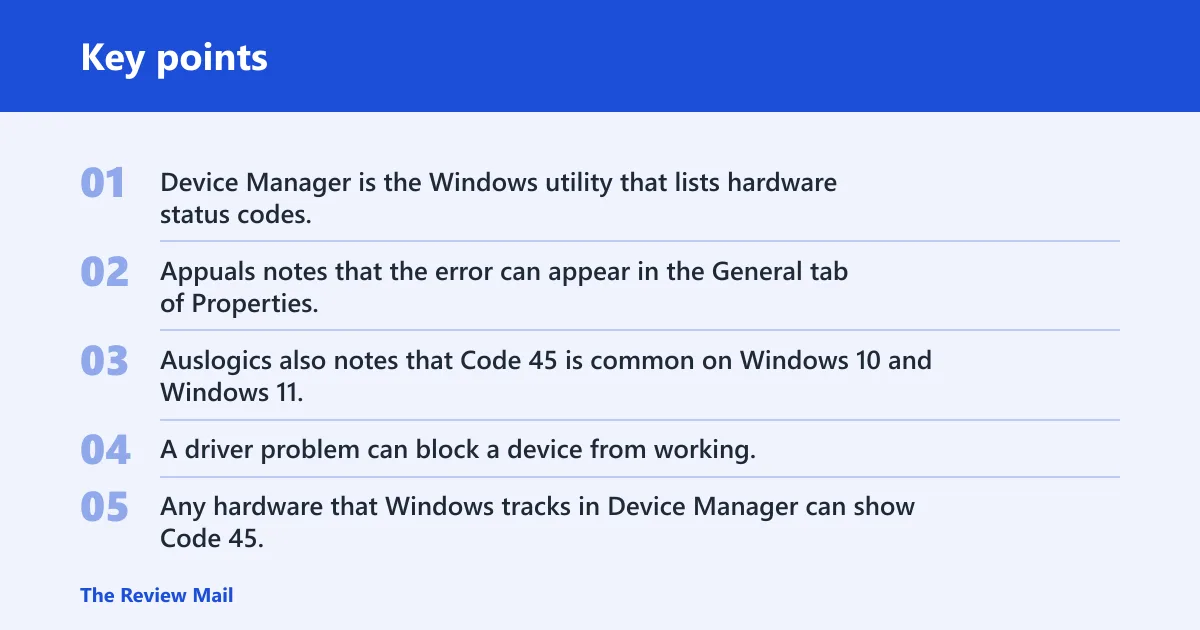
Device Manager is the Windows utility that lists hardware status codes, helps you locate the affected device, and gives you actions such as uninstall device and scan for hardware changes. Appuals notes that the error can appear in the General tab of Properties. Auslogics also notes that Code 45 is common on Windows 10 and Windows 11, and built-in devices can show it too.
The key point is detection state. A driver problem can block a device from working, but Code 45 says Windows is not seeing the hardware at all, or not seeing it reliably enough to keep the entry active.
Which devices can show this error?
Any hardware that Windows tracks in Device Manager can show Code 45. That can include USB devices, Bluetooth adapters, Wi‑Fi adapters, and built-in parts such as webcams and wireless cards. The fix path depends on whether the part is removable, detachable by cable, or buried inside the system.
Why Code 45 appears when the device is plugged
Code 45 can show up even when something looks plugged in because a visible connection is not the same as successful detection. Microsoft Q&A lists physical disconnection as a reason for Code 45, and also lists driver issues. Appuals frames the error as a failure to recognize a connected hardware device.
Loose cable, bad port, or power issue
For removable hardware, Windows may briefly see a device and then lose it because of a loose cable, a weak port, or unstable power. Driver Easy recommends checking the cable and connector for visible damage. A device can look seated while still failing the handshake that tells Windows what it is.
Driver mismatch or failed enumeration
Sometimes Windows can see that something is attached, but it cannot finish enumeration, which is the step where the device identifies itself. That can happen after a bad driver install, a partial update, or a stale entry in Device Manager. In that case, the device may be present in the list but unusable.
Internal hardware or firmware failure
For internal parts, Code 45 can point to BIOS, firmware, or hardware trouble. A Wi‑Fi adapter or Bluetooth card may disappear because a firmware setting changed, a chipset driver is missing, or the part failed. If the device cannot be physically reconnected, stop treating it like a cable problem.
Say your external webcam disappears after the laptop is nudged, then comes back for a second and drops again. That pattern points more to a loose connection or cable fault than to a bad driver, so port and cable checks come before software repair tools.
Code 45 decision table
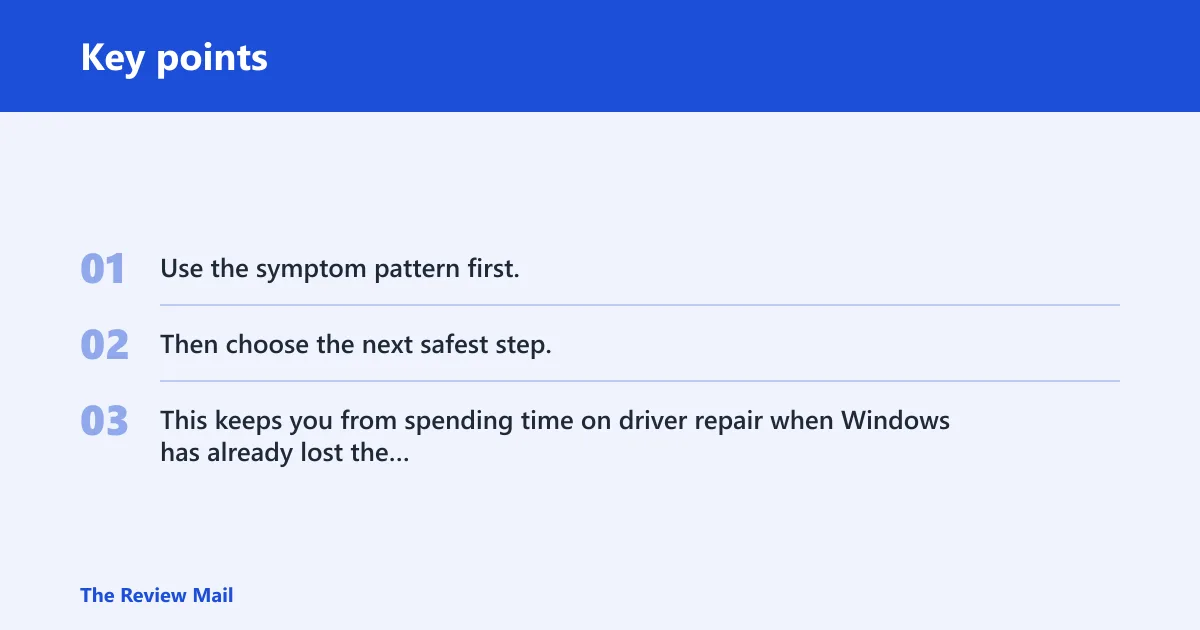
Use the symptom pattern first. Then choose the next safest step. This keeps you from spending time on driver repair when Windows has already lost the hardware.
| Device Manager symptom | Likely cause | Safest next step | When to stop software fixes | Escalation trigger |
|---|---|---|---|---|
| Visible device with Code 45 | Windows sees the entry but not the hardware; common causes include unplugged hardware, cable or port trouble, or a driver problem | Reconnect the device, restart Windows, then use Uninstall device and Scan for hardware changes | Stop if the same Code 45 returns after a clean rescan | If the device still does not enumerate, suspect a failed device, port, or controller |
| Hidden or faded device | The hardware may be absent, disabled, or previously detected and now missing | Show hidden devices, check whether the entry is faded, then remove and rescan only if the device should be present | Stop if the device stays hidden after a reboot and rescan | If it is an internal part and remains missing, move to BIOS or firmware checks |
| Missing network adapter | Internal Wi‑Fi hardware, chipset detection, or firmware issue | Check Device Manager, Network settings, BIOS, and chipset driver order | Stop after chipset and BIOS checks if the adapter still does not appear | Escalate to firmware review or hardware service when the adapter vanishes from every view |
| Bluetooth peripheral not pairing | Bluetooth radio off, stale pairing, or adapter detection failure | Turn Bluetooth on, remove the device, then pair again | Stop if the radio itself shows Code 45 or stays absent after re-pairing | If the adapter is gone from Device Manager, treat it as an adapter detection problem, not a pairing problem |
| Internal device that cannot be reconnected | Firmware, BIOS, chipset, or hardware fault | Check BIOS settings, update firmware if available, and verify chipset support | Stop after one pass of software and firmware checks | If the device still does not appear, service or replacement becomes the next step |
How do you fix Code 45 safely?
Start with the lowest-risk steps: reconnect the hardware, restart Windows, and use Device Manager to refresh detection. Microsoft Q&A and Driver Easy both point to reconnection as a valid first move, and Driver Easy says Code 45 may disappear after reconnecting the device. If the device is intentionally disconnected, you can ignore it.
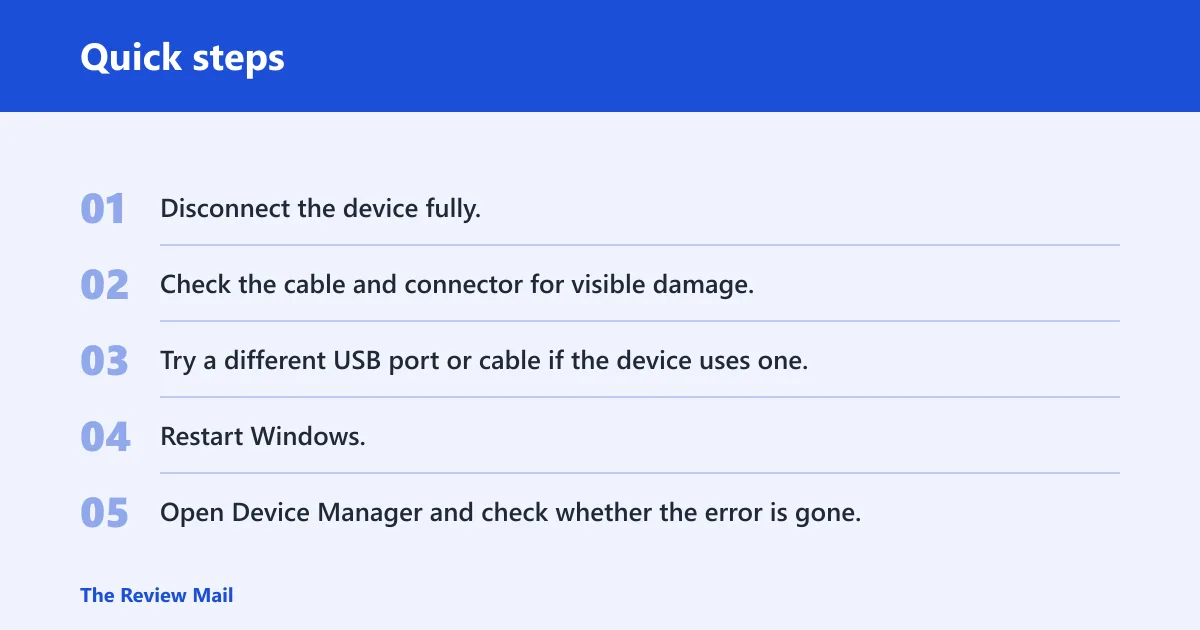
Reconnect the hardware and restart Windows
For USB device errors, unplug the device, wait about a few seconds, and reconnect it. Try another port if the first one seems weak. Then reboot Windows 10 or Windows 11. A power flush and restart can clear a stale detection state, which is why many guides include that step early.
- Disconnect the device fully.
- Check the cable and connector for visible damage.
- Try a different USB port or cable if the device uses one.
- Restart Windows.
- Open Device Manager and check whether the error is gone.
Uninstall the device in Device Manager
If the device still shows Code 45, use Device Manager to uninstall the entry, then scan for hardware changes. That is a safe next step because it forces Windows to forget a stale record and search again. Driver Easy also says to delete driver software when uninstalling the device, but that is better reserved for stubborn cases.
To do this, find the affected device in Device Manager, open its context menu, choose Uninstall device, and then run Scan for hardware changes. If the hardware is real and connected, Windows may rediscover it and rebuild the entry.
When a quick fix is enough
If the device comes back after a different port, cable, or reboot, stop there. That pattern points to a temporary connection problem, not a deeper fault. If the device is intentionally unplugged, hidden on purpose, or removed from use, no further repair is needed.
Should you reinstall the driver?
Yes, but only after you check that the hardware is still detectable. A driver reinstall is worth trying when Windows can see the device entry, the hardware is at least intermittently present, or the problem followed a recent driver or Windows change. It is often less useful when the device no longer appears in Device Manager at all.
When a driver reinstall is worth trying
Reinstall the driver when Code 45 sits on a device that still appears in Device Manager, especially after an update or a failed install. That can fix stale bindings or a broken device record. For a visible device, uninstalling and letting Windows rebuild the entry is usually the safer first version of a reinstall.
When a reinstall is unlikely to help
If the device is missing from Device Manager, a driver reinstall is unlikely to bring back absent hardware. That is especially true for built-in parts such as a Wi‑Fi adapter or Bluetooth card. In that case, move to BIOS, firmware, or chipset checks before repeating software repair steps.
When to update Windows first
If the issue began after a Windows 10 or Windows 11 update, check Windows Update before you spend time on deeper repairs. A fresh device or chipset update can restore detection, but it is not a universal cure. Use it as one step, not the whole plan.
What to do for Bluetooth and Wi-Fi adapters
Bluetooth and Wi‑Fi need special handling because they can fail as radios, adapters, or pairings. A Bluetooth adapter problem may look like a pairing problem first. A Wi‑Fi adapter problem may look like a missing network option in settings, even though the root issue is detection inside Device Manager.
Bluetooth adapter: turn Bluetooth on and re-pair
If a Bluetooth peripheral will not pair, confirm that Bluetooth is turned on, then remove the device and pair it again. If the adapter itself shows Code 45, the problem is higher up than pairing. That means Windows is not seeing the Bluetooth hardware, so pairing steps alone will not fix it.
Suppose a Bluetooth mouse stopped connecting after a laptop sleep cycle. If the Bluetooth radio still appears in Device Manager, removing the mouse and pairing it again may solve it. If the radio itself has Code 45, the fix shifts to adapter detection, not the mouse.
Wi-Fi adapter: check chipset, BIOS, and firmware
If a Wi‑Fi adapter vanishes from Wi‑Fi settings or shows Code 45, check Device Manager first, then BIOS, firmware, and chipset support. On Windows 11 especially, the chipset driver can matter before the Wi‑Fi driver. If the adapter is built in, a missing BIOS setting or firmware issue can hide it from Windows entirely.
When adapter disappearance points to hardware trouble
If the adapter does not return after reboot, scan, Windows Update, and the correct driver order, the symptom pattern points away from software. A built-in wireless card that never reappears is a strong sign of hardware or firmware trouble. At that point, service or replacement is the next logical step.
When should you stop software fixes?
Stop software fixes when Windows no longer detects the device in any reliable way. That includes a visible Code 45 that returns after a reboot and rescan, a hidden device that never comes back, and an internal adapter that disappears from Device Manager, Wi‑Fi settings, or Bluetooth settings at the same time.
Signs the device is not being detected at all
If Device Manager shows Code 45 after reconnection, and the hardware still fails to return after Scan for hardware changes, the operating system is telling you it cannot find the device. That is often the point where driver work ends and hardware or firmware investigation begins.
When to try SFC, DISM, and CHKDSK
SFC and DISM are worth trying later, after the hardware checks, when you suspect damaged Windows files. CHKDSK belongs in the same later stage if storage corruption may be involved and a reboot is acceptable. These tools are general repair utilities, not first-line fixes for a device that Windows cannot detect.
When to escalate to hardware service or replacement
Escalate when the same device fails across multiple ports, cables, or reboots; when an internal adapter stays absent after BIOS and firmware checks; or when the device appears as Code 45 on every attempt to rediscover it. At that point, the fault is more likely in the part itself than in Windows.
Frequently asked questions
What does currently this hardware device is not connected to the computer code 45 mean?
It means Windows has a Device Manager entry for the device but cannot detect the hardware right now. Microsoft Q&A identifies it as a Windows Device Manager error and says the OS cannot detect the hardware device. The most useful first question is whether the hardware is actually disconnected, hidden, or failed.
Why does Device Manager show Code 45 even when the device is plugged in?
Because a physical connection is not the same as successful detection. A loose cable, bad port, power problem, driver mismatch, or failed enumeration can leave the device appearing plugged in while Windows still cannot recognize it. Internal hardware or firmware failure can do the same thing on built-in parts.
How do I fix currently this hardware device is not connected to the computer?
Start with the simplest detection checks: reconnect the device, try another port or cable, restart Windows, then use Device Manager to uninstall the device and scan for hardware changes. If the device still shows Code 45 after that, move to driver, BIOS, firmware, or hardware checks based on the device type.
Should I uninstall and reinstall the driver for Code 45?
Yes, if the device still appears in Device Manager and the problem may be a stale driver record. It is less useful when the device is missing entirely, because that points to detection failure rather than a bad driver. For a visible device, uninstall and rescan before trying anything more advanced.
What should I do if my Wi-Fi adapter shows Code 45?
Check Device Manager first, then look at BIOS, firmware, and chipset support before chasing driver updates. A Wi‑Fi adapter can disappear from settings if Windows is not detecting the internal card. If it stays missing after reboot, Windows Update, and the right chipset order, treat it as a detection or hardware issue.
What if Code 45 is caused by hardware failure instead of drivers?
Then software fixes will stall out. If a device still shows Code 45 after reconnecting, rescanning, reinstalling the driver, and checking Windows Update, the remaining causes are usually hardware, firmware, or BIOS. For internal devices, that is the point to move to service, replacement, or manufacturer-level support.