WSA_QOS_ADMISSION_FAILURE Fix on Windows Error
WSA_QOS_ADMISSION_FAILURE 11010 means a QoS admission error. A QoS error occurred due to lack of resources. When this happens, Windows could not grant the socket’s QoS reservation request, so the app may fail during sign-in, call setup, or media start.
What the code means
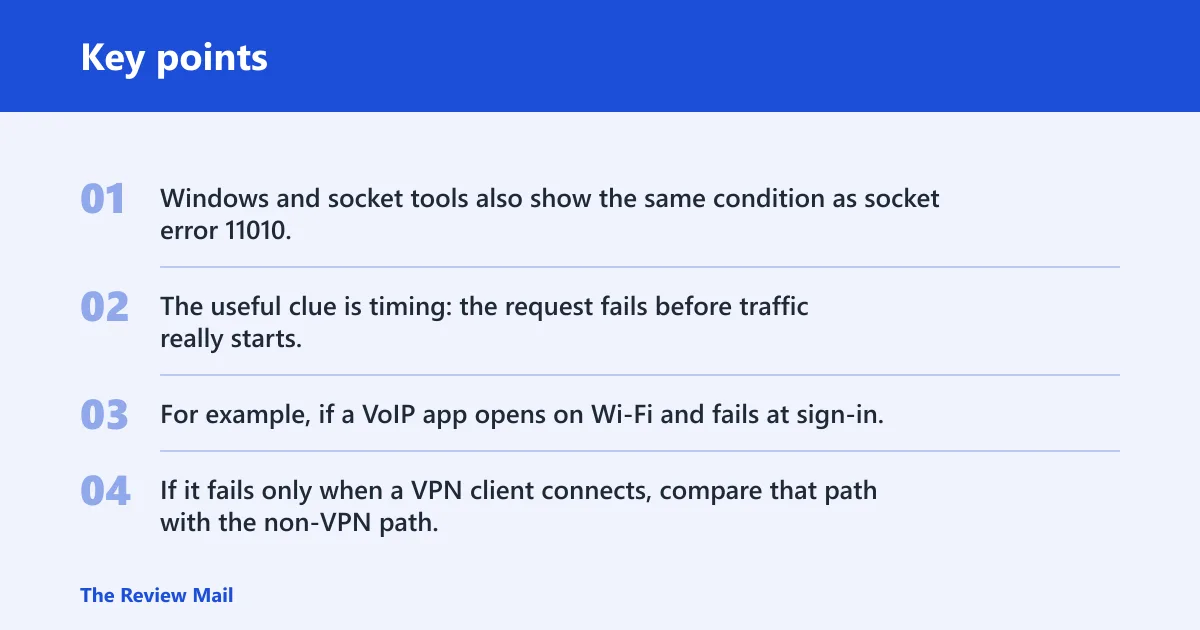
Windows and socket tools also show the same condition as socket error 11010. The useful clue is timing: the request fails before traffic really starts, so the app does not get the reservation it asked for.
For example, if a VoIP app opens on Wi-Fi and fails at sign-in, while the same app works on Ethernet, the difference is worth checking. If it fails only when a VPN client connects, compare that path with the non-VPN path.
Likely causes
Start with the branch that matches your setup. If the problem appears only on one access point, SSID, or band, test a different band or access point. If Ethernet is available, test the physical adapter as well. On managed laptops, compare local settings with domain policy before making changes. If the app only fails through VPN, test the same app with the tunnel disconnected.
Less often, the issue may be tied to the app’s own QoS request, adapter settings, or a temporary network state that changes after reconnecting. Use the least disruptive check first, then move to broader resets only if the failure continues.
Home Wi-Fi and adapter path
- Open Settings > Network & internet > Wi-Fi and confirm the adapter is connected to the expected network name.
- Open Control Panel > Network and Internet > Network Connections, right-click the active adapter, then choose Status. Verify that speed and connectivity are normal.
- If the problem appears only on one access point, SSID, or band, switch the device to a different band or access point on the same network and retry the app.
- If Ethernet is available, connect the physical adapter and launch the app again there. Keep the test on the physical adapter, not the virtual one.
- If the failure follows the Wi-Fi path but not Ethernet, keep the next checks on the wireless adapter and its settings.
QoS Packet Scheduler binding
Check the adapter properties for QoS Packet Scheduler and confirm it is enabled on the active adapter.
- Open Control Panel > Network and Internet > Network Connections.
- Right-click the active adapter, select Properties, then look for QoS Packet Scheduler in the list.
- If the box is clear, select it and click OK. If it is absent, reinstall the adapter driver from Device Manager or remove and reinstall the adapter so Windows rebuilds the binding list.
- Open the adapter properties again and confirm the checkbox remains selected after the reboot.
Can Group Policy cause 0x2B02?
Policy settings can change how Windows handles QoS-related behavior on a device. If the machine is domain-managed, compare the local setting with the domain GPO before editing the local policy.
- Press Win+R, type
gpedit.msc, and open the Local Group Policy Editor. - Go to Computer Configuration > Administrative Templates > Network > QoS Packet Scheduler.
- Open Limit reservable bandwidth. Check whether it is enabled and what value is set.
- If the machine is domain-managed, compare that setting with the domain GPO before editing the local policy.
- If policy is the only difference between working and failing states, restore the intended value, then refresh policy with gpupdate /force and retest.
Does VPN cause WSA_QOS_ADMISSION_FAILURE?
VPN connectivity can change how an app behaves, so test both paths. The quickest check is to disconnect the VPN and retry the app on the physical adapter. If the problem changes with the tunnel state, that comparison helps narrow the branch to review.
- Disconnect the VPN client completely.
- Retry the call or VoIP session on the physical adapter, not the virtual one.
- If the app now works, reconnect the VPN and test again only on the VPN profile that failed.
- If the app must stay on VPN, ask the VPN vendor whether QoS tagging is supported on that client and whether the adapter can pass reservation requests unchanged.
- If the failure follows the VPN and not the physical adapter, leave the tunnel disconnected until the vendor confirms support.
QoS troubleshooting matrix
Use this table to match the symptom to the fastest verification. It separates adapter, policy, VPN, and app branches so you do not reset the wrong layer first.
| Symptom | Likely layer | Fastest verification command or UI path | Safe next action |
|---|---|---|---|
| Fails only on one Wi-Fi network, SSID, band, or access point | Adapter | Settings > Network & internet > Wi-Fi; then test on Ethernet if available | Move to a different band or access point, then retest on the physical adapter |
| QoS Packet Scheduler missing or unchecked in adapter properties | Adapter | Control Panel > Network Connections > adapter Properties | Check the box, or reinstall the adapter driver if the component is missing |
| Fails on Pro or Enterprise after policy changes | Policy | gpedit.msc > QoS Packet Scheduler > Limit reservable bandwidth | Compare local and domain policy, then restore the intended value |
| Only fails while the VPN client is connected | VPN | Disconnect VPN and rerun the app on the physical adapter | Confirm whether the vendor supports QoS tagging on that client |
| Worked earlier, then started failing after repeated connect and disconnect cycles | App or temporary network state | Restart the app and retest the same connection path | Capture the exact time, connection type, and adapter details before escalating |
What to capture in Event Viewer
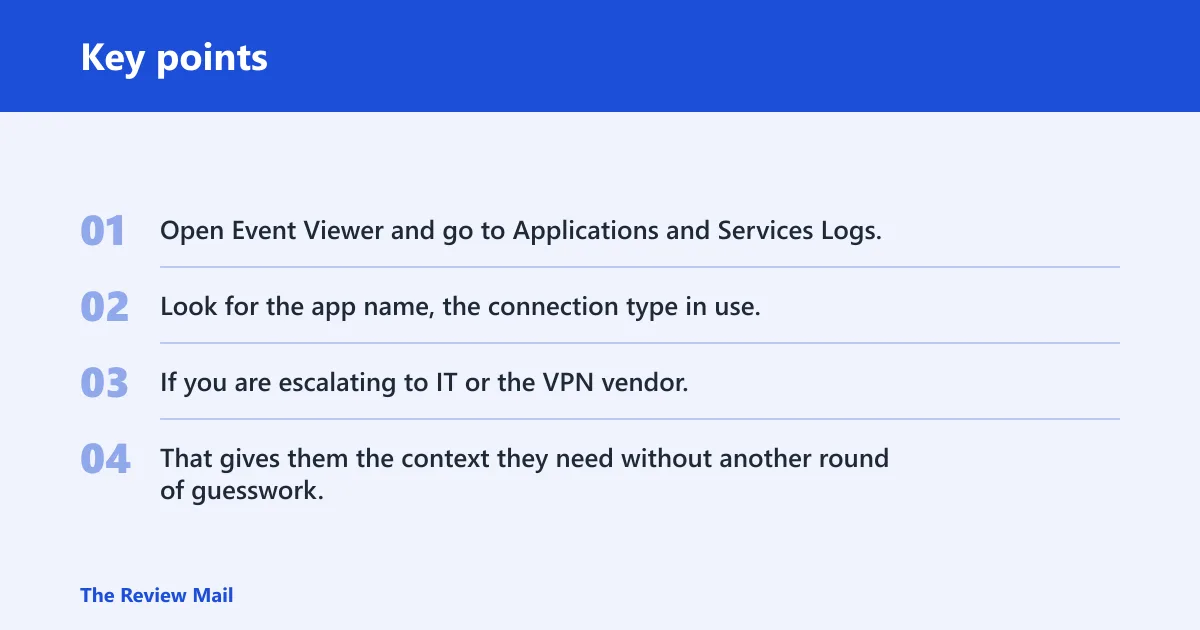
Open Event Viewer and go to Applications and Services Logs, then inspect the warnings or errors around the time the app failed. Look for the app name, the connection type in use, and any adapter or policy details in the event text.
If you are escalating to IT or the VPN vendor, include the exact event text and the app name. That gives them the context they need without another round of guesswork.
Still not working?
If the adapter, policy, and VPN checks do not clear the error, move to broader Windows network troubleshooting. Keep those for this stage; they are wider changes than the checks above.
- Open an elevated Command Prompt.
- Run
netsh winsock reset. - Then run
netsh int ip reset. - Restart Windows and retest the app on the physical adapter without VPN.
- If the issue returns after a reset, compare the working and failing connection paths again.
A common first-time mistake is to run resets before checking the adapter or policy. That can hide the real branch and waste time. If the error returns after a reset, go back to the matrix and compare the failing path with the working one.
Prevention: If this error recurs on one laptop, keep a note of the active adapter, VPN state, and policy value when it works. That makes the next comparison much faster.
Frequently asked questions
What does WSA_QOS_ADMISSION_FAILURE mean on Windows?
It means a QoS admission error, and the reservation request could not be granted because resources were not available. The first useful check is whether the failure happens on one adapter, one policy source, or one VPN profile. That split helps you decide which path to compare first.
Why do I get 0x2B02 when launching a call or VoIP app?
Calls and VoIP clients often request QoS before media starts flowing. If the reservation cannot be made, the app may fail at sign-in or during call setup. Check the adapter properties first, then the Group Policy value, then the VPN state if the app only fails when the tunnel is active.
How do I fix WSA_QOS_ADMISSION_FAILURE on Wi-Fi?
Start with the active Wi-Fi adapter in Network Connections, then verify whether the failure follows one SSID, band, or access point. If available, switch to Ethernet and retest. If Ethernet works, the wireless path needs closer attention before any reset commands.
How do I check whether QoS Packet Scheduler is installed?
Open Control Panel > Network and Internet > Network Connections, right-click the active adapter, and open Properties. Look for QoS Packet Scheduler. If it is missing, reinstall or repair the adapter driver from Device Manager, then reopen the properties page and confirm the binding.
What Windows commands reset QoS or Winsock for this error?
Use netsh winsock reset and netsh int ip reset only after adapter, policy, and VPN checks fail. Restart Windows after running them, then retest the app on the physical adapter.
Is 0x2B02 the same as socket error 11010?
Yes. They point to the same QoS admission problem, so the fix path is the same: check the adapter and link, confirm the QoS Packet Scheduler binding, review policy, then test without VPN before using reset commands. Keep the Event Viewer details handy if the issue needs escalation.