Windows 11 Update Install Very Slow
If a Windows 11 update install is very slow, split the problem by phase: download delays often suggest network or server congestion, while install or post-reboot stalls that last for more than about 2 hours can point to disk, driver, or update-store issues. Fixing the wrong phase wastes time and can leave the PC stuck mid-update. This guide shows how to tell download, install, verification, and after-restart setup apart, then match each one to the right fix.
Normal update behavior versus actual installation issues
Windows Update is a core part of Windows 11, but “slow” can mean different things. A feature update may spend a long time preparing, verifying, rebooting, or finishing setup, and that can be normal. The key is to separate a healthy delay from a stalled update that needs a targeted fix.
Normal delays during feature updates
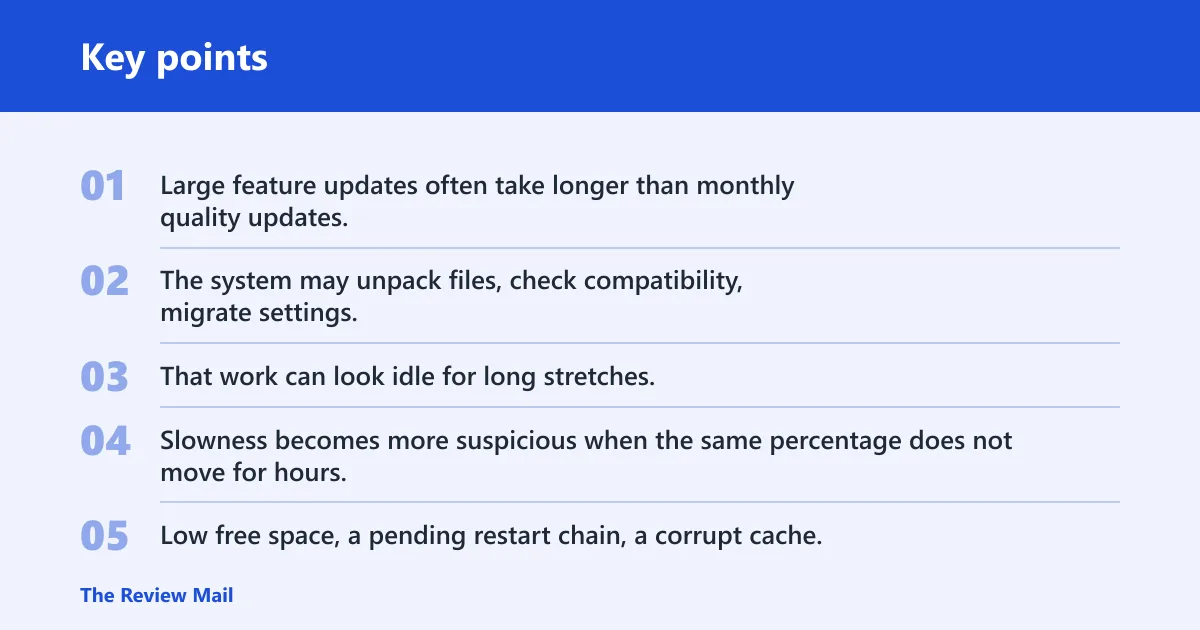
Large feature updates often take longer than monthly quality updates. The system may unpack files, check compatibility, migrate settings, and rebuild components. That work can look idle for long stretches, especially during verification or the first reboot.
When slowness points to a problem
Slowness becomes more suspicious when the same percentage does not move for hours, the PC reboots repeatedly into the same screen, or setup fails and returns to the desktop. Low free space, a pending restart chain, a corrupt cache, or a driver blocker are common causes.
How rollout delays affect availability
Not every eligible PC receives the same update at once. Controlled feature rollout can delay availability, and safeguard holds may slow delivery for devices with known compatibility risks. If the update is missing rather than stuck, a delay in rollout may be the reason.
📊 Windows Update is an essential component of Windows 11. Source: Microsoft.
Windows 11 update install decision table
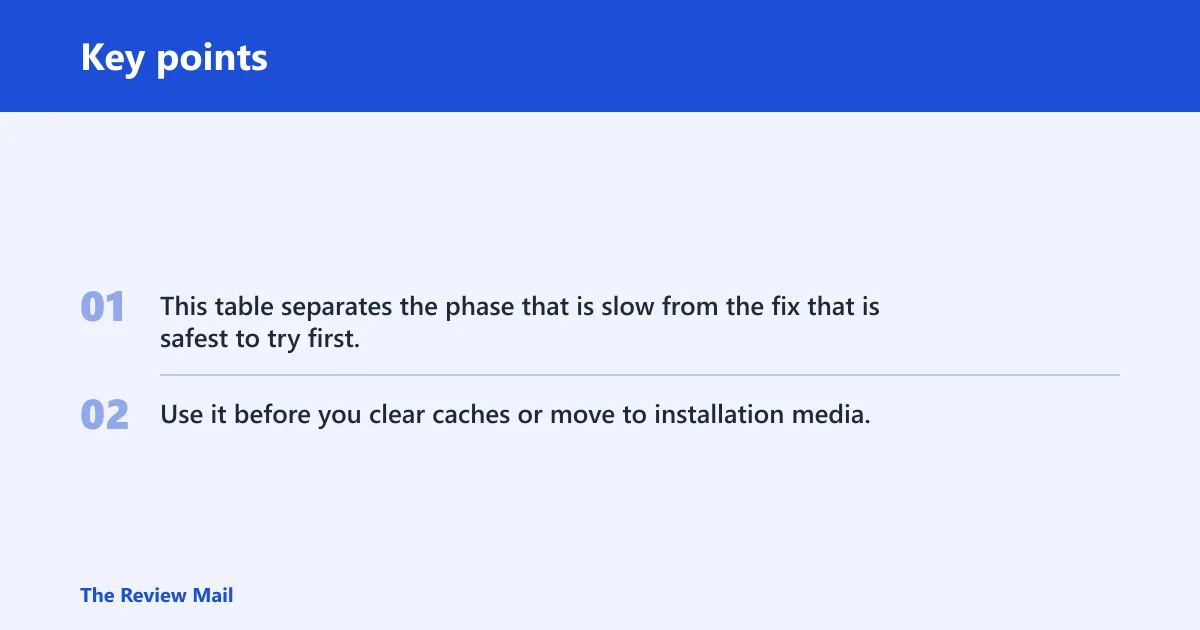
This table separates the phase that is slow from the fix that is safest to try first. Use it before you clear caches or move to installation media, because the fastest recovery depends on where the update is hanging.
| Symptom | Likely cause | Fastest safe fix | When to stop troubleshooting and use installation media instead |
|---|---|---|---|
| Download sits at 0%, 1%, or “pending download” | Weak Wi-Fi, unstable Ethernet, VPN filtering, metered settings, or Microsoft-side delivery delay | Check the internet connection, pause VPN, confirm the network is not metered, and wait if the update is still rolling out | Use installation media if the update is clearly available to other devices on the same network but never starts on this PC after repeated tries |
| Download completes, then install crawls for a long time | Corrupt update cache, low disk space, pending restart chain, missing admin access, or a driver bottleneck | Run the Windows Update troubleshooter in Get Help, confirm administrator access, remove external hardware, then clear the cache if needed | Use installation media if the same feature update fails more than once or returns the same error after cache reset and reboot |
| Reboot takes a long time at a black or logo screen | File migration, driver load, storage slowdown, or firmware checks during setup | Wait long enough for a real first reboot; then disconnect external hardware and retry if it loops | Use installation media if the PC repeatedly loops through the same reboot stage without moving forward |
| Post-reboot setup hangs on “Getting things ready” or similar text | Background configuration, a blocked driver, or a failed component migration | Let it finish once if progress is still changing; if it stalls again, repair the update path | Use installation media if setup stalls again after a clean restart and the same phase fails twice |
Why is the download slow?
A slow download usually comes from the network path, not the installer. Check Wi-Fi or Ethernet stability first, then look for VPN, proxy, or metered settings that can slow delivery. If Microsoft is rolling the update out in stages, the fix may simply be to wait.
Check Wi-Fi, Ethernet, VPN, and metered settings
A stable internet connection is essential for downloading and installing updates. If the PC is on Wi-Fi, move closer to the router or switch to Ethernet. If a VPN is active, disconnect it for the update. Also check whether the connection is marked as metered, because that can delay delivery.
Confirm the update is actually available to your PC
Some devices do not receive the same update at the same time. Controlled feature rollout can hold back delivery even on eligible hardware. If the Windows release health hub shows a known issue or safeguard hold, waiting is safer than forcing repeated retries.
When to pause and try later
Pause and try later if the download starts but keeps restarting from scratch, or if the update is waiting on Microsoft-side delivery. Say your laptop is on hotel Wi-Fi and the update barely moves for an hour. That points to the connection, not the install engine.
Why is the install slow?
Install slowness usually means the package has already downloaded and the system is unpacking, checking, or applying it. The first automated fix should be the Windows Update troubleshooter in the Get Help app on Windows 11. After that, confirm permissions, restart state, attached hardware, and cache health.
Run the Windows update troubleshooter in Get Help
The Windows Update troubleshooter runs in the Get Help app on Windows 11 and is commonly the first automated fix for update-installation problems. Start there when the download finished but the installation crawls, fails, or returns the same error again.
- Open Get Help.
- Search for Windows Update troubleshooter.
- Run the update-installation repair flow.
- Apply any fix it offers, then restart if asked.
Check administrator access and pending restarts
Some updates require administrator access. If the account is standard or the PC has a pending restart chain from another update, installation can stall or fail. Sign in with an admin account, save work, restart once, then try the update again.
Disconnect external hardware before retrying
Microsoft advises removing external storage devices, drives, docks, and other hardware during troubleshooting. That includes USB drives, docking stations, SD card readers, and attached backup drives. A device driver or storage path can slow the update or block the installer.
Clear the Windows Update cache if needed
The Windows Update cache can become corrupted. If the update keeps failing after simpler checks, clearing the cache can reset bad metadata and let Windows fetch the files again. Do this after the troubleshooter, power, network, and hardware checks.
Picture a desktop connected to a USB dock, a backup drive, and a Wi-Fi adapter all at once. The update downloads, then the install freezes near the end. Removing the dock and backup drive before retrying can cut out the hardware layer that is slowing the process.
Why is Windows 11 installation very slow?
Very slow installation often comes from the size of the feature update, limited free space, or a blocked component path. If the delay is past the download stage, the best next step is to look for a stuck restart chain, a cache problem, or a feature update that is better handled with manual installation.
Check disk space and restart state
Feature updates need working room to unpack files and stage replacements. Low free space can stretch install time or stop the process entirely. Clean temporary files, empty the recycle bin, and make sure no earlier restart is waiting to be completed.
Watch for driver bottlenecks
Slow storage, outdated chipset drivers, and problem devices can all drag down the install phase. If the system stalls on the same screen after each attempt, the bottleneck is usually local rather than network-related.
When a repair install is faster
If the same feature update fails repeatedly, a manual upgrade path is often faster than more retries. A repair install or in-place upgrade can replace the broken update path without waiting for the same failed delivery loop to clear on its own.
When should you stop troubleshooting?
Stop repeated resets and move to installation media when the same phase fails more than once, the update store appears corrupted, or the PC cannot finish setup after a clean reboot. At that point, more retries usually waste time and risk more partial installs.
Signs of corruption or repeated failure
If the update fails with the same code, returns to the desktop after each reboot, or never gets past the same percentage, corruption is more likely than a temporary glitch. That is the point where a clean manual path is better than more waiting.
Low disk space and blocked feature updates
When the device has too little free space or keeps hitting a safeguard hold, normal troubleshooting may not be enough. Check the release health hub first. If the issue is local and not a known hold, the next move is usually installation media.
Use installation media
Use Microsoft’s manual tools when Windows Update keeps failing or when you want a faster path to the same build. The Windows 11 Installation Assistant is the quicker option for upgrading the current device. Create Windows 11 installation media when you need a clean installation, a reinstall, or an ISO for a DVD or virtual machine.
Windows 11 Installation Assistant requirements
The Windows 11 Installation Assistant requires Windows 10, version 2004 or higher, and it needs 9 GB of free disk space. It also requires administrator permission, and it may restart the PC several times during the upgrade. (Microsoft)
Create Windows 11 installation media with Media Creation Tool
The Media Creation Tool needs a blank USB flash drive with at least 8 GB. Microsoft says installation media can be used for a clean installation or reinstall, and the tool can also create an ISO file for DVD use or for a virtual machine. (Microsoft Support)
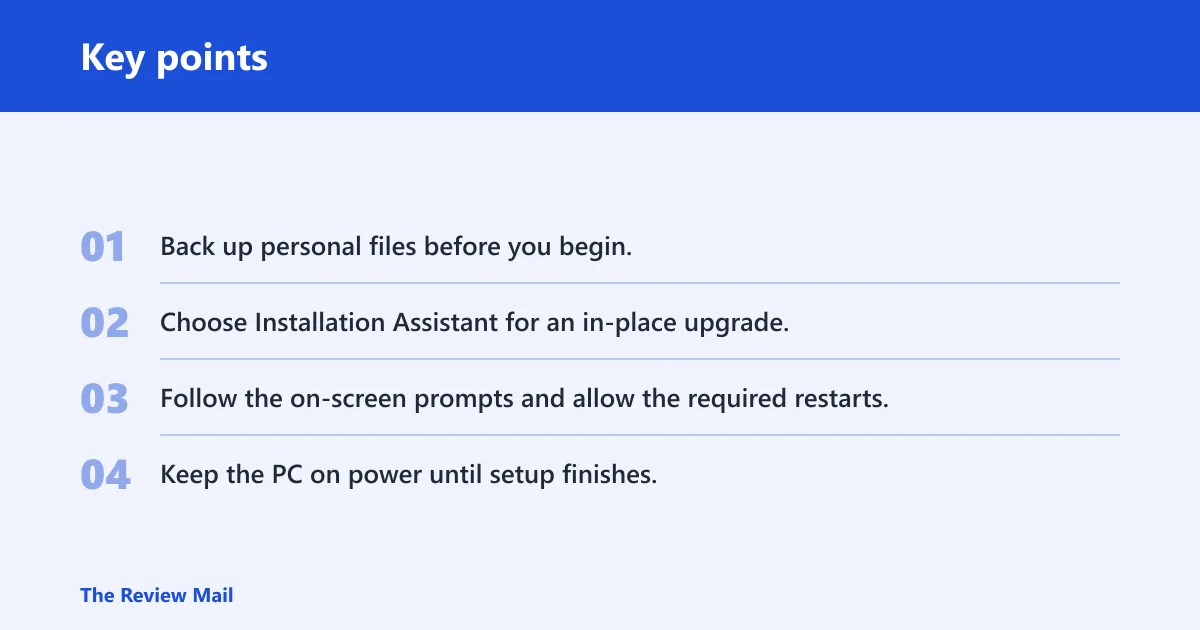
- Back up personal files before you begin.
- Choose Installation Assistant for an in-place upgrade, or Media Creation Tool for USB or ISO media.
- Follow the on-screen prompts and allow the required restarts.
- Keep the PC on power until setup finishes.
When to use an ISO instead of USB
Choose an ISO when you need to mount the installer inside a virtual machine, archive the media for later use, or create physical DVD media. Choose USB when the goal is the fastest hands-on reinstall on a PC with a working USB port.
Check release health and known issues
Before forcing the install path, check whether Microsoft has already flagged the update. The Windows release health hub lists known issues and safeguard holds, which can help explain why an update is delayed or absent on an otherwise eligible PC.
Spot safeguard holds and known issues
If the hub shows a known issue, waiting may be the safest choice. If it shows no block and the update still fails locally, that supports a device-side problem such as cache corruption, low space, or a bad restart chain.
Decide whether waiting is the right call
Wait when the update is still rolling out, the device is eligible, and the release health hub shows no urgent fix for your model. Move on when the same phase stalls repeatedly, because more time alone is unlikely to repair a broken install path.
Frequently asked questions
Why do Windows updates take so long to install?
Windows updates can take a long time because the system is downloading, verifying, replacing files, and sometimes migrating settings after a reboot. Large feature updates are often slower than routine patches. If the same step stalls for hours, that is less normal and more likely a local problem.
How do I speed up Windows update installation?
Start with the Windows Update troubleshooter in Get Help, then confirm administrator access, unplug external hardware, and restart once before retrying. If the install still crawls, clear the Windows Update cache or move to Installation Assistant or installation media.
Why is my Windows 11 update download slow?
Slow downloads usually come from an unstable internet connection, a VPN, metered settings, or rollout delays on Microsoft’s side. Check Wi-Fi or Ethernet first. If the update is still being staged for your device, waiting may be the only correct fix.
What should I do when Windows Update is installing slowly?
Let it run long enough to finish the current phase, then move through the safest checks in order: troubleshooter, administrator access, external hardware removal, and cache clearing. If the same install phase fails again, stop retrying and switch to installation media.
Does a slow Windows 11 update mean something is wrong?
Not always. Slow can be normal during a large feature update, especially when the PC is verifying files or rebooting for the first time. It becomes a problem when the same screen or percentage does not change for hours, or when the update fails repeatedly.