Pc Slow After Windows 11 Update
If your PC slowed right after a Windows 11 update, wait 24 hours and watch disk, CPU, and Windows Update activity before you roll anything back. Acting too fast can remove a fix, interrupt a driver chain, or hide temporary background work. This guide shows how to tell normal post-update churn from a bad driver or a faulty update, then what to do next.
Why your PC slowed down
Right after a Windows Update install, slow performance often comes from background work, not a fault. Windows 11 automatically downloads and installs updates, and Microsoft says updates help devices run efficiently and stay protected. The first clue is where the slowdown shows up: disk, CPU, boot time, or a single app.
Normal background work after Windows Update
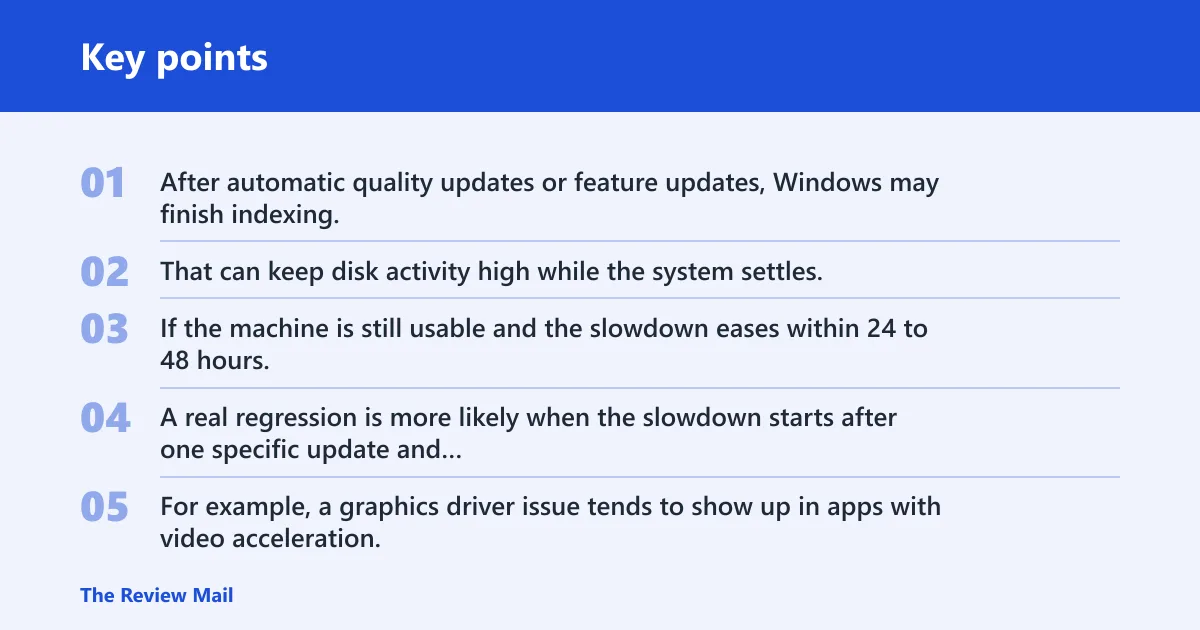
After automatic quality updates or feature updates, Windows may finish indexing, apply setup tasks, rebuild caches, or complete security work. That can keep disk activity high while the system settles. If the machine is still usable and the slowdown eases within 24 to 48 hours, that pattern usually points to normal post-update activity.
When a driver or update regression is more likely
A real regression is more likely when the slowdown starts after one specific update and stays tied to one subsystem. For example, a graphics driver issue tends to show up in apps with video acceleration, while a storage-related problem shows up as sustained disk activity across the whole PC. That difference matters because the fix path changes.
Why HDD systems feel it more than SSD systems
Disk-heavy background work hurts HDD systems much more than SSD systems. On an HDD, indexing, update cleanup, and antivirus scans can keep the drive busy enough to make everything feel sluggish. On an SSD, the same work usually clears faster, so persistent slowdown is more suspicious.
📊 Windows 11 automatically downloads and installs updates. Source: Microsoft.
What to check first
Start with a restart, then watch Task Manager before you change anything else. The goal is to separate short-lived update work from a system-wide fault. Check whether the slowdown affects the whole PC or only one app, and sort by CPU and Disk so you can see which subsystem is busy.
Restart, then wait for background tasks to finish
A restart can clear a blocked install or removal issue, and Microsoft Support says it can fix both. After that, give Windows time to finish update cleanup. If the PC is still slow after about 24 hours, keep watching for roughly another day before deciding it is a true regression.
Open Task Manager and sort by CPU and Disk
Open Task Manager and sort the process list by CPU usage, then by Disk usage. Look for a background process that stays at the top, because that points you toward the active subsystem. Startup impact also matters if the system feels slow only after boot, not once it is fully loaded.
Check whether the slowdown is system-wide or only one app
If only one app freezes, that can point to app corruption, a bad plug-in, or a driver tied to that app. If the whole desktop lags, the cause is more likely storage, a startup bottleneck, a Windows Update issue, or a system file problem. That split helps you avoid the wrong fix.
Windows slowdown decision table
This table helps you map the symptom to the most likely cause and the next move. Use it before you uninstall anything.
| Symptom pattern | Most likely cause | Next action |
|---|---|---|
| High disk after update | Normal post-update indexing, cleanup, or a damaged update cache | Wait up to 48 hours, then run Task Manager and the Windows Update troubleshooter |
| High CPU only | Driver conflict, security scan, or one runaway process | Sort by CPU in Task Manager, check optional driver updates, then test the app or driver chain |
| Slow boot only | Startup programs or Fast Startup behavior | Review Startup Apps and compare Restart with Shut down |
| App freezing | App corruption, graphics driver issue, or bad compatibility after the update | Check update history, install relevant optional updates, and repair or reset the app if available |
| Persistent slowdown after 48 hours | Bad update, driver regression, update cache damage, or system file corruption | Move to update history, uninstall the most recent update if the symptoms match, or repair system files |
Say your PC has a 1 TB HDD, and disk usage sits near the top of Task Manager after a feature update. That can be normal background work for longer than it would be on an SSD. If the same machine still crawls after two full days, the balance shifts toward a cache, driver, or update problem.
Should you install more updates?
Yes, if the slowdown began after Windows Update, you should check for more updates before rolling back. Windows 11 can get follow-up fixes quickly, and Microsoft lets you manually check in Start > Settings > Windows Update. Update history also helps you see what changed last.
Check Settings Windows update
Use Start > Settings > Windows Update to look for a newer quality update or servicing fix. Automatic updates can finish one stage and then need another round to correct a compatibility issue. If Windows finds another update, install it and restart before you decide the first one was bad.
Review optional driver updates
Optional updates matter when the slowdown points to chipset, graphics, or audio hardware. Go to Settings > Windows Update > Advanced options and review optional updates there. If the symptoms involve video stutter, audio glitches, touchpad lag, or storage oddities after the update, a driver update may be the right fix.
Use update history to spot the last change
Open Settings > Windows Update > Update history to see the latest installed updates. That list helps you separate a cumulative update regression from a driver regression. If the slowdown began right after a driver update, you need a different response than if it began after a general Windows quality update.
Could startup settings be slowing boot?
Yes. Updates can re-enable startup apps, and Fast Startup can make Shut down behave like a partial boot. If the PC feels fine after it is open but slow during startup, focus on boot settings before you blame the entire update. That is a faster path than uninstalling patches at random.
Find startup impact in Task Manager
Open Task Manager and switch to the Startup apps view. Sort by startup impact and disable the items you do not need at boot. Many small-office machines carry chat tools, cloud sync clients, and launchers that resume after updates, which can make the next boot feel much slower.
Disable unneeded startup apps
Turn off only the apps you recognize. Leave security tools and device utilities alone unless you know what they do. If the slowdown disappears after a clean boot, the update may not be the real problem. The update may have just reactivated a crowded startup list.
Check Fast Startup in powercfg.cpl
Fast Startup can blur the line between shutdown and hibernation. That means Shut down may preserve parts of the last session, while Restart reloads more cleanly. Open powercfg.cpl, go to power button settings, and disable Fast Startup if boot lag keeps showing up after shutdown but not after Restart.
Suppose a desktop boots slowly only after Shut down, but Restart feels normal. That pattern points at Fast Startup or startup apps more than at a bad Windows update. If both paths are slow, keep looking at update history, disk activity, and driver status.
Windows Update cache and file repair
If the slowdown comes with update errors, repeated retries, or unstable system behavior, the Windows Update cache may be damaged. Microsoft advises clearing the Windows Update cache as a general step. If that does not help, move to repair options for corrupted system files or affected apps.
Run the Windows Update troubleshooter
Microsoft recommends the Windows Update troubleshooter in the Get Help app on Windows 11. It is designed to automatically diagnose and fix many update problems. If the machine has external hardware attached, disconnect it first, since Microsoft says to remove that during update troubleshooting. (Microsoft Support)
Use Get Help or other troubleshooters
In Windows 11, open the Get Help app and run the Windows Update troubleshooter first. If the issue looks broader than updates, use other troubleshooters from the same area in Settings. This is useful when the slowdown came with install errors, failed retries, or a system that will not settle after reboot.
Clear a damaged update cache
A damaged cache can link update failures and slowdowns. Clearing it is a general troubleshooting step, not a cure-all, but it can remove stuck metadata and broken download leftovers. Do this before you assume the newest update is defective, especially if update history shows repeated failures.
Repair corrupted system files
Corrupted system files can cause sluggishness, freezing, and odd post-update behavior. If update steps do not help, use repair or reset options when available. Microsoft Support also points users toward recovery options when system instability persists after an update, especially if one app or core Windows feature keeps failing.
When to uninstall the update
Uninstall a recent update only when the symptoms fit a regression and you have already checked update history, optional updates, Task Manager, and the troubleshooter. Windows lets you uninstall specific updates from update history. If the slowdown is widespread and began right after that update, rolling back can be the fastest fix. (Microsoft Support)
Use uninstall updates from update history
Open Settings > Windows Update > Update history, then choose Uninstall updates. That path matters because it keeps you focused on the exact change that likely triggered the slowdown. If a specific cumulative update or driver update matches the timing, remove that one first.
Pause updates before retrying
Windows 11 can pause updates temporarily. Use that if you need time to test whether the rollback worked or to avoid reinstalling a bad package right away. Pausing also keeps Windows from replacing a problem update before you have a chance to confirm the fix.
Roll back only when symptoms match a regression
Roll back when the issue lines up with the update timing, persists past 24 to 48 hours, and points to the same subsystem every time. If the symptom is only high disk right after install, waiting is usually better. If the symptom is a new driver-specific failure, a rollback or replacement driver is more sensible.
Frequently asked questions
Why is my PC so slow after Windows 11 update?
The most common reason is temporary background work after an automatic update, especially indexing, cleanup, or setup tasks. If the slowdown lasts beyond 24 to 48 hours, or if Task Manager shows one subsystem stuck at the top, the cause is more likely a driver, cache, or update regression.
How long should slow performance last after a Windows 11 update?
Give it 24 to 48 hours if the slowdown began right after the update and mostly shows as disk activity or system churn. A short wait is reasonable on both HDD and SSD systems, but an HDD may feel worse while Windows finishes background work.
Can a Windows 11 update cause high CPU or disk usage?
Yes. A new update can trigger high disk usage from indexing or cleanup, and high CPU from driver work, security tasks, or a process that is retrying after a change. Use Task Manager to see whether CPU, Disk, or one app is the real pressure point.
Should I uninstall the latest Windows update if my PC is slow?
Only after you check update history, optional updates, and Task Manager. If the slowdown is still present after 48 hours and matches the timing of one update, uninstalling that specific update is reasonable. If the issue looks like startup lag or background work, wait and test first.
How do I stop Windows Update from making my PC sluggish?
You cannot stop all post-update slowdown, but you can reduce it. Check for follow-up updates, install relevant optional driver updates, clear startup clutter, run the Windows Update troubleshooter, and clear a damaged update cache if needed. If the issue keeps returning, use update history to pinpoint the exact update.
What optional updates should I install after a slow Windows 11 update?
Start with driver updates, especially chipset, graphics, and audio if the slowdown affects boot, display, sound, or device response. Find them under Settings > Windows Update > Advanced options. Install only the updates that match the symptom pattern, so you do not add unnecessary changes.