Windows Device Does Not Exist
“Windows device does not exist” usually means Windows has lost the drive, the volume, or access to it. Check Disk Management first: if the disk is missing, the device path is gone; if the disk is present but unmounted, the volume or file system is the issue. Guessing wrong wastes time and can put data at risk if you force the wrong repair. This guide shows how to tell which case you have and what fix fits each one.
What this Windows error means
The message tied to 0x800701B1 is “A device which does not exist was specified.” It appears in Windows 10 and Windows 11 during storage access or file transfer, and it can show up when opening, formatting, or initializing a drive. The key question is whether Windows lost the device itself, the volume, or only access to it.
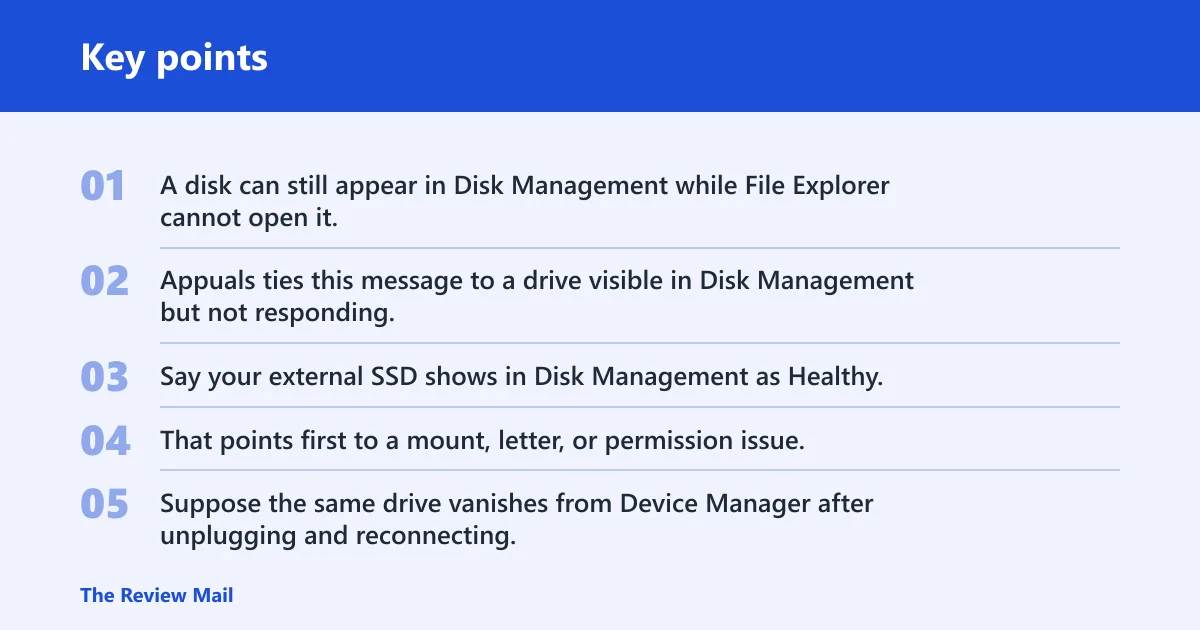
That split matters. A disk can still appear in Disk Management while File Explorer cannot open it, which points away from a full disconnect and toward a volume, letter, or file-system problem. Appuals ties this message to a drive visible in Disk Management but not responding, and also lists a missing or corrupted device driver as the most common cause.
Windows device diagnostic table
| Symptom | Likely layer | Safest first action | Do not do yet |
|---|---|---|---|
| Visible in Disk Management but not File Explorer | Volume access or drive-letter problem | Check the drive letter, then open the Security tab | Do not format or delete the volume |
| Visible but offline | Disk state or mount problem | Bring the disk online in Disk Management | Do not clean or recreate partitions |
| RAW volume | File-system trouble or corruption | Stop writing to the disk and check whether recovery is needed first | Do not format it to “fix” access |
| No drive letter | Letter assignment conflict or missing mount | Use Change Drive Letter and Paths and choose an unused letter | Do not repartition the disk |
| Disappears from Device Manager | Device detection or connection failure | Unplug and reconnect, then scan for hardware changes | Do not jump to CHKDSK first |
| External USB device works on another port | Port, cable, hub, or enclosure issue | Use the working port and inspect the cable path | Do not assume the disk itself is bad yet |
Say your external SSD shows in Disk Management as Healthy, but File Explorer never lists it. That points first to a mount, letter, or permission issue. Suppose the same drive vanishes from Device Manager after unplugging and reconnecting; then the problem shifts toward the USB path or the device driver.
📊 Microsoft support notes Windows 10 support ended on October 14, 2025. Source: Microsoft.
Is it a drive-letter or permission issue?
Yes, and this is one of the easiest places to get misled. If the disk is present but inaccessible, Windows may simply be hiding it because the drive letter is missing or conflicting, or because the current account does not have the needed permissions. These are fixable without touching the data layout.
Change the drive letter and check access
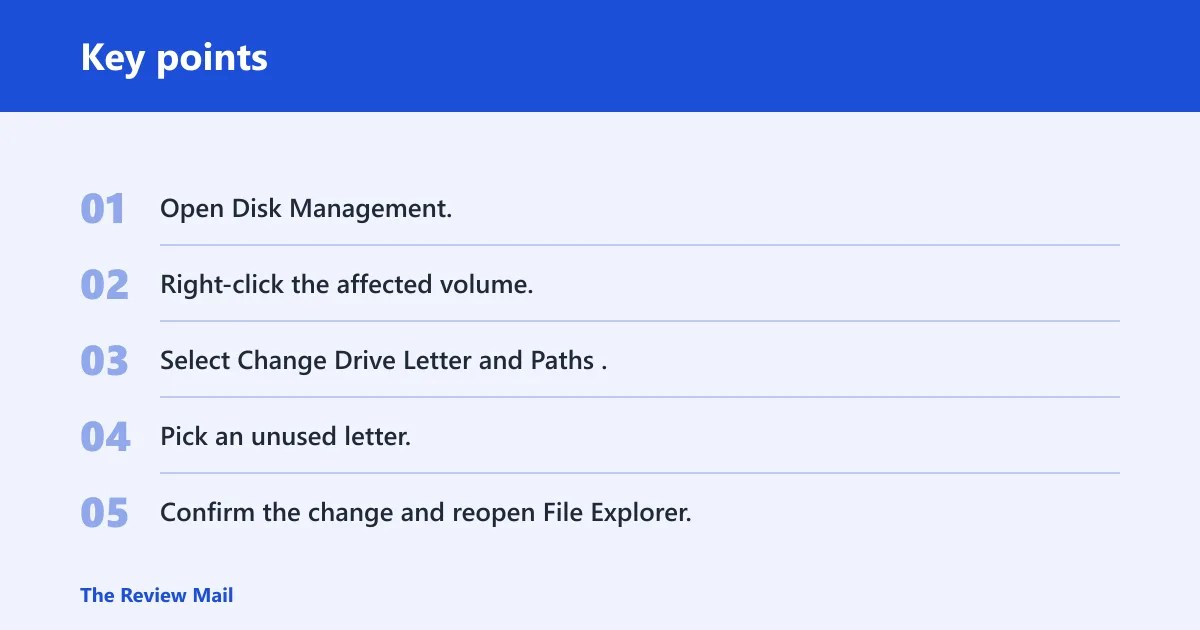
Open Disk Management, right-click the volume, and choose Change Drive Letter and Paths. Assign an unused letter, then reopen File Explorer and try the drive again. The letter must be unique, because a conflict can block access even when the disk is healthy. Appuals recommends this step, and it is often the safest thing to try before deeper repair.
- Open Disk Management.
- Right-click the affected volume.
- Select Change Drive Letter and Paths.
- Pick an unused letter.
- Confirm the change and reopen File Explorer.
Check the Security tab
If the drive opens in Disk Management but access still fails, inspect the Security tab. Give Full Control to the current user or the needed group, then choose Apply and OK. The same source lists this as a possible fix when the issue is a permissions block rather than a missing device.
Can Disk Management bring it back?
Sometimes. Disk Management can recover a disk that is still detected but not mounted correctly, especially when the volume is offline or the letter assignment got lost. Its Rescan Disks feature can prompt Windows to refresh storage detection, and that is a safe first move when the disk is present but stale.
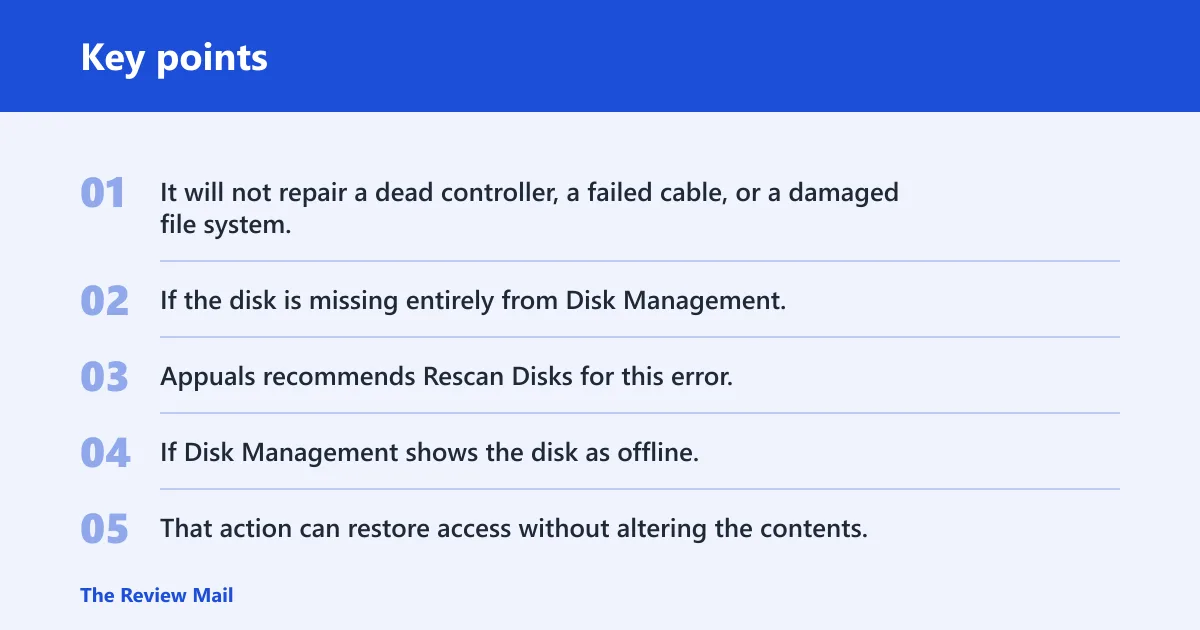
It will not repair a dead controller, a failed cable, or a damaged file system. If the disk is missing entirely from Disk Management, or if it drops out again after a rescan, the issue is lower in the path. The same source recommends Rescan Disks for this error, and that fits cases where Windows simply needs to re-enumerate storage.
Bring a disk online
If Disk Management shows the disk as offline, bring it online before trying more aggressive steps. That action can restore access without altering the contents. If the disk is online already, the next layer is usually the volume or file system, not the device state.
What Disk Management can and cannot fix
It can restore visibility, assign a letter, and refresh a volume state. It cannot repair bad sectors, a failing USB bridge, or a missing controller. Do not jump from “not visible in File Explorer” to formatting. That is the wrong layer and the wrong risk.
Should you check the file system now?
Check the file system when the volume is present but reads poorly, opens inconsistently, or shows signs of corruption. Run CHKDSK from an elevated Command Prompt, and use chkdsk X: /f /r for the affected drive, with X replaced by the real letter. The /f and /r switches address file-system errors and bad sectors.
That step fits best after you have confirmed the drive is visible and mounted. If the volume shows as RAW, the priority changes: the file system is not readable, so a repair pass may not be enough and may even make recovery harder if you write to the disk first.
When CHKDSK fits
Use CHKDSK when Windows can see the volume but reports access problems, missing files, or repeated read errors. MUO gives the command in the same form, which makes it a common current fix for Windows 10 and 11 users facing this message.
When a RAW volume changes the priority
RAW usually means Windows cannot read the file system at all. That points to corruption or serious damage, not a simple letter problem. If the data matters, pause before trying repair commands that write to the disk. Recovery comes before convenience.
Should you repair Windows files too?
Yes, but only as a supporting step. Run System File Checker if Windows files may be damaged, especially when the error appears across multiple devices or after a broader system problem. SFC can repair protected Windows components that affect storage access or file handling.
It will not fix a disconnected SSD, a bad USB cable, or a failed enclosure. Think of SFC as a Windows-side repair, not a hardware recovery tool. If the drive is invisible to the OS at the device layer, SFC will usually do nothing useful.
When SFC makes sense
Use it when several storage actions fail in similar ways, or when the system has recently had updates, crashes, or file corruption signs. It is a reasonable check after the storage path has been verified and before more invasive repair work.
When SFC will not help
If Device Manager loses the device, if the disk is absent from Disk Management, or if a known-good cable swap changes nothing, SFC is not the primary fix. That is a hardware or driver path, not a Windows file path.
What if Device Manager still shows trouble?
Open Device Manager and look under Disk drives. If the drive is listed there, try Uninstall device, then reconnect it and let Windows reinstall it. If the entry disappears or returns with a warning, use Scan for hardware changes to force a fresh detection pass.
Appuals includes uninstalling and reconnecting the drive as a fix, which fits cases where the driver stack has become stuck. That is different from a volume issue. If the device is gone from Device Manager, the fault is below File Explorer and below Disk Management.
When to reinstall the drive or controller driver
Do this when the device is unstable in Device Manager, drops in and out, or shows an error state after reconnecting. If the drive works on one system path but not another, reinstalling the device can clear a bad enumeration state. If nothing changes, focus on the connection path.
Check the connection path
For external USB storage, try a different USB port first. If the drive works there, the original port or hub is suspect. Check the cable, the enclosure, and any adapter in between. For desktops and internal drives, reseat the internal cable and verify the SATA or NVMe connection where relevant. (Microsoft Learn)
This is the cleanest test when the device disappears from Device Manager or only works intermittently. A loose link can mimic a bad drive. If the same disk behaves differently on another port, that is a strong clue that Windows is not the root problem.
External and internal paths are not the same
External USB devices can fail at the port, the cable, the hub, or the enclosure. Internal SATA and NVMe drives have different failure points and usually need case access or a direct motherboard connection check. Treat them separately so you do not repair the wrong layer.
Frequently asked questions
What does “a device which does not exist was specified” mean in Windows?
It means Windows tried to access a storage target that is missing, unavailable, or no longer mounted. The wording comes from 0x800701B1. In practice, the problem may be a lost device path, a missing drive letter, a blocked volume, or a file-system error rather than a truly absent disk.
Why does Windows say the device does not exist when the drive is visible?
Because “visible” can mean different things. A disk may appear in Disk Management while File Explorer cannot open it, which usually points to a volume, letter, or permission issue. If it is visible only in one place, Windows has not lost everything; it has lost one layer of access.
How do I fix 0x800701b1 on Windows 10 or 11?
Start with Disk Management, then decide whether the disk is missing, offline, or present but inaccessible. Try Rescan Disks, assign an unused drive letter, check permissions, then use CHKDSK or SFC only when the layer matches. Windows 10 support ended on October 14, 2025, but the same diagnostic order still applies on Windows 11.
Can changing the drive letter fix the device does not exist error?
Yes, if the volume is healthy but the letter is missing or conflicts with another mapped device. Open Change Drive Letter and Paths and assign an unused letter. That will not help a dead cable or a RAW volume, but it is a safe, fast check for a common access problem.
Should I run CHKDSK or SFC for this error first?
Run neither first if the disk is missing from Device Manager or Disk Management. If the drive is visible but damaged, CHKDSK is usually the better storage check. Use SFC when Windows files may be damaged and the issue looks system-wide, not when the drive itself has disappeared.
Does this error happen on external USB drives and internal disks?
Yes. External USB drives are common cases because ports, cables, and enclosures can interrupt detection. Internal SATA and NVMe disks can show the same message if the connection, driver, or file system fails. The fix depends on which layer broke, so start by checking where the disk still appears.