Critical Process Died 0xef Windows 11
0xEF on Windows 11 usually points to a critical system process failing because of a bad driver, OEM utility, or failing storage or memory; if the crash survives Safe Mode and a clean boot, suspect hardware first. Ignoring it can mean boot loops, repeated data loss, and wasted reinstalls that never fix the cause. This guide shows how to separate software faults from hardware faults with checks you can do before you reinstall.
What 0xEF means in Windows 11
0x000000EF / CRITICAL_PROCESS_DIED means a Windows process the system needs stopped unexpectedly. Microsoft Q&A links that stop code to Windows 11 bugchecks, and it can trigger a BSOD or a reboot loop if the same fault returns during startup.
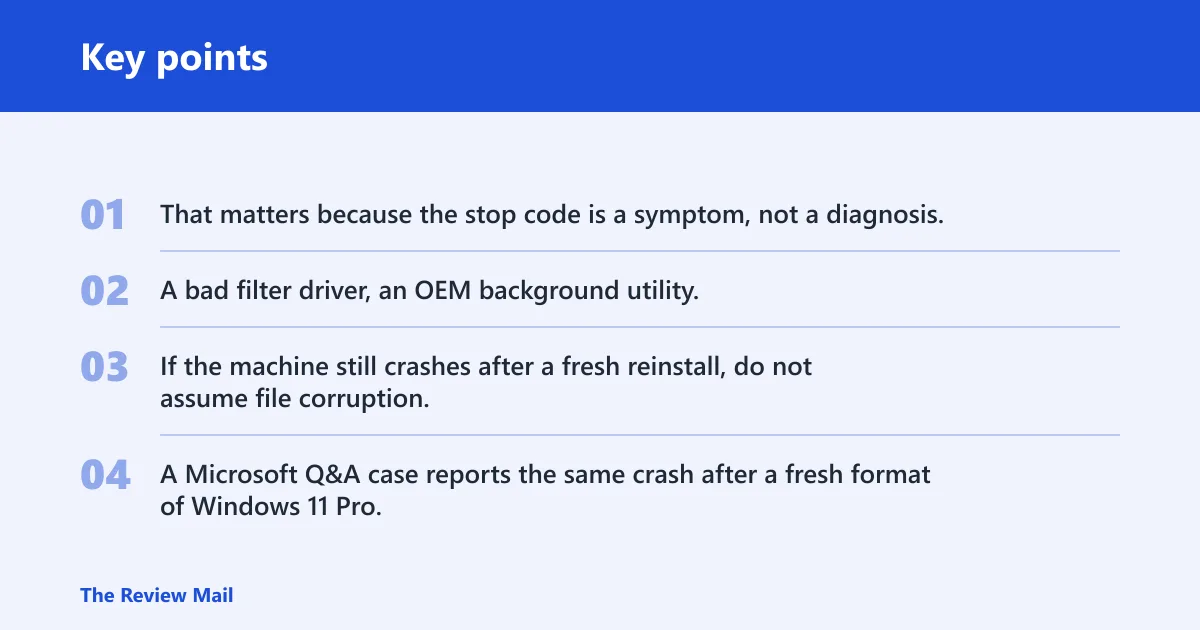
That matters because the stop code is a symptom, not a diagnosis. A bad filter driver, an OEM background utility, or failing storage or memory can all kill the same critical process and produce the same screen.
If the machine still crashes after a fresh reinstall, do not assume file corruption. A Microsoft Q&A case reports the same crash after a fresh format of Windows 11 Pro, which pushes suspicion toward drivers, firmware, or hardware rather than a damaged install.
Check the crash evidence first
Start with logs and dumps before repair commands. Event Viewer and minidumps often separate a one-off software failure from a repeat pattern involving the same driver or service.
What logs should I check for critical process died 0xef?
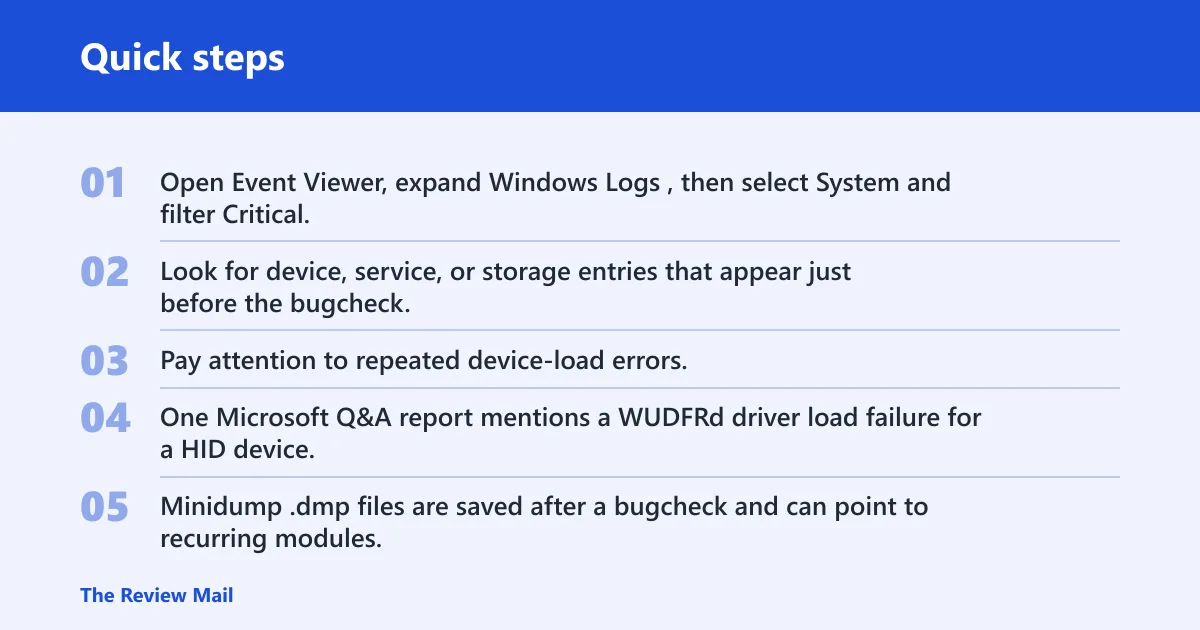
Open Event Viewer, expand Windows Logs, then select System and filter Critical, Warning, and Error entries around the crash time. Look for device, service, or storage entries that appear just before the bugcheck, because the first failure is often logged before the reboot.
Pay attention to repeated device-load errors. One Microsoft Q&A report mentions a WUDFRd driver load failure for a HID device, which can point away from Windows files and toward a specific hardware path or device stack.
What minidumps can reveal
Minidump .dmp files are saved after a bugcheck and can point to recurring modules. If the same file appears across crashes, that pattern matters more than the stop screen text alone. Two names that come up in Windows 11 graphics cases are nvlddmkm.sys and igdkmdn64.sys.
Say your laptop crashes only after the desktop appears, and the newest dump keeps naming igdkmdn64.sys. That pattern is much more useful than a generic “critical process died” label, because it pushes the next test toward Intel graphics rather than a full reinstall.
Can a driver cause 0xEF?
Drivers can trigger 0xEF on Windows 11, especially graphics drivers and other device stacks that load early. Microsoft Q&A includes a case where the crash tied to NVIDIA and Intel graphics drivers, with nvlddmkm.sys and igdkmdn64.sys named directly. (Microsoft Learn)
When the system crashes outside Safe Mode but stays up in Safe Mode, a driver or app conflict becomes much more likely. Safe Mode loads a minimal set of services and drivers, so it is one of the cleanest ways to separate Windows core files from add-on software.
Why Safe Mode changes the diagnosis
If Safe Mode works, the core Windows image is less likely to be the main problem. If Safe Mode still crashes, the likely suspects shift toward firmware, memory, storage, or a driver that loads even in minimal boot paths.
Next of Windows says you can reach Safe Mode from Startup Settings with F4 or F5. That makes it practical for the first isolation step before you spend time on repair installs or a reset.
What to remove or repair first
Work in this order: remove recent software changes, then repair Windows files, then check the dump and logs again. That sequence helps you avoid mistaking a driver conflict for a corrupted system file.
- Uninstall any recent OEM utility or security tool that began before the crashes.
- Check Event Viewer for the newest system errors around the reboot time.
- Run
sfc /scannowfrom an elevated Command Prompt opened with Run as administrator. - Run
DISM /Online /Cleanup-Image /RestoreHealthif SFC finds corruption or cannot repair everything. - Start the PC in Safe Mode, then compare whether the crash still appears there.
When recent software matters most
A Microsoft advisor linked repeated crashes to Dell SupportAssist and recommended uninstalling it first. That is a strong clue that OEM utilities can sit in the path even when Windows itself looks fine. (Microsoft Learn)
If the crashes started right after an OEM app install or a driver utility update, test that change before anything else. A fresh Windows image can still crash if the offending component is reintroduced after setup.
0xEF symptom map
This table maps the pattern you see to the most likely cause and the next test. Use it to decide if you are dealing with a driver, an OEM utility, or hardware before you start a reinstall.
| Boot state | Event Viewer clue | Dump clue | Recommended test |
|---|---|---|---|
| Crashes start after OEM utility install | New warning or error from the OEM tool or a related service | No stable recurring Windows module, or dumps vary | Uninstall the OEM utility first, then retest |
| Crash repeats with NVIDIA or Intel graphics changes | Display driver warnings before the bugcheck | nvlddmkm.sys or igdkmdn64.sys appears repeatedly | Update or reinstall the GPU drivers, then test in Safe Mode |
| Crash only outside Safe Mode | Errors tied to third-party services or devices | Driver-specific module repeats across dumps | Disable or remove recent drivers and apps, then isolate with Safe Mode |
| Crash returns after a fresh reinstall | Similar device or storage errors after setup | Same module or same device class keeps appearing | Check firmware, run hardware diagnostics, and review the driver stack |
| Safe Mode still crashes | Early boot or storage-related errors | No clear app-only pattern | Run memory and disk checks, then review firmware and hardware |
Suppose a desktop with both Intel integrated graphics and an NVIDIA card starts looping after a driver update, and every dump points to nvlddmkm.sys. That is a different problem from a one-time SFC repair failure, and a reinstall alone is unlikely to hold unless the graphics stack is cleaned out first.
Should you use DDU on Windows 11?
Use Display Driver Uninstaller when the crash pattern points to a bad GPU driver and ordinary rollback or reinstall has not helped. The Microsoft Q&A guidance for the NVIDIA and Intel graphics case explicitly recommends DDU, and it says to run it in Safe Mode.
DDU is especially useful on hybrid Intel plus NVIDIA systems, where both graphics paths can be involved. If nvlddmkm.sys or igdkmdn64.sys keeps showing up, a clean removal is often a better next step than layering another installer over a broken stack.
Why Safe Mode matters before reinstalling GPU drivers
Safe Mode keeps the minimum driver set active, which reduces the chance that the old graphics driver reloads during cleanup. That is the point of using DDU there: remove the existing GPU package completely, then install a known-good driver package after reboot.
If you skip the clean removal and simply reinstall over the top, the same corrupted component or conflict can return on the next boot. That is one reason hybrid graphics systems can keep crashing even after a “successful” driver update.
When 0xEF points to hardware
When 0xEF survives Safe Mode, returns after a fresh reinstall, or keeps happening with no stable software trigger, hardware rises on the suspect list. That is the point to check memory and disk health, and to pay attention to firmware updates or BIOS defaults.
Memory checks
Bad RAM can corrupt the data that critical Windows processes depend on, which can surface as a CRITICAL_PROCESS_DIED crash rather than a clean memory error. Run a memory diagnostic first, then retest with one stick at a time if the machine has removable modules.
Disk checks
Storage problems can break the files a process needs at startup, which is why disk health matters even when Windows can still boot. If Event Viewer shows repeated device or disk errors, or if the crash appears after a reinstall, do not stop at SFC and DISM.
Hardware diagnostics matter most after software repair fails. They also matter when the same crash returns after a format, because that pattern is hard to explain with damaged system files alone.
Does Dell SupportAssist cause 0xEF?
It can be part of the problem. Microsoft Q&A includes a report where repeated crashes were linked to Dell SupportAssist, and the suggested first move was to uninstall it. That makes OEM utilities a real test item, not an afterthought.
If crashes begin soon after a Dell utility install or update, remove that utility before reinstalling Windows. If the system becomes stable afterward, you have a much better answer than a full reset would have given.
Frequently asked questions
Is 0x000000ef the same as CRITICAL_PROCESS_DIED?
Yes. Microsoft Q&A identifies the stop code as 0x000000ef in a Windows 11 bugcheck, and it corresponds to CRITICAL_PROCESS_DIED. The screen name and the stop code point to the same kind of failure: a critical Windows process stopped unexpectedly.
Can drivers cause critical process died 0xef on Windows 11?
Yes. Drivers can trigger 0xEF, especially GPU drivers and device drivers that load early in boot. If dumps repeatedly name nvlddmkm.sys or igdkmdn64.sys, or Event Viewer shows device errors first, the driver stack deserves attention before any reinstall.
What logs should I check for critical process died 0xef: check Windows Logs System?
Check Windows Logs > System in Event Viewer and filter Critical, Warning, and Error entries around the crash time. Also open the minidumps for recurring modules, because those two sources together are usually more useful than the blue screen text alone.
Should I use DDU for critical process died 0xef on Windows 11?
Use DDU when the evidence points to graphics drivers, especially on systems with both Intel and NVIDIA graphics. Microsoft Q&A explicitly recommends DDU for the GPU-driver case and says to run it in Safe Mode, which helps remove the old stack before you reinstall a clean driver package.
What should I do if safe mode still crashes with 0xef?
If Safe Mode still crashes, the odds shift toward hardware or firmware rather than a simple app conflict. Run memory and disk diagnostics, review recent BIOS or firmware changes, and check whether the failure survives after a clean reinstall. If it does, hardware becomes the stronger suspect.