Wi‑Fi Connection Says No Internet Secured: Windows Fixes
When Windows says “Wi‑Fi connected, secured, no internet,” split the fault fast: if other devices still browse, suspect the PC’s DNS, DHCP, or driver; if they fail too, the router or ISP is the cause. Skipping that check sends you down the wrong path. This guide shows which layer is failing before you change settings or reboot anything.
What “no internet, secured” means
On Windows 10 and Windows 11, “No Internet, secured” means the PC joined a private Wi‑Fi network, but Windows cannot reach the internet through it. The taskbar can still show that connected state while browsing fails. That split matters because the Wi‑Fi link can be fine while DHCP, DNS, or the router path is not.
How Windows separates connection from access
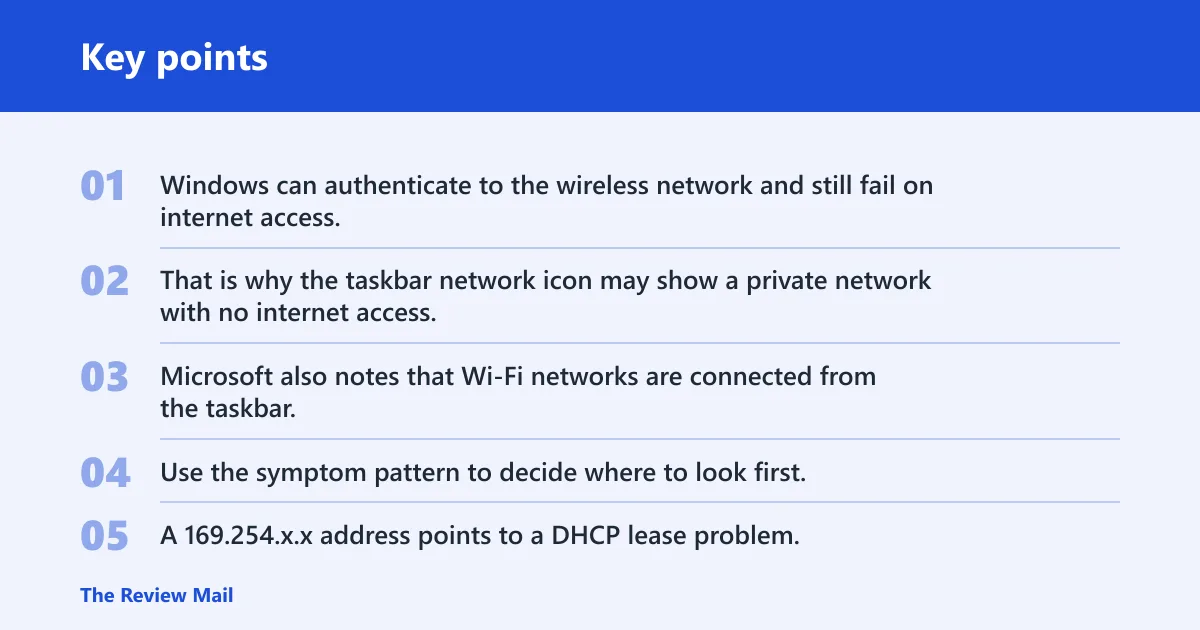
Windows can authenticate to the wireless network and still fail on internet access. That is why the taskbar network icon may show a private network with no internet access. Microsoft also notes that Wi‑Fi networks are connected from the taskbar, so the status there reflects link state first, not a full health check.
When the message points to the failing layer
Use the symptom pattern to decide where to look first. A browser-only failure points to DNS. A 169.254.x.x address points to a DHCP lease problem. If every device on the same Wi‑Fi fails, the router or ISP is more likely. If one PC fails while others work, focus on the PC.
| Symptom | Likely cause | Quickest confirming check | Best first fix |
|---|---|---|---|
| IP address begins with 169.254.x.x | DHCP lease was not issued | Run ipconfig and look for the self-assigned address | Run ipconfig /release and ipconfig /renew |
| Browser sites fail, but some apps still connect | DNS cache or name resolution problem | Try a site by name, then by known IP if available | Run ipconfig /flushdns |
| Other devices work on the same Wi‑Fi | PC-side issue: driver, VPN, TCP/IP, or Winsock | Check whether the phone or tablet reaches the same site | Turn off VPN, then reset Winsock and TCP/IP |
| VPN or virtual adapter is present | Traffic is being rerouted or blocked by a VPN client | Look in Network Connections or Device Manager for extra adapters | Disable the VPN client for testing |
Is the problem your PC or the router?
The first branch is simple: check whether other devices on the same network have internet access. If they do, the fault is probably on the Windows PC. If they do not, stop chasing Windows settings and check the router, modem, or ISP status first. A power cycle is worth doing early.
Check the whole network first
Cisco notes that Wi‑Fi internet connectivity runs through a wireless router, so the router can fail even when the local wireless link stays up. If a laptop, phone, and tablet all lose access at once, power-cycle the router and modem. That clears many temporary router faults without changing Windows settings.
Watch for post-sleep and post-update failures
Lapsolve identifies Windows Update and driver update timing as common triggers. A laptop that worked before sleep and breaks afterward often points to a driver or network stack issue rather than a bad password. Say your PC reconnects after waking, shows full bars, and then every browser times out while the phone still works; that pattern fits a PC-side fault more than a router outage.
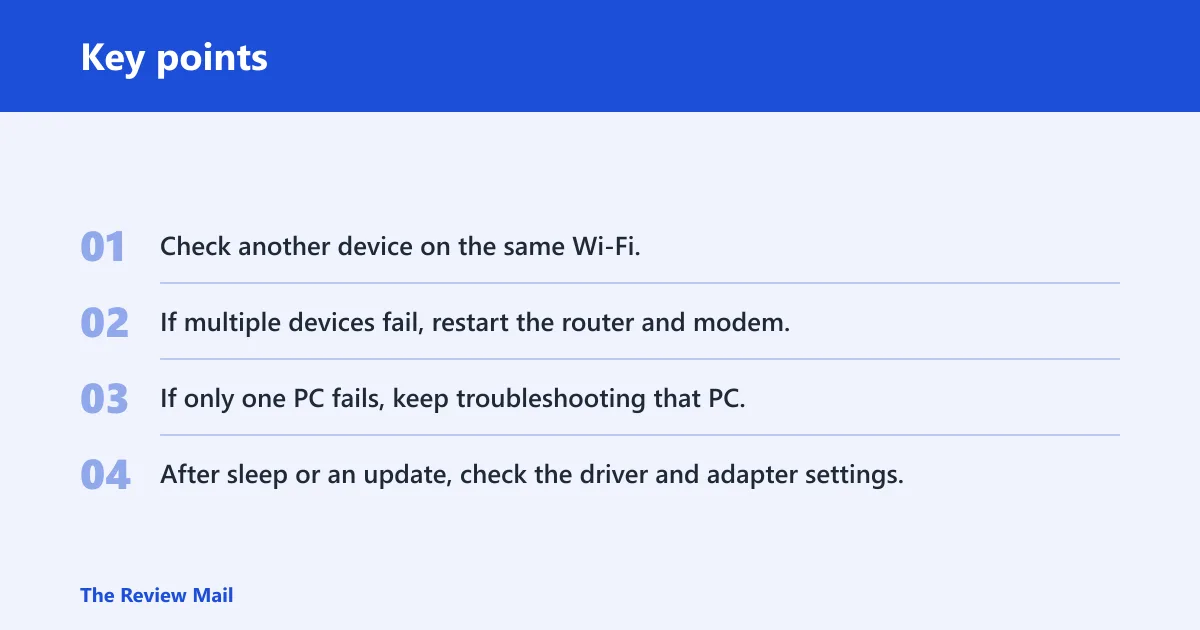
- Check another device on the same Wi‑Fi.
- If multiple devices fail, restart the router and modem.
- If only one PC fails, keep troubleshooting that PC.
- After sleep or an update, check the driver and adapter settings.
Check DHCP and IP assignment
DHCP assigns your device’s IP address. If that lease is stuck, expired, or invalid, Windows may stay connected to Wi‑Fi but lose internet access. This is one of the fastest checks to run because the address itself can reveal the failure. Look for a normal router-supplied IP first. (Wikipedia)
Find the current IP address
Open Command Prompt and run ipconfig. If the wireless adapter shows an address in your home or office network range, the lease may be valid. If it shows 169.254.x.x, that is a self-assigned address. Lapsolve says that pattern means no DHCP lease was issued.
Renew the lease
Run ipconfig /release and then ipconfig /renew. Appuals and TechViral both list those commands among the standard fixes. If renewal gives a normal address and browsing returns, the problem was likely the lease. If it returns to 169.254.x.x, the DHCP side is still failing.
When the lease points to the router
If several devices are failing and one or more of them show bad leases, the router’s DHCP service may be the weak point. In that case, reboot the router before changing Windows settings. If the router keeps handing out invalid leases after a restart, contact the router admin or ISP.
Could DNS, VPN, or IPv6 be blocking traffic?
Yes. A browser-only failure often points to DNS, while a VPN client can intercept traffic even though Wi‑Fi stays connected. IPv6 can also trigger compatibility problems on some routers. Test each one briefly, then reverse the change if it does not help.
Flush the DNS cache
Run ipconfig /flushdns. If browser names such as site addresses stop resolving but apps still reach services by other routes, stale DNS is a strong suspect. Appuals and TechViral both recommend flushing DNS as part of the standard repair set.
Turn off VPN clients and look for virtual adapters
Disable any VPN client for testing. Some VPNs install virtual adapters, which can stay active even after the main app is closed. If the VPN was redirecting traffic or injecting a bad route, connectivity can return as soon as the VPN is off. Turn it back on only if it is not the cause.
Test IPv6 carefully
IPv6 is worth testing when the PC alone fails and the router or VPN check does not help. Temporarily disabling IPv6 on the Wi‑Fi adapter can reveal a compatibility issue on certain routers. Do not leave it off permanently unless you have a clear reason and the network works reliably without it.
Suppose your browser opens the router’s local admin page but public sites fail, while another laptop on the same Wi‑Fi still reaches the web. That pattern makes DNS or a local adapter conflict more likely than a total outage. A temporary IPv6 test is reasonable there; it is a distraction when every device on the network is down.
Repair Windows networking
If DHCP, DNS, and VPN checks do not settle it, reset the Windows networking stack. Appuals recommends netsh winsock reset and netsh int ip reset. Those commands repair core network catalog and TCP/IP settings that can become corrupted after updates, sleep, or driver changes.
Reset Winsock and TCP/IP
Run netsh winsock reset, then netsh int ip reset. Winsock affects how Windows networking components talk to each other. The TCP/IP stack handles the core IP configuration. After both commands, restart the PC so the changes take effect.
Use Network reset if simpler fixes fail
Windows 10 and Windows 11 include Network reset in settings, and Appuals lists it under Advanced network settings. This step removes saved networks and related settings. It is useful when lower-level repairs fail, but it is also more disruptive than a DNS flush or lease renewal.
What this reset does and does not fix
Network reset can clear corrupted adapters, saved credentials, and broken network profiles. It will not fix a dead router, an ISP outage, or a bad physical wireless signal. Microsoft also notes that if you do not see a network, you can refresh the network list, which is useful when the adapter is not showing nearby Wi‑Fi at all. (Microsoft Support)
Should you update the Wi‑Fi driver?
Yes, if the problem stays on one PC after the router and lease checks. The Wi‑Fi adapter driver can be outdated or damaged, and it often appears in Device Manager under Network Adapters. Driver trouble is common after Windows Update or a driver update, especially when the issue starts after sleep.
Find the adapter in Device Manager
Open Device Manager and look under Network Adapters. Find the wireless adapter name, then check whether Windows flags it with a warning icon. If the adapter looks wrong, start with an update. If that does not help, uninstall the adapter and let Windows reinstall it after a restart.
Update before you reinstall
Updating the driver is the safer first move because it may fix a compatibility issue without removing settings. If the driver seems corrupted or the update does nothing, reinstalling the adapter can clear a broken installation. Afterward, test the Wi‑Fi connection again before trying more changes.
What to do if wifi says no internet secured
Start with the symptom split, not random fixes. If other devices on the same Wi‑Fi fail, restart the router and modem, then contact the ISP if the outage remains. If only one Windows PC fails, check the IP address, flush DNS, turn off VPN software, and then move to Winsock, TCP/IP, and the driver.
Quick decision tree
A common quick order is to confirm other devices, check for 169.254.x.x, flush DNS, disable VPN, test IPv6 briefly, reset Winsock and TCP/IP, then use Network reset and the driver tools. That order separates router-side faults from PC-side faults before you spend time on deeper changes.
- If multiple devices fail, stop and check the router or ISP.
- If one PC fails, check DHCP and DNS first.
- If the issue follows sleep or a Windows update, focus on the driver and network stack.
- If a VPN is installed, disable it for testing before changing router settings.
Frequently asked questions
Why does wifi connection say no internet secured?
Windows says this when the PC has joined the wireless network but cannot reach the internet. The Wi‑Fi link may still be valid, so the taskbar can show a connected private network while browsing fails. The likely cause may be DHCP, DNS, a VPN, a driver problem, or the router itself.
What does it mean when wifi says no internet secured?
It means the device is on Wi‑Fi, but internet access is not working through that connection. The status does not tell you whether the fault is on the PC or the router. Other devices working on the same network usually point to the PC; multiple failures usually point to the router or ISP.
Can’t connect to wifi no internet secured
If you can join the network but cannot actually browse, the connection is incomplete. Check whether the PC has a normal IP address, then renew the DHCP lease and flush DNS. If several devices are affected, restart the router and modem first, because the fault may not be on Windows at all.
Why does my wifi say no internet secured?
The message appears when Windows can connect to the Wi‑Fi network but cannot pass traffic to the internet. Common reasons include a bad DHCP lease, corrupted DNS cache, VPN interference, an IPv6 compatibility issue, or a failing router. The fastest clue is whether other devices on the same Wi‑Fi still work.
Why is wifi no internet secured?
It usually means the wireless link is fine but the internet path is broken somewhere after login. A browser-only failure points toward DNS, while a 169.254.x.x address points toward DHCP. If the issue started after sleep or a Windows update, the adapter driver or network stack is worth checking early.
Why does my wifi on pc say no internet secured?
When only the PC shows the warning, the problem is usually local to that machine. Check the Wi‑Fi adapter driver, turn off VPN software, and reset Winsock and TCP/IP if needed. If another device on the same network still reaches the web, the router is less likely to be the cause.