Duplicate Screen Not Detected
Windows usually fails to duplicate because the display is set to Extend or the adapter cannot mirror that resolution; start by pressing Win+P and choosing Duplicate, then compare the TV or projector’s supported modes with your GPU output. Skip that, and you can waste time on cable swaps, wrong drivers, or a dock that cannot mirror output at all. This guide separates Windows settings, adapter limits, and hardware detection faults so you can fix the right layer first.
Quick decision table for duplicate screen
Use this table to sort the fault before you change settings at random. Match the symptom you see to the most likely cause, then follow the next check in order. That keeps duplicate-mode failures separate from plain detection failures.
| Symptom | Most likely cause | Next best check |
|---|---|---|
| Windows sees the display but Duplicate is missing | Projection mode mismatch or GPU control-panel override | Press Windows + P, then check Display settings > Multiple displays and the graphics vendor tool |
| Extend works, but mirroring does not | The external display does not accept the current mirrored mode | Try a lower resolution and refresh rate, then test Duplicate again |
| USB-C to HDMI adapter not detected | The USB-C port may not carry video, or the adapter is incompatible | Use another USB-C port, or confirm the port supports display output |
| TV detected but black screen | Wrong TV input, bad handshake, or unsupported mode | Match the TV input to HDMI, then swap cable or port and try another resolution |
| Projector shows no signal | Wrong projector input or cable path problem | Check the projector source selection and test the cable on another port |
| Second display appears only after reboot | Driver or dock handshake problem | Reconnect the cable, then update or roll back the graphics driver |
| Display flashes once, then disappears | Loose cable, weak adapter, or marginal port | Move to a different port and try a known-good cable |
| Windows detects the monitor, but audio or video is unstable | Signal quality problem or bandwidth limit | Test a lower resolution or swap from a dock to a direct cable |
| Duplicate works on one monitor but not another | The failing display has stricter input or mode limits | Check that display’s supported input and try a different source setting |
| Wireless display connects but stutters badly | Miracast-style wireless delay or weak network conditions | Use a wired connection for lower latency, or move closer to the receiver |
| Windows 11 shows the display in Settings but not in projection | Projection mode is set wrong or blocked by vendor settings | Open Windows + P, then check NVIDIA, AMD, or Intel display controls |
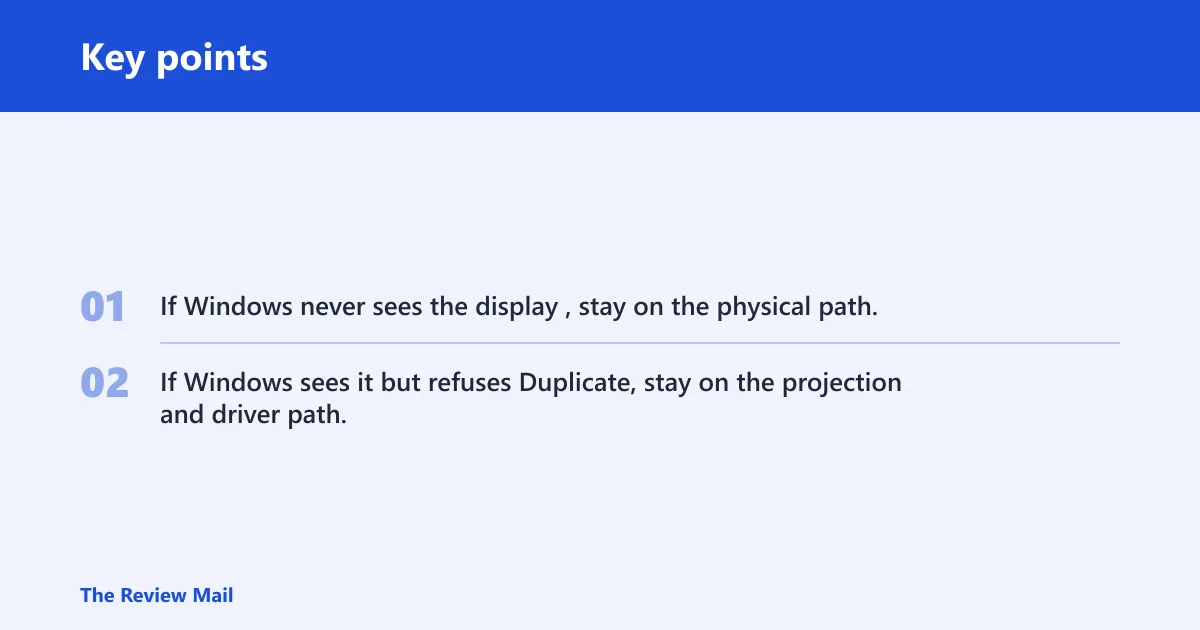
Use the table as a fork in the road. If Windows never sees the display, stay on the physical path. If Windows sees it but refuses Duplicate, stay on the projection and driver path.
Why is Duplicate missing?
When Duplicate is missing, the problem is often not detection at all. Windows may already see the display, but the current projection mode, the graphics driver, or the GPU vendor panel is blocking mirror output. Start with Windows + P, then move into display settings and driver controls if Extend works.
Check the projection mode first
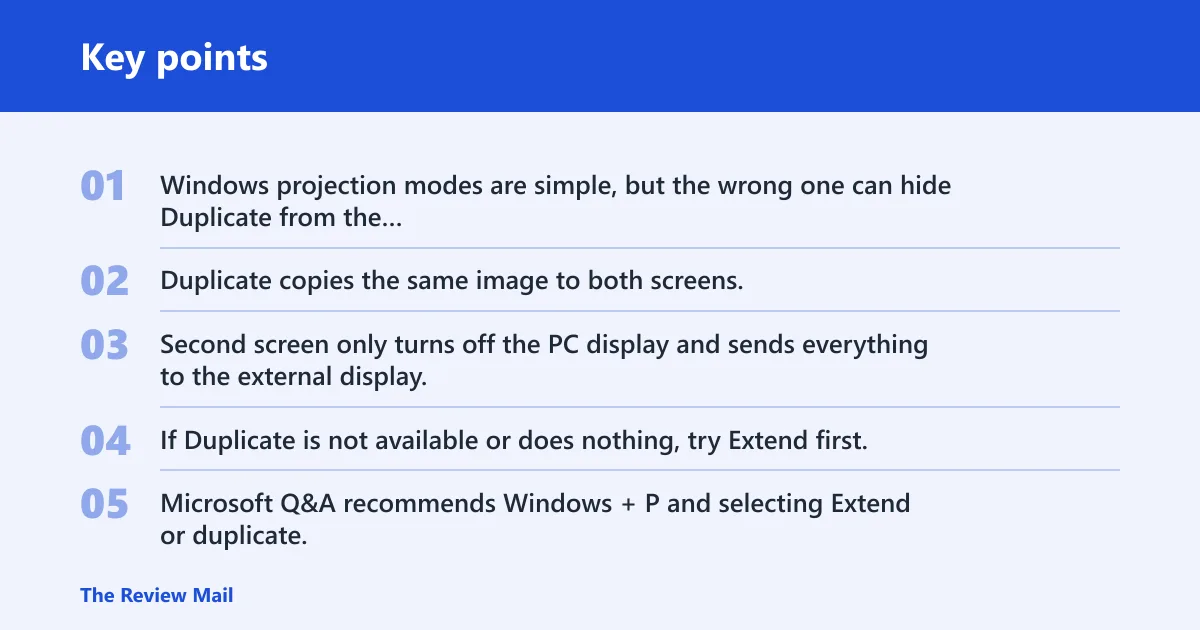
Windows projection modes are simple, but the wrong one can hide Duplicate from the user’s current workflow. Duplicate copies the same image to both screens. Extend gives each screen its own desktop. PC screen only uses the main display. Second screen only turns off the PC display and sends everything to the external display.
Press Windows + P and choose Duplicate. If Duplicate is not available or does nothing, try Extend first, confirm the display appears, then move on to settings and driver checks. Microsoft Q&A recommends Windows + P and selecting Extend or duplicate, which is the fastest way to separate a mode problem from a cable problem. (Microsoft Learn)
Use Display settings to confirm what Windows sees
Open Settings > System > Display in Windows 11. On Windows 10, the path is the same display page under Settings. Scroll to Multiple displays. There you can use Detect to ask Windows to look again, and Identify to show which physical screen is which. wikiHow directs users to Settings > System > Display > Detect, and Windows Central says Windows Settings can manually detect displays. (Microsoft Learn)
If the screen appears in settings but Duplicate is missing, the issue is usually above the cable layer. That is where GPU tools and driver state matter.
Watch for GPU panel overrides
NVIDIA users should check Set up multiple displays in the NVIDIA Control Panel. The same source notes that this setting can matter when Windows appears correct but projection choices still fail. AMD and Intel control panels can also manage display behavior, and those settings can override what Windows shows in the projection menu.
Suppose a laptop shows an external 24-inch monitor in Display settings, but Windows + P will only offer Extend. That points away from cable detection and toward a mode or driver limitation. A vendor panel check is the next logical step.
Check the display path first
Power, source selection, and cable path come before any software change. Windows Central recommends checking physical cable connections and AC power first, and also checking the display’s input source such as HDMI or DisplayPort. That applies to monitors, TVs, and projectors alike, but the source menu differs on each device.
- Turn on the monitor, TV, or projector.
- Confirm AC power is connected where the device needs it.
- Select the exact input source that matches the cable in use.
- Reconnect the cable at both ends.
- Try another port or another known-good cable.
Damaged cables can prevent the monitor from turning on or receiving signals, so a cable that looks fine can still fail under load. If the display never wakes up, do not jump straight to drivers.
Picture a projector connected by HDMI in a conference room. The laptop is set to Duplicate, but the projector still says no signal. In that case, the projector’s source menu and the cable path are more likely than Windows itself.
How do you show Duplicate in Windows?
Open Windows + P and choose Duplicate first. If that fails, open Display settings and use the Multiple displays controls to detect the screen, identify which display is which, and review the mode dropdown. If Extend works but Duplicate does not, the display is usually detected but rejecting the mirrored mode.
Use Windows 10 and Windows 11 paths correctly
In Windows 10 and Windows 11, the path is Settings > System > Display. Find Multiple displays. There you can choose the display mode from the dropdown, use Detect, and click Identify if you need to match the physical screens to the on-screen labels. F9 and F4 on many laptops do not matter here; the Windows projection menu does.
If the display shows up in Settings but mirror mode still fails, reduce the external display’s resolution or refresh rate and try again. Some adapters and docks can carry a second display in Extend mode but fail when asked to duplicate a higher-resolution signal.
When Extend works but Duplicate does not
This is the key split that many guides miss. Extend proves the display path can carry a signal. Duplicate failing after that points to mode support, adapter limits, or GPU control settings. It is not the same as a missing display.
A common first-time mistake is to assume “Windows sees it” means “Windows can mirror it.” Those are different checks. A dock may expose the monitor in Windows, yet still refuse Duplicate because it cannot mirror the chosen mode cleanly.
Graphics drivers and vendor tools
Driver state can block Duplicate even when the cable path is sound. Microsoft Q&A advises updating the graphics driver in Device Manager, and Windows Central says driver issues can be addressed through Device Manager. If a recent update made things worse, rollback matters just as much as update.
Use Device Manager before vendor software changes
Open Device Manager, expand the display adapter, and choose Update driver. If the issue began after a driver update, use Roll Back Driver where available. That often separates a bad driver package from a hardware fault.
Do not stop at Windows if the GPU vendor offers its own display controls. NVIDIA Control Panel, AMD software, and Intel graphics tools can each alter display behavior. Microsoft Q&A specifically notes NVIDIA users can check the Set up multiple displays option.
When to suspect the driver
If Duplicate disappears after a driver update, or if the display is detected only after a reboot, the driver is a strong suspect. If another monitor works on the same port, the fault may still be software rather than hardware. If nothing changes across cables and ports, driver rollback is worth trying before deeper hardware swaps.
USB-C, HDMI, and DisplayPort checks
Connection type matters. Not every USB-C port carries display output, and not every adapter can mirror every mode. HDMI and DisplayPort also depend on the display’s input selection, the cable quality, and port compatibility on both ends.
What to check on USB-C video output
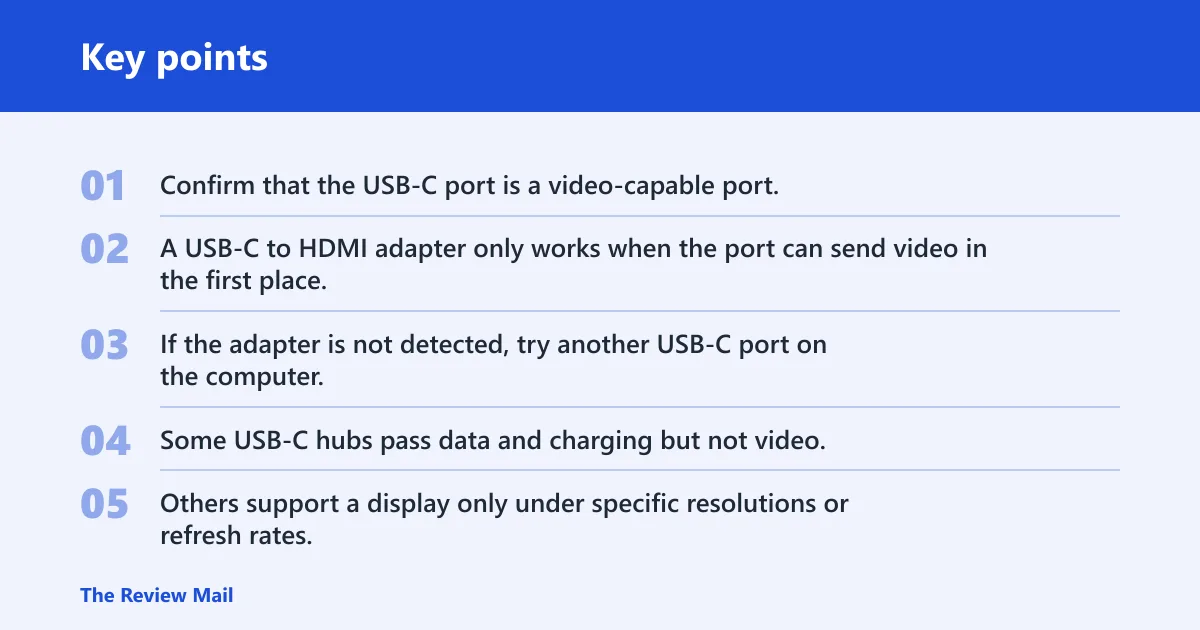
Confirm that the USB-C port is a video-capable port. A USB-C to HDMI adapter only works when the port can send video in the first place. If the adapter is not detected, try another USB-C port on the computer, because one port may support display output while another does not.
Check adapter compatibility too. Some USB-C hubs pass data and charging but not video. Others support a display only under specific resolutions or refresh rates. If the adapter works in one port but not another, the port limitation is likely the issue.
HDMI connection checks
With HDMI, match the TV or monitor input to the cable. Then test cable integrity and another port. The same source recommends checking the input source first, and wikiHow notes damaged cables can block signal and power behavior.
If Duplicate works over a different HDMI cable, the original cable is the fault. If a different HDMI port on the same display fixes it, the port path was the problem.
DisplayPort connection checks
DisplayPort can behave differently from HDMI because of bandwidth and input support. Make sure the external display is set to DisplayPort as the input source, then test another port on the PC or monitor. If one port carries the signal and another does not, you have narrowed the fault without changing anything else.
DisplayPort often handles higher bandwidth than HDMI, but that does not guarantee every dock or monitor will mirror correctly. Use port swap testing to separate cable failure from mode support.
Why is my screen mirror not working on my TV?
TV mirroring usually fails because the TV is on the wrong input, the adapter cannot carry the needed signal, or the TV rejects the current resolution. If Windows detects the TV but the screen stays black, check the TV input first, then lower the output mode and retest Duplicate or Windows + P.
TV detected but black screen
A black screen with the TV still listed in Windows usually means detection succeeded but the signal format did not. Try another HDMI port on the TV, then another cable. If the TV has a mode menu, confirm the source matches the cable in use.
Projector shows no signal
Projectors are especially sensitive to source selection. If the projector says no signal, use its input menu and confirm the cable path from laptop to projector. If a direct cable fails but a different cable works, the original cable or adapter is suspect. If Windows + P still shows Duplicate, the fault is on the hardware path, not the mode menu.
Wireless display with Windows + K
For supported wireless screens, press Windows + K and choose a Miracast-style wireless display option. That can help when a cable path is not available. It is still a projection path, not a magic fix. Latency is common, and some TVs or adapters support wireless mirroring less reliably than wired video.
Use wireless display for convenience, not for checking the HDMI path. A wireless success does not prove the cable path is fixed.
Frequently asked questions
Why is my duplicate screen not working?
Start with Windows + P and pick Duplicate. If that fails, check whether Windows sees the display in Settings > System > Display. When Extend works but Duplicate does not, the issue is often a mode, driver, or adapter limit rather than a missing monitor.
How do I show duplicate screen in Windows?
Press Windows + P and choose Duplicate. If it is missing or ignored, open Display settings, use the Multiple displays dropdown, and run Detect. In Windows 10 and Windows 11, that path is the fastest way to confirm whether Windows can see the display and offer mirror mode.
Why is my duplicate screen not working with HDMI?
HDMI failures often come down to a bad cable, the wrong input source, or a display mode the TV or monitor does not accept. Try another HDMI port, then another cable. If Windows sees the display but Duplicate is absent, also check the graphics driver and GPU vendor panel.
Why is my duplicate display not detected in Windows 11?
Open Settings > System > Display and use Detect. If Windows still does not see it, check the cable, AC power, and the display’s input source. Windows 11 uses the same core display path as Windows 10, so the troubleshooting order is the same.
What should I check if my USB-C to HDMI adapter is not detected?
First confirm that the USB-C port supports video output. Then test another USB-C port, because not every port carries display signal. If the adapter still fails, check whether the adapter itself is compatible with your laptop and display, then try a direct HDMI path if available.